Create coupons
Last updated: August, 2026
Coupons let you offer discounts on memberships to attract new members or reward existing ones, making your offerings more appealing. Here’s how coupons work and how to set them up.
About coupons
Coupons allow you to deliver compelling deals to potential and existing members, enhancing your community's value proposition. You can set up coupons for all paywall prices, including subscriptions, installments, or one-time payments.
Here's an overview of coupon functionality:
Coupon flexibility: Create coupons with either a fixed amount or a percentage discount. You can apply them to all paid events and paywalls or limit them to specific ones. For paywalls with multiple prices, you can even choose which price the coupon applies to.
How members can apply coupons: Members can apply the coupon code you shared by using the Coupon code option when purchasing a paywall, changing plans, or billing cycle.
-
How admins can apply coupons: As an admin, you have additional control over coupon usage. You can:
Share checkout URLs appended with auto-applied coupon codes.
Apply or remove a coupon directly from a member’s subscription or installment purchase.
Add coupons on behalf of a member when assisting with plan changes or billing cycle adjustments.
Key information about 100% coupon discounts
When a coupon covers the full cost of a paywall purchase forever, users won’t have to provide payment details. This applies to all types of paywall pricing, whether it's a one-time fee, subscription, or installment plan.
Here's how it works:
Coupon duration: Users are not required to add their payment method only if the coupon’s duration is set to Forever. However, when a limited-duration coupon (e.g., $20 off for the first month) is applied, users must provide payment details.
Percentage-based coupons: If a coupon covers 100% of the price and the coupon duration is forever, no payment method is required at checkout.
Fixed-amount coupons: If a coupon is set to completely cover the paywall price (e.g., $20 off for a $20/month subscription) and the coupon duration is forever, users won't need to enter payment details.
Create a coupon
💡Tip: Save time on the setup by asking Circle AI to create one or more coupon codes for your community. Simply open a new chat, enter the desired discount and ask it to create a coupon.
To create a new coupon:
Click Payments in the left sidebar and then select Coupons.
Click the New coupon in the top-right corner.
Fill in the information on each tab (see below for detailed guidance).
Once you’ve reviewed the coupon setup, click Create coupon.
Details
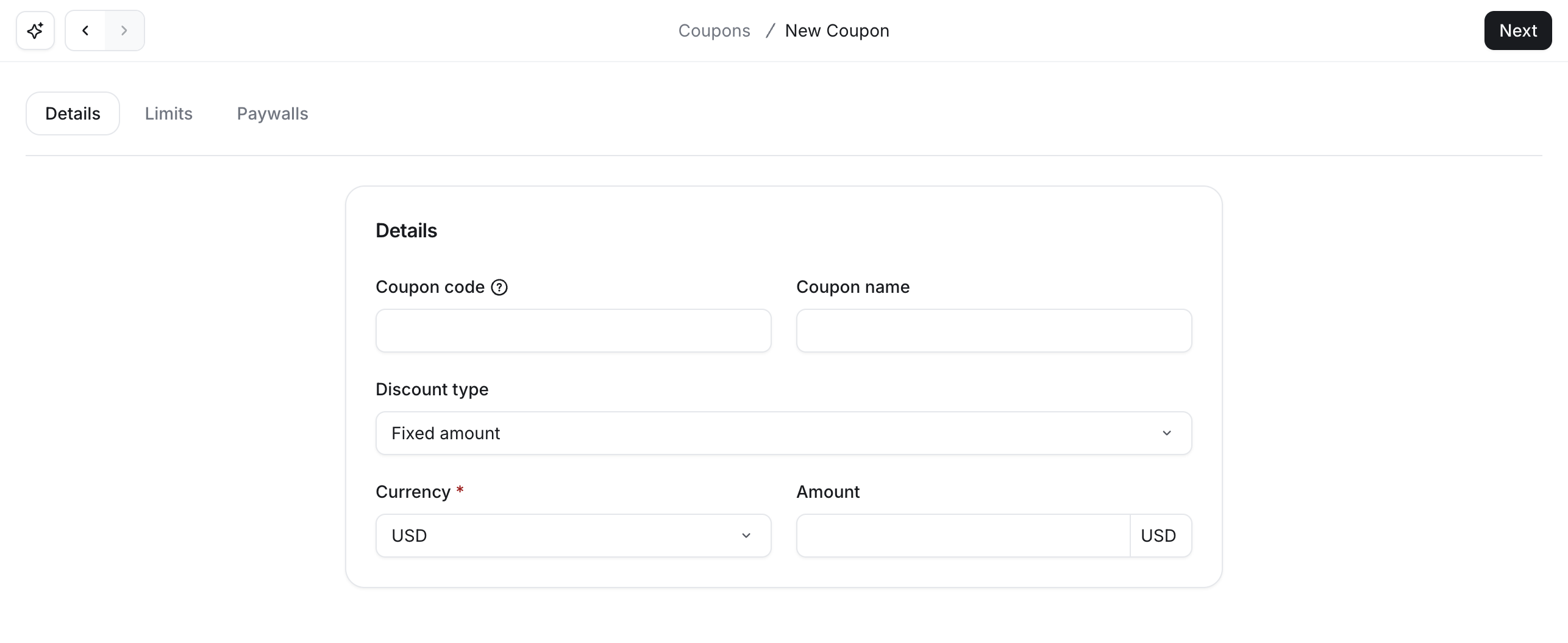
Define the type of discount, amount, and code here.
Coupon code: This is the code your members will enter at checkout to get the discount. Make it short, clear, and easy to remember like WELCOME10 or SAVE25.
Coupon name: This name helps you keep track of what the coupon is for. It won’t be shown to members. For example, “First Month Free” or “Holiday Promo”.
Discount type: Choose whether the coupon gives a fixed amount off (e.g., $10 off) or a percentage off (e.g., 25% off).
Currency: If you have chosen a fixed amount, select the currency in which the coupon will apply. This coupon will only apply to paywall prices that have the same currency you have selected here. If you choose a percentage discount, the coupon will be eligible to apply to paywalls in any currency.
-
Amount: Enter the value of the discount based on the selected discount type.
💡 Tip: To offer a 100% discount on a membership subscription for a specific duration, enter the full paywall price amount (if a fixed amount is chosen) or 100% in the Amount field. For details on configuring coupon duration, refer to the Limits section.
Limits
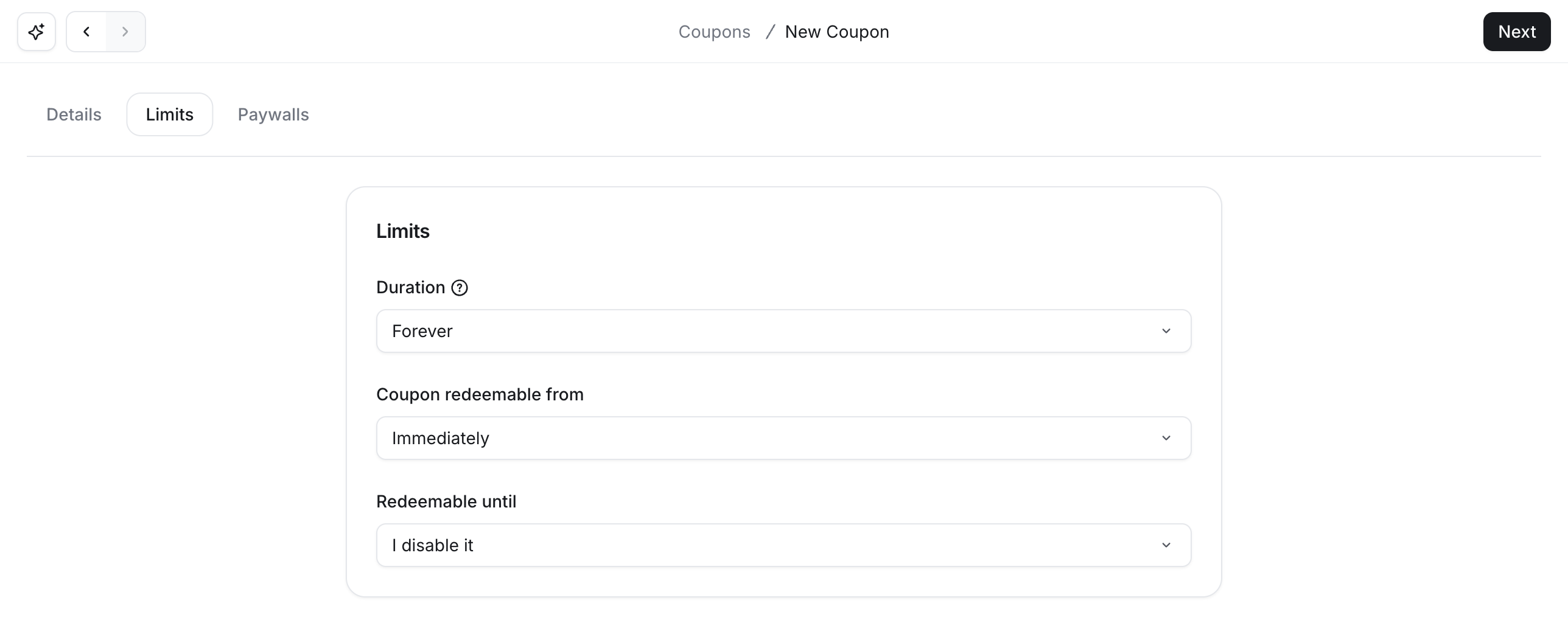
In the Limits tab, define the coupon's Duration and Redeem timing options to control how and when the discount is applied.
-
Duration
Forever: The discount applies to the initial payment and all future subscription payments or installments. This is ideal for offering ongoing discounts on memberships with recurring payments.
Once: The discount is applied only to the initial payment when purchasing a paywall. Perfect for one-time promos like “first month free.”
Repeating: The discount is applied for a specific number of months. In the Number of months field, specify how many months the discount will last. For example, to apply the discount for the first two quarterly payments of a subscription, set the repeat interval to six months (two quarters).
-
Redeem timing
-
Coupon redeemable from: Set the start time for the coupon’s availability:
Immediately: The coupon becomes available for use as soon as it’s created.
A set date: Specify a future date and time when the coupon will become available. The timing is based on the admin’s time zone.
-
Redeemable until: Set the expiration time for the coupon’s validity:
I disable it: The coupon remains active until you manually disable it. You can disable it later by editing the coupon and toggling off the Enable coupon option.
A set date: Specify the date and time for the coupon to expire based on the admin’s timezone.
-
Paywalls
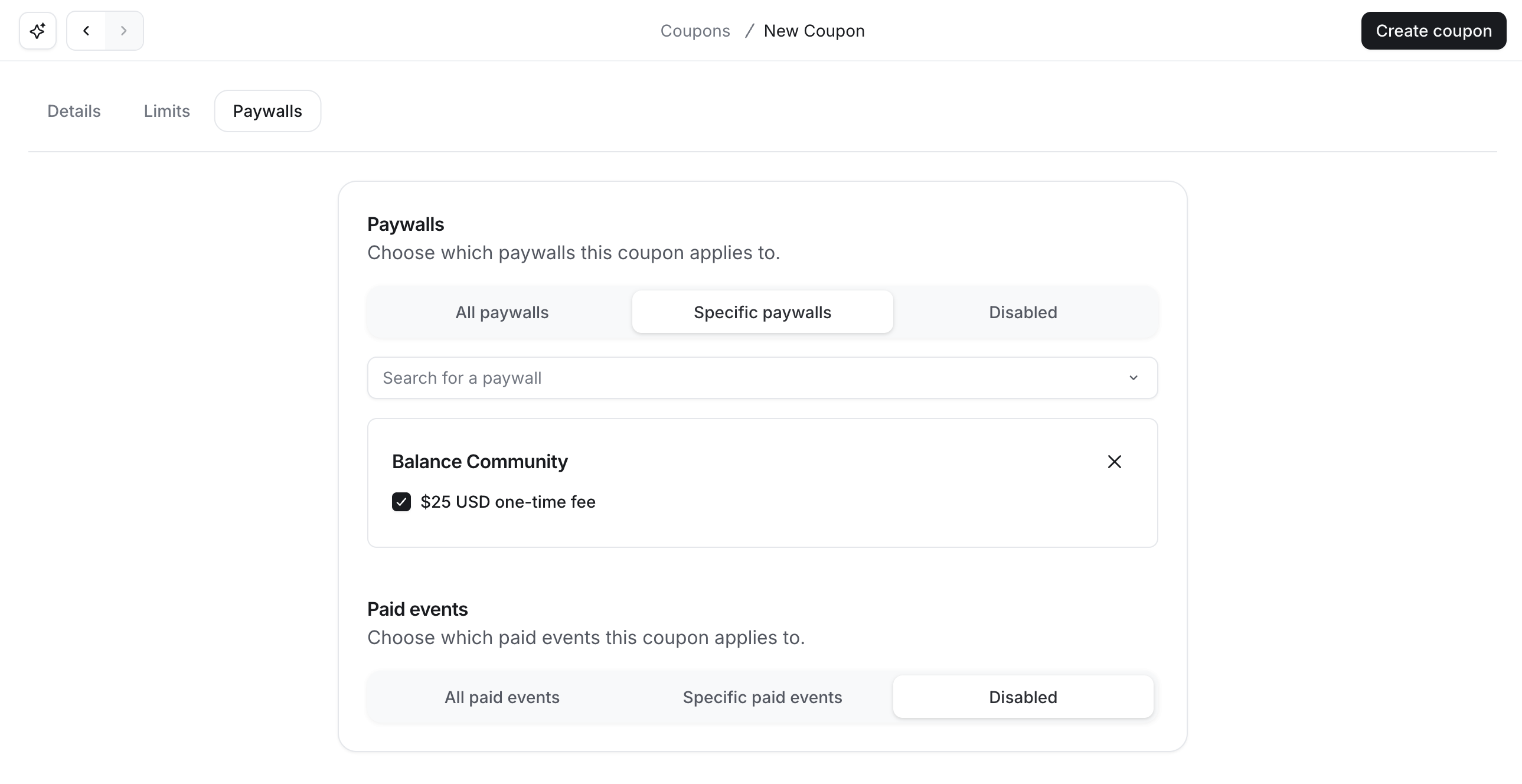
Under the Paywalls tab, you can control where your coupon can be used. You can choose paywalls, paid events, or both options simultaneously. If needed, you can also choose to disable it for either paywalls or paid events individually. This flexibility lets you run broad discounts or highly targeted offers depending on your campaign.
-
Paywalls:
All paywalls: Make the coupon valid across all paywalls. This option provides a more universal discount that applies to your entire community’s offerings.
-
Specific paywalls: Use this option to limit the coupon's applicability to specific paywalls and their prices. Use the dropdown to find the paywall and select it from the list. Repeat the steps to add multiple paywalls.
If you have set multiple prices in the paywall, you can decide which prices are eligible for a coupon. Any price that is not selected will not be eligible for a coupon discount.
Disabled: Choose this if the coupon should not be valid for any paywall.
-
Paid events:
All paid events: Make the coupon valid across all paid events in your community.
Specific paid events: Use this option to limit the coupon's applicability to specific paid events that are published. Use the dropdown to find the event and select it from the list. Repeat the steps to add multiple events.
Disabled: Choose this if the coupon should not be valid for any paid events.
If a paywall or paid event isn’t included in the selections you’ve made, the coupon code won’t work for it. This helps prevent accidental use outside your intended scope.
Share coupon codes
You can offer potential members discounts in two main ways:
Share the coupon code: You can provide users with a coupon code they can manually apply during checkout or when changing their plan or billing cycle. You can copy the code from the Coupons page. Simply locate the desired coupon in the list and copy the code from the Code column.
Share checkout URL with an auto-applied coupon: You can share a checkout URL appended with a coupon code. When users access the checkout page through this URL, the coupon discount is automatically applied, saving them the step of entering the code manually.
Here are a few effective strategies to share your coupon codes or checkout URL with appended coupon code with potential members:
Pricing page: If you created a pricing page using the website builder, you can add coupon code information when running discount offers. Alternatively, you can link the checkout URL with an appended coupon code to the CTA.
Emails: Use Email Hub broadcasts or email workflows to send promotional emails with discount offers. You can also add custom buttons in the email to prominently add checkout URLs.
Community posts: If your community is set to public, you can create a post in one of your open announcement spaces to share the coupon code or checkout URL. This allows non-members and community members to learn about and take advantage of the discount.
Lock screens: You can utilize the description block to add coupon code information.
Workflows: You can also set up a workflow in your community to bulk send direct messages to your members, notifying them of the discount. For instance, you could create a workflow to notify all current members about a limited-time offer for upgrading their membership with the coupon code.