Share a paywall checkout URL with an auto-applied coupon
Last updated: August, 2026
Sharing a paywall checkout URL with an auto-applied coupon simplifies the user experience by seamlessly applying discounts. Here's how it works and what you need to know about auto-applied coupons.
Important details to keep in mind
Getting the URL with the auto-applied coupon
You can generate a checkout URL with an auto-applied coupon in two ways:
Via paywall setup: Use the Auto-apply coupon toggle in the paywall setup to generate a URL with the coupon pre-appended.
Manually: Append the eligible coupon code directly to your checkout URL.
The nature of the auto-apply coupon toggle
The Auto-apply coupon toggle in the paywall setup is designed to quickly create a checkout URL with an auto-applied discount. However, it’s important to understand how it works:
Enabling the toggle and choosing a coupon does not automatically enforce that discount on the checkout page. Discounts will only be applied when users access the checkout page via the special URL with the coupon code appended. If users access the standard checkout URL without the appended code, no discount will be applied automatically.
The toggle resets and turns off automatically once you leave the paywall setup. If you need another checkout URL with a different coupon auto-applied, you can go back to the paywall setup and generate one using the steps described in this article.
Flexibility in URL usage
You are not limited to only one auto-applied coupon. This feature provides significant flexibility in how you manage and share checkout URLs for the same paywall:
Without discounts: To offer full-price purchases, share the standard checkout URL without any coupon code appended. You can get this standard URL from the Paywalls page. Simply locate the desired paywall in the list and click the Copy link next to it.
With discounts: Share the URL with the appended coupon code when you want users to receive a discount.
If you’re running multiple promotions, you can create various checkout URLs for different coupon codes. You can then store these URLs in a document or note for quick access and share them with the appropriate audience based on the discount you want to offer.
For example:
A standard checkout URL without any coupon code: https://yourcommunity.circle.so/checkout.
A URL with a 10% discount applied: https://yourcommunity.circle.so/checkout?coupon_code=10OFF.
A URL with a 25% discount applied: https://yourcommunity.circle.so/checkout?coupon_code=25OFF.
Coupon eligibility
For a coupon to be auto-applied:
It must be active.
It must be applicable to the paywall where the purchase is being made. When creating a coupon, you can choose to apply it to all paywalls or to specific paywalls. If a coupon is restricted to specific paywalls, it will only work when appended to the checkout URL for those paywalls.
Get the Checkout URL with the appended coupon code
Let’s explore methods to generate a checkout URL with an auto-applied coupon.
Generate the URL from the paywall setup
When creating or editing a paywall, you have the option to generate a checkout URL with a coupon already appended.
ℹ️ Note: If you plan to add a custom slug in the Checkout URL field, please do so before enabling the Auto-apply coupon toggle to ensure the coupon is appended correctly.
To generate the URL, follow these steps:
Click Payments in the left sidebar and then select Paywalls.
Create a new paywall or click the More actions (three dots) icon on an existing paywall and select Edit.
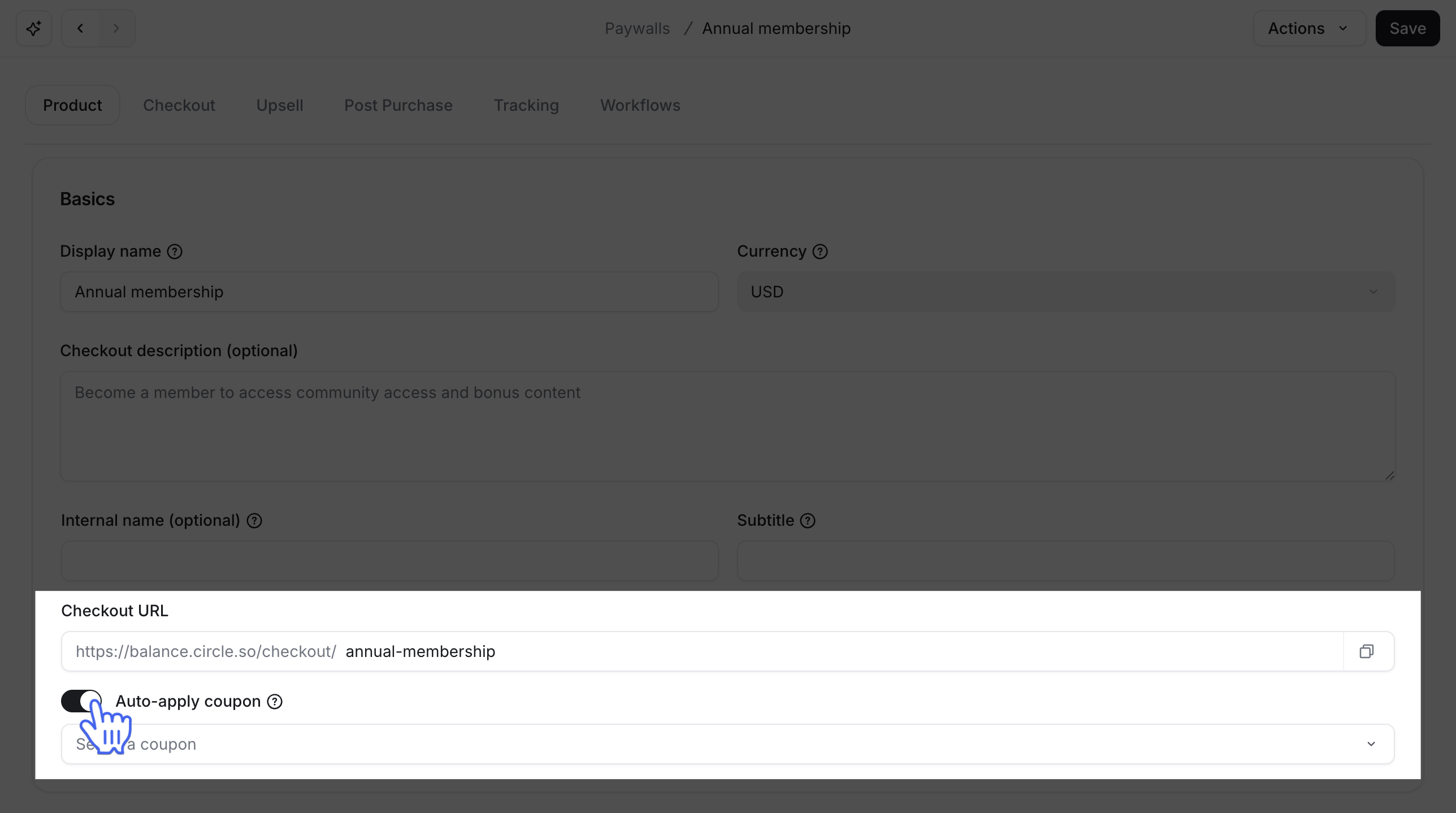
Select the Product tab and locate the Checkout URL.
-
Under the Checkout URL field, toggle on Auto-apply coupon.
Select the desired coupon from the dropdown menu that appears under the toggle.
Click Save.
-
Then click Copy next to the Checkout URL field to copy the updated URL to your clipboard.

Manually append the coupon code to the checkout URL
You can manually create a checkout URL with an appended coupon code by adding ?coupon_code=[Enter your coupon code here] to the end of your standard checkout URL.
Example:
Standard checkout URL: https://yourcommunity.circle.so/checkout/basic-membership
Coupon code: EARLYBIRD
New URL with auto-applied coupon: https://yourcommunity.circle.so/checkout/basic-membership?coupon_code=EARLYBIRD
Sharing checkout URL with auto-applied coupon
Once you’ve generated the URL (using either method), you can share it with members to offer a discount. When members use this URL:
The coupon is automatically applied to their checkout page.
-
Members can choose to remove the coupon or replace it with another valid coupon code if they have one.