Manage coupons
Last updated: November, 2026
Need to make changes to an existing coupon? Whether you want to update the coupon, deactivate it, or remove it entirely, you can manage everything from the Coupons page.
Access the coupons page
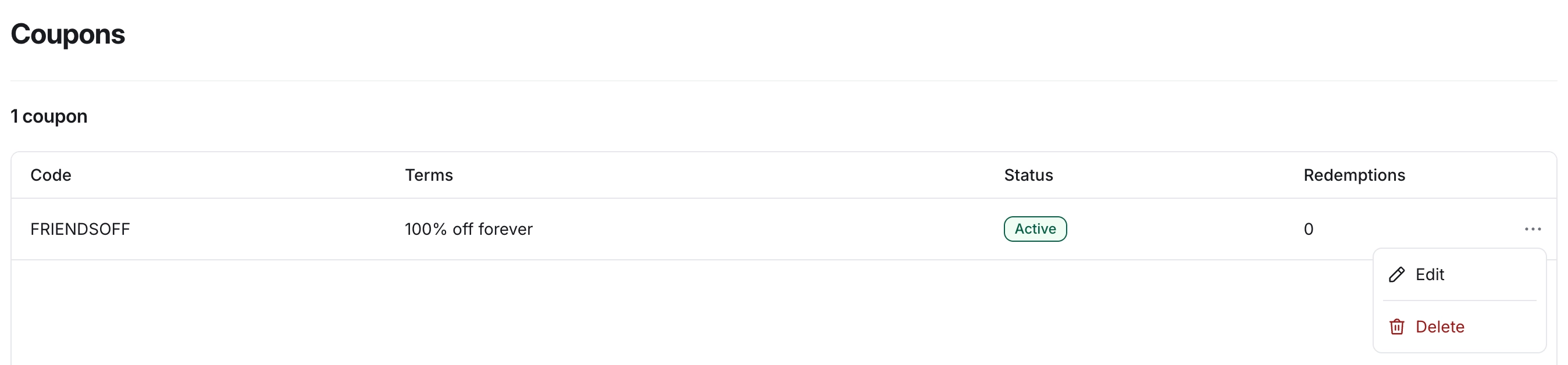
To access your coupons, click Payments in the left sidebar, then select Coupons. You’ll see a list of all your coupons, automatically sorted by oldest to newest. Each entry includes the following details:
Code: The coupon code. You can copy the code directly from here.
Terms: The discount terms you set for the coupon (e.g., percentage or amount and duration).
Status: Indicates whether the coupon is active or inactive.
Redemptions: Displays how many times the coupon has been used.
More actions (three dots): Hover over an entry to reveal the three dots icon, which you can click to access the edit and delete options.
Filter your coupons
If you have many coupons, use the filter bar above the coupons table to quickly find the right one.
Click Filters on the right corner to use the filter bar.
From the filter bar, choose a filter: Coupon code, Coupon name, Terms (forever, once, repeating), Type (percentage, fixed amount), Duration, Expiration date, Created at, or Applicable paywalls.
Add more filters to combine them.
💡 Tip: Duration filters repeating coupons by number of months.
💡 Tip: Your filters are saved in the page URL. Bookmark or share the URL to return to the same filtered view.
Update coupons
You can make changes to most parts of a coupon, even after it’s been created. This helps if you need to adjust your offer mid-campaign, update limits, or update which paywalls it applies to. To edit a coupon:
Click Payments in the left sidebar, then select Coupons.
Hover over the coupon you want to update.
Click More actions (three dots) and select Edit.
Once you have reviewed the changes, go to the last tab and click Save changes.
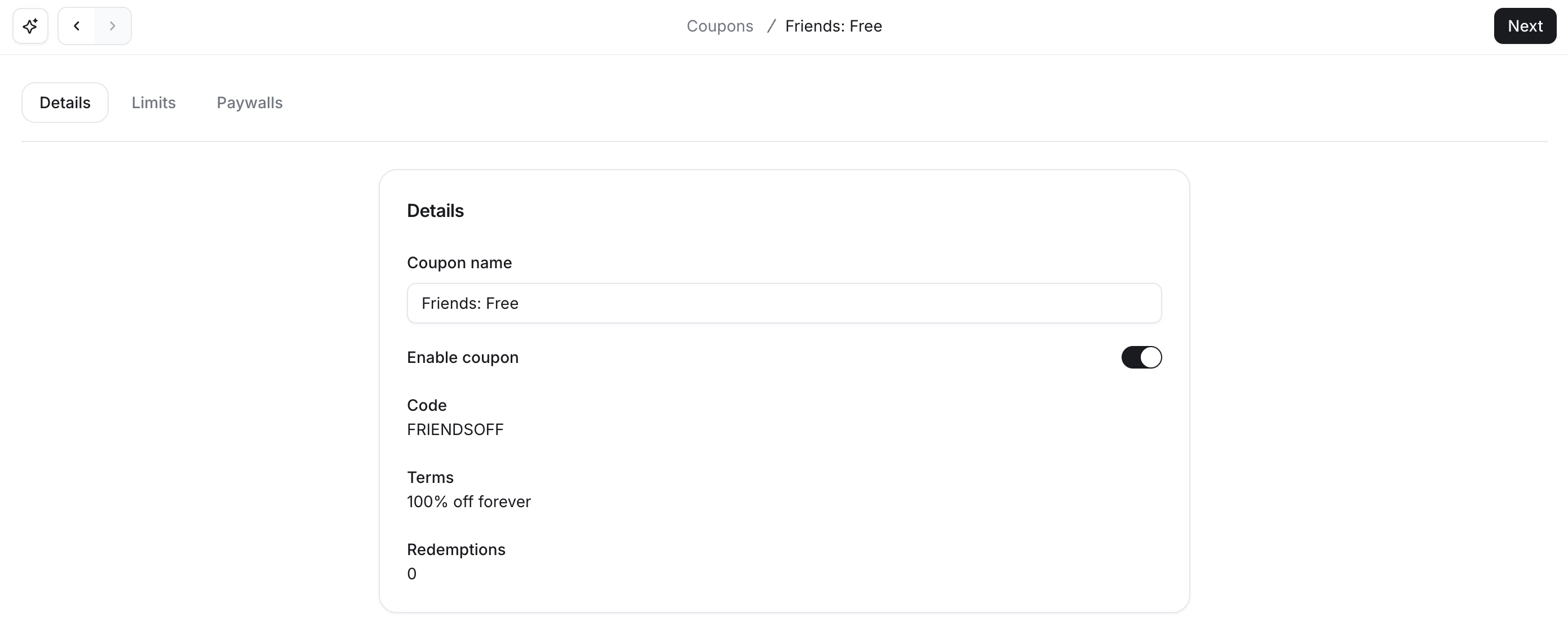
In the coupon editor, you can modify the following:
-
Details:
Coupon name: Update the internal name to better align with your promotional campaigns.
Enable coupon: Use the Enable coupon toggle to make the coupon active or inactive.
Limits: Adjust the redeemable from and redeemable until options.
Paywalls: Adjust which paywalls and paid events the coupon can be applied to.
Deactivate coupons
Deactivating a coupon makes it temporarily unavailable without deleting it. This is helpful when you want to pause a promotion but might bring it back later, like during off-seasons or between launches. To deactivate a coupon:
To deactivate a coupon:
Click Payments in the left sidebar, then select Coupons.
Hover over the coupon you want to update.
Click the More actions (three dots) and select Edit.
-
In the Details tab, turn off the Enable coupon toggle.
Once you have reviewed the changes, go to the last tab and click Save changes.
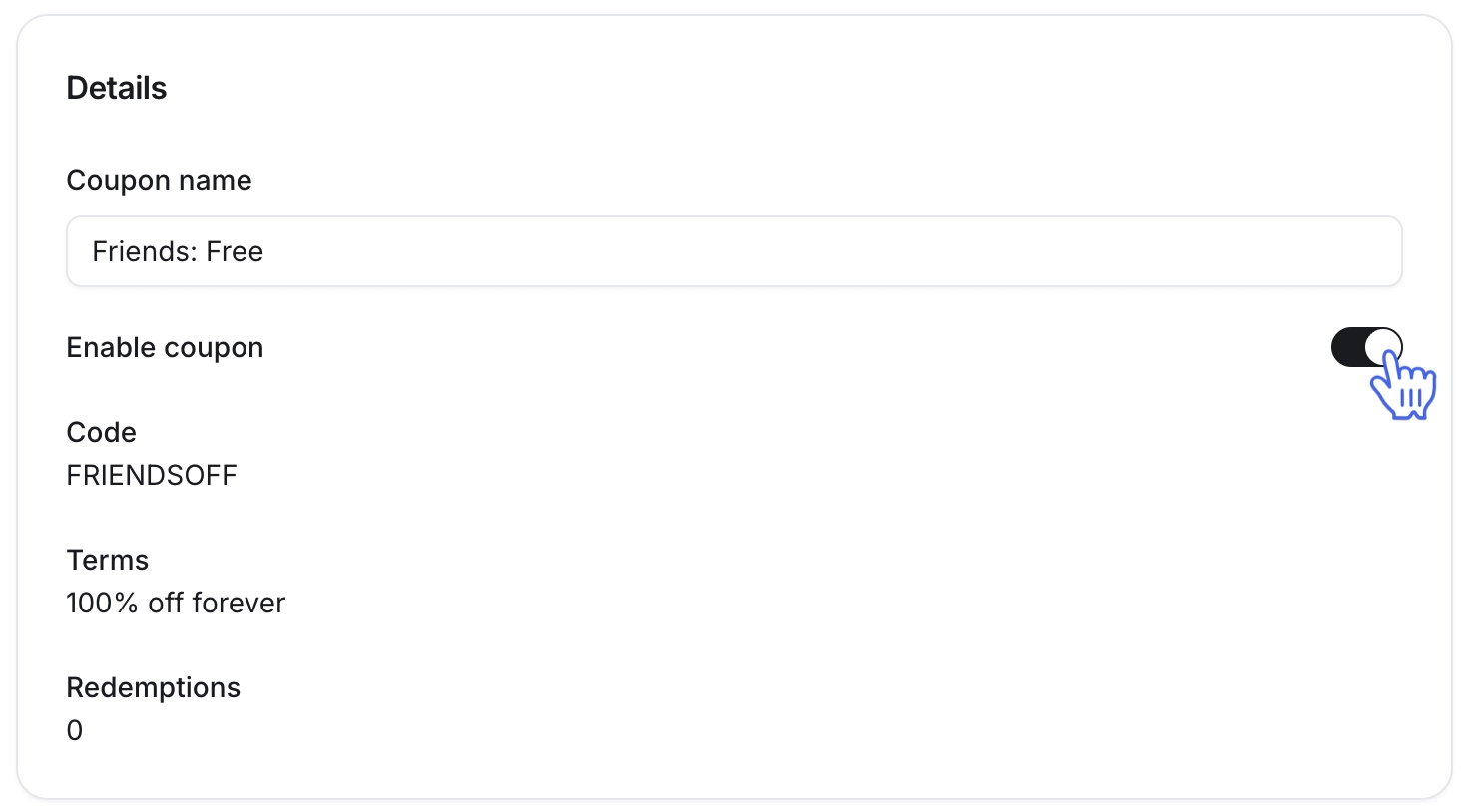
ℹ️ Note: You can re-enable it anytime by switching the toggle back on.
What happens when you deactivate a coupon:
The coupon code will no longer work for new redemptions.
Any existing purchases with a coupon already applied will remain discounted.
If you need to remove the discount from a member's existing subscription or payment plan, you can do so from the Billing tab in their profile.
Delete coupons
Deleting a coupon removes it permanently. Use this when you no longer want the coupon to be available at all. To delete a coupon:
Click Payments in the left sidebar, then select Coupons.
Hover over the coupon you want to remove.
Click More actions (three dots) and select Delete.
What happens when you delete a coupon:
The coupon code will no longer be available for new applications.
Any past purchases where a coupon has already been applied will remain discounted.
If you need to remove the discount from a member's existing subscription or payment plan, you can do so from the Billing tab in their profile.