Getting started with Circle AI
Last updated: October, 2026
Circle AI’s conversational workspace lets you build and manage your community using plain-language prompts. Simply tell the AI what you want to do, and it can take actions on your behalf.
You can use it to create spaces and space groups, draft content or generate images, invite and organize members, edit community settings, get support with your community, and much more.
❗️Important: Circle AI conversations don't carry over between communities. If you’re an admin of more than one community, each one keeps its own Circle AI conversations and context.
Access Circle AI
The Circle AI home page is your main workspace for building and managing your community.
There are two ways to access Circle AI:
-
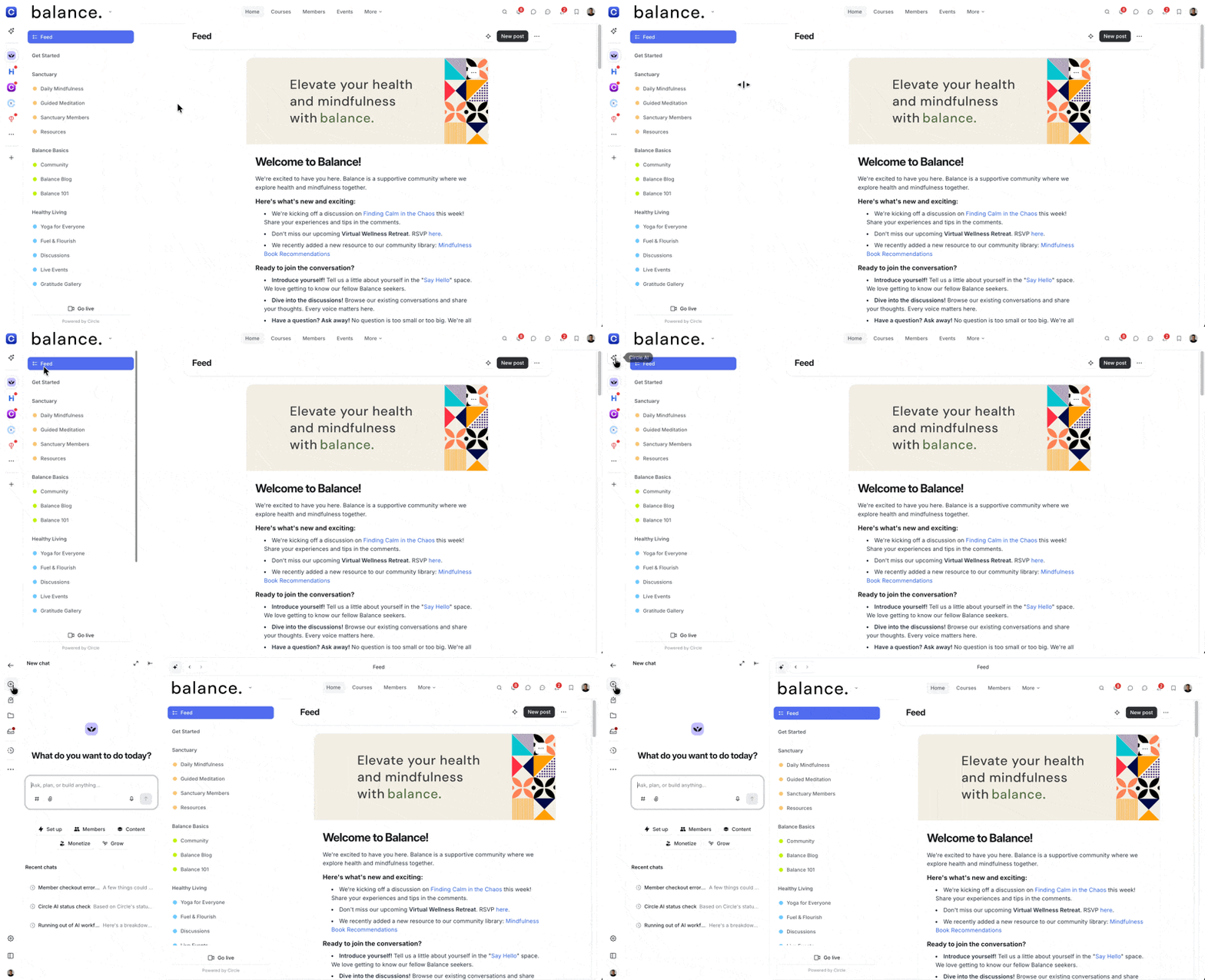
Through the community switcher: Click the Circle AI icon at the top of the community switcher to open the AI workspace in the left sidebar.
-
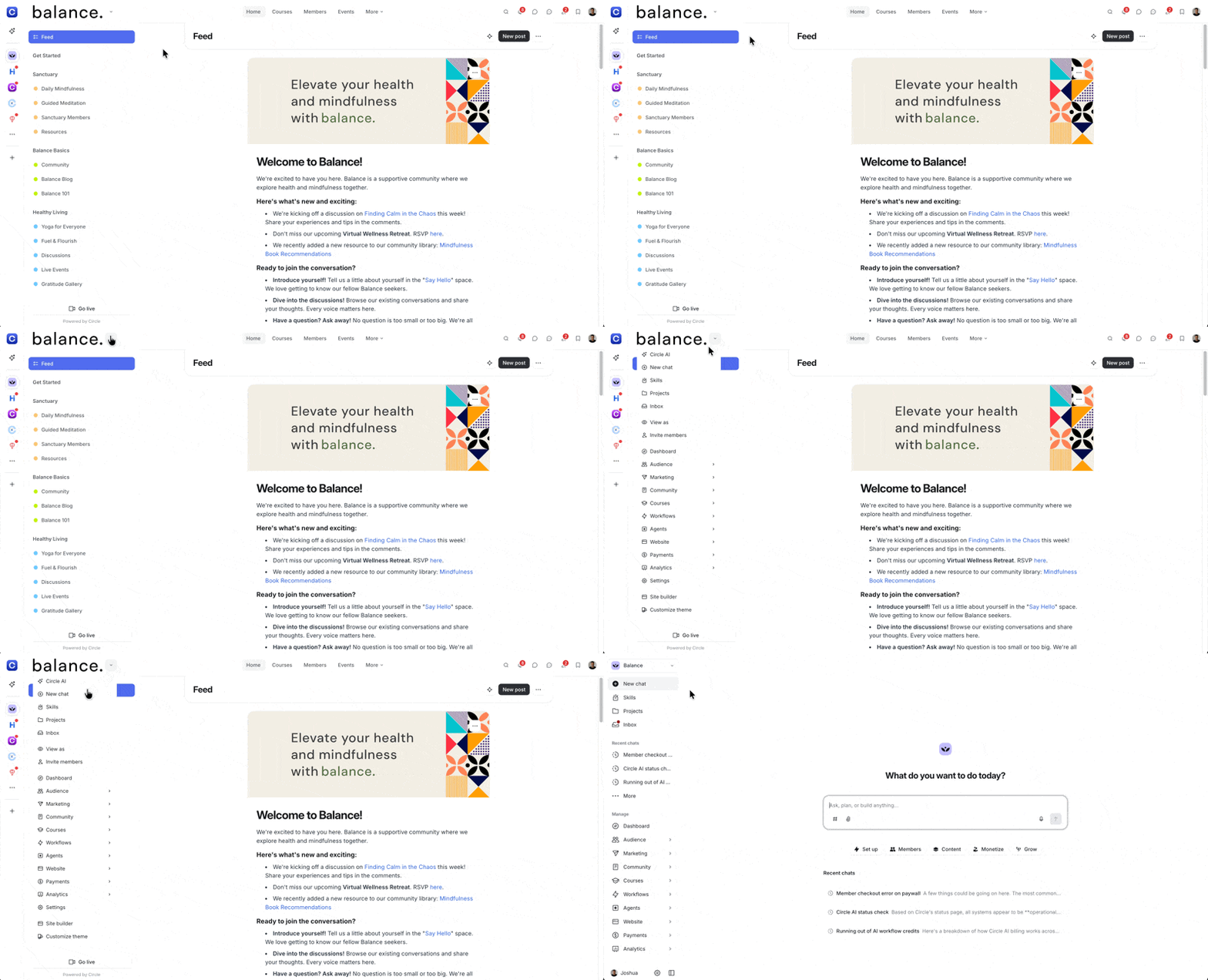
Through the community home page: Click the dropdown icon next to your community name (or logo) in the top-left corner and select Circle AI or New chat.
Understanding the Circle AI workspace
Circle AI is there when you need it and stays out of the way when you want to manage your community manually.
In this section, we’ll take a look at the components of the Circle AI workspace.
Chat window
The chat window in the center of the workspace is where you input your requests and interact with Circle AI. Click the # icon to reference spaces, posts, events, and lessons, or click the paperclip icon to attach a file to your prompt.
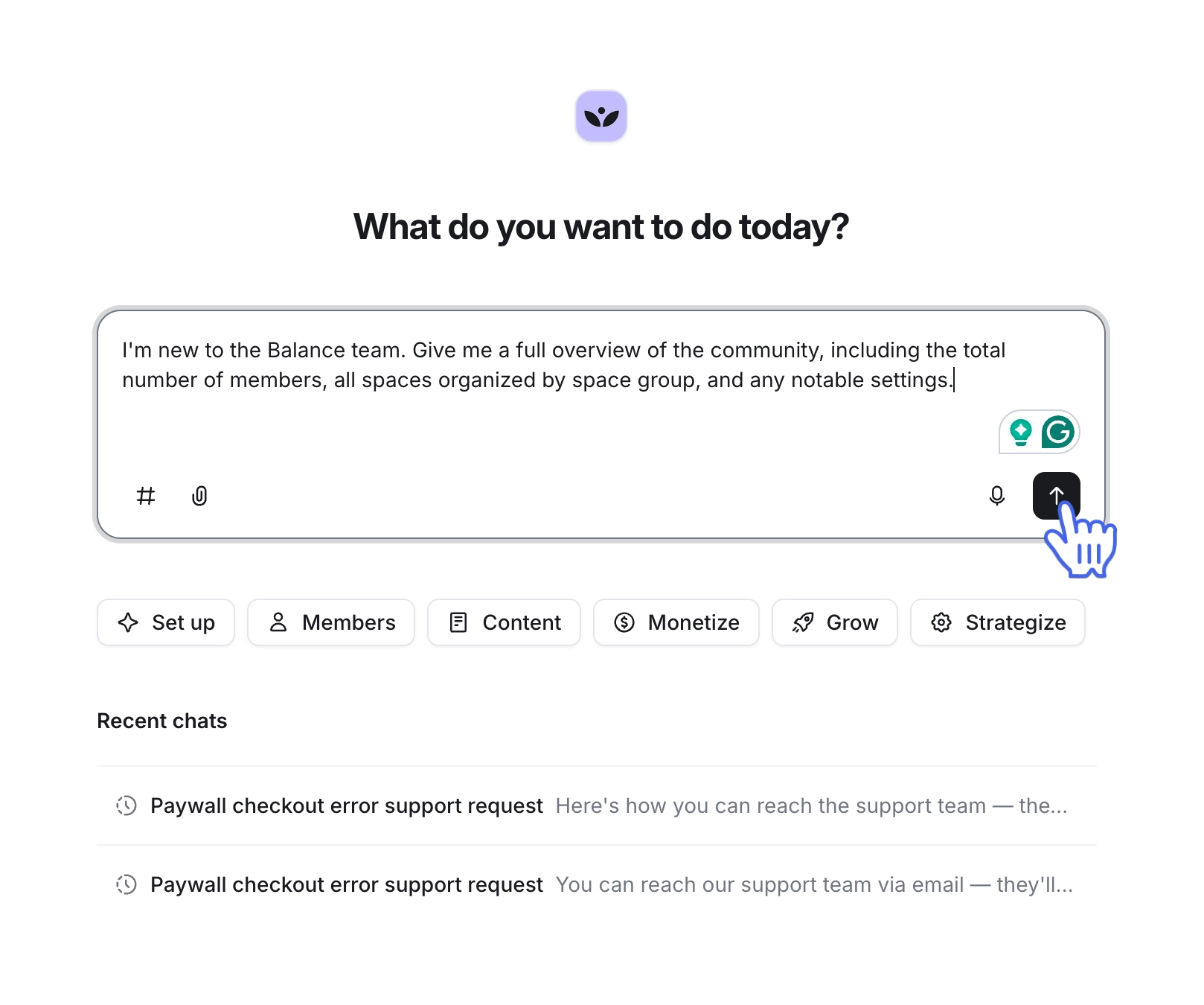
You can also dictate your prompt instead of typing it by clicking the microphone icon.
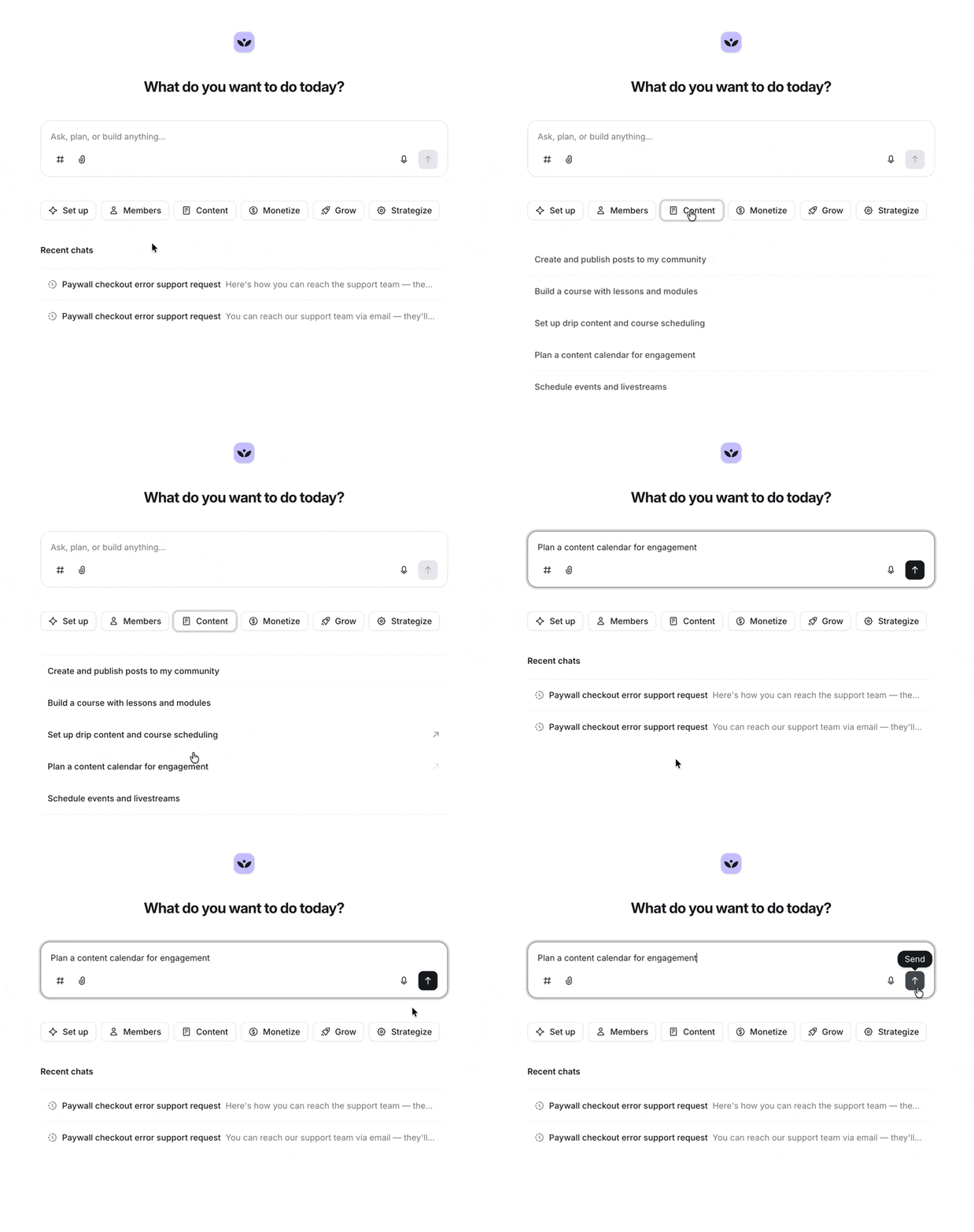
Below the chat window, click a category (Set up, Members, Content, Monetize, Grow, Strategize) to reveal a list of predefined prompts. Select one to automatically load it into the chat.
Left sidebar
The left sidebar contains tools and paths to other pages in your community. Here you’ll find:
Community switcher
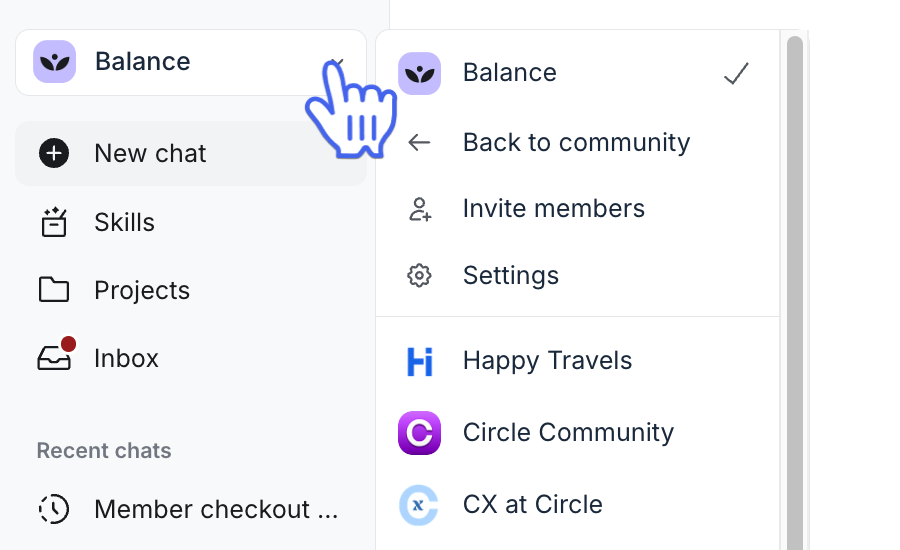
To keep your workspace clean when using Circle AI, the community switcher is hidden until you need it. To access it, click the dropdown at the top-left (labeled with your community name). From here, you can also exit Circle AI (Back to community), invite members, or access your community settings.
Skills
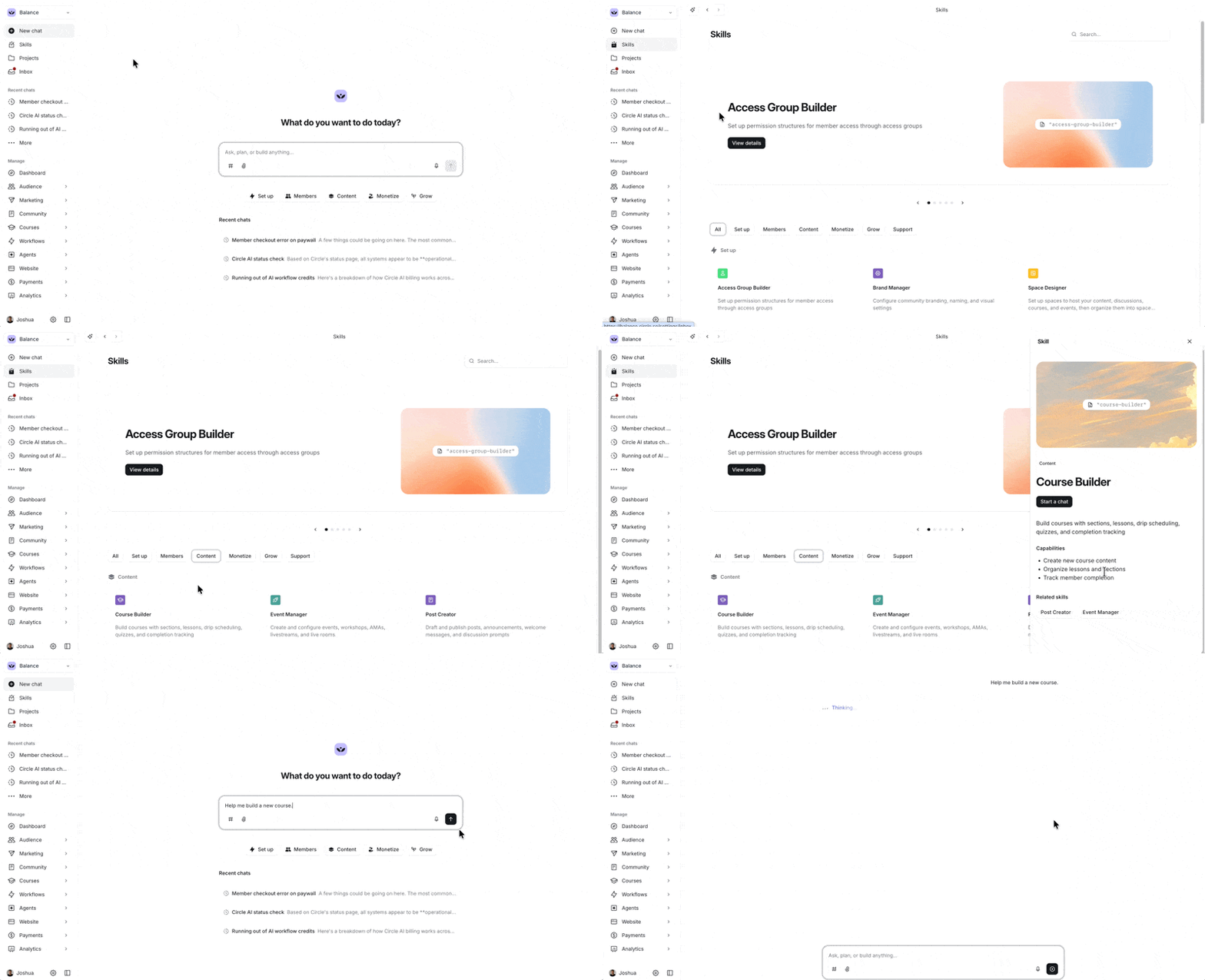
Skills are built-in playbooks that guide Circle AI's behavior for a specific area, so it asks the right questions and uses the right tools to get the job done. The Skills Library lets you browse and use all available skills. It includes 20 specialized skills covering community setup, members, content, monetization, growth, and support.
To use a skill:
Select Skills from the left sidebar of the Circle AI workspace.
Browse and select a skill to review its capabilities.
Click Start a chat to begin, with a preloaded prompt.
Projects
Projects give you a dedicated space to organize Circle AI conversations around a specific topic or goal. Each Project keeps its own files, memories, and context, and shares them across every conversation inside it. This keeps related information together and helps Circle AI give more focused, consistent answers as you work.
To create a project:
Select Projects in the left sidebar.
Click New project in the top-right corner of the projects page.
-
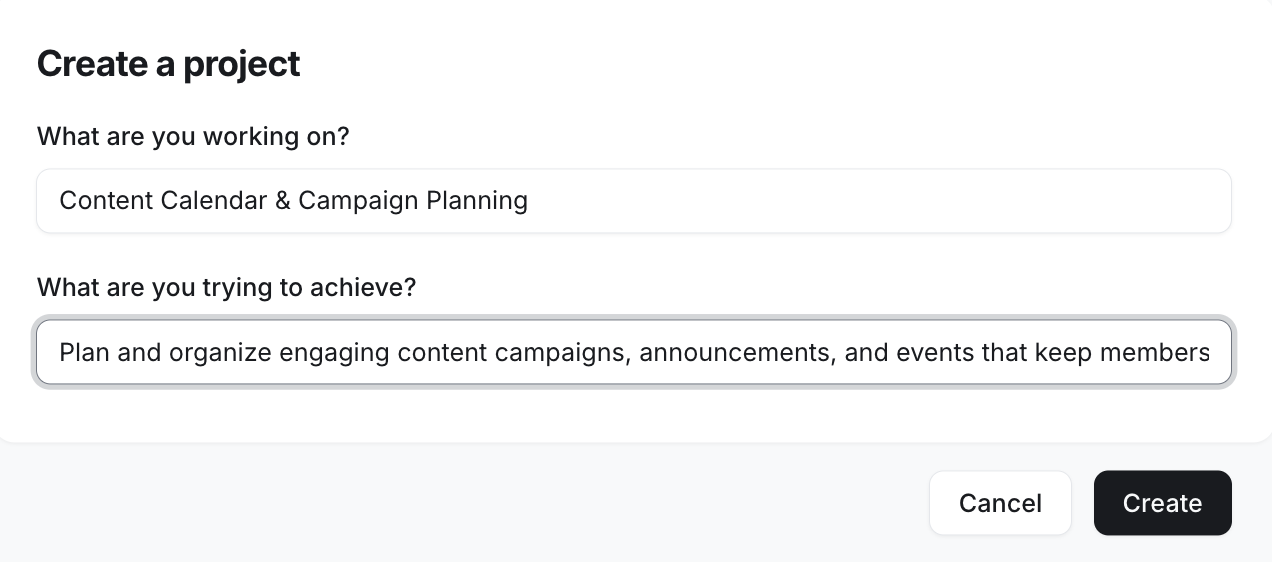
Name your project and add a clear description and outcome.
Click Create.
-
Click the Edit icon in the project workspace to add instructions to your project.
-
💡 Tip: Adding instructions gives Circle AI persistent context about the purpose of the project and how it should respond. Instead of repeating your preferences in every conversation, the AI can use the project instructions to deliver more relevant, consistent, and tailored answers.
-
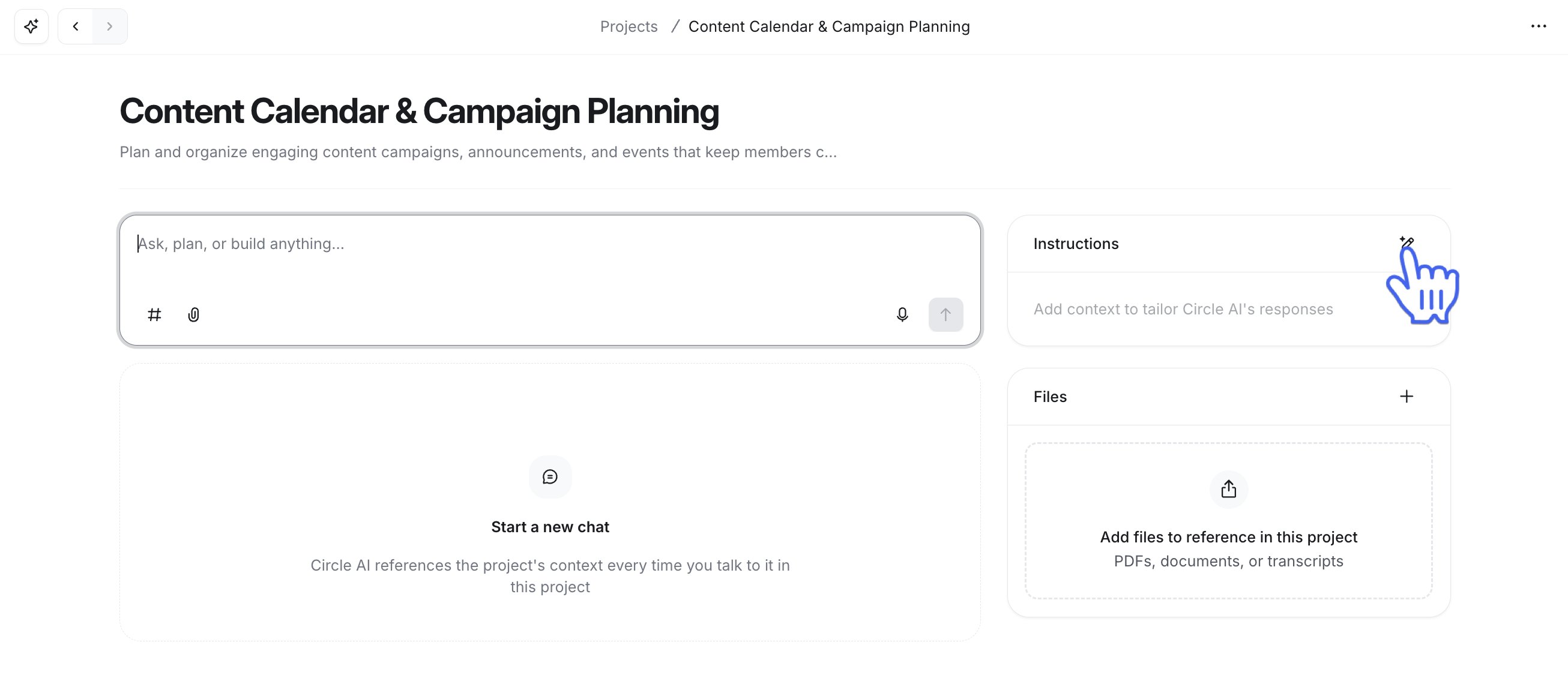
Optional: Add files to your project that can be referenced in your chats.
Once set up, navigate to your project and start a chat.
Circle Inbox
The Circle Inbox is a centralized admin inbox that brings your conversations into one place. From here, you can manage direct messages, moderation submissions, course comments, AI agent conversations, and support requests without switching between different areas of your community.
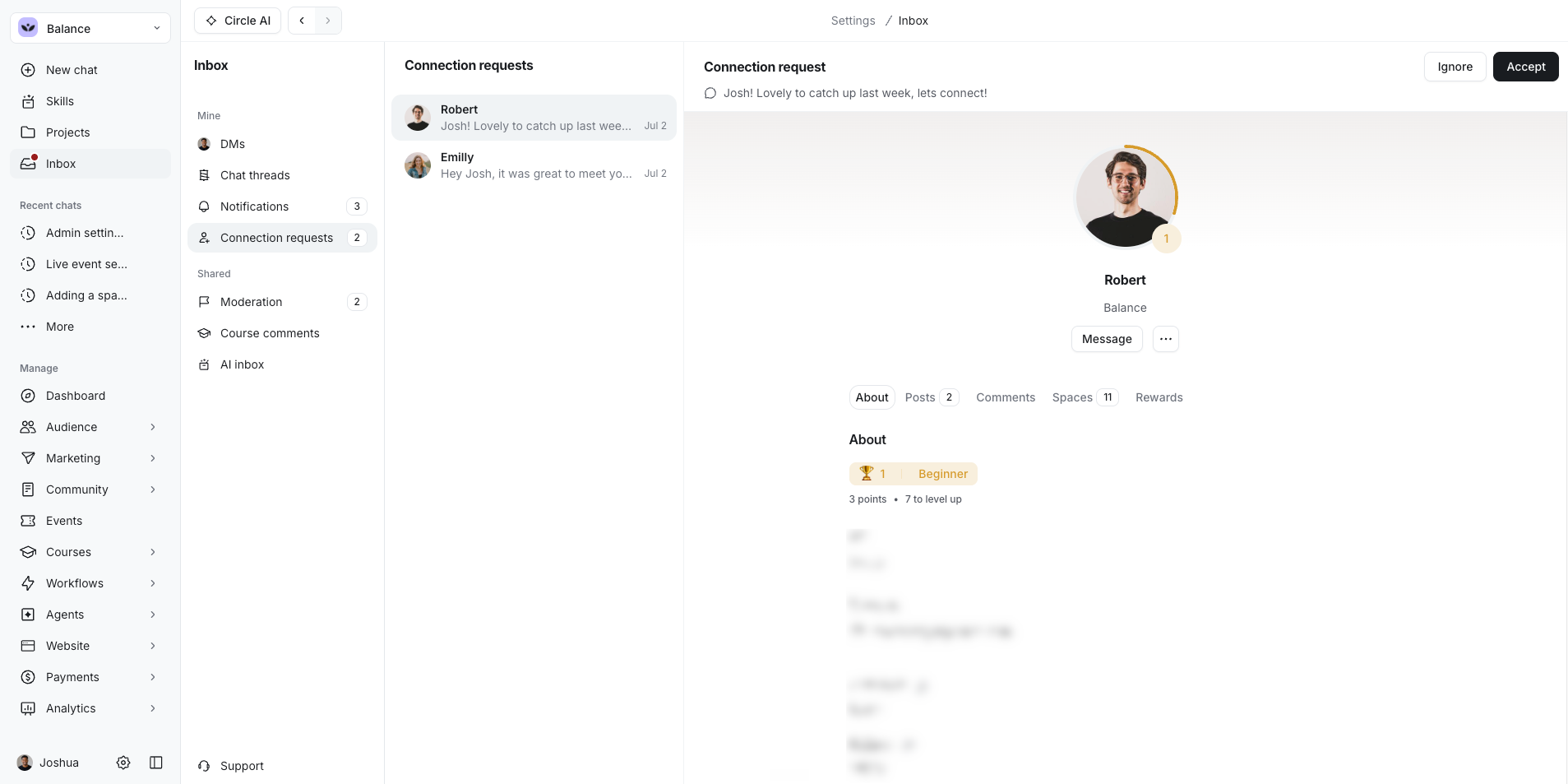
The Circle Inbox gives you access to the following sections:
DMs: Start and respond to individual or group messages with other members.
Chat threads: Review and respond to chat threads from across the community.
Notifications: Review your in-app notifications.
Connection requests: View and respond to connection requests when enabled.
Moderation: Access your moderation inbox to approve or reject flagged content, and quickly access your moderation settings.
Course comments: Review and respond to course comments from all your courses. You can also filter this list by specific courses.
AI inbox: Review your AI Agent conversations and step in when needed to manually respond to members. To learn more, see View and manage AI Agent conversations.
-
Support: Support is pinned at the bottom of the Inbox sidebar, separate from your other Inbox items. To contact support, click the Support icon in the bottom left corner and then click the + button to start a chat.
ℹ️ Note: If your community has AI credits, the + button opens a Circle AI chat with a draft prompt and does not create a ticket. If you’ve run out of credits, it creates a support ticket and sends your request directly to the Support team.
Recent chats
Your past conversations with Circle AI appear here, so you can easily pick up where you left off.
Manage
From here, you can navigate to different sections of your community, such as the Admin dashboard, the Audience management page, the Paywall management page, and the Website builder.
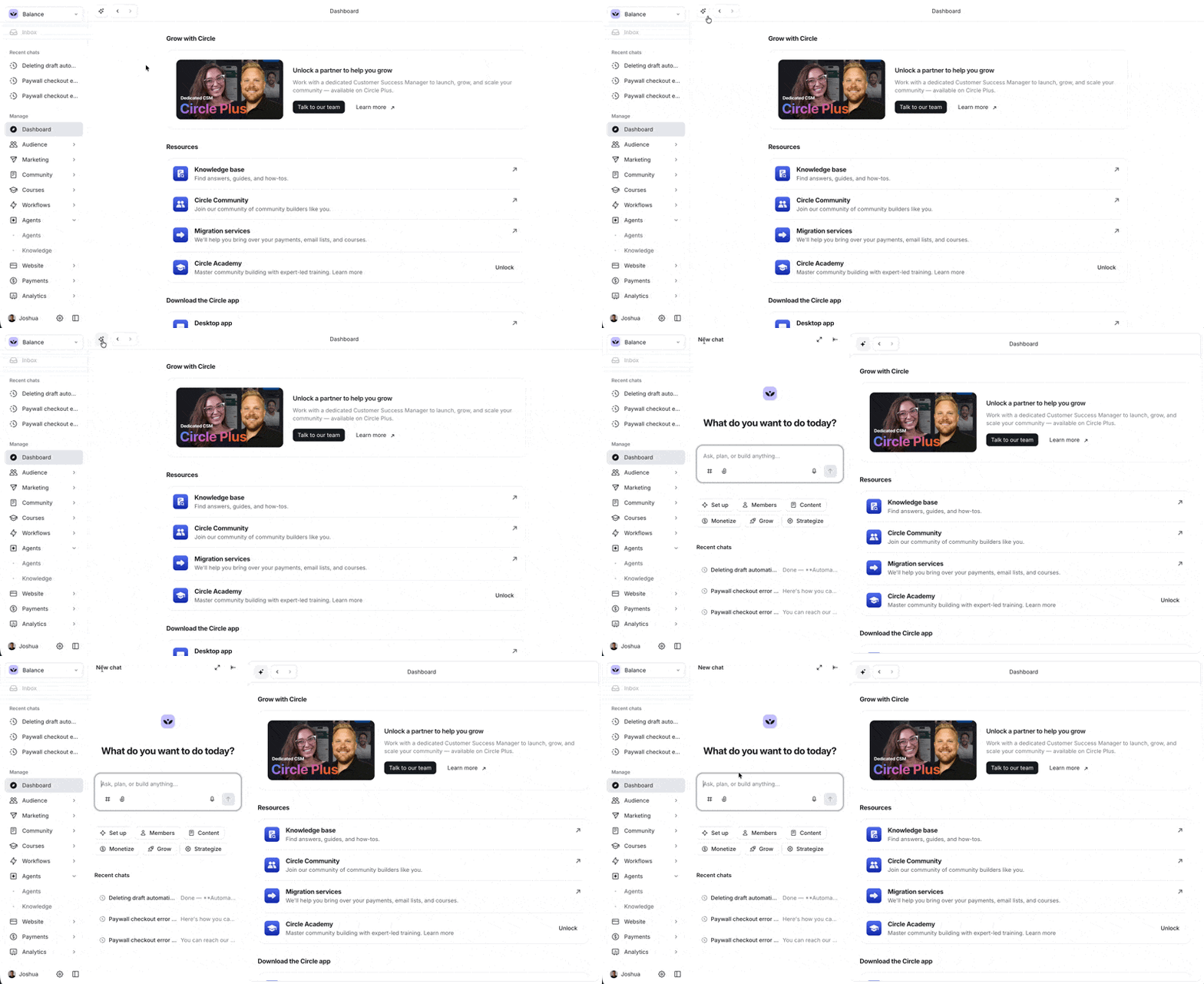
When viewing a page, you can open a chat with AI at any time by clicking the Circle AI icon in the top-left corner of the page. Use this to ask questions about the page you’re on, or take an action.
Profile and settings
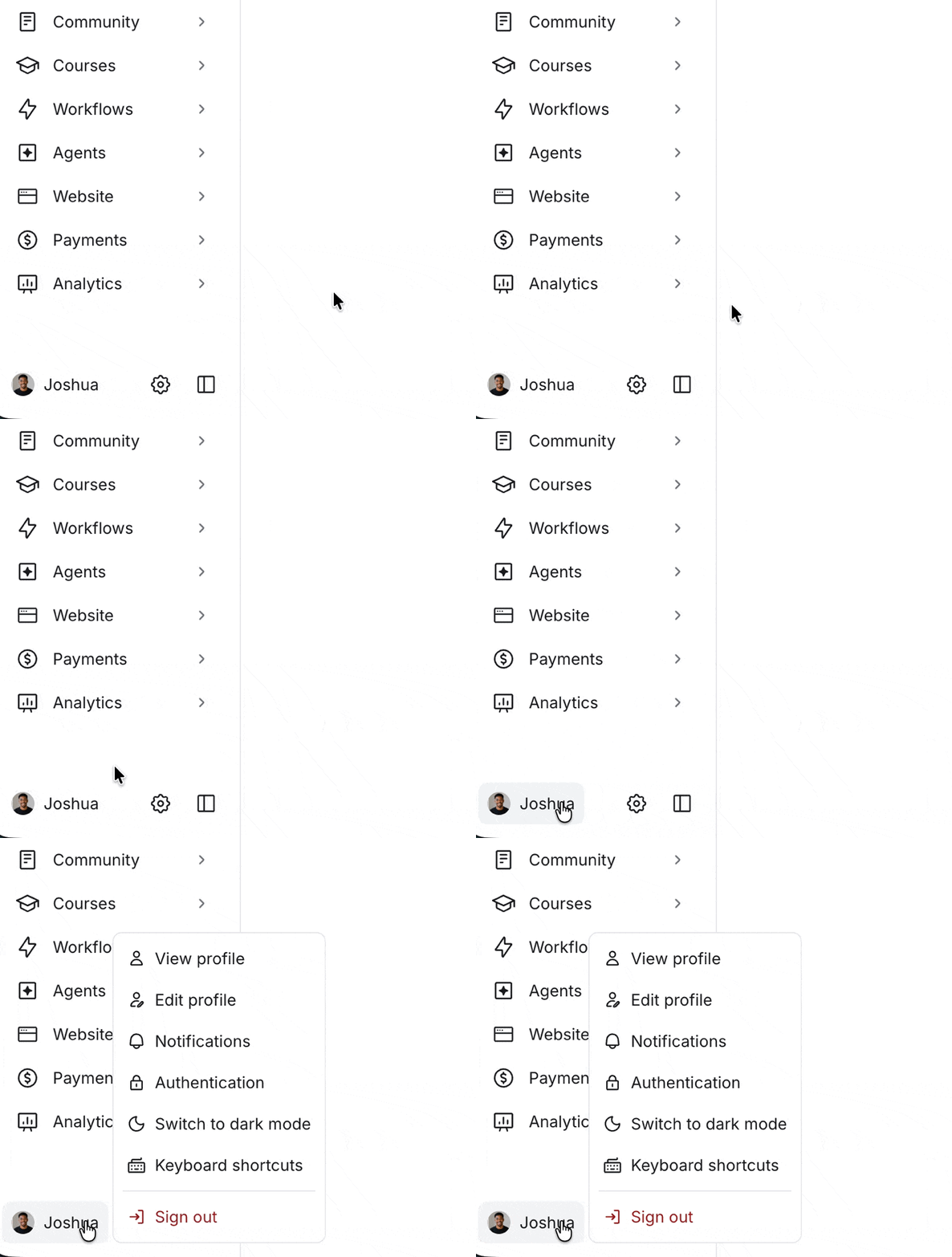
Click your name in the bottom-left corner to access your profile, notifications, and authentication settings. Click the gear icon next to it to open your community settings.
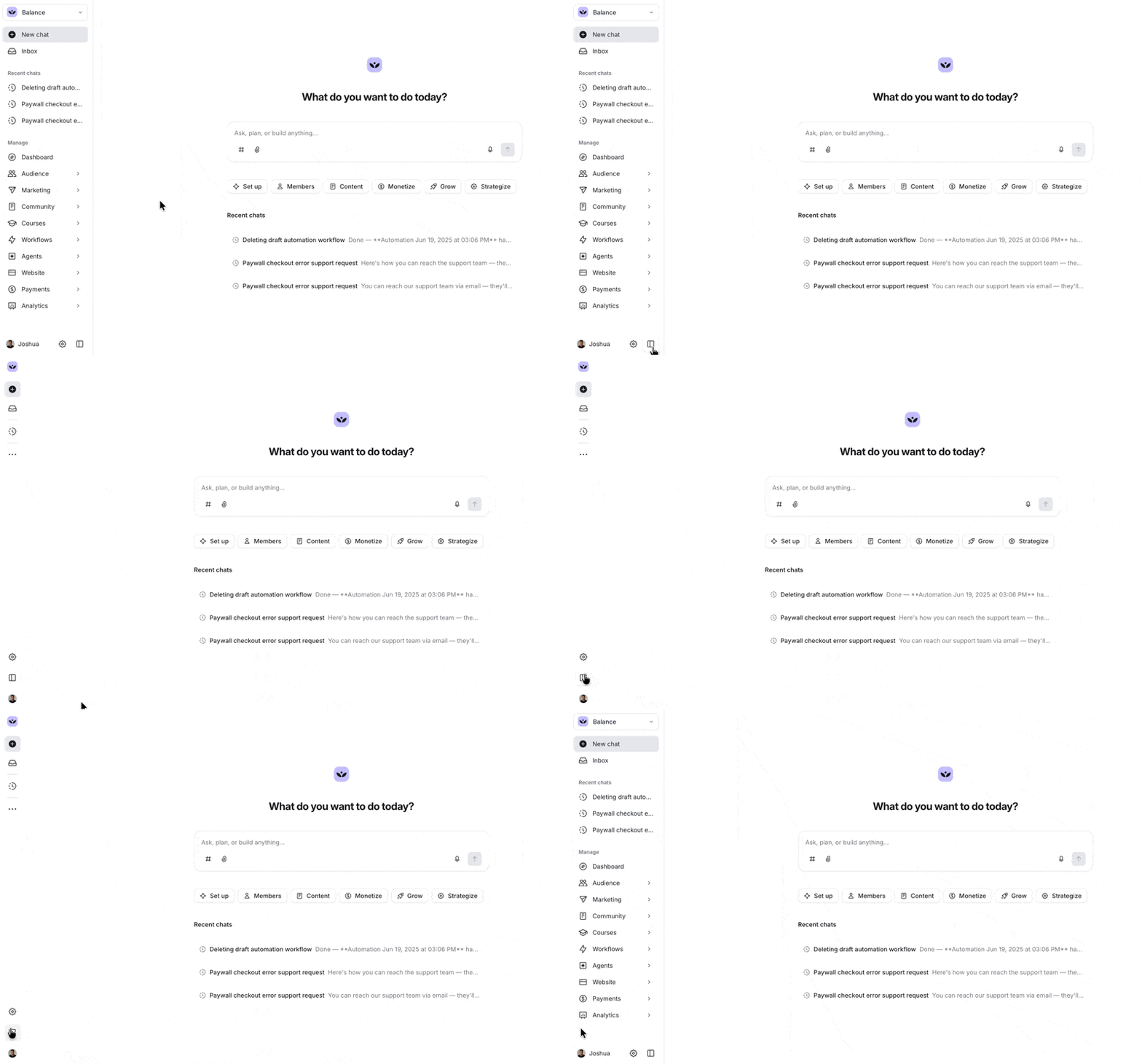
You can also click the sidebar icon to collapse or expand the sidebar.
Building your community with Circle AI
With Circle AI, you don't need to know the exact setting or feature name to get started. Begin by inputting your goal in plain language, and the AI will guide you from there.
Circle AI can handle single-action tasks such as updating a space’s visibility settings or inviting a member immediately. With large tasks, such as building a course, it breaks the work into steps, walks you through any decisions along the way, and shows you a plan before it makes changes to your community so you’re always in control.
📚 If you’re not sure where to begin, check out our Prompt library for a list of ready-to-use prompts you can paste into a chat to get started today.