Enable lesson comments
Last updated: July, 2026
Enabling comments on your course lessons lets students engage directly with each other and with course creators. This article covers how lesson comments work, how to enable them, and how to manage comment notifications.
Get to know lesson comments
Lesson comments enhance the learning experience for students and enable them to interact directly with course creators and fellow students.
💡 Tip: Comments are also available for quizzes. You can follow the same steps outlined for enabling and managing lesson comments in our Help Center to enable and manage comments for quizzes.
Lesson comments allow you to:
Support students by providing answers and clarification on course content.
Create a positive and engaging learning environment.
Identify areas in the lesson that may require further clarification or revision.
Capture feedback on each lesson to improve the quality of the course content.
Lesson comments also let students:
Engage with the course creator and fellow students to discuss lesson material.
Ask questions and clarifications.
Provide feedback on the lesson.
Once you enable comments for a lesson, they appear in a dedicated Comments tab below the lesson. Anyone in the course space can join the discussion there, using parent and threaded comments.
The comment threads allow for more structured conversations under a parent comment. If someone replies to your comment or there's a new comment in a thread where you've engaged, these threaded comments become accessible through the Threads icon located under the parent comment.
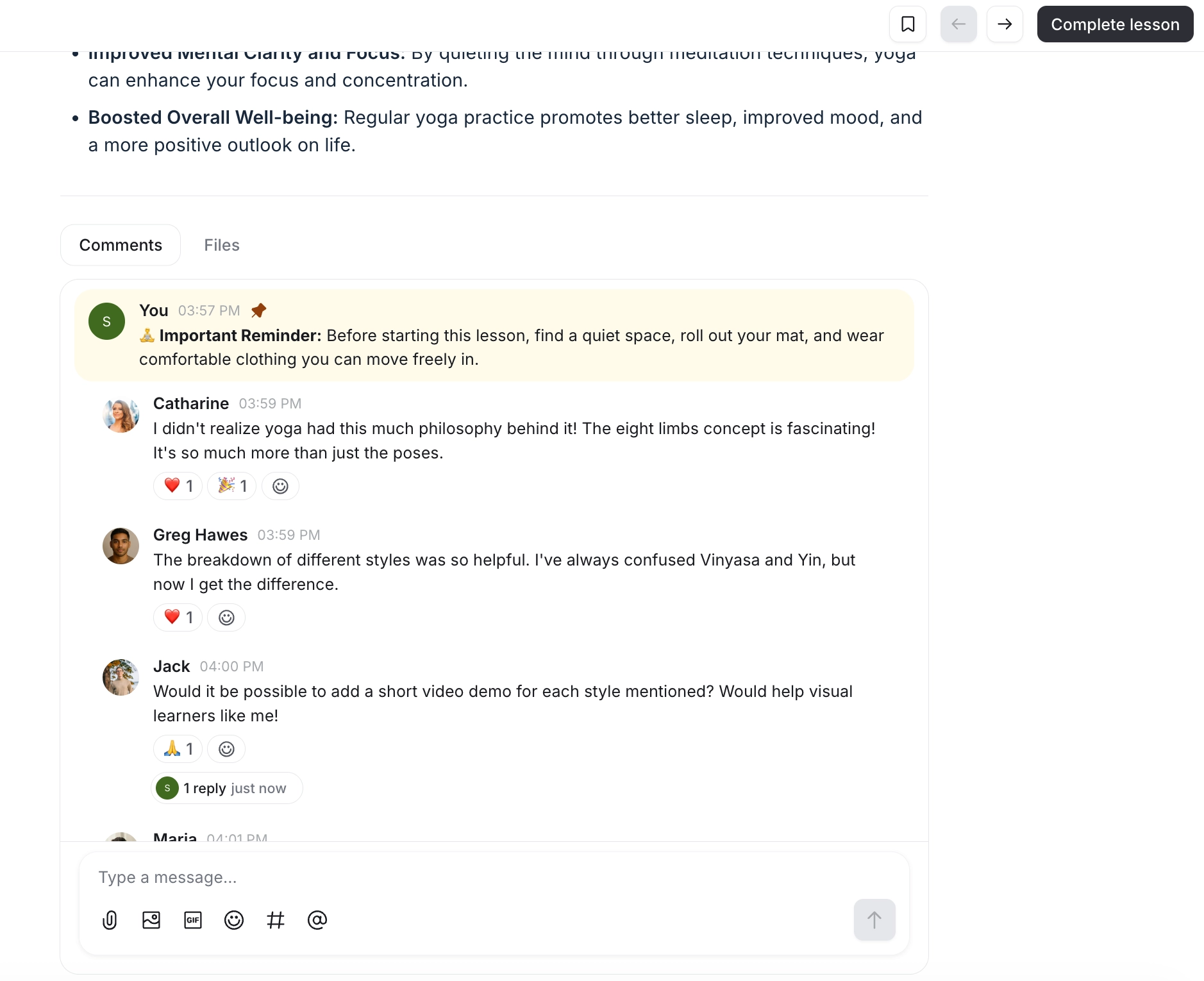
When leaving a comment, there are various options available beyond text messages:
Attach files
Add image
Add GIF
Add emoji
Link to community content using Hashtags
Mention members
ℹ️ Note: If the course space is set to private or secret, students can only mention their fellow course space students (members) and admin/moderator in the comment.
Enable lesson comments
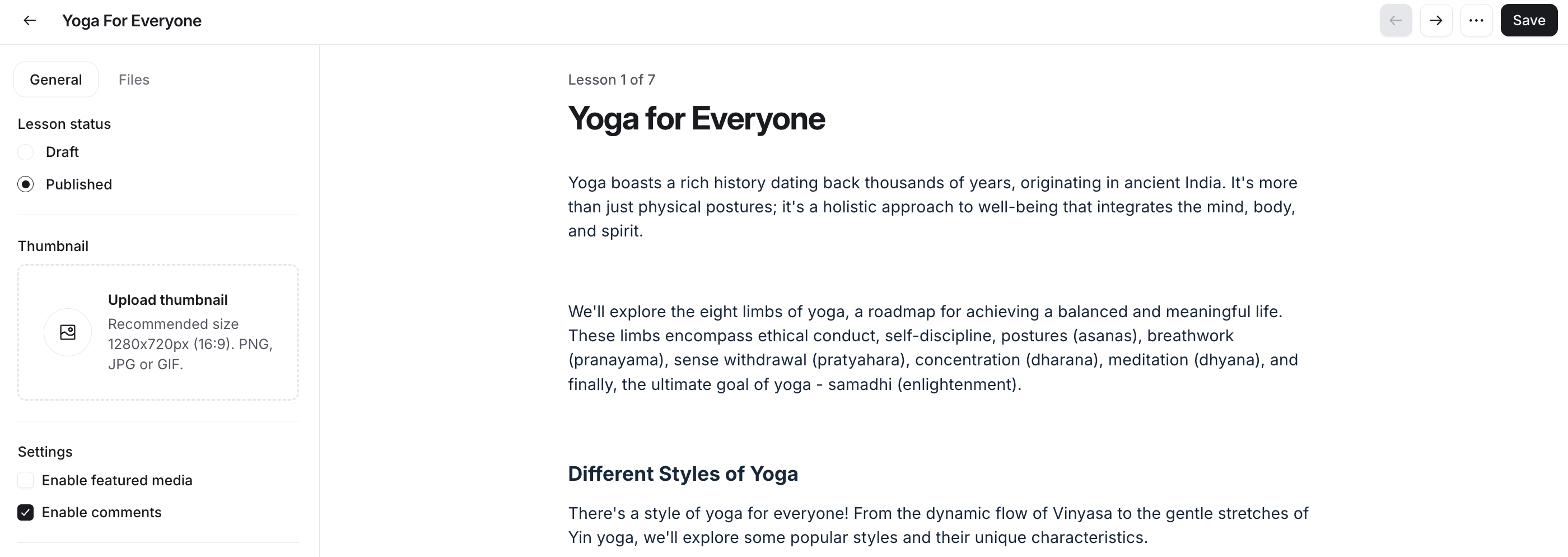
New lessons have comments turned on by default, but you can turn them on or off for any lesson. To enable comments for a lesson, follow these steps:
Navigate to your course space.
In the Course dashboard, click Edit lessons.
Hover over the lesson and click the Edit lesson button to open the editor.
Go to the General tab in the left sidebar and select the Enable comments checkbox under Settings.
Click Save in the top-right corner.
Enable comment notifications
Courses have two types of comment notifications:
Mentions: Available to all space members, including admins and moderators.
New comments: Available only to the admin and moderators of the course space.
💡 Tip: In addition to these comment notifications, whenever there is a new comment in the thread involving students and admins including moderators, a numbered badge in red representing the number of unread threads appears on the Threads icon located in the community header.
Mentions
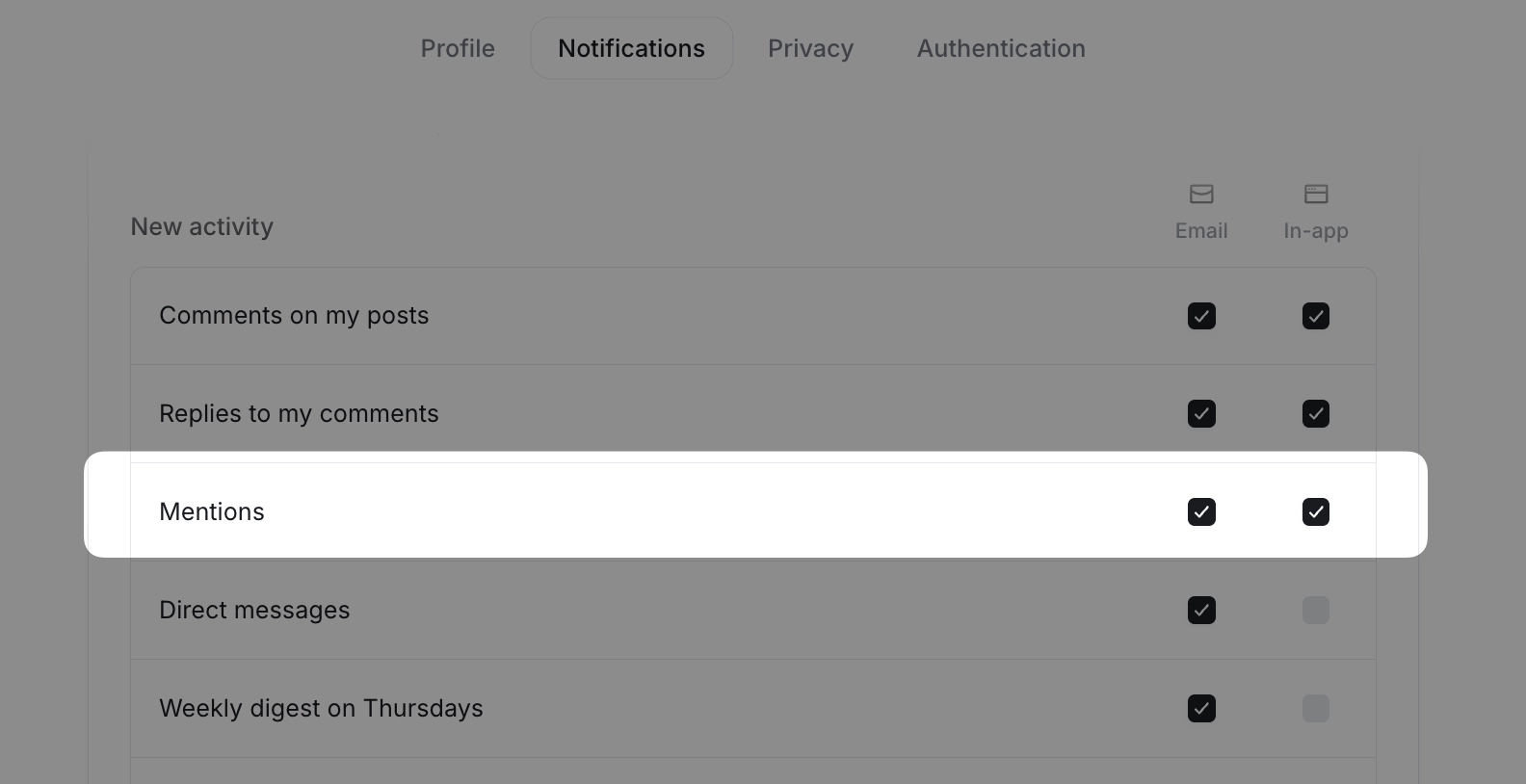
Students, admins, and moderators can choose how they're notified of mentions: in-app, push, or email. Once enabled, they'll get a notification whenever they're mentioned in a course comment.
💡 Tip: To manage this on our mobile app, tap your profile picture or name in the top-left corner, then select Manage notifications. Choose either In-app or Mobile push notifications, and turn the Mentions toggle on or off.
📚 For more information about how admins and members can set notification preferences for their community account, see Manage your notification preferences.
New lesson comments
In addition to mentions, admins and moderators of the course space get an in-app notification whenever someone posts a new comment in the lesson.
To manage new comment notifications:
Navigate to the course space.
Click the More options (three dots) icon next to the course name, then under Settings, select Options.
In the Notifications, turn on/off the Notify course admins about new lesson comments toggle.
Click Save changes.
