Configure quiz settings
Last updated: July, 2026
You can set quiz status, manage various settings, and set the default tab for students for each quiz within your course. In this article, we will explore all the configuration options available to you to personalize your quiz.
To access and modify quiz settings, follow these steps:
In the course dashboard, click Edit lessons.
Hover over the quiz title and click Edit.
Go to the General tab in the left sidebar of the quiz editor.
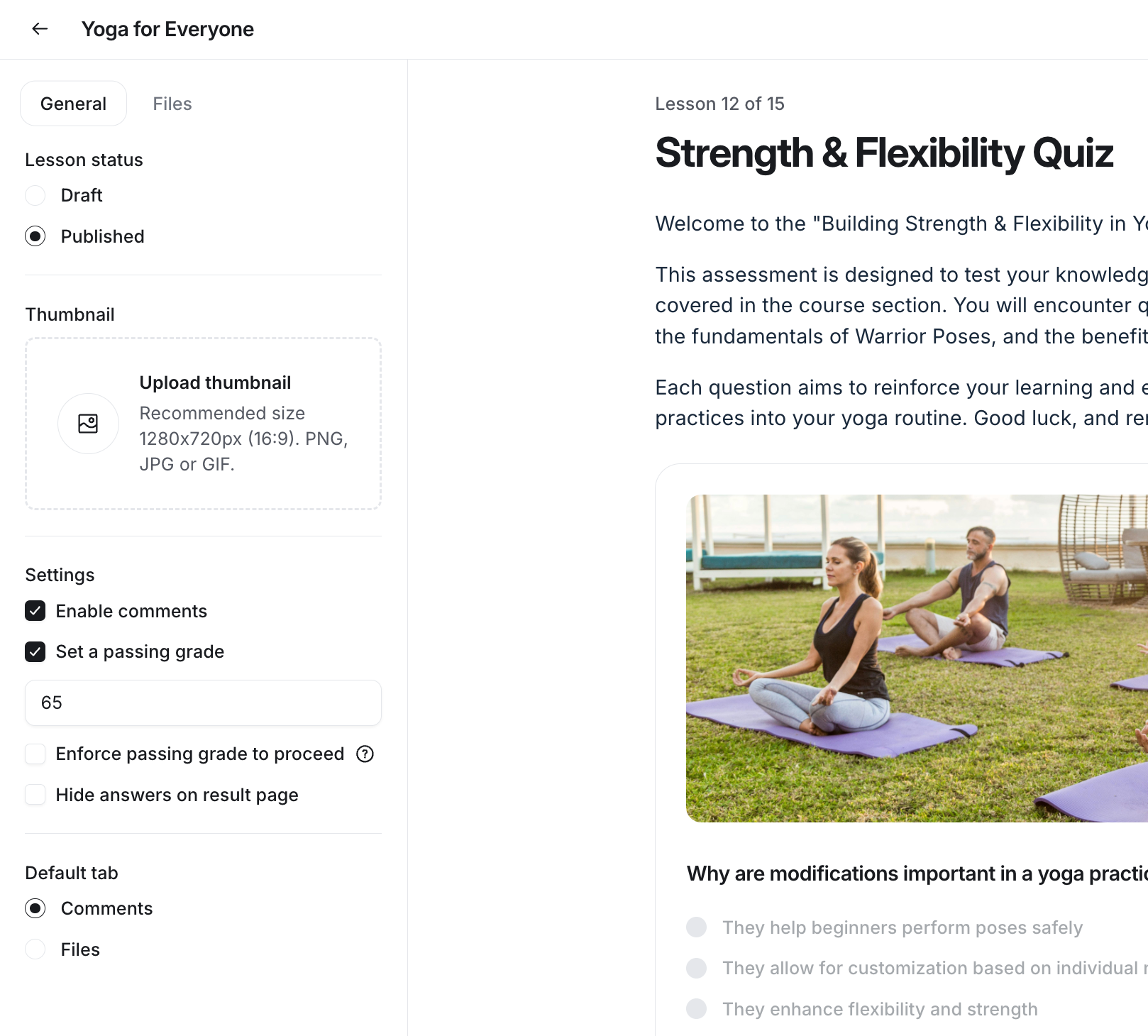
Let’s take a look at various configuration options for quizzes.
Status
The status option lets you set the quiz's state in your course. It can be set to draft or published.
Draft: When you create a quiz, it is automatically set to Draft status. In this status, the quiz is only visible to the course space moderator and admins. This allows you to work on the quiz and keep it hidden from students.
-
Published: Once you are ready to release it, set the status to Published.
❗️Important: If the quiz is within a section configured for drip, students can only access the published quiz after it is dripped.
Settings
In the settings section of the general tab, you can configure the following:
Enable comments: The comments tab allows students to discuss the quiz, ask questions, and provide feedback. To do so, select this checkbox.
-
Set a passing grade: Define the minimum percentage of score required for students to pass the quiz. To set a passing grade, select the checkbox and enter your desired percentage threshold in the field.
ℹ️ Note: If you decide to disable this option, while students will be able to see their score percentage, they won’t be able to see whether they passed the quiz. Instead, they will see a message indicating they should await grading.
If you have disabled this option, you can manually grade students’ quiz results.
-
Enforce passing grade to proceed: This option requires students to meet the minimum passing threshold you set before they can mark the quiz as complete. This encourages students to achieve a certain level of understanding before moving on in their learning journey. If the student fails to achieve a passing grade, they can re-take the quiz.
💡 Tip: To enforce lesson order and prevent students from accessing the next lesson or quiz in the curriculum until they achieve the passing threshold, enable the Lesson order enforcement toggle in your course settings along with this option.
Hide answers on result page: You can choose to hide the correct answers on the result page to encourage students to review and learn from their mistakes rather than simply seeing the correct answers. Select the checkbox to enable this feature.
ℹ️ Note: If you update the percentage threshold for the Set a passing grade setting for a published quiz, the new threshold will only apply to students who take the quiz after this change is made. For the Enforce passing grade to proceed and Hide answers on result page settings, it will apply to all students regardless of whether they have already taken the quiz.
Default tab
The default tab setting determines which tab students see first when they access the quiz.
When you create a quiz, the curriculum tab is set as the default tab. You can change this to any other tab in the Default tab section.
There are three tabs visible to students in the quiz:
Comments: When comments are enabled for the quiz, students can access the comments tab while accessing their quiz.
Files: This tab gives students access to the files you have uploaded to the quiz’s file manager. This can include supplementary materials, resources, or any other files relevant to the quiz.