Grade quizzes
Last updated: July, 2026
As an admin or moderator of the course space, you can manually grade students' quiz submissions if you haven't set the passing grade for the quiz.
ℹ️ Note: The option to grade quizzes is only available for students' quiz submissions if you have disabled the Set a passing grade setting in the quiz editor. If you have set the passing grade threshold, quiz results will be automatically graded, and students will see whether they passed or failed the quiz right away when they submit answers to all questions.
Grade a quiz submission
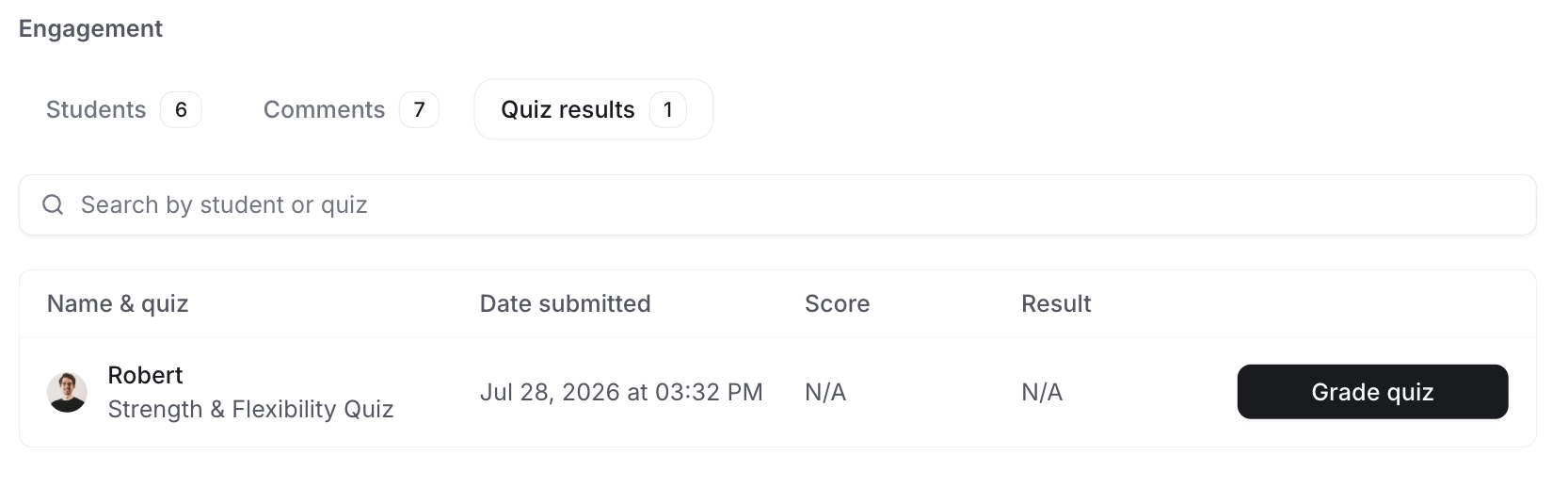
Navigate to the course space. Within the course overview dashboard, go to the Engagement section and click the Quiz results tab.
All quiz results for members who have completed the quiz are displayed here.
ℹ️ Note: To quickly find a specific result, enter the member or quiz name in the search bar.
Next to the student's quiz result entry, click Grade quiz.
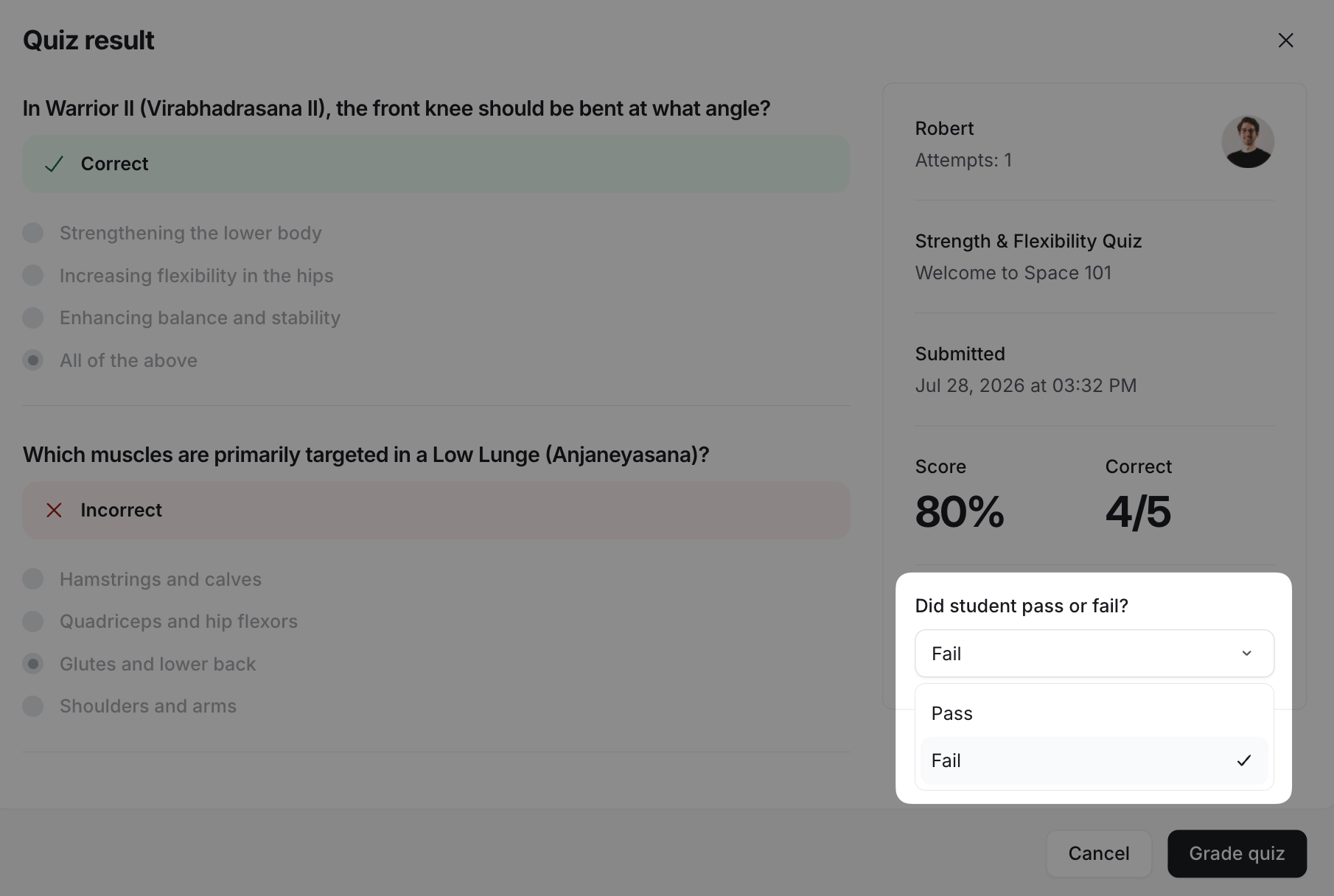
In the dialog box, review the student's responses, quiz score, and number of correct answers.
In the Did student pass or fail? dropdown menu, select an option.
Click Grade quiz to finalize the grading.
After grading is complete, the quiz result (Pass or Fail) is displayed in the Quiz Results tab of the Engagement section.
ℹ️ Note: If you make a mistake when grading the quiz, you can always go back to the student's result and update your selection using the same steps.