Set up quizzes
Last updated: July, 2026
Quizzes empower you to assess student comprehension and enhance the overall learning experience. In this article, we will guide you through the steps to create, preview, and publish quizzes.
About quizzes
Course quizzes provide a structured way to evaluate understanding, reinforce learning, and offer immediate feedback. Members benefit from quizzes, which help them gain a clear understanding of the material and focus on challenging topics.
Here are some key things to know about quizzes:
Quiz placement: Similar to lessons, you have the ability to create quizzes within course sections, allowing you to add quizzes in between lessons or at the end of all the lessons within a particular section. You can add as many quizzes as you’d like to a course.
Question type: You can create as many questions as needed for each quiz with single and multiple correct answers.
Quiz configurations: Set up passing grades for quizzes to automatically grade students’ submissions. You also have options to enforce passing grades and hide answers on the result page.
Supported platforms: Students can take quizzes on all platforms, including desktop and mobile browsers, Circle iOS and Android apps, and Circle Plus branded apps.
Create a quiz
To get started, go to the course space and click Edit lessons in the course dashboard. Next to a course section, click Add new and select Quiz.
A new quiz will be set up under the section in draft status. You’ll now see the quiz title field become active. You can then input a title for the quiz and save it by clicking the checkmark ✅ icon.
Now, hover over the quiz and click Edit. This will open the quiz editor, where you can set up the following.
Add a quiz description
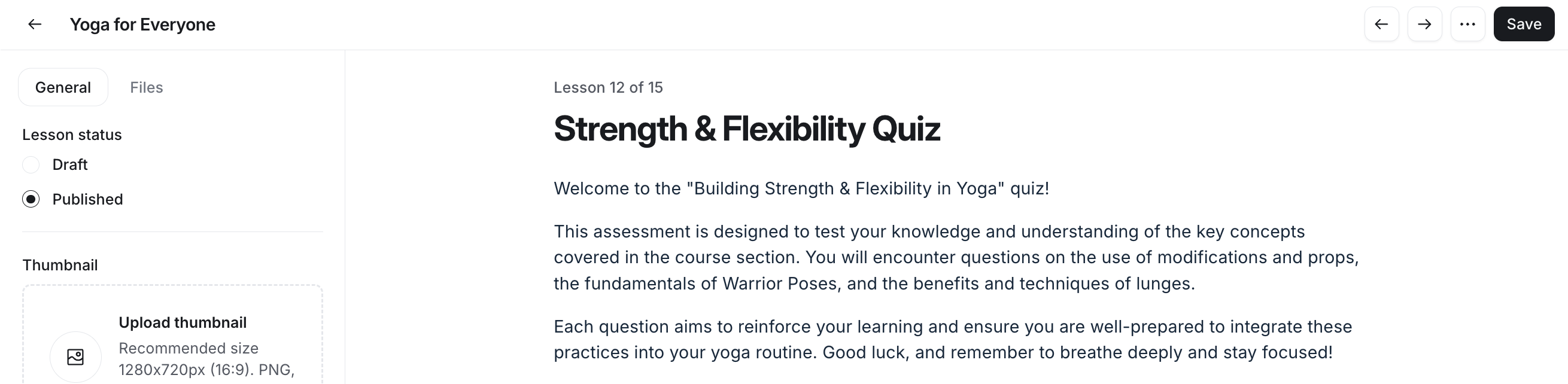
In the quiz editor, you can add a text-based description for the quiz. This description can provide context, instructions, or any other relevant information that students need to know before starting the quiz.
For quick formatting of the description text, you can use the following keyboard shortcuts:
Bold: CMD/CTRL + B
Italic: CMD/CTRL + I
Underline: CMD/CTRL + U
Hyperlink: Paste the URL directly onto the text using CMD/CTRL + V
Add questions
To add a question to the quiz, follow these steps:
Click the ➕ Add question button.
-
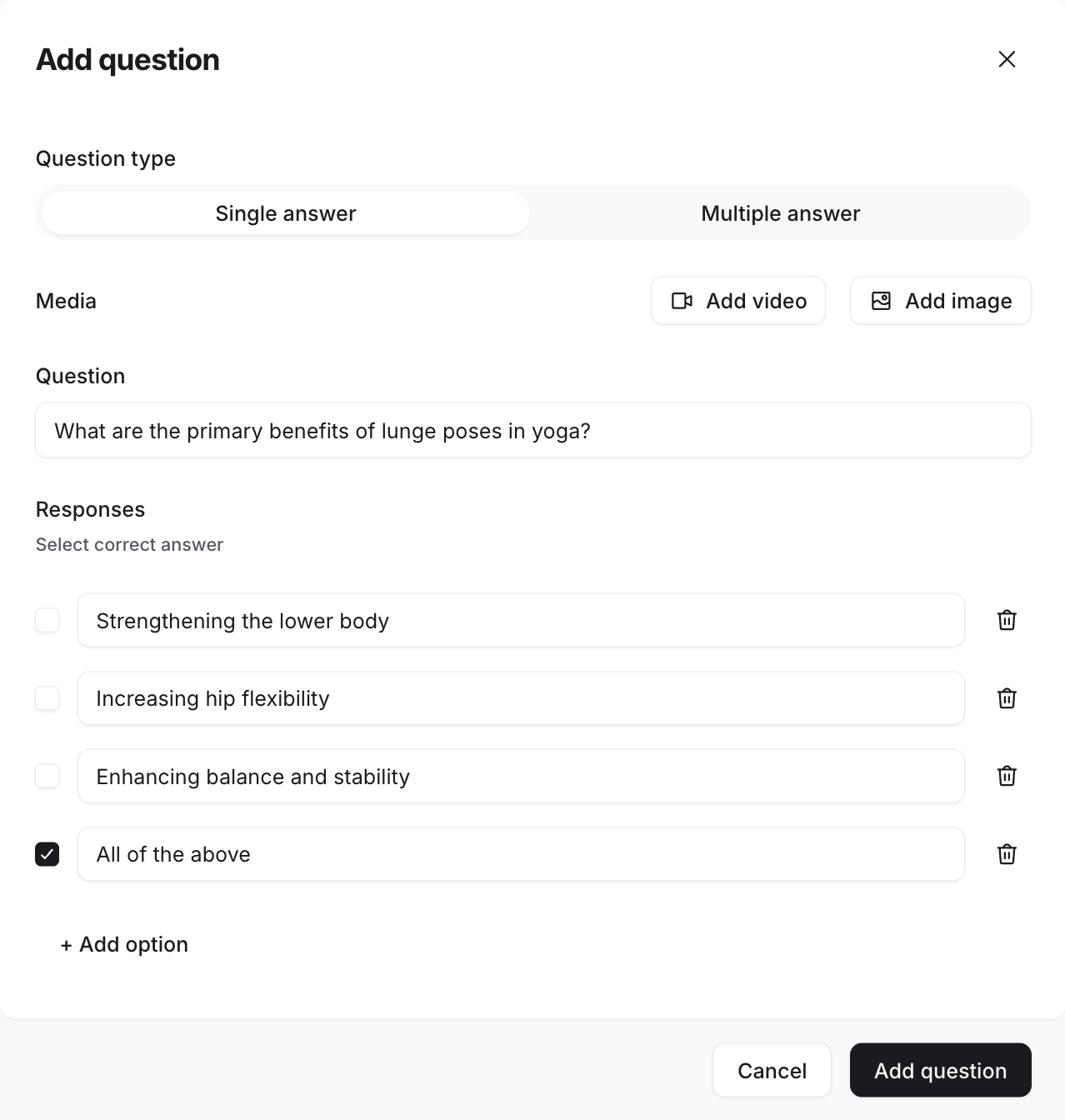
Configure the following in the question setup dialog:
Question type: Select a single or multiple answer question type for the quiz.
-
Video: For a more integrated experience, you can add videos to your quiz questions. Videos are great for demonstrating processes, providing additional context, or enhancing engagement with visual explanations.
To add a video, click the Add video button under the Media section. You can upload a video from your device or, embed a link from platforms like YouTube, Vimeo, Wistia, and more.
The supported file formats for video uploads are .MP4, .MOV and .MP3
To customize your uploaded video, you can add a thumbnail, chapters, enable transcriptions, and control download permissions. Hover over the video player, click the Customize video (setup icon) located in the top-right corner to access these options. For detailed steps, see Guide to video customizations.
-
Image: Add an image to a question to help provide visual context or illustrate complex concepts, making the quiz more engaging and informative.
To add an image, click the Add image button under the Media section. You can upload the image from your device, choose from the Unsplash library, or embed an image link.
The supported file formats for image uploads are JPG, PNG, and GIF, with a recommended size of 1468 x 536 px.
Question: Write your question text in this field.
Responses: You can add up to five response options per question. To add a new response, click ➕ Add option. Currently, the responses will stay in the same order you added them.
-
Select the correct answer: Select the checkbox beside the response to mark it as the correct answer. For multiple-answer questions, select the correct responses.
Once you have reviewed everything, click Add question.
ℹ️ Note: Currently, the questions within the quiz will remain in the same order you added them.
Add files
You can utilize the file manager within the quiz editor to provide students with additional context or supporting materials for the quiz. You can upload up to 15 files, PDFs, images, or videos in the files tab.
To upload a file, navigate to the Files tab in the left sidebar of the quiz editor. Click Add file and choose a file from your device.
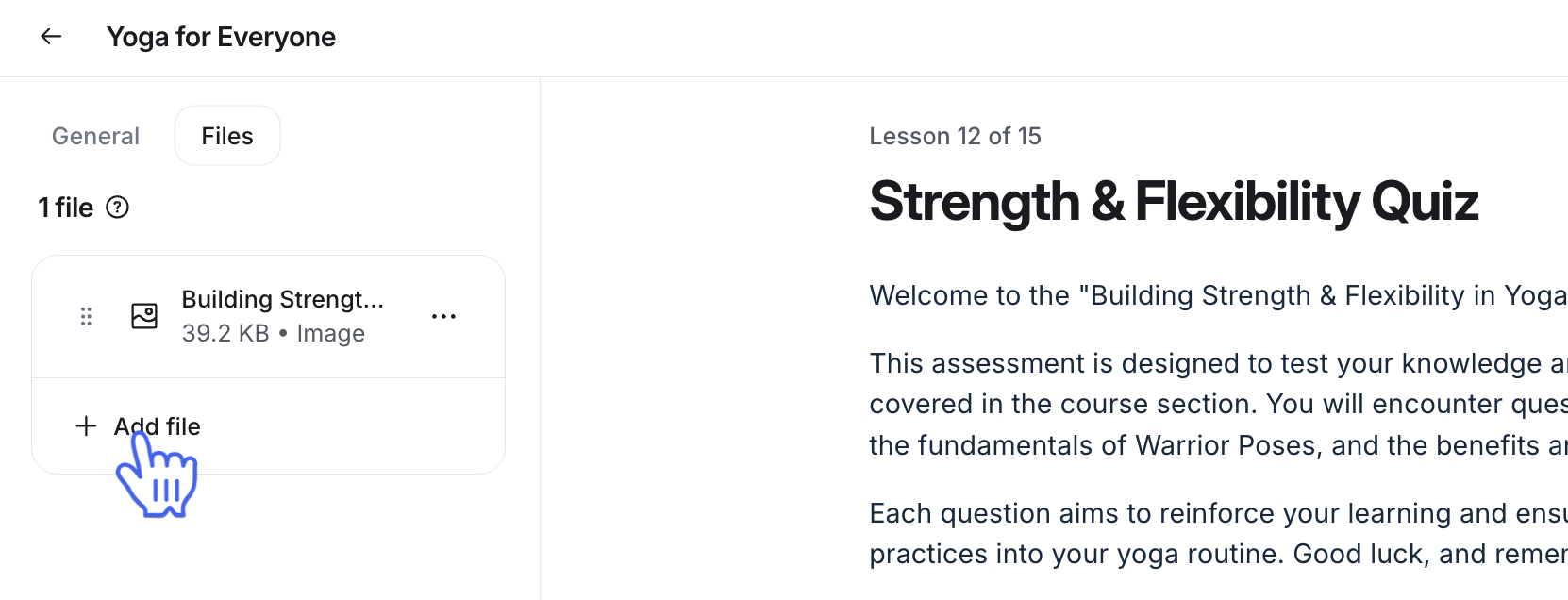
The files you upload here will appear in the Files tab when students access the quiz. They can conveniently download these files by clicking the file title.
💡 Tip: Make sure to save your progress before leaving the editor by clicking the Save button at the top-right corner of the quiz editor. You can return anytime to continue working on the quiz setup.
Update questions
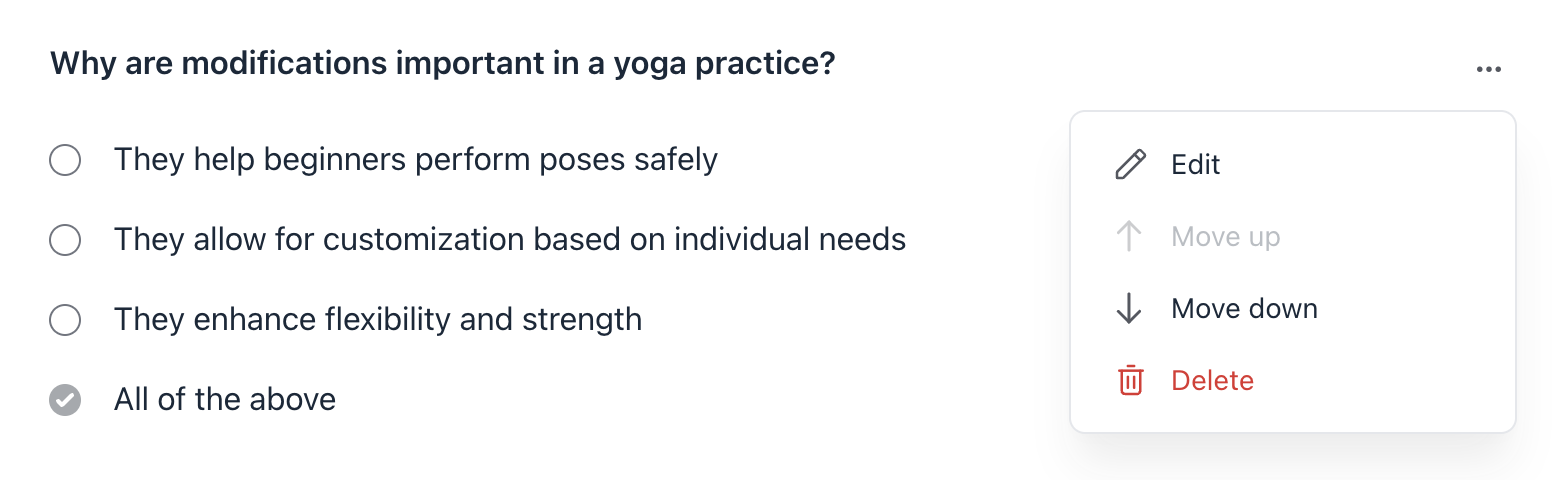
You can update or delete the questions anytime from the quiz editor by clicking the More actions (three dots) icon next to the question and selecting the appropriate option.
When editing the question, you can:
Change the question type.
Make changes to the question text.
Add or remove the image. If you have already added the image, hover over it and click Change or Delete.
Add or remove responses. To add a new response, click ➕ Add option. To remove the existing response, click the X icon next to the response.
Update the correct answer selection. If you accidentally selected a wrong response as a correct answer, simply select the correct response.
ℹ️ Note: It’s important to note that an update to a published quiz only affects new quiz takers. Students who have already submitted the quiz will retain their original results. However, if they decide to retake the quiz, they will see the updated version.
Reorder questions
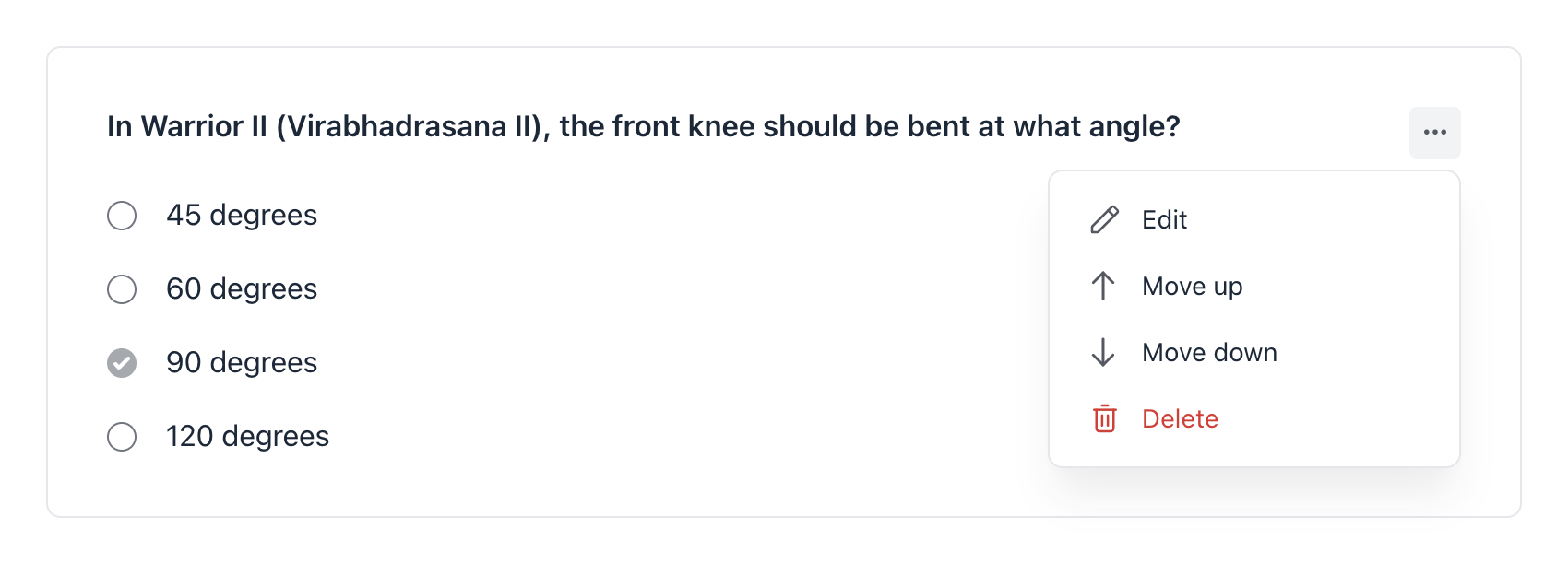
You can easily rearrange the questions in your preferred order by moving them up or down in the quiz editor.
To reorder a question, click the More actions (three dots) icon next to it, then select Move up or Move down. This will shift the question up or down by one position in the list.
Manage quiz settings
Configuring a quiz involves several key options that help you control its availability and overall functionality within your course, including:
Setting up quiz status
Controlling settings such as comment accessibility, enforcing passing grades, and hiding answers on the result page.
Choosing the default tab for your students.
To access these configuration options, navigate to the General tab in the left sidebar of the quiz editor.
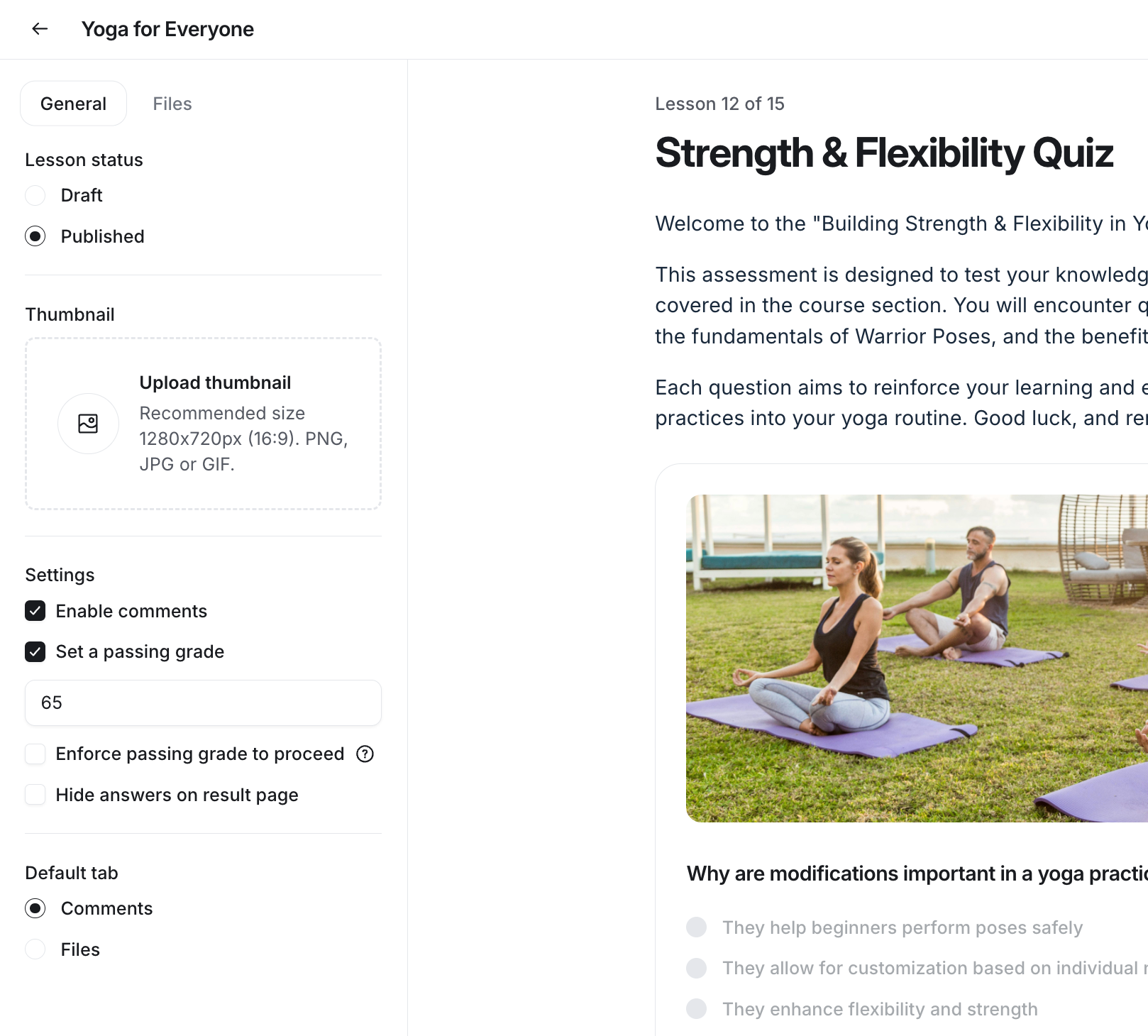
📚 To learn more about quiz settings, please see Configure quiz settings.
Preview quiz
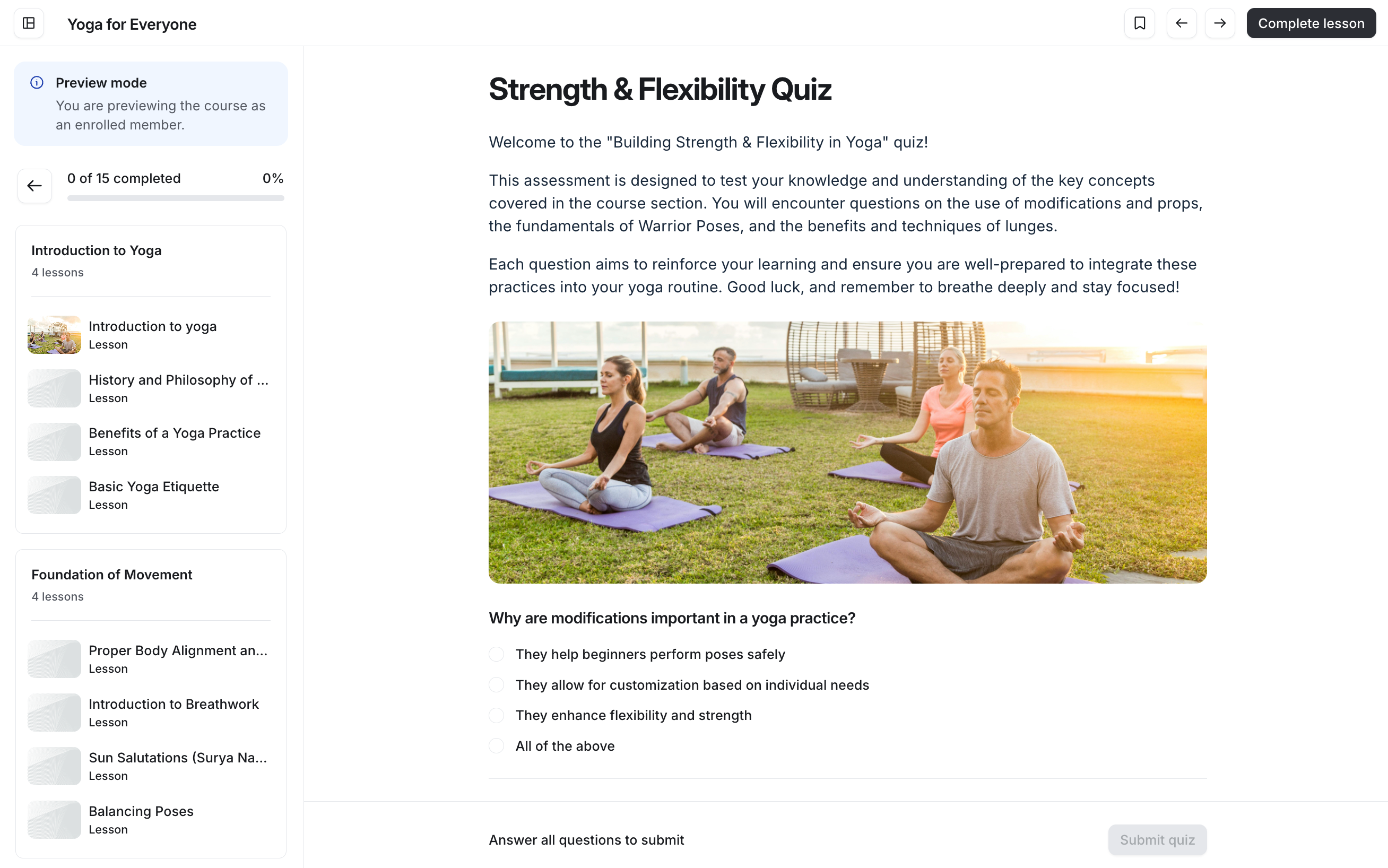
Once you’ve created the questions and configured various settings, it’s a good idea to preview the quiz as a student. This allows you to experience the flow of taking a quiz and make any necessary adjustments based on your preference before setting the quiz status to published.
To preview the quiz, click the More actions (three dots) icon in the top-right corner of the quiz editor and select View as student.

When previewing a quiz, you can:
Navigate through the quiz and respond to the questions as a student would.
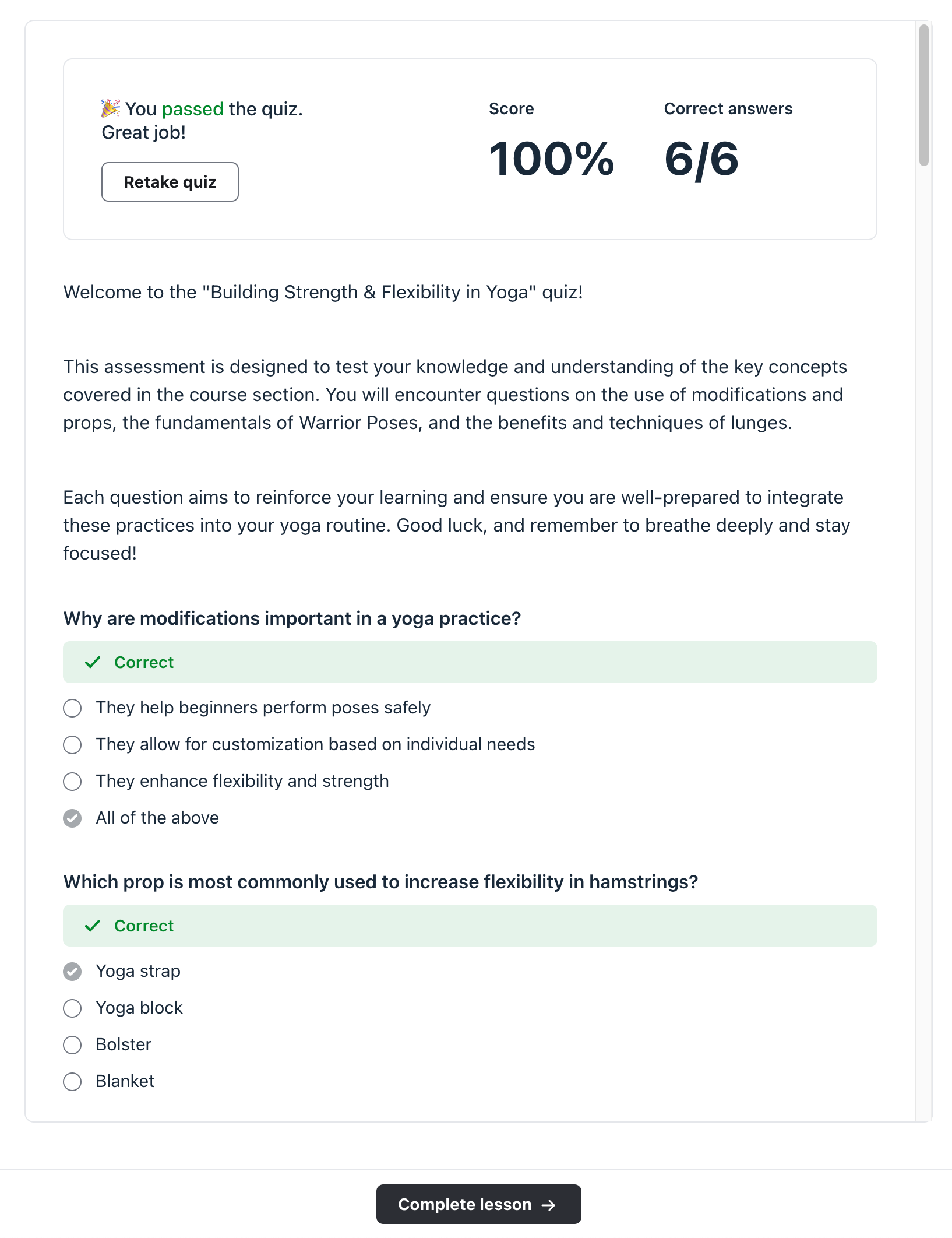
View the result of the quiz as a student after submitting the quiz.
Scroll to the bottom of the quiz to view all the tabs available for the quiz, including comments and files. You can also view the curriculum on the left sidebar.
Post a new comment. If you are viewing the quiz after it has been published, you can also view and manage students' comments.
Once you have submitted your answers for the quiz, you will be able to see the results from a student's perspective. This will help you make any adjustments to settings, such as setting up a passing grade threshold or deciding whether to hide answers on the results page.
Publish quiz
Once you are ready to publish the quiz to the course curriculum, set the status to Published in the General tab in the left sidebar of the quiz editor. Then click Save in the top-right corner of the quiz editor.
Students will now be able to take the quiz from the curriculum and view the results after submitting their answers.
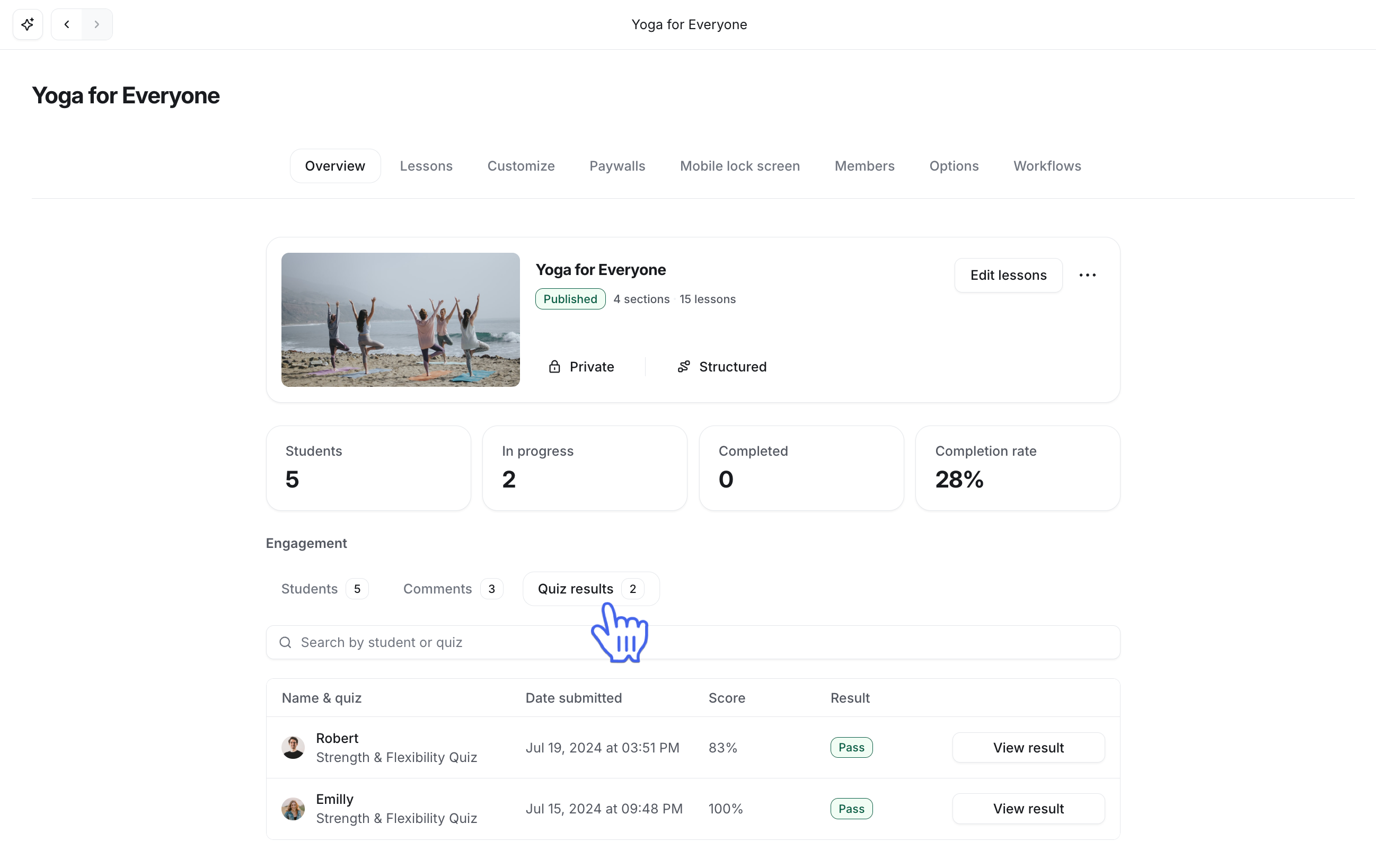
You will be able to see students’ quiz results from all the quizzes in courses within your course dashboard by navigating to the Quiz results tab in the Engagement section.
Export quiz results
You can export the CSV file containing all quiz results from your course. This export includes detailed information for each student on every quiz they've taken within the course, such as:
Student name
Email
Section and quiz name
Score
Grade
Number of attempts
Date of submission
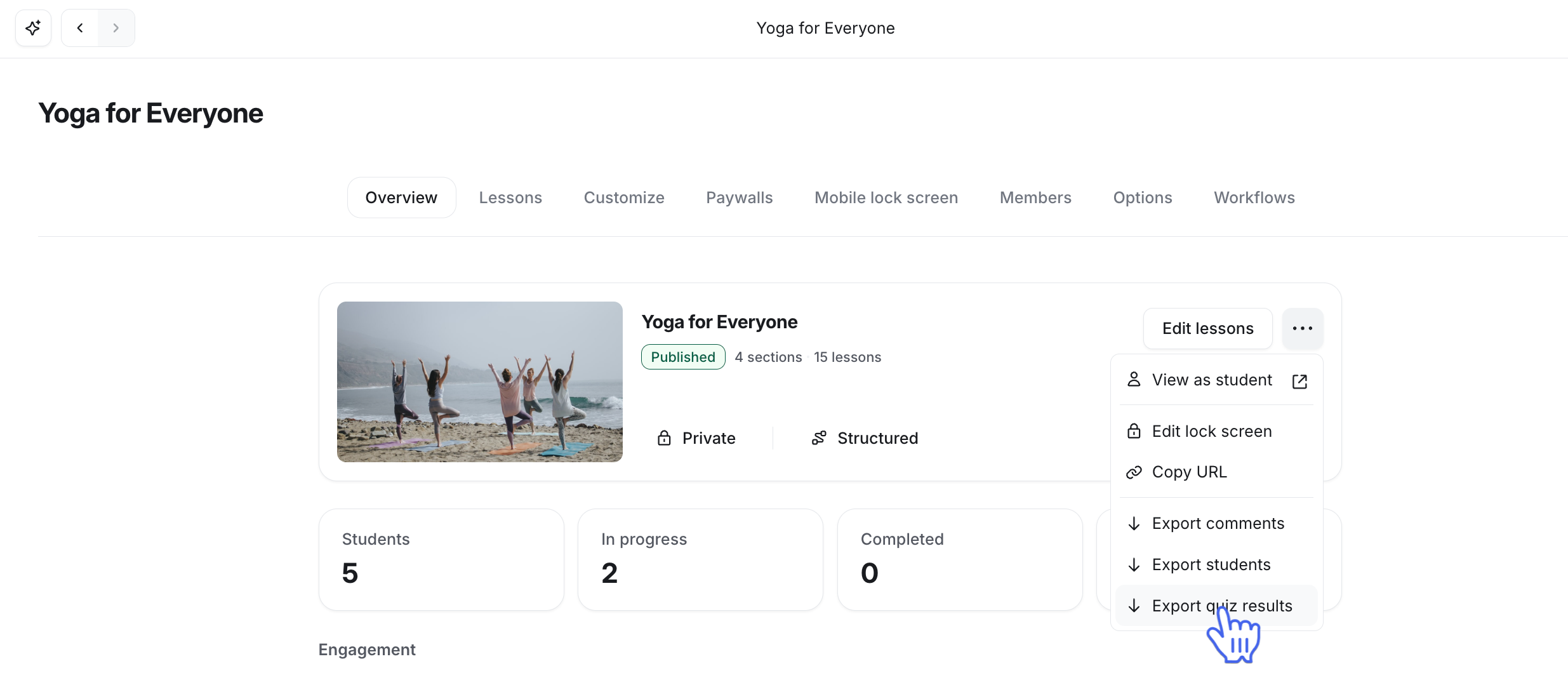
To export the quiz results, navigate to the course space. In the course dashboard, click the More actions (three dots) icon beside the edit lessons button and select Export quiz results. The CSV file will be sent to your admin email.
Set up workflows for quizzes
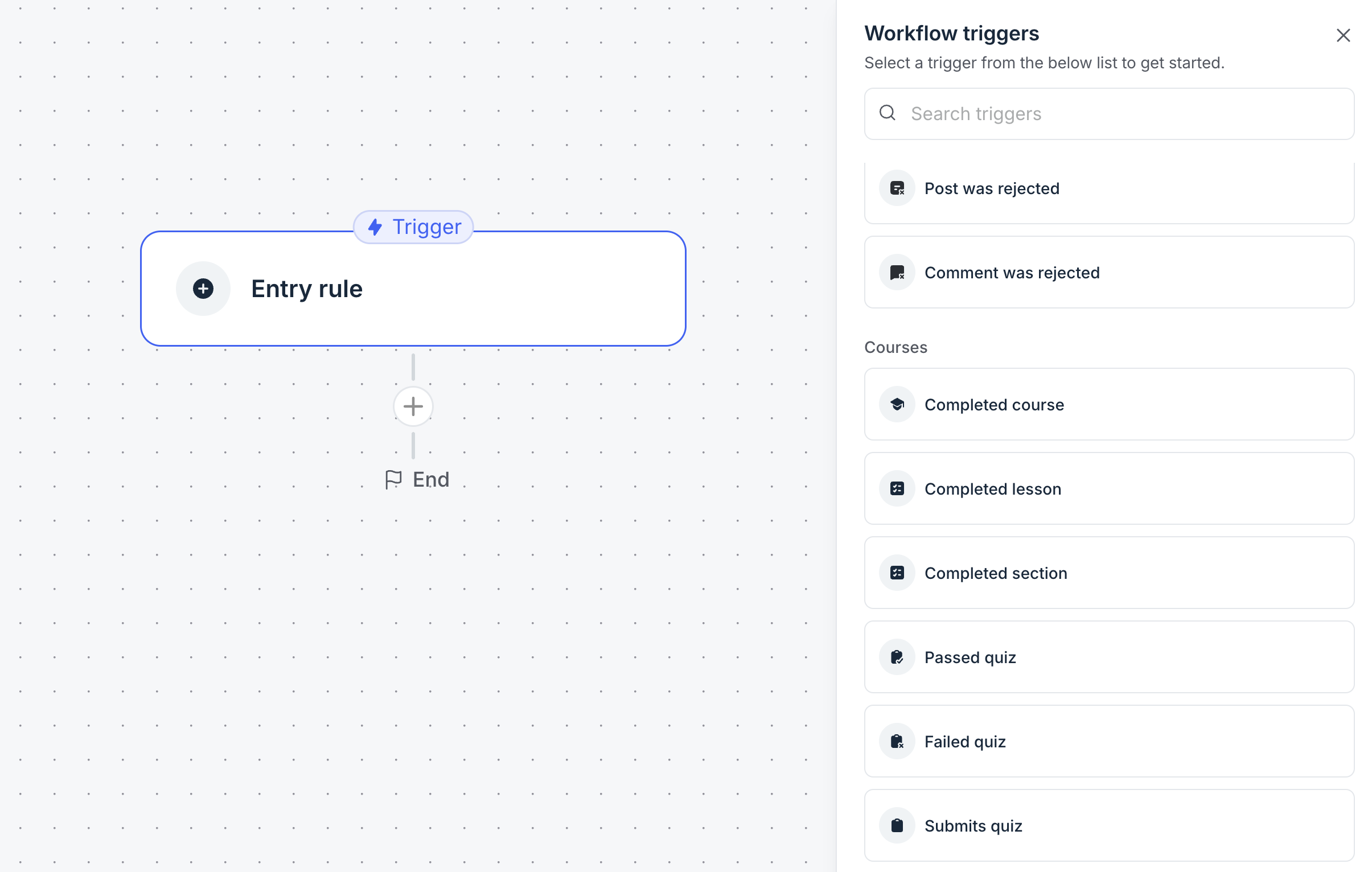
You can now automate actions when members interact with quizzes using the Passed quiz, Failed quiz, or Submits quiz triggers. This means you can automatically run workflows when a member passes, fails, or submits a quiz, without the need to manually track their progress.
Here are a few examples of how you can use these workflows:
Award gamification points when a member passes all quizzes in a specific course.
Send an email or direct message with learning resources when a member fails the final quiz in a course.
Assign a tag when a member completes all quizzes that are part of courses located in a space group.
📚 For a detailed understanding of how these triggers function and how to set them up, please refer to Understanding supported workflow triggers, audience rules, and actions.
To set up a workflow for your quiz:
Navigate to the Course dashboard.
Click Edit lessons and select the Workflows tab.
Click New workflow.
-
Click the trigger step and in the Courses section, set up the quiz-related trigger.
Set up your preferred actions and activate the workflow.
📚 For more information on automation workflows, refer to our guide on Set up a custom automation workflow.