Using the course dashboard
Last updated: July, 2026
The course dashboard provides admins and moderators with access to course engagement and a wide range of options to manage the course effectively.
Access the course dashboard
As an admin or moderator, you’ll see the dashboard when editing the course space.
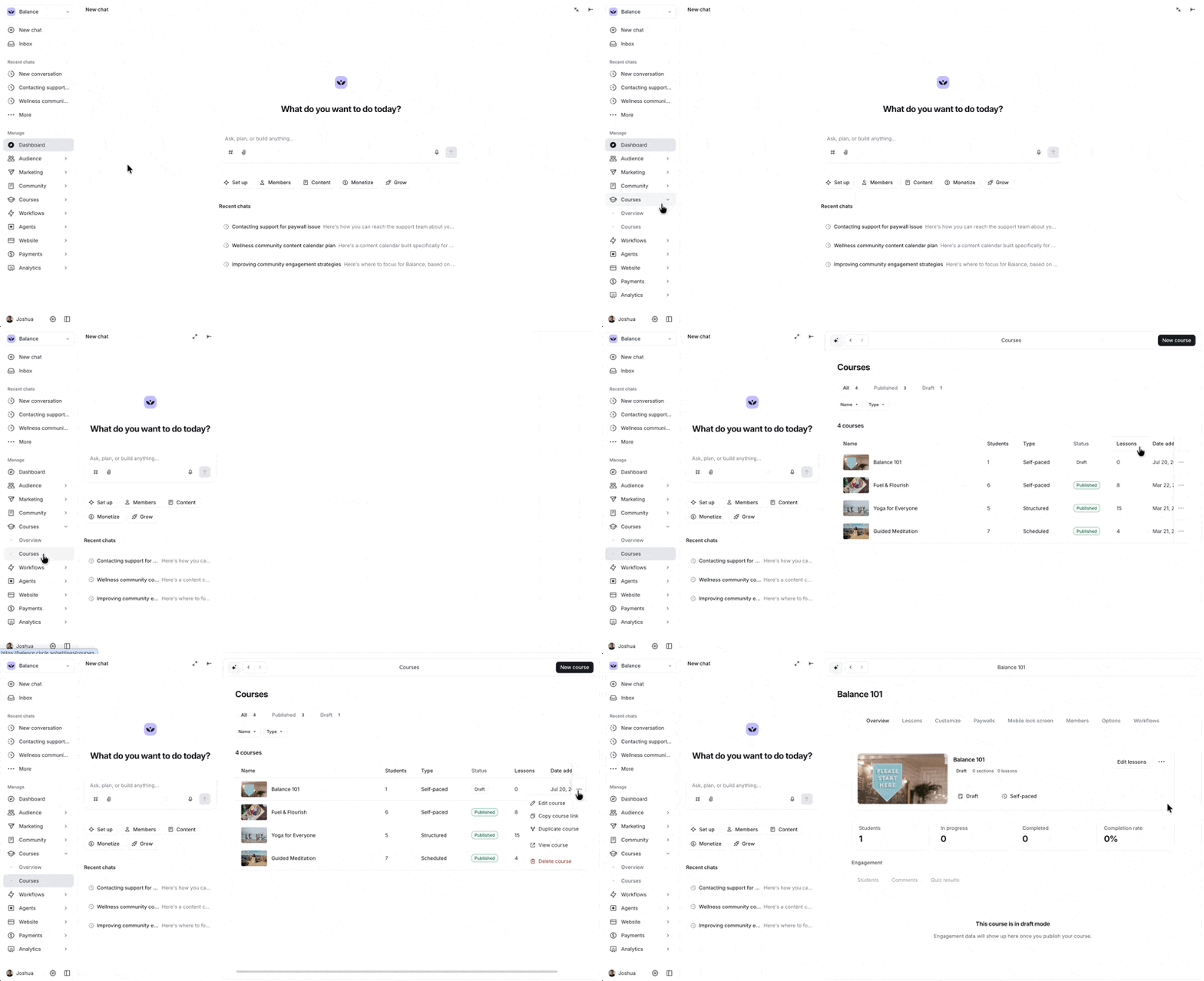
On the course overview, you can see the following basic details:
Status: Indicates the course's current status, such as Published or Draft.
Access: Indicates the course space's access status, such as open, private, or secret.
Course type: Shows the course's current type. You can click it to change to a different type.
Students: Shows the number of enrolled community members.
In Progress: Displays the number of community members currently taking the course.
Completed: Shows the number of community members who have completed the course.
Average completion rate: Displays the percentage of the course that has been completed on average.
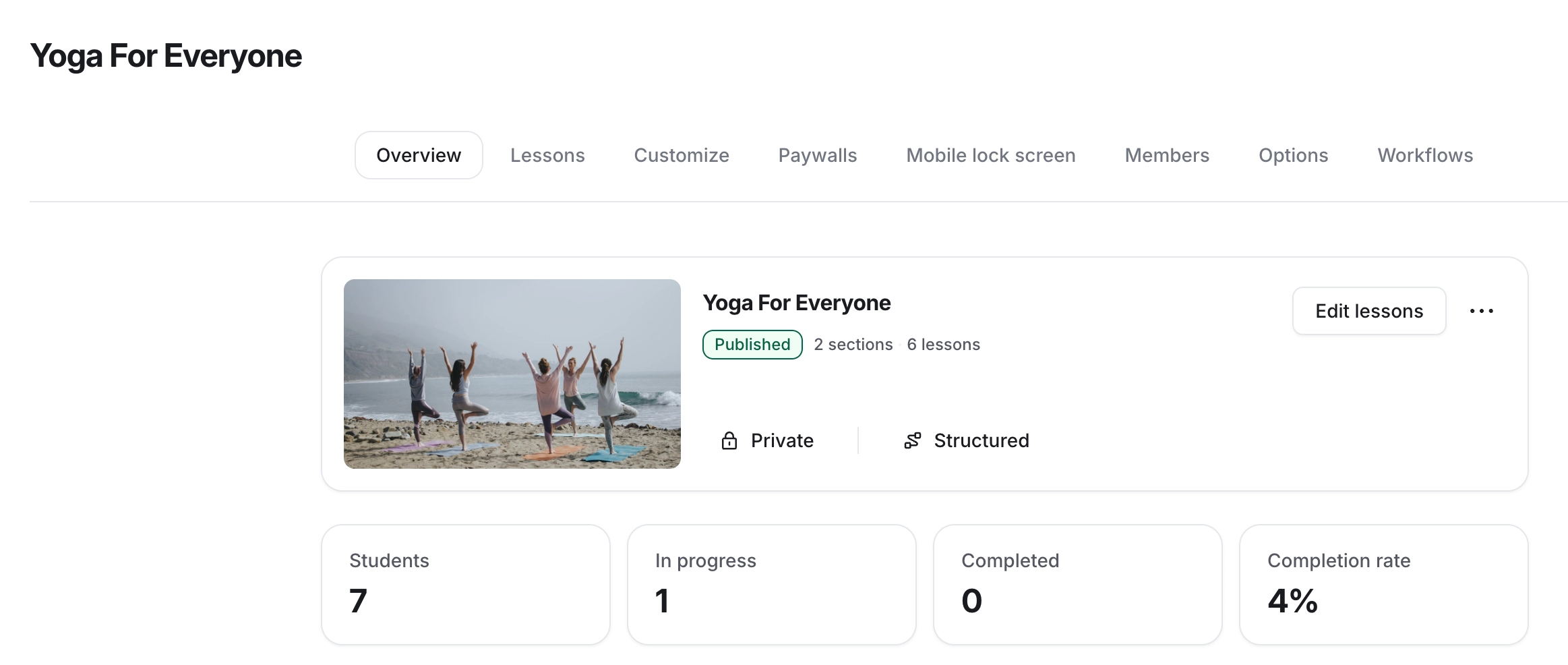
Manage course space
Let’s take a look at various options available to help you manage your course space.
Access course space settings
To access the course space settings menu, click the More actions (three dots) icon next to the course name in the course dashboard. In the space header, you can also manage bookmark links and folders.
📚 For more information, see Customize course space settings.
Edit lessons
To access the course editor, click Edit lessons in the dashboard. The course editor allows you to access your course curriculum, add new lessons/quizzes/sections, and edit existing ones.
📚 For more information, see Building a course curriculum.
Change course type
You can change your course type, even if you’re currently building the course or already published it in your community. To do this, click the current course type. Next, select the type you would like to change your course space to and click Save Changes.
📚 To learn about what happens when you change the course type from one to another, see Changing the course type.
Access additional options
In addition to managing the course space settings and curriculum, you can access additional options available by clicking the More actions (three dots) icon beside the edit lessons button.
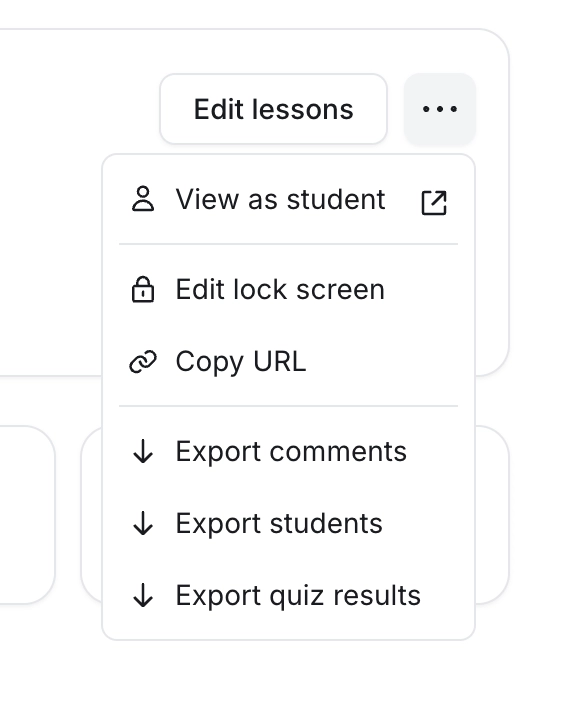
These options include:
View as student: Preview the course as an enrolled member.
Edit lock screen: Customize your course space lock screen.
Copy URL: Copy the course space URL
Edit labels: Set custom course labels to override the default ones (sections and lessons) for this course.
Export comments, students, or quiz results: Export a CSV file containing comments, student information, or quiz results for each quiz taken by students in your course. The file will be sent to your admin email.
Access engagement
The course engagement section displays vital information on students, lesson comments, and quiz results.
Students
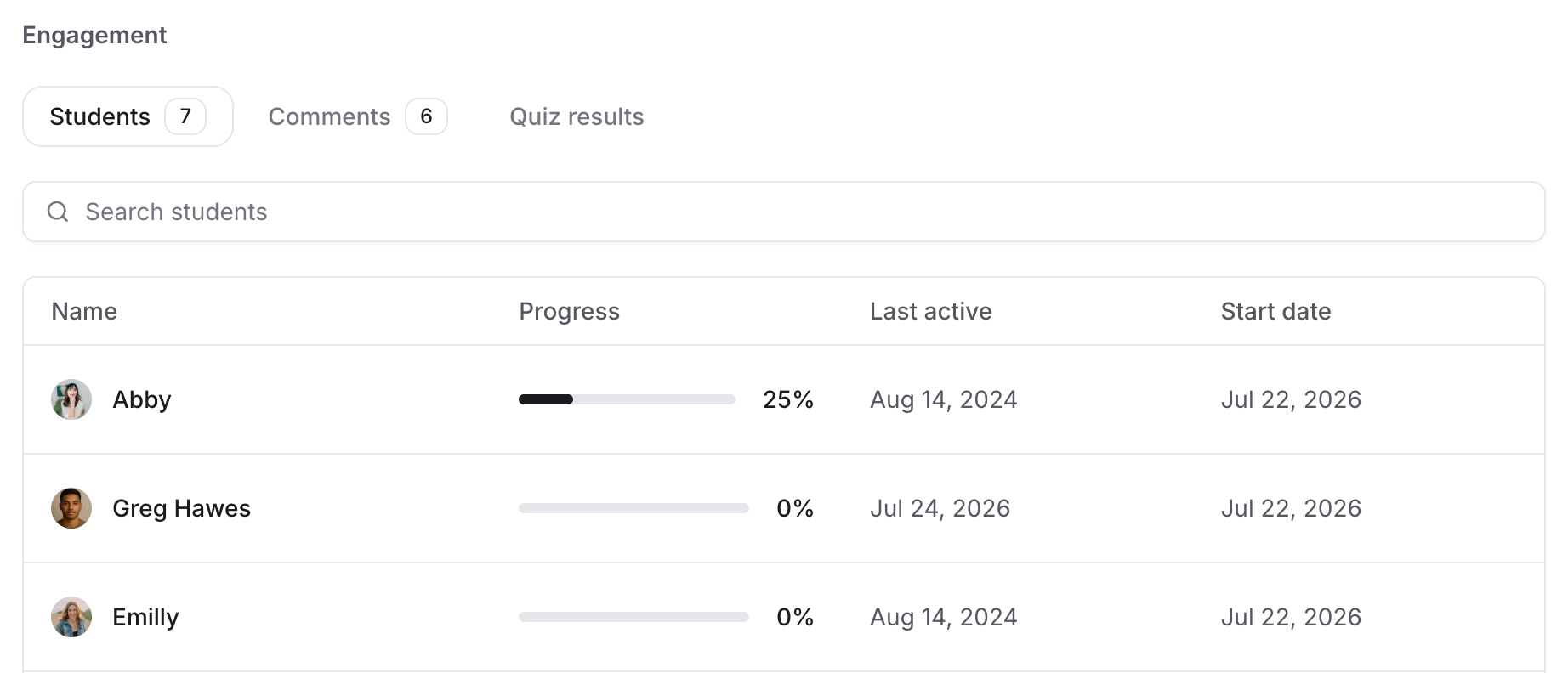
On the Students tab, you can see all the enrolled students with the following information:
Name
Progress
Last active status
Start date
💡 Tip: To search for a student, enter their name in the search field. Also, clicking on the student's name will allow you to access their profile information.
Course progress
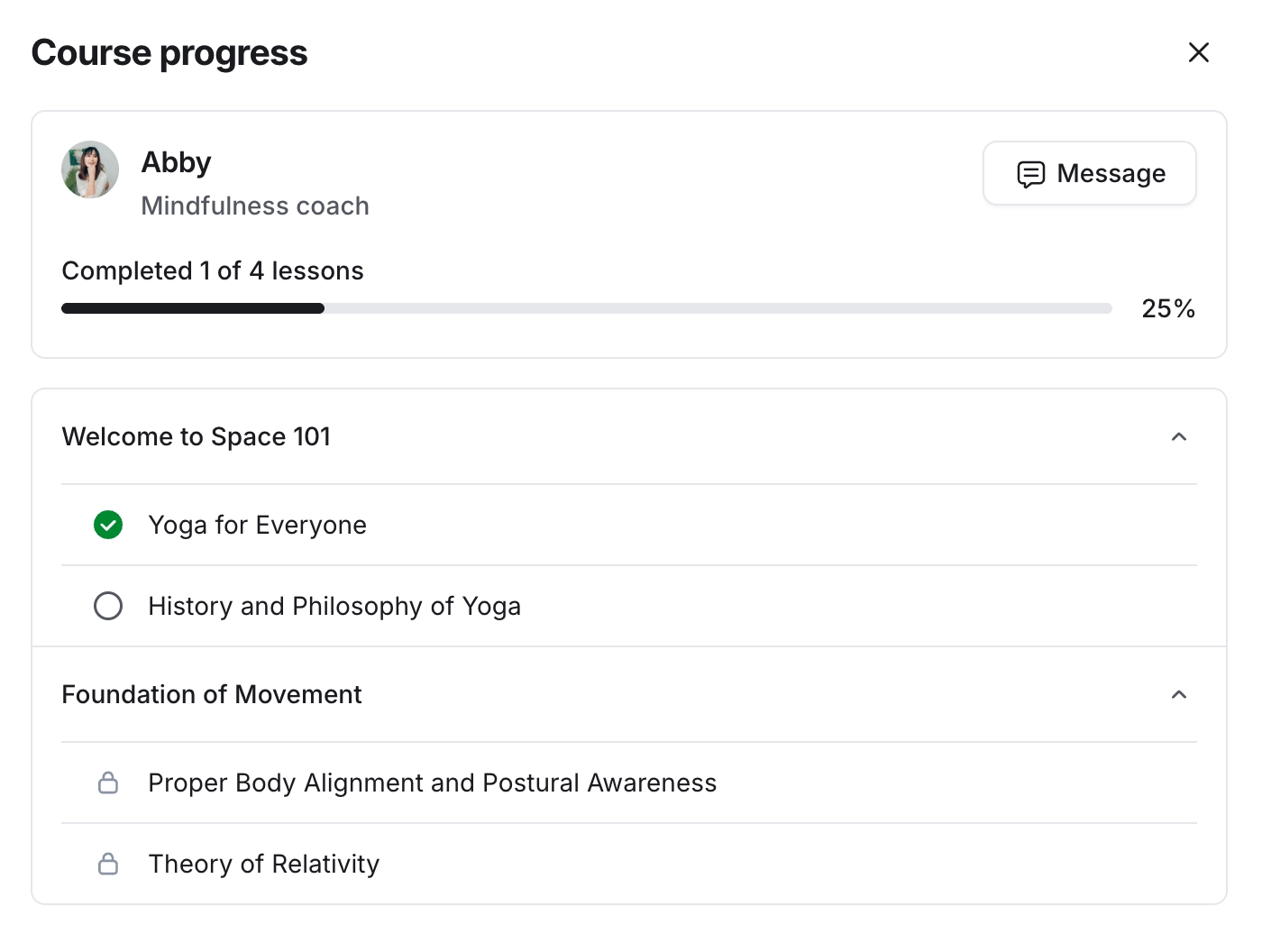
Monitor a student's progress in detail by accessing their progress report. This can help you track who is keeping up with the curriculum and who might need additional support. You can also offer students personalized assistance or resources based on their progress.
On the Students tab, click the progress bar next to the student's name. This will open the course progress pop-up, where you can view specifics such as the number of lessons completed out of the total, course completion percentage, and each individual lesson completed within the curriculum.
ℹ️ Note: We save each student’s course progress even when they leave or are removed from the course space. When they rejoin the course, their saved learning progress will be restored so they can continue learning from where they left off. However, please note that the course progress will be removed if their member account is deactivated.
Comments
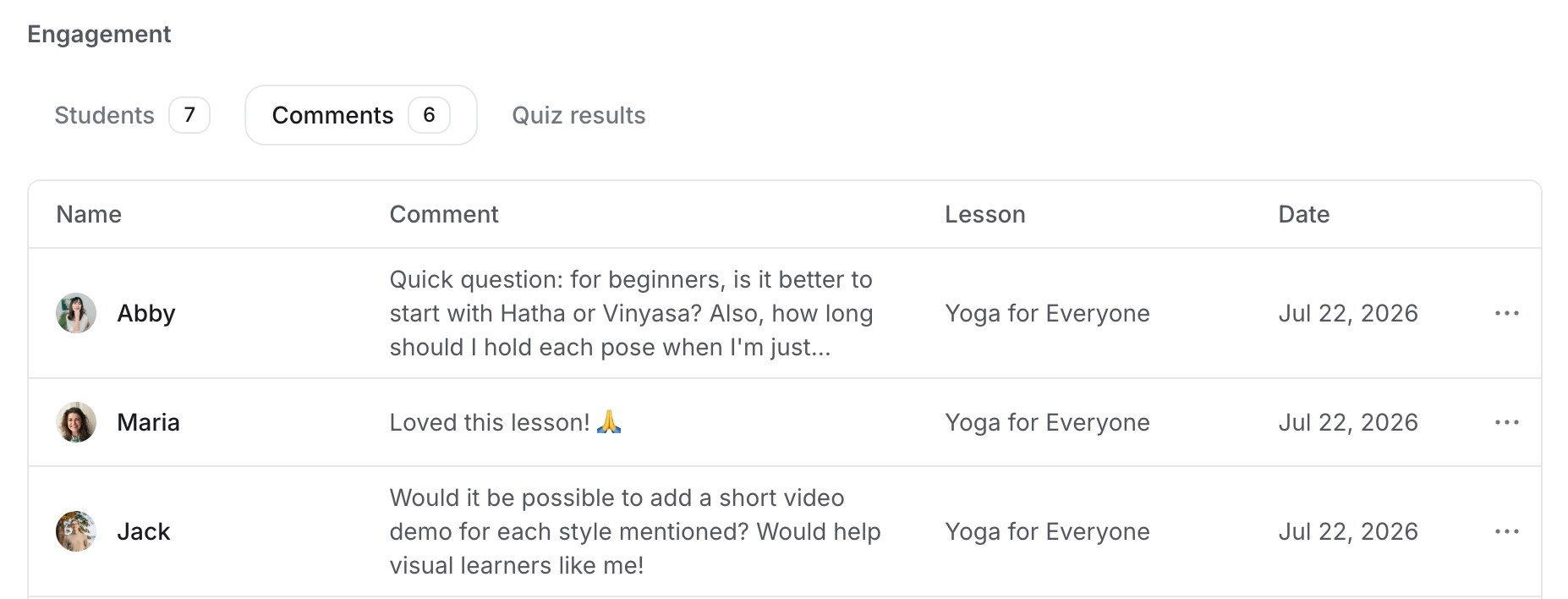
On the Comments tab, you can view all the comments made by students across the lessons. Each comment displays the comment author, date, and the name of the lesson where the comment was posted.
Click the comment to navigate to the original comment in the lesson. You can also view or post comments in each lesson when previewing it as a member.
📚 For more information, see Enable lesson comments.
Quiz results
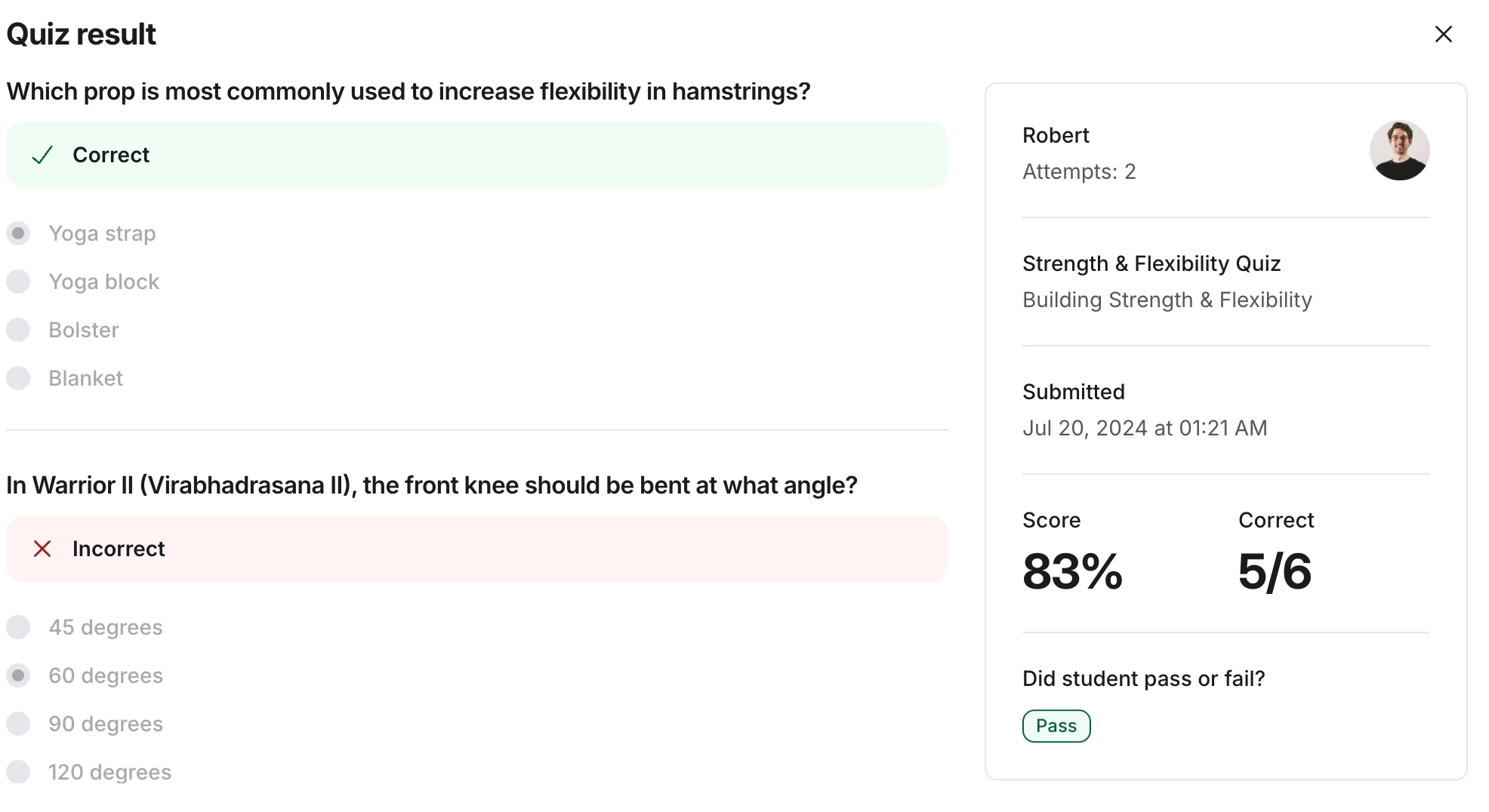
The Quiz results tab displays quiz submissions from students across all quizzes included in your course. This helps you see how students are performing and identify areas that may need additional support.
Here, you can easily retrieve all the results of a specific quiz or student by entering the quiz title or student's name in the search bar.
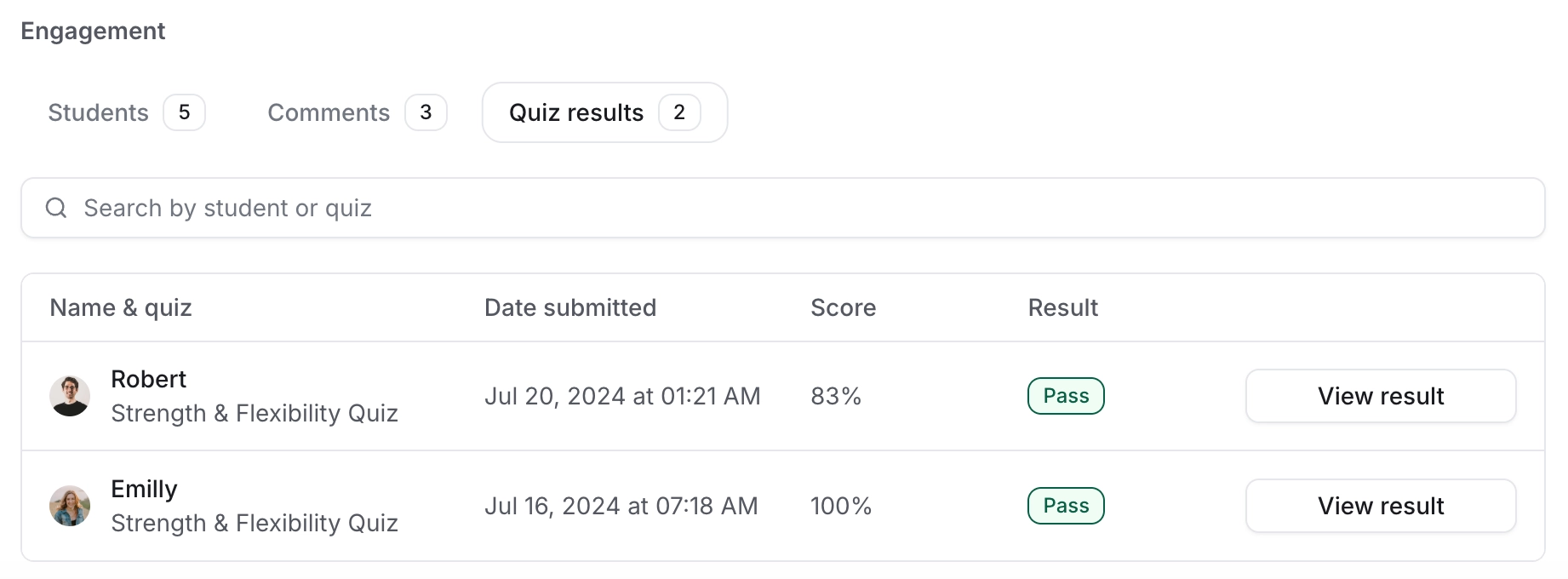
To access detailed information about students’ quiz submissions, click View result next to their submission entry. If you haven't set a passing grade threshold for your quizzes, you will see the Grade quiz option to manually grade submissions.
When viewing the result, you can see information such as:
Quiz: View the name of the quiz and the course section where it is located.
Number of attempts: Check how many attempts a student has taken.
Date of submission: View the date and time of the quiz submission. The time will be displayed in your device’s system timezone.
Quiz score: See the total score each student achieved on the quiz.
Student responses: Review each student's specific answers for every quiz question.
Number of correct answers: Check how many questions each student answered correctly. On the left, you can also view which questions they answered correctly and which they answered incorrectly.
Pass/Fail status: See whether each student has passed or failed the quiz based on their performance. If you haven't set a passing grade threshold for your quizzes, you will be able to manually determine whether a student passes or fails.