Customize course labels
Last updated: July, 2026
You can now customize your course labels to better reflect your brand’s terminology. In this guide, we'll take a look at what custom course labels are, how to customize them and how they appear to your members.
Important points to remember
You can apply custom labels to all courses or to a specific course.
There is a list of pre-defined labels for sections and lessons to choose from.
The course dashboard and editor will still display the standard terms “Section” and ”Lesson” for admins and moderators.
Custom labels are only visible in a member’s course view.
What are custom course labels?
By default, courses in Circle are structured using sections and lessons. With Custom course labels, you can customize the names of these labels from our pre-defined label menu to better match their curriculum flow/format (for example, “Section” renamed to “Week” and “Lesson” renamed to “Day”).
Updating course labels
As an admin or moderator, you can choose from a list of pre-defined labels for sections or lessons. These labels can be applied globally or to individual courses.
Customize course labels globally
To set custom course labels for all courses:
Hover over the community logo in the left sidebar, then click Back to Community.
Go to the Courses tab on the top navigation bar. If you've customized the name of the course directory link, the updated name will appear on the navigation bar instead.
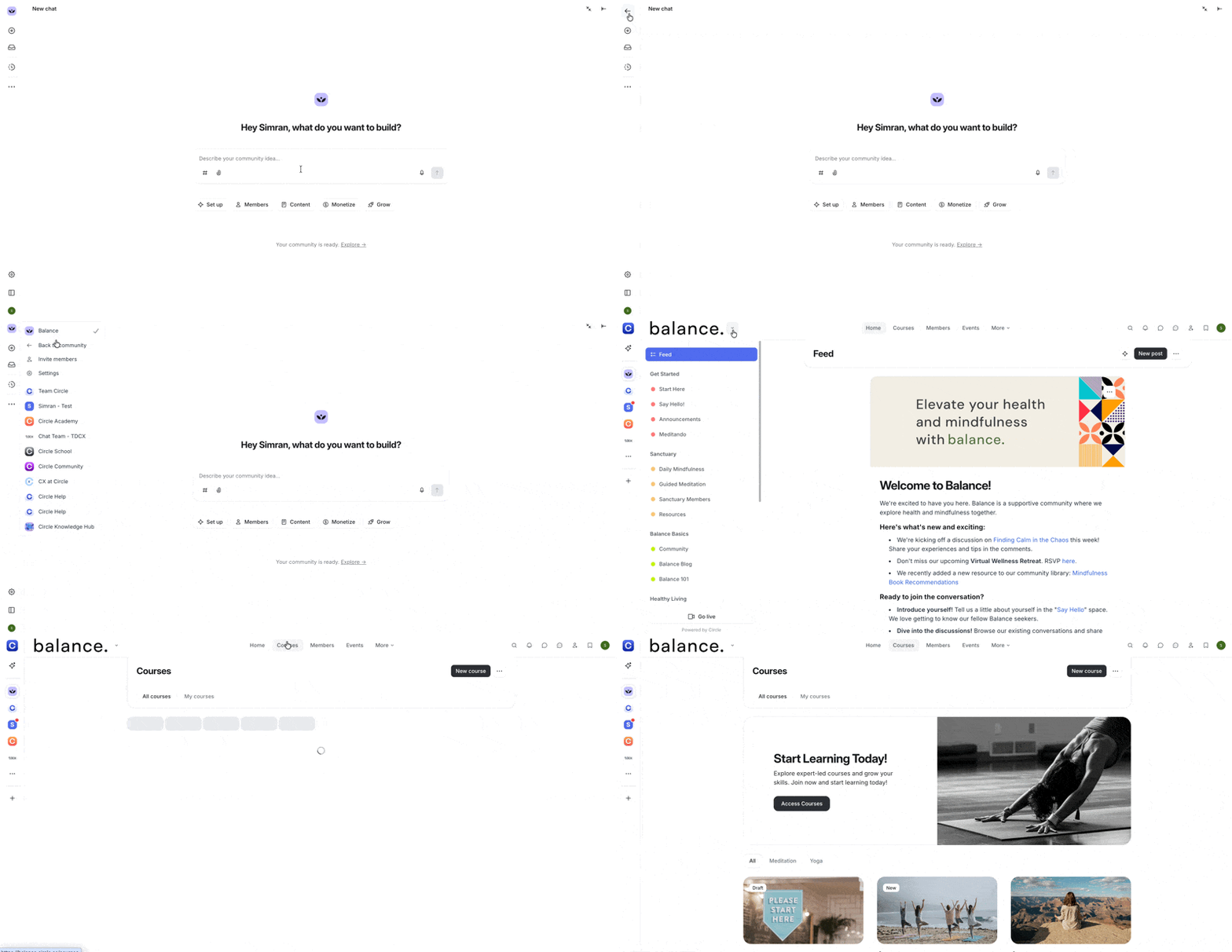
Click the More actions (three dots icon) in the top right corner next to the Create a course button and select Options.
-
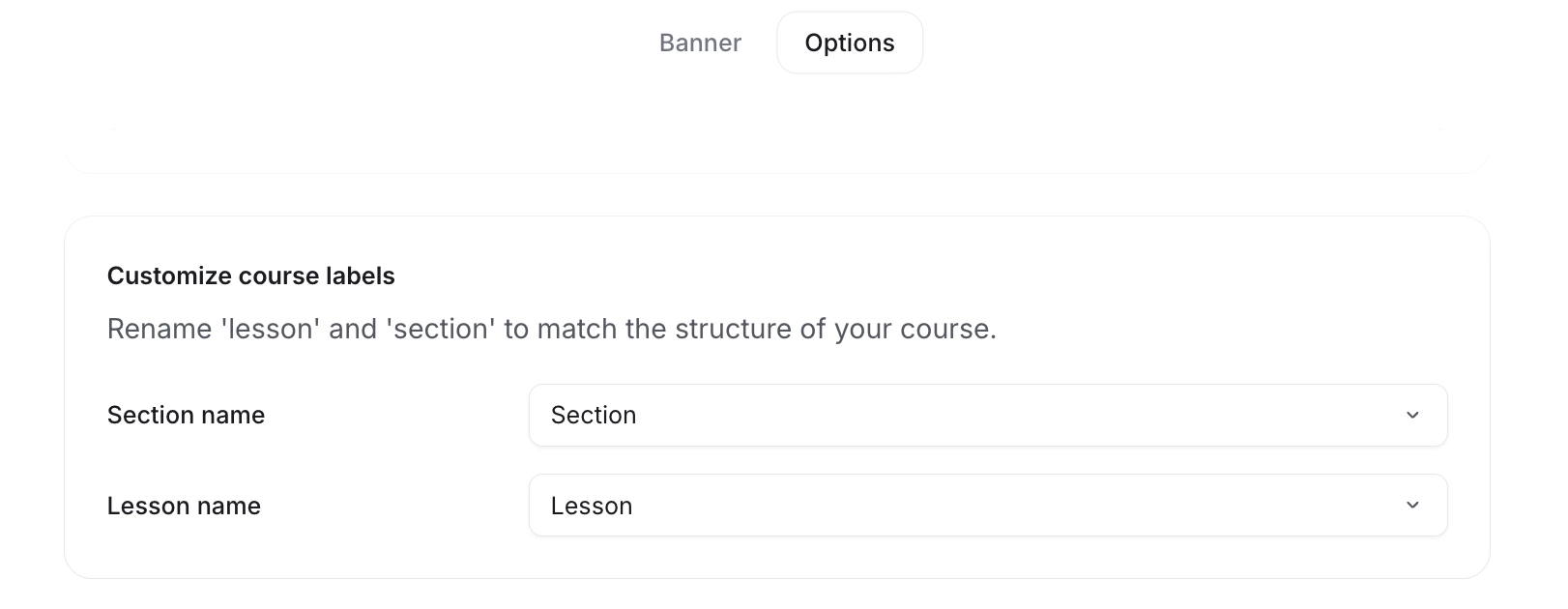
Under the Customize course labels section, choose a custom label for sections and lessons.
Click Save.
Customize labels for a specific course
To customize labels for specific course:
Go to your course space.
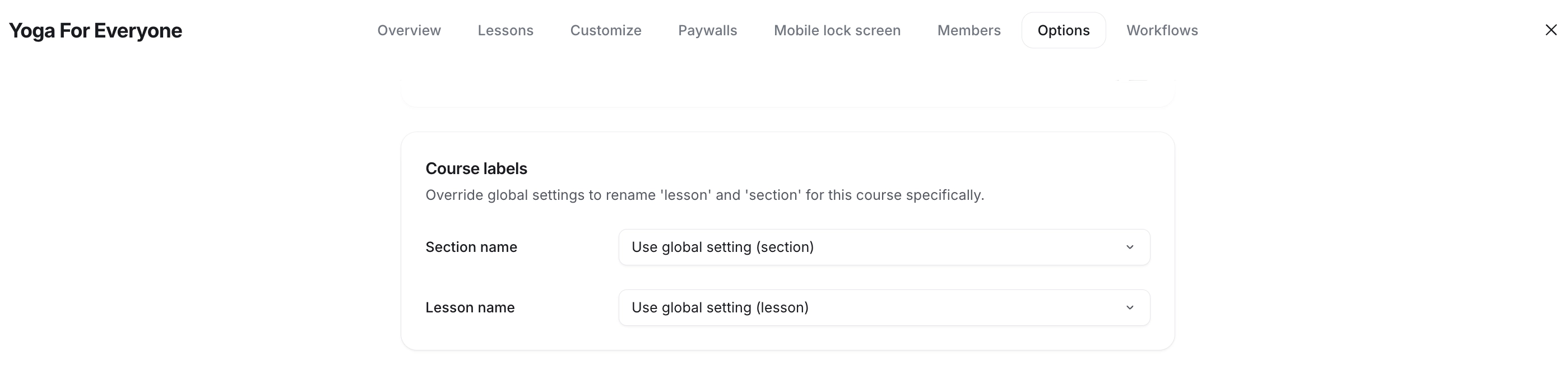
In the course dashboard, click the More actions (three dots) icon, go to Settings and select Options.
-
In the Options tab, under Course labels, choose custom names for section and lesson names. By default, both are set to Use global setting. Select your preferred labels from the drop-down menus.
Click Save.
Understanding course labels from a member’s perspective
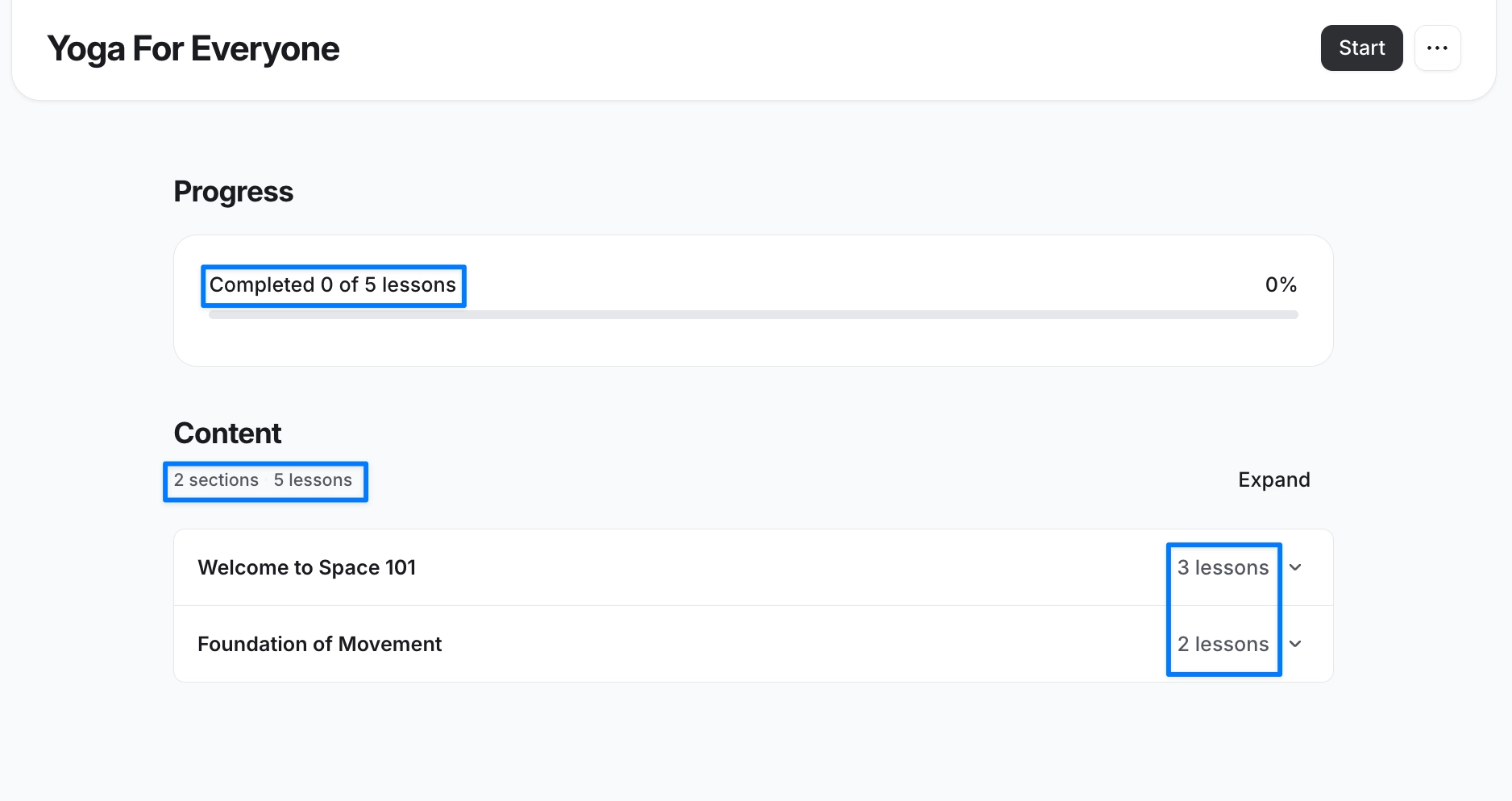
Custom course labels are only visible in a member’s view of the course. Admins and moderators will continue seeing the standard terms (sections and lessons) in the course dashboard and the course editor.
With global setting:
With customised labels:
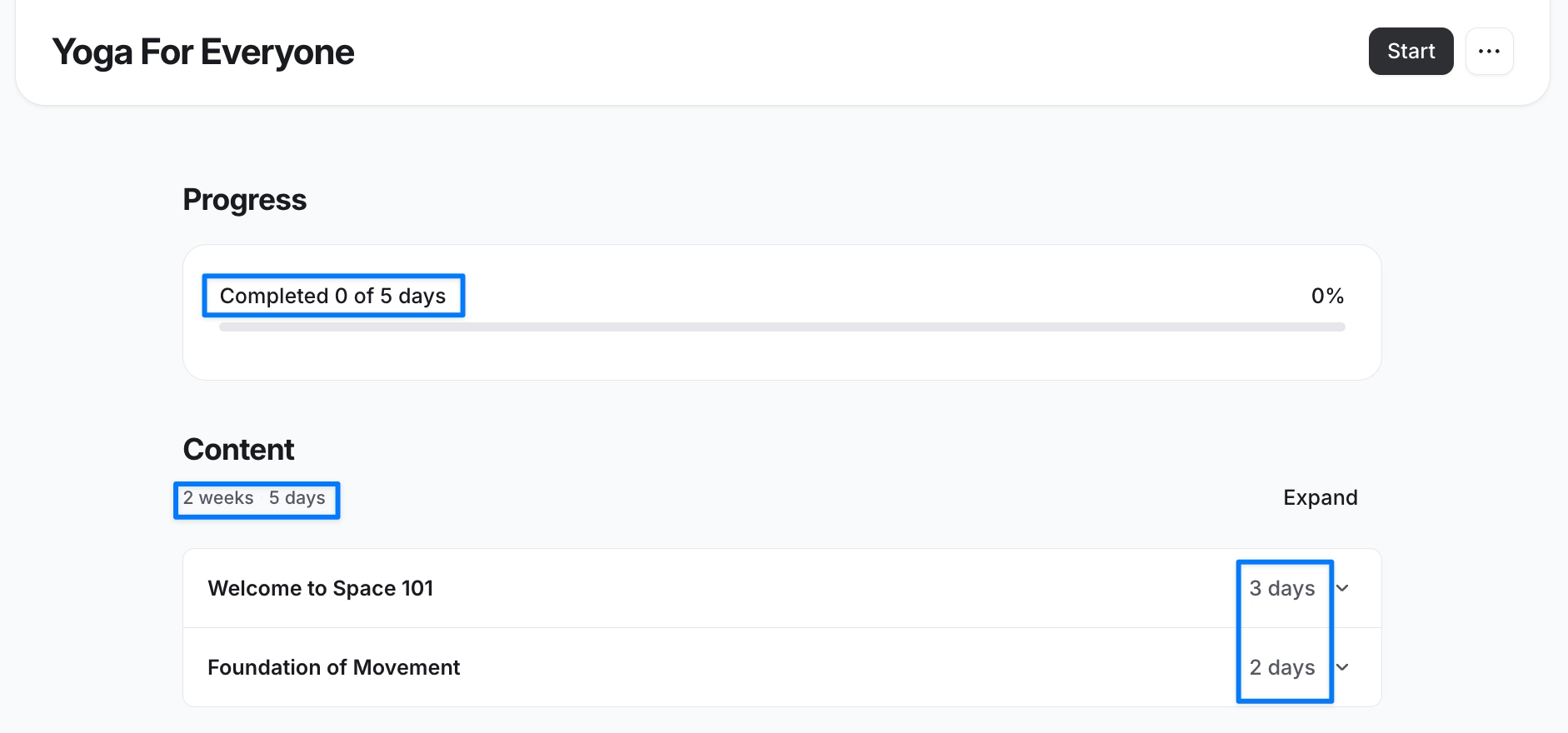
Members will see the custom labels when they access a course in their browser, desktop app and mobile apps.
ℹ️ Note: Bookmarks and search results will still be displayed as lessons. Custom labels will only be visible in the member’s course view.