Manage lessons comments
Last updated: July, 2026
Admins and moderators of the course space can manage lesson comments to create a constructive and engaging learning environment. In this article, we will explore options for managing and exporting your lesson comments.
💡 Tip: Comments are also available for quizzes. You can follow the same steps outlined for enabling and managing lesson comments to enable and manage comments for quizzes.
Pin a comment
Pinning a comment lets you spotlight important information in the comment section. Pinned comments stay visible at the top, so they don't get lost among other discussions.
To pin a comment, hover over the message, click the More actions (three dots) icon and select Pin.
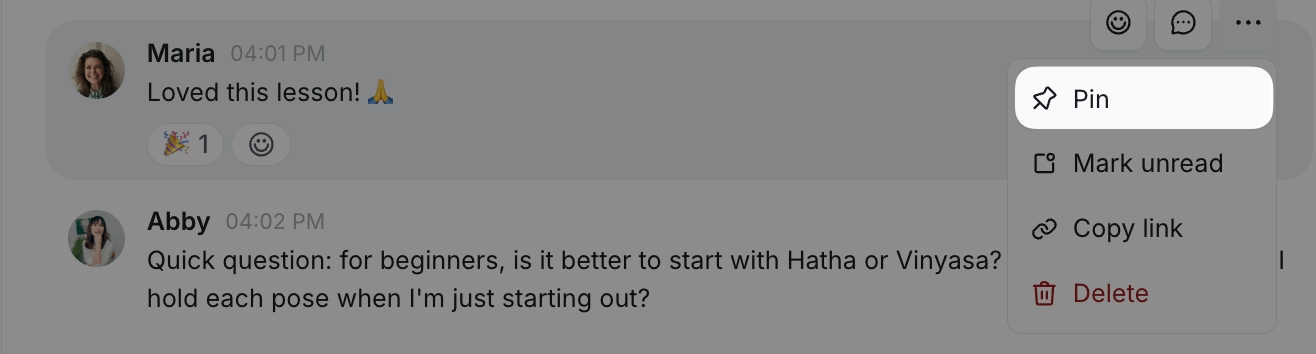
To unpin a comment, hover over the pinned message, click the More actions (three dots) icon and select Unpin.
Delete a comment
To delete a comment, hover over the message, click the More actions (three dots) icon and select Delete.
Edit a comment
Hover over the comment, click the More actions (three dots) icon and select Edit.
Edit your message.
Press Enter or click the arrow icon to save your reply.
ℹ️ Note: Comments can only be edited by their author in the course space.
Export lesson comments
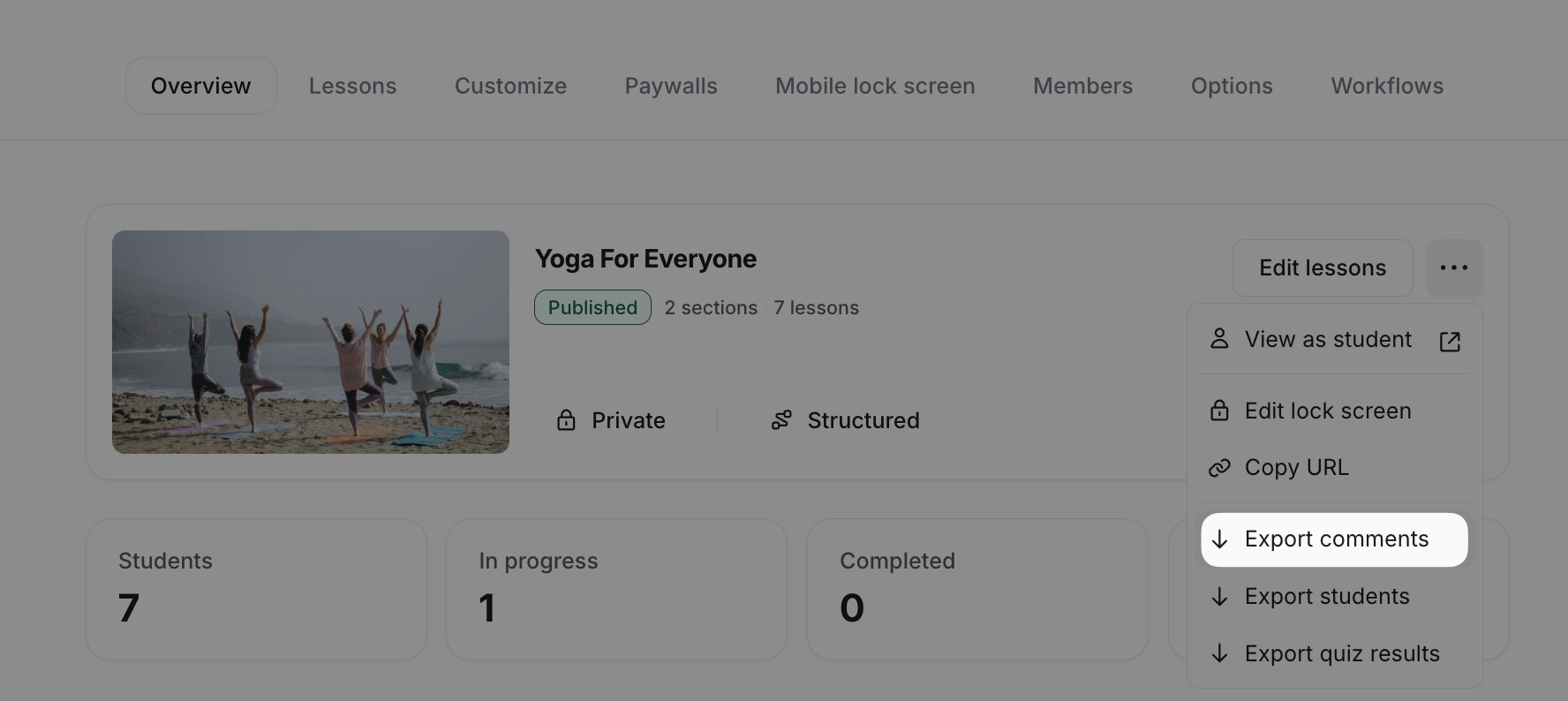
To export CSV of lesson comments from your course, click the More actions (three dots) icon in the course dashboard and select Export comments.