Commenting on a lesson
🟡 Member-focused article | Last updated: October, 2026
Lesson comments help you engage with the course creator and fellow learners to discuss lesson material, ask questions, and provide feedback on the lessons. In this article, we will guide you through posting and managing your comments.
Post a comment
When the community admin has enabled comments for a lesson, you can engage in discussions with the ability to use both parent and threaded comments within the lesson.
💡 Tip: When enabled by admin, you can also post comments in quizzes. You can follow the same information outlined for lesson comments in this article for quizzes as well.
To access the comment section, navigate to the lesson in your course space and click the Comment icon located in the lesson header.
Here, you can enter your message using the messaging field and use the icons located under the messaging field to:
Attach image
Add emoji
Mention fellow students and space admin
Add GIF
Attach files
Link to community content using Hashtags
To access formatting options, highlight the text. A formatting bar will appear with options such as:
Bold
Italic
Strikethrough
Underline
Hyperlink
To create a list, you can use the following shortcuts in the messaging field:
Numbered list: Press “1.” followed by a space to start the list. Pressing Enter at the end of the sentence will automatically continue the numbering.
Bulleted list: Press “-” followed by a space to start the list. Pressing Enter at the end of the sentence will automatically continue the list.
Once your message is ready, press Enter or click Arrow (⬆️) to post your comment.
Replying in thread
Replying to a comment within a thread is simple! Just hover over the specific comment and click the Reply in thread icon.
When other students have contributed to the thread, you'll notice a banner indicating the number of replies connected to the parent comment. Clicking this banner will open the entire threaded conversation.
Reacting to comments
Just like chat messages, you can react to lesson comments using emojis! Hover over the comment that you’d like to react to and click the Emoji icon.
The emoji reactions will be highlighted in blue. Reactions with multiple responses will display a count, and when you hover over them, you'll see the names of people who reacted.
If there's already an emoji reaction, you can click the emoji to add your reaction. To remove your reaction from the comment, just click the emoji again.
Accessing threads
When you engage in a conversation by replying to a thread or receive replies connected to your initial comment, all these interactions are conveniently accessible via the Threads icon located within the community header. This helps you easily navigate and keep track of the threaded discussions you're involved in.
From the threads panel, you can respond directly using the messaging field at the bottom of the latest threaded comment or click the Reply to thread icon to return to the original conversation within the lesson.
💡 Tip: Whenever there's a new comment in a thread you're engaged in, a numbered badge in red representing the number of unread threads appears on the Threads icon located in the community header.
Manage comments
You can navigate back to the comments tab to share, modify, or remove your comments.
Share a comment
You can easily share lesson comments from a course by copying the link and pasting it into the desired conversation post or chat space.
To copy a link, hover over the comment, click More actions (three dots) and select Copy link.
You can share the copied link in any area within the community, such as direct messages and chat spaces.
After copying the link, paste it into a conversation using the CMD/CTRL + V keyboard shortcut. Pasting the message link in DMs or chat spaces will unfurl the link and show a preview.
When you share a link to a comment posted by other members in a private or secret course, in a chat space, or in a direct message, you will be prompted to confirm before sending your message. If you would like to proceed, you can click Send to share the message.
It’s important to note that if you click a link from a course that you are not a part of, you will see a message prompt indicating that you do not have access to the comment.
Edit a comment
Hover over your comment, click the More actions (three dots) icon, and select Edit.
Update your message.
Press Enter or click Arrow (⬆️) to save your reply.
Delete a comment
To permanently remove a comment, hover over the message, click More actions (three dots) and select Delete.
Manage notifications
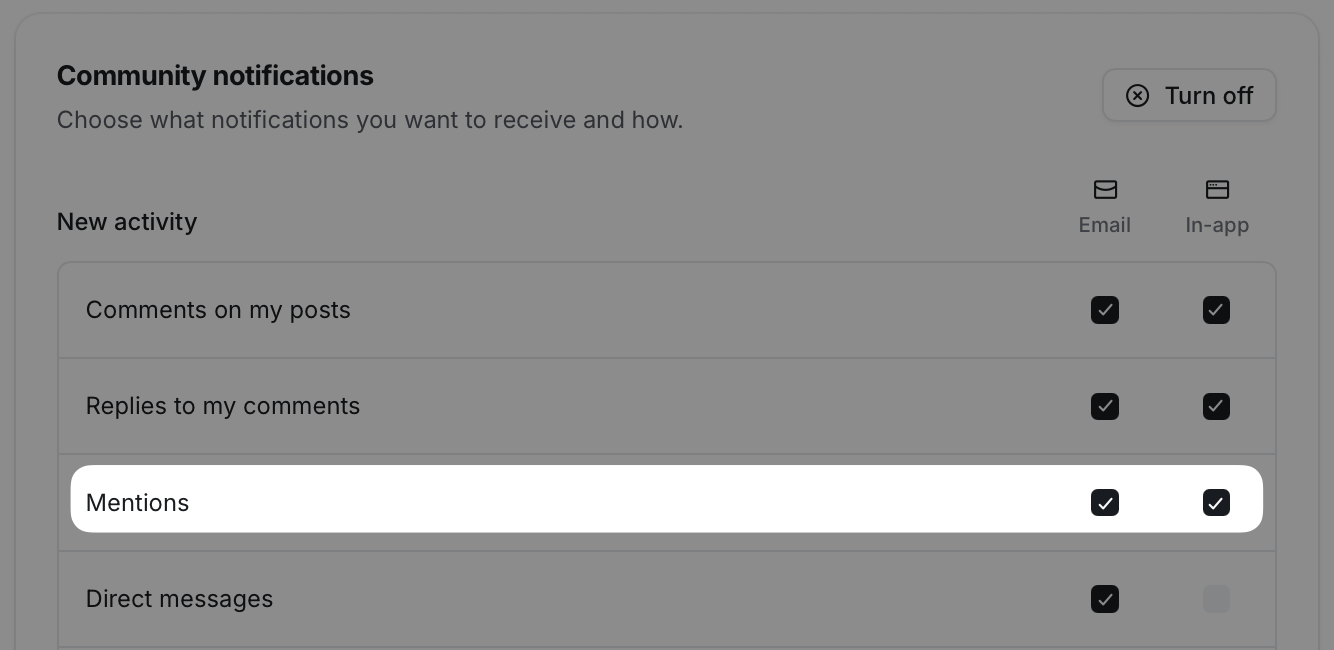
You can receive notifications for mentions through in-app, push, and email notifications. Once enabled, whenever you are mentioned in course comments, you will receive a notification according to your notification preferences.
To configure your notification preferences:
Click your profile photo in the top navigation bar, then select Notifications.
In the New activity section, select the relevant notification type box for Mentions.
Click Save changes.
💡 Tip: To manage this on our mobile apps, navigate to the Notifications tab → tap the Settings icon in the top-left corner → select In-app or Push notifications option → enable/disable the Mentions toggle.
📚 For more information, see Manage your notification preferences.