Manage your notification preferences
Last updated: October, 2026
This article will walk you through managing your notification preferences on a web browser, desktop app and mobile apps. This article applies to both community members and admins.
Desktop
You can manage notification preferences for your community account for all platforms using a web browser or the desktop app.
On the Notifications page, notification options are categorized into the following sections:
Email preferences: This section lets you control how you receive marketing emails from your community. If you uncheck the “Offers, news, and updates via email” box, you will be unsubscribed from marketing emails.
New activity: In this section, each row represents a notification option, and the columns represent email, in-app, and mobile notification types.
New posts: In this section, each row represents post and event spaces, and columns represent email, in-app, and mobile notification types.
ℹ️ Note: The mobile notification option will only appear in notification settings if you are logged in to the Circle mobile app.
To manage your notification preferences:
Click your profile icon in the community header and select Notifications.
Select the checkbox corresponding to that option in the row and column to enable notifications for an option. To turn off notifications for an option, clear the checked box.
-
When updating preferences for the New posts section:
You can apply the same notification preference to all spaces by selecting the checkbox for the corresponding column next to Apply to all spaces.
You can apply the same notification to all spaces under a specific space group by selecting the checkbox for the preferred notification type next to the space group's name.
Click Save changes.
💡 Tip: You can opt out of receiving all notification options by clicking Turn off all notifications.
Mobile apps
On mobile apps, notification options are categorized into two sections: email, in-app, and push notifications, which are new activity and new posts.
To manage email, in-app, and push notifications from your mobile app:
Tap your profile icon in the top right corner of the Home tab.
On the upper-right corner, tap Settings (⚙️), select Notifications from the dropdown.
On the notification settings page, choose from Email, In-app or Push notifications.
To enable or disable notifications for each option, tap the toggle next to it.
Unsubscribe from all email notifications
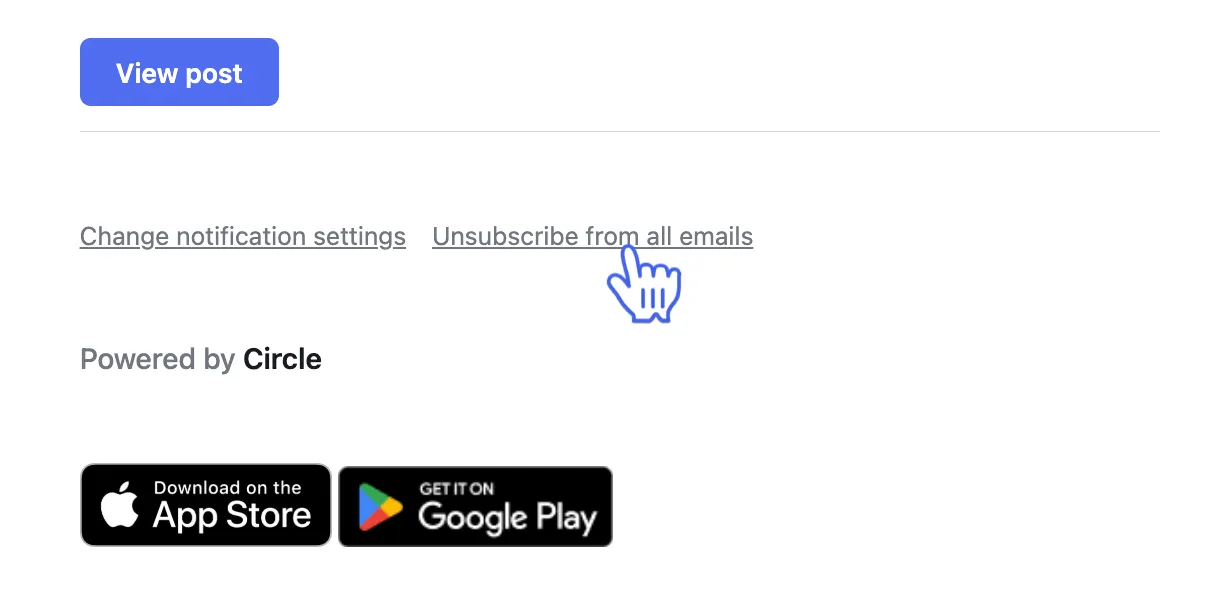
You can unsubscribe from all email notifications for a community directly from any notification email.
To unsubscribe from all emails:
-
Open an email notification and click Unsubscribe from all emails at the bottom of the message.
You will be redirected to your notification preferences, where all community email notifications are turned off.
Click Save changes to confirm.