Access your notifications
Last updated: October, 2026
Let’s take a look at ways to stay connected and informed with notifications in your community account across web browsers, the Circle desktop app, and mobile apps.
Desktop
When you access your community account through a web browser or the Circle desktop app, we show notifications in two ways:
In-app notifications
Sidebar notifications
In-app notifications
You can access the notifications panel, direct messages, and threads within the community header. The corresponding icons provide you with convenient access to important updates, your one-to-one and group conversations, and ongoing discussions.
You can keep track of unread in-app notifications with notification badges. Whenever there are new updates, you’ll see a red badge with a numbered count on the Notifications, Direct messages, and Threads icons.

Clicking the Notifications 🔔 icon opens the notification panel. Here, the in-app notifications are grouped into tabs, making it easier to see what's most important to you. These tabs are:
Inbox: Receive notifications for likes and replies to a post or comment created by you, new comments on a post you're following, direct mentions, Circle live, events, and moderation.
Content: All content notifications will show up here.
Mentions: Stay updated with direct mentions in posts, comments, and chat space messages.
Following: Based on your notification preferences, you will receive notifications for new posts added to a post or event space you're a member of. Additionally, you will receive a notification when you RSVP to an event.
All: Access all notifications from the Inbox, Mentions, and Following tabs in one centralized location.
Archived: Access notifications that you’ve archived.
💡 Tip: To open your notifications in a new browser tab, hold down the Cmd key (or Ctrl on Windows) and click the notification.
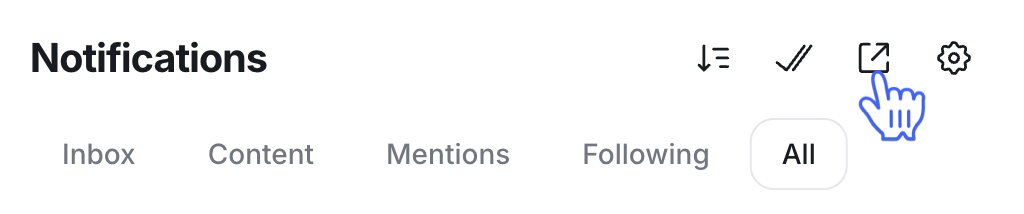
You can open your notification panel in a full page. To do this, click the Open in full page icon on the notification panel. You can also right-click this icon to open the full-page notification panel in a new browser tab or window.
Sidebar unread indicator
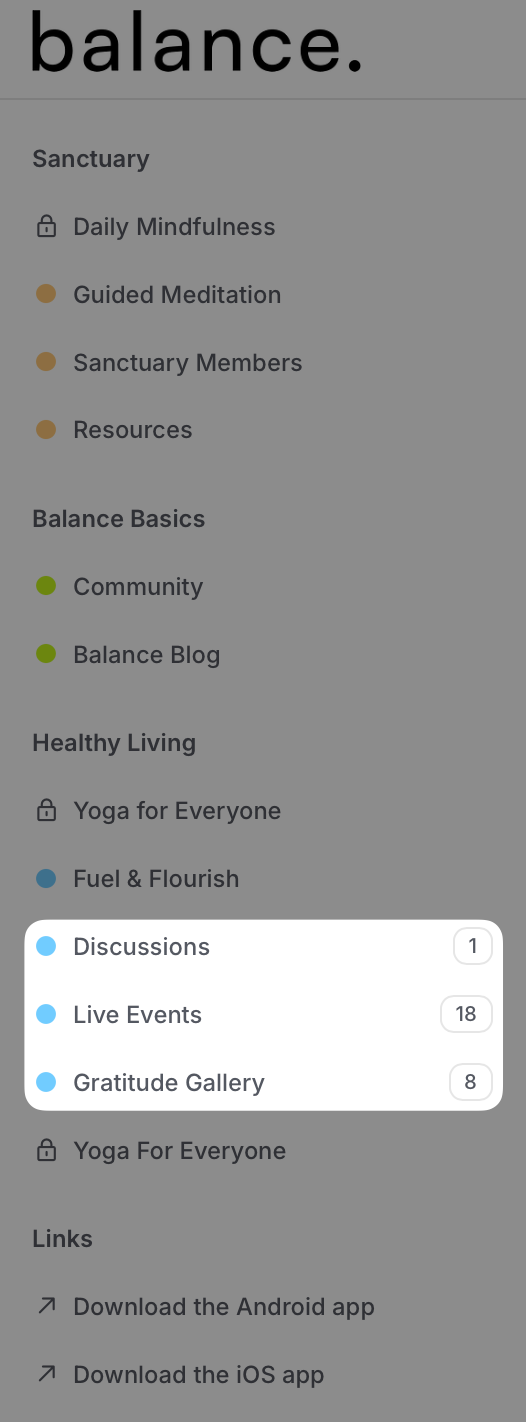
When there is unread content in posts, images, chat, and event spaces, the names of these spaces appear bolded with a numbered badge representing the number of unread posts, images, events, and chat space messages in the community sidebar. This visual indicator is automatic and will be visible to you in spaces you’re a part of.
Mobile apps
Mobile apps support two notification delivery methods:
In-app notifications
Push notifications
In-app notifications
Just like the desktop version, the in-app notifications in the mobile app are governed by the same settings you've set up on your community account.
When new notifications await your attention, the Notifications 🔔 icon will display a red badge with a numeric count. To access notifications categorized into various types, tap the Notifications 🔔 icon.
💡 Tip: Similar to the desktop version, Circle mobile apps display a bold space name with an unread badge count in the Spaces tab.
Push notifications
Push notifications are sent directly to your mobile device, providing real-time updates. With Push notifications enabled, you'll receive timely information even when you're not actively using the app.