Manage members within spaces and space groups
Last updated: September 06, 2023
Admins and moderation can effectively manage members of your community space by adding, removing, or granting them moderation privileges. In this article, we’ll explore all the options for managing members within any space or space group of your community.
Manage space members
To access the member management page of a space, click the dropdown icon beside the space name in the header and select Members.
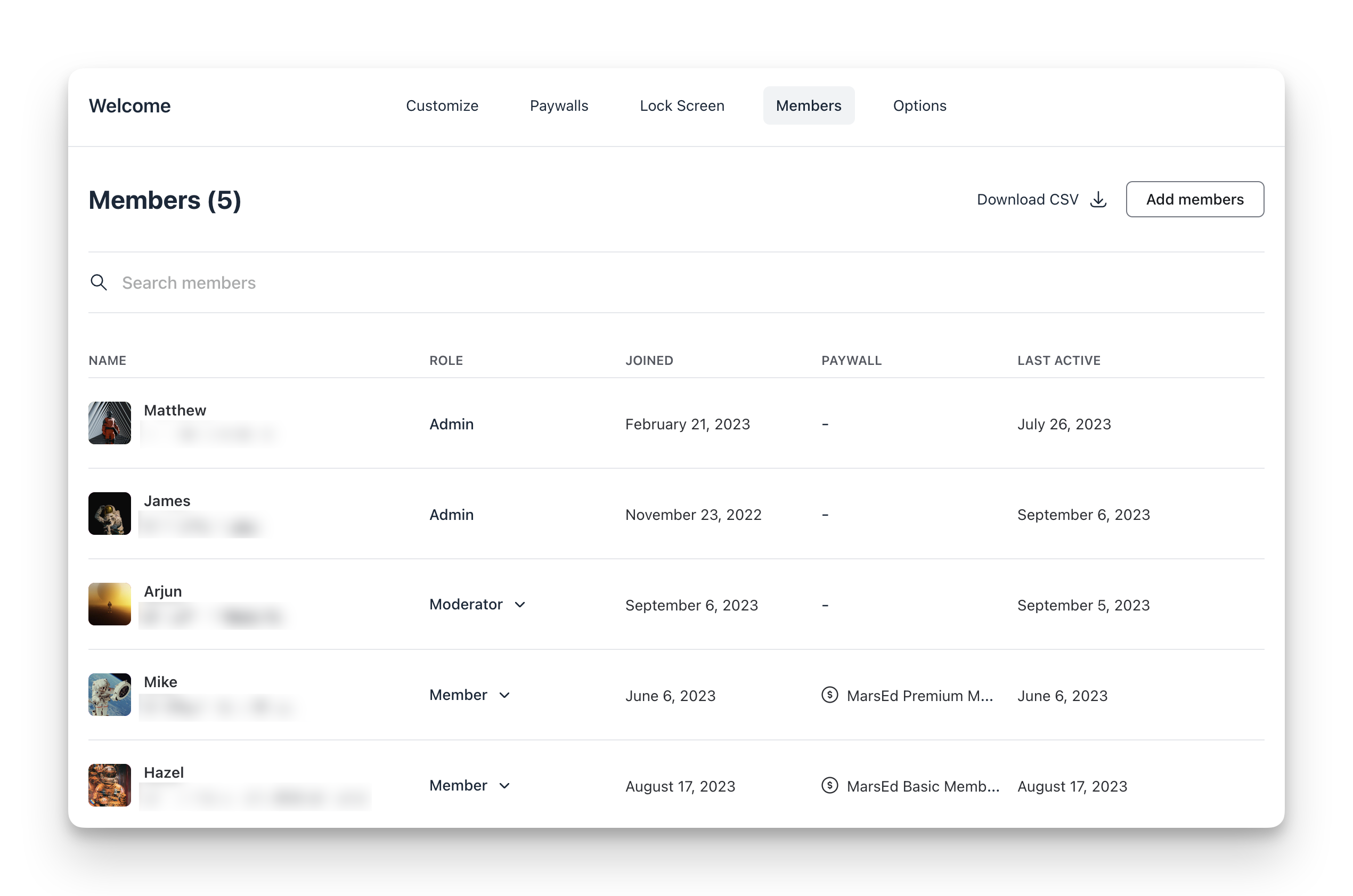
View space members
On the Members tab, you can see various columns displaying the following member information:
Name and email.
Member’s role in this space.
Joined and last active dates.
Name of the paywall if members got access to this space via a specific paywall.
💡 Tip: To update the community account of any space member, hover over the member, click the More actions (three dots) icon, and select Edit member.
Add members
You can manually add existing community members to the space by clicking Add member on the Members tab.
When adding members, you have three options:
Add individual members.
Add members of the space groups.
Add all members of the community.
❗Important: When you use this method to add members to a space, your members will be added via the invite access (free access) method. As a result, members will have forever free access to these spaces until the member leaves or is manually removed from the space by admin.
📚 For more information, see Add existing members to spaces or space groups.
Download CSV export
To download a CSV of space members, click Download CSV. The CSV export file will be emailed to the email address associated with your admin account.
Assign moderation privilege
You can change the role of any space member from Member to Moderator with just a few clicks.
To assign the moderation privilege of space to any member:
Use the search field or scroll through the list to locate the member.
Next to the member’s name, in the Role column, click the Member role and select Moderator.
On the other hand, if you would like to remove a member’s space moderation privileges, click the dropdown icon beside their role and select Member.

Remove members
To remove a member from the space, hover over the member, click the More actions (three dots) icon, and select Remove from space.
📚 If you want to remove members from space in bulk, see Removing members from spaces and space groups.
Manage space group members
To access the member management page of a space group:
Hover over the name of the spacegroup, click the More actions (three dots), and select Edit space group.
Now, navigate to the Members tab.
View space group members
On the Members tab, you can see various columns displaying the following member information:
Name and email.
Member’s role in this space group.
💡 Tip: To update the community account of any space group member, hover over the member, click the More actions (three dots) icon, and select Edit member.

Add members
You can manually add existing community members to the space group by clicking Add member on the Members tab. It’s important to note that when you choose to add members to any space group, they will also be added to all the spaces inside the space group — including secret and private spaces.
When adding members, you have two options:
Add individual members.
Add all members of the community.
❗Important: When you use this method to add members to a space group, your members will be added via the invite access (free access) method. As a result, members will have forever free access until the member leaves or is manually removed from the space group by admin.
📚 For more information, see Add existing members to spaces or space groups.
Download CSV export
To download a CSV of space group members, click Download CSV. The CSV export file will be emailed to the email address associated with your admin account.
Assign moderation privilege
You can change the role of any space group member from member to moderator with just a few clicks.
To assign the moderation privilege of space group to any member:
Use the search field or scroll through the list to locate the member.
Next to the member’s name, in the Role column, click the Member role and select Moderator.
On the other hand, if you would like to remove a member’s moderation privileges, click the dropdown icon beside their role and select Member.
Remove members
To remove a member from the space group, hover over the member, click the More actions (three dots) icon, and select Remove from space group.
📚 If you want to remove members in bulk, see Removing members from spaces and space groups.