Add existing members to spaces or space groups
Last updated: October, 2026
In this article, we will walk you through a range of options to add your existing community members to spaces and space groups within your community.
💡 Tip: If you wish to invite new members to your community, see Explore options available for onboarding members to your community.
❗Important: Please note that when using methods in this article to add members to space and space groups, your members will be added via the invite access (free access) method. If you have paywalls set up and want to provide updated access to your new and existing paywall subscribers via a paywall, we recommend updating your paywall and applying access to all members of the paywall.
Manually add members to space or space group
Let’s explore how to add existing community members directly from a space or space group.
Space groups
Click the community name or logo (or the dropdown icon next to it) in the top-left corner and select Back to community.
Hover over the name of the space group in the left sidebar, click More actions (three dots), and select Add members.
In the Edit space group dialog, slick Add member.
-
In the Add member dialog, you have a few options for adding members:
Individual members: In the search field, type the member’s name and select from the search result.
-
All community members: Turn on to Add everyone from the community toggle.
Click Add to space group.
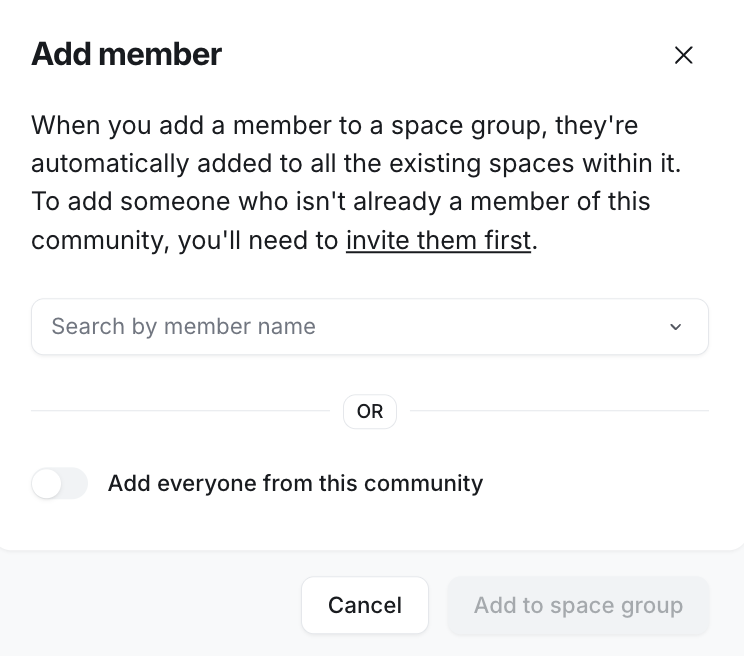
ℹ️ Note: When you choose to add members to any space group, they will also be added to all the spaces inside the space group — including secret and private spaces.
Spaces
Navigate to space and then click the dropdown icon beside the space name → Invite member.
-
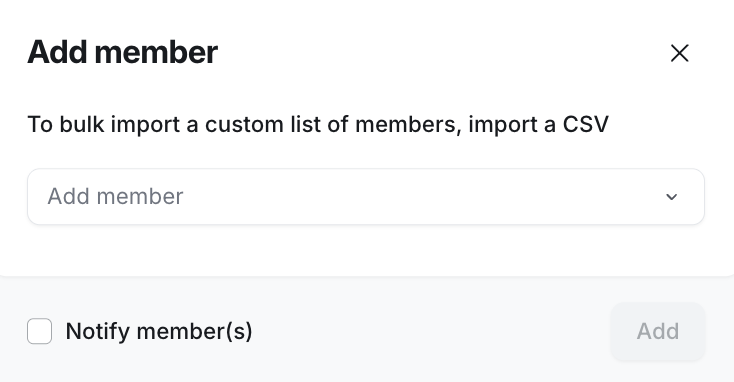
In the Add member dialog, you have a few options for adding members:
Individual members: In the search field, type the member’s name and select from the search result.
-
Add everyone from this: Turn on this toggle and click the dropdown menu to choose:
Space group to add everyone from the space group.
Community to add everyone from the community.
-
Bulk import custom list of members: To add a specific group of existing members via a CSV, you can click import a CSV. This process works for inviting both new and existing members to your community. For more details, see Bulk invite members to your community.
Select the Notify member(s) checkbox if you would like to send an email notification to members.
Click Add.
Bulk-add members using a CSV file
You can add your existing community members to spaces or space groups in bulk using our bulk invite option in the community.
📚 To learn more about how to bulk-add members to spaces and space groups in your community, see Bulk invite members to your community.
💡 Tip: Similar to our in-built bulk invite method, you can also use our integration with EasyCSV helps you perform various bulk tasks in your community, including adding members to a specific space or space group. For more information about EasyCSV, see Use EasyCSV to perform bulk actions.
Send an invitation link
You can create an invitation link with access configuration and send it to existing members to add them all to the spaces or space groups you selected. When your members click the link, they’ll be added to the spaces/space groups you configured for the invitation link.
📚 To learn more about setting up invitation links, see the following articles:
Set up Circle workflows
You can create an automation or bulk action workflow to add members to space or space groups based on a specific trigger event or audience rule. To achieve this:
Create a new automation or bulk action workflow.
Set up the entry rule for the workflow.
Go to the workflow action. In the Choose an action dropdown menu, select either Add member to space or Add member to space group.
Select a space or space group.
Click Continue and activate or run your workflow.
ℹ️ Note: Please note that workflow only runs for members who have completed the sign up process and activated their account in your community. If you would like to bulk add members that are still in invited status, use the Bulk invite method or EasyCSV.
💡 Tip: You can also use third-party integrations such as Zapier or Integrately to automatically add members from spaces and space groups based on certain trigger events.