Auto-adding members to spaces
Last updated: July 22, 2024
This article explains the possible ways a member can get auto-added to spaces inside your community.
Before proceeding with the article, please consider the following regarding providing access to spaces and space groups:
Whenever you provide your member with access to the space group using any type of invitation method (including one of the methods mentioned below, invites, or API/ Zapier automation), members will be added to all the spaces inside the space group, including private and secret spaces.
The above also applies when you add existing community members to the spaces or space groups using one of the invitation methods or workflows.
In addition, if you have set the space group configuration as explained below in Space group settings, the combination of adding members to the space group and the space group configuration will trigger auto-adding members to any new space in the future as well.
📚 To learn more about the access levels we offer in the community, refer to Understanding invite access and paywall access methods.
Default space access
To automatically grant new members free access to specific spaces when they join your community, you can configure default spaces in your community settings. This allows all new members to be added to spaces via invite access when they join your community.
❗Important: Please note that if you plan to offer paywall membership in your community, we strongly recommend excluding spaces that are part of the paywall access.
To add or update the default space access setting:
Click the community name or logo in the top-left corner and select Audience.
In the sidebar menu, select Onboarding and navigate to the Access tab.
-
In the access form, hover over the name of the space to add or remove it as per your preference.
Click Save changes.
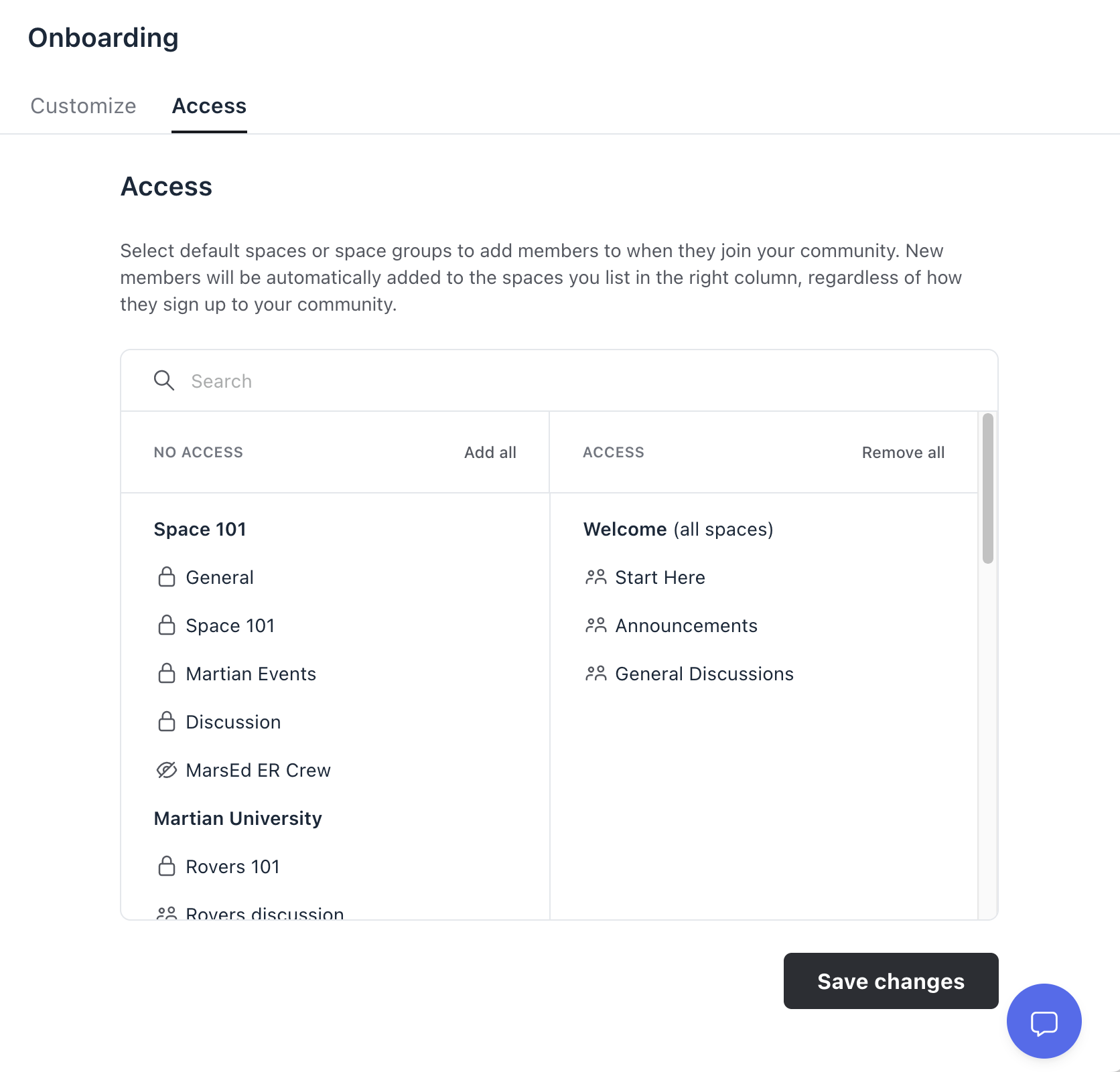
ℹ️ Note: Providing new members access to spaces specified in this tab may take a few minutes. If a new member does not see the space access reflected in their account once they sign in, advise them to refresh the page after a few minutes.
Space group settings
Through space group settings, you can manage the following space access configuration that lets you auto-add members to new spaces within the space group:
Automatically add members to new spaces within the group: When enabled, members of this space group will be automatically added to any new space you create inside the space group, including private and secret spaces going forward.
To access the space group settings, hover over the space group name and click the More actions (three dots) icon → Edit space group.
Invitation links
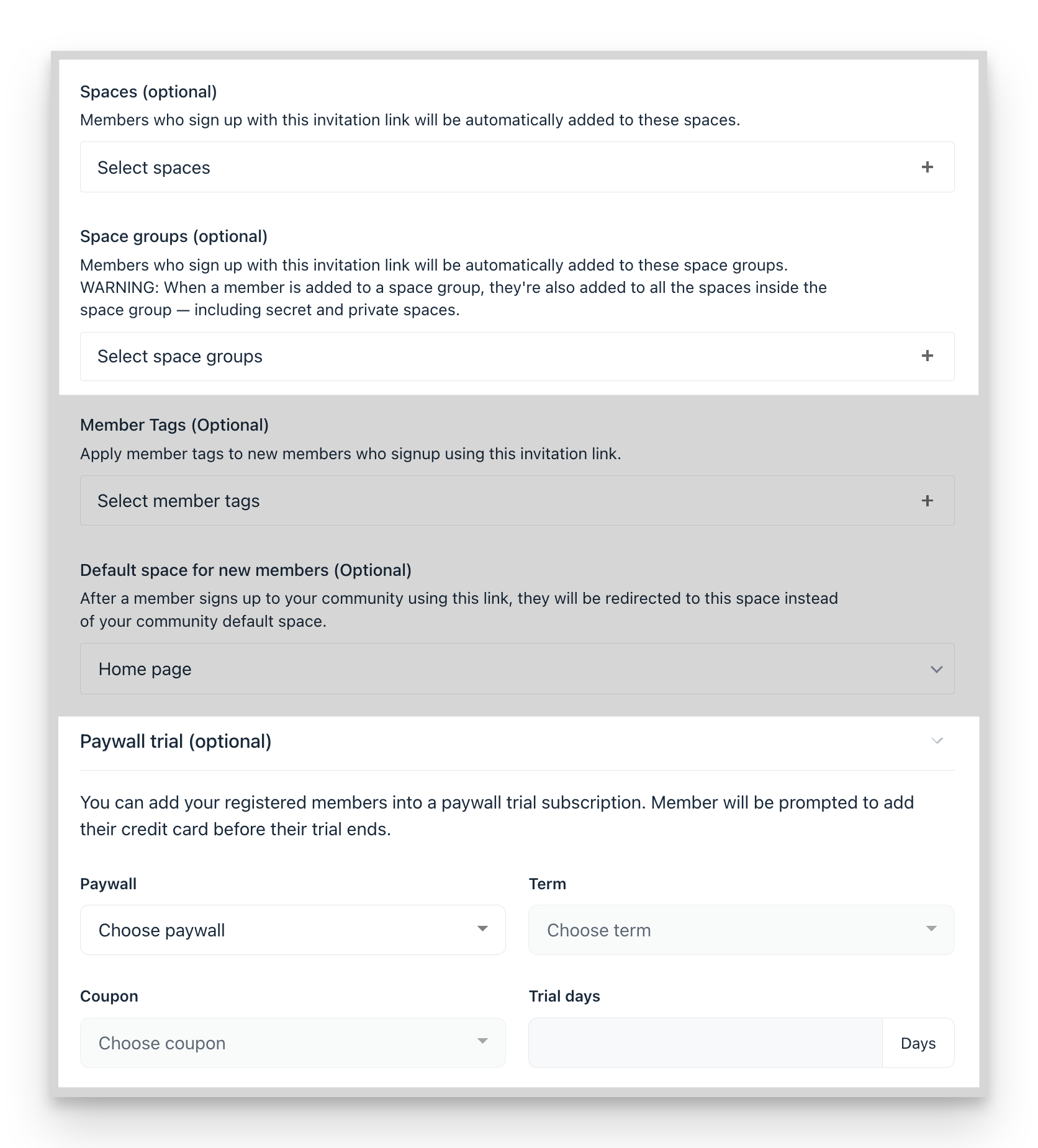
If you have set up an invitation link and added spaces and space groups in the relevant section, or added paywall access in the Paywall trial section, anyone who uses the link will be automatically added to those default space and space groups or access provided by paywall trial within your community.
📚 To learn more about invitation links, see Set up an invitation link.
Paywall access
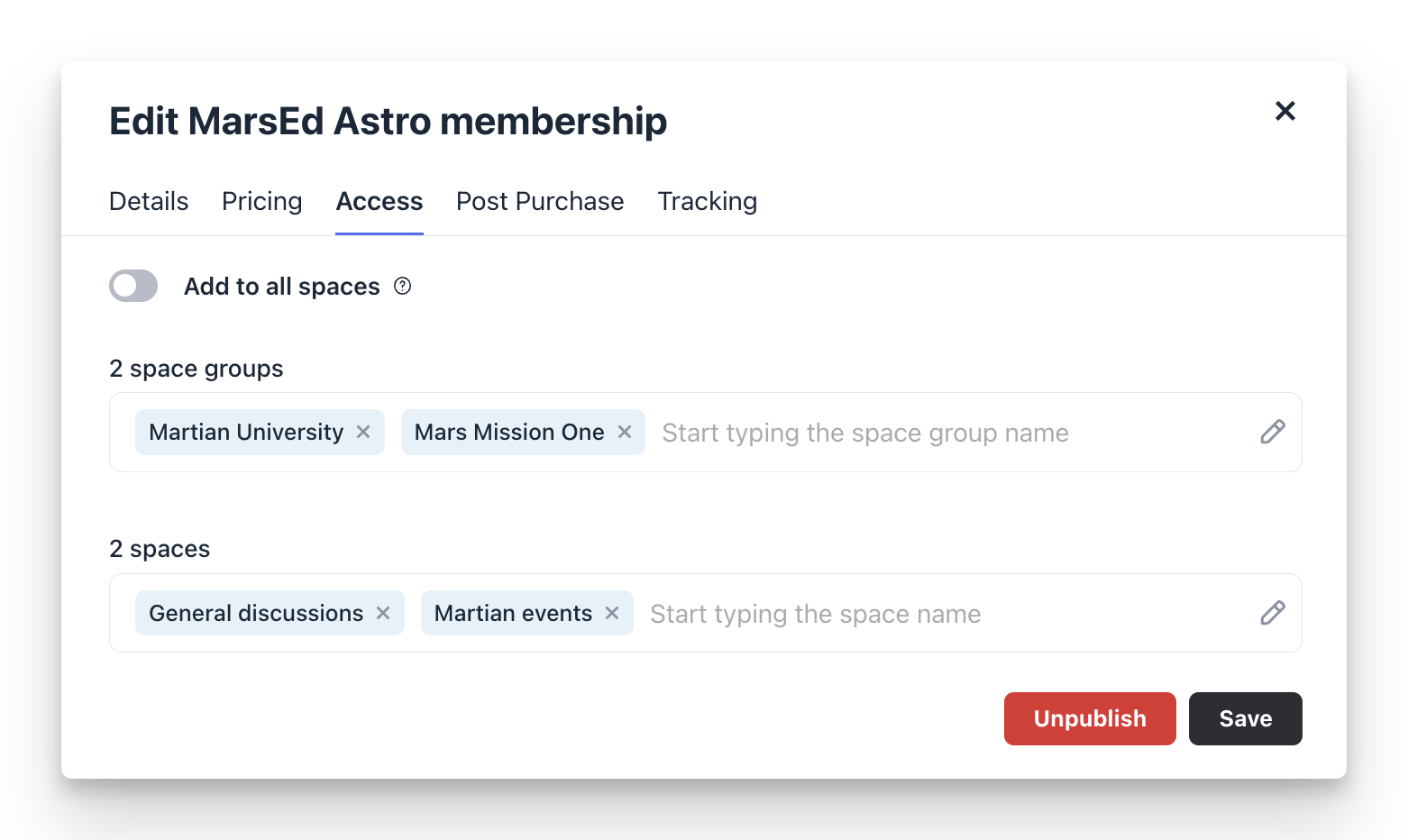
When you set up a paywall with access to all spaces or certain space groups and spaces, any member who signs up for the paywall will automatically receive access according to the paywall access configuration.
To review the paywall configuration:
Click the community name or logo in the top-left corner → Paywalls.
Click the More actions (three dots) icon beside the paywall entry → Edit.
Click the Access tab to view the access configuration.
🚨 Important: Please note that if you choose to unlock all spaces (add to all spaces) for the paywall access, members who sign up for this paywall will be granted access to all the spaces in your community including private and secret spaces as well as any new space you create in future.
📚 To learn more about paywalls, see Set up a paywall.
Workflows
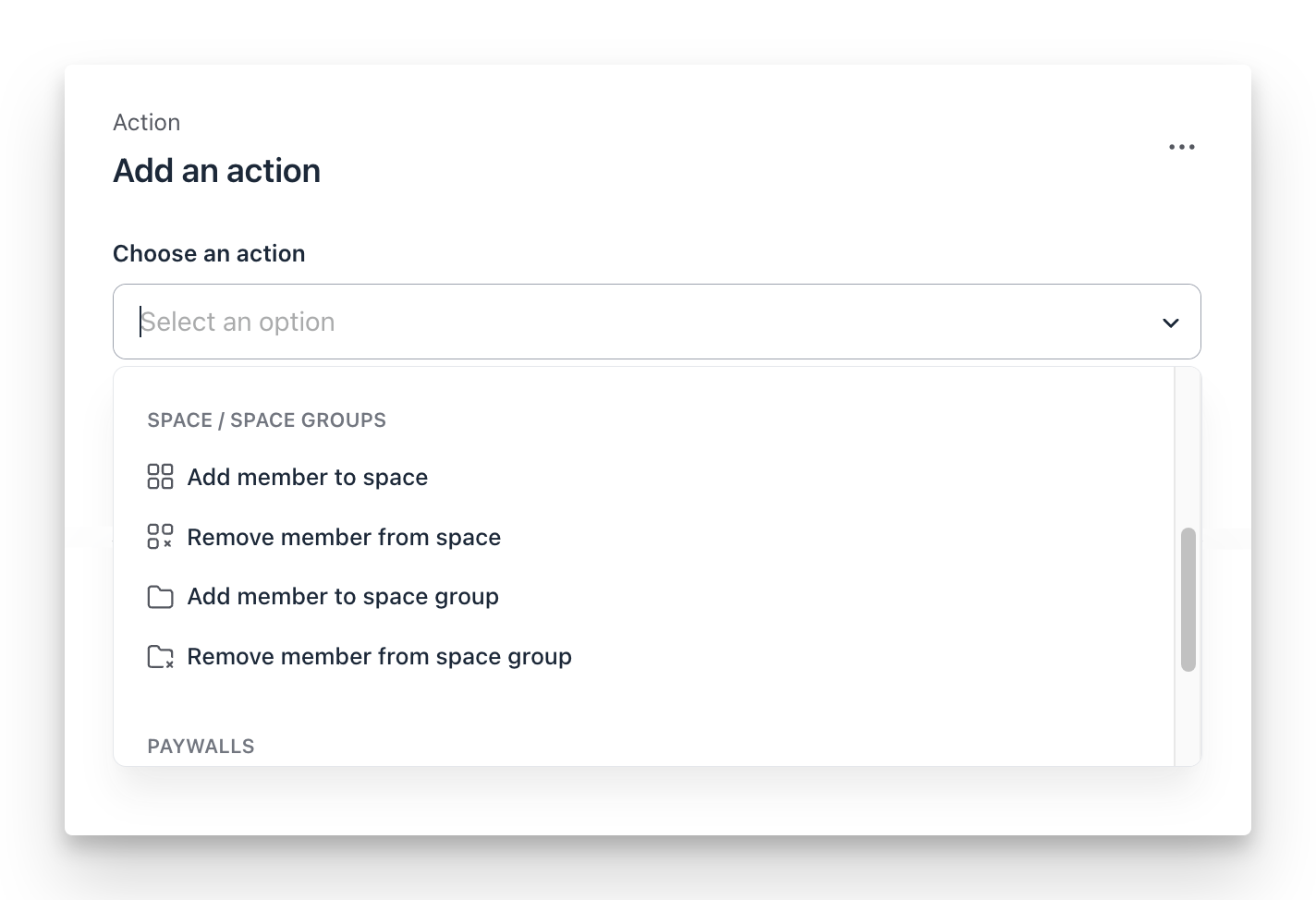
With Circle workflows, you can also set up actions that add community members to specific spaces or space groups when a certain event occurs for an automation workflow or based on audience rules in the bulk action workflow.
Add member to space
Add member to space group
📚 To learn more about workflows, see the following:
Integrations
You can also set up Circle integration with automation platforms like Zapier. This allows you to set up an automated workflow by configuring a specific trigger in Circle or any third-party app that results in an action to add existing members to a specific space or space group.
For example, you can set up automation in Zapier that triggers When a form is submitted in Typeform and results in the action Add Member to Space Group.
💡 Tip: If you wish to use another platform to create an automated workflow for this, you can also consider alternative tools such as Make or Integrately.
📚 To learn more about connecting your community with Zapier or Integrately, see the following articles: