Removing members from spaces and space groups
Last updated: August 18, 2023
Easily remove members from a space or space group in your community. In this article, we will review the different ways to remove members from spaces and space groups.
When it comes to removing members from spaces and space groups, you have several options depending on whether you want to remove an individual member or multiple members in bulk.
ℹ️ Note: When you remove members from space or space group, their posted content will remain in the spaces.
We also save members' course progress even when they are removed from the course space. When they rejoin, their saved learning progress will be restored so they can continue learning from where they left off. However, please note that the course progress will be removed if their member account is deactivated.
❗Important: It’s crucial to note that if you remove members from a space that is set to Open access, members can rejoin it on their own at any time. If you’d like to prevent members from joining the space by themselves again, we suggest changing the space access to Private.
Remove individual members
You can remove individual members directly from a specific space or space group or by modifying their access from the member profile.
Remove a member directly from space or space group
To remove a member from a space:
Navigate to the space from the left sidebar.
Click the dropdown icon beside the space name in the space header, and select Members.
Hover over the member, click the More actions (three dots) icon, and select Remove from space.
To remove a member from a space group:
Hover over the space group in the left sidebar, click the More actions (three dots) icon, and select Edit space group.
Next, go to the Members tab.
Hover over the member, click the More actions (three dots) icon, and select Remove from space group.
Remove a space or space group access from the member profile
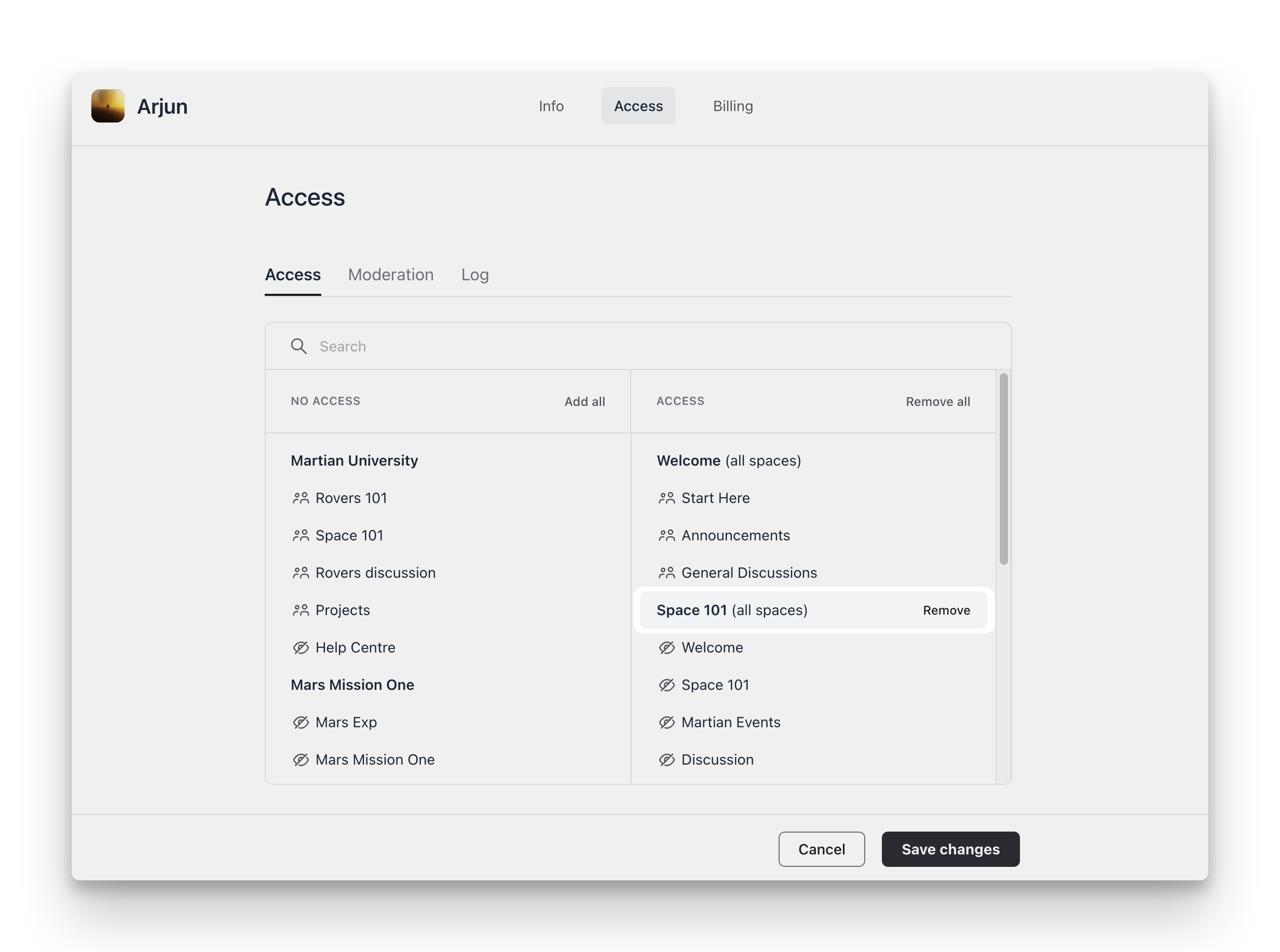
Search for the member's name or email, open their profile, and then click Edit 🖊️ on their profile page.
On the edit profile page, go to the Access tab.
Under the Access column, hover over the space or space group and click Remove. Repeat this for all spaces or space groups that you want to remove member’s access from.
Click Save changes.
Remove members in bulk
You can remove members from a space and space group either in bulk or through automation. The following methods can achieve this:
Circle workflows
EasyCSV
Circle workflows
You can create an automation or bulk action workflow to remove specific members from space or space groups.
To achieve this:
Create a new automation or bulk action workflow.
Set up the entry rule for the workflow.
Go to the workflow action. In the Choose an action dropdown menu, select either Remove member from space or Remove member from space group.
Select a space or space group.
Click Continue and activate or run your workflow.
❗Important: Please note that a bulk action workflow only runs for member who have completed the sign up process and activated their account in your community. If you would like to bulk remove members that are still in invited status, use the EasyCSV option.
💡 Tip: You can also use third-party integrations such as Zapier or Integrately to automate the removal of members from spaces and space groups based on certain trigger events.
EasyCSV
Integration with EasyCSV helps you perform various bulk tasks in your community, including removing members from a specific space or space group.
To get started with removing members in bulk using EasyCSV:
-
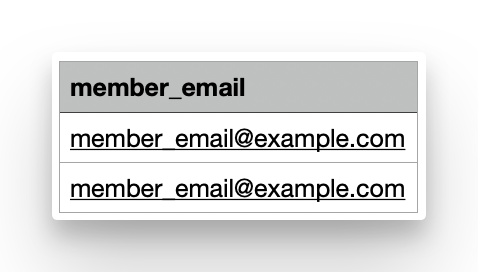
Prepare your CSV file. You can export a community member list based on filters from the Manage audience page. To use it with EasyCSV, you only need one column with the header member_email that contains the email addresses of existing members.
Create or copy the Admin v1 token from your community settings.
-
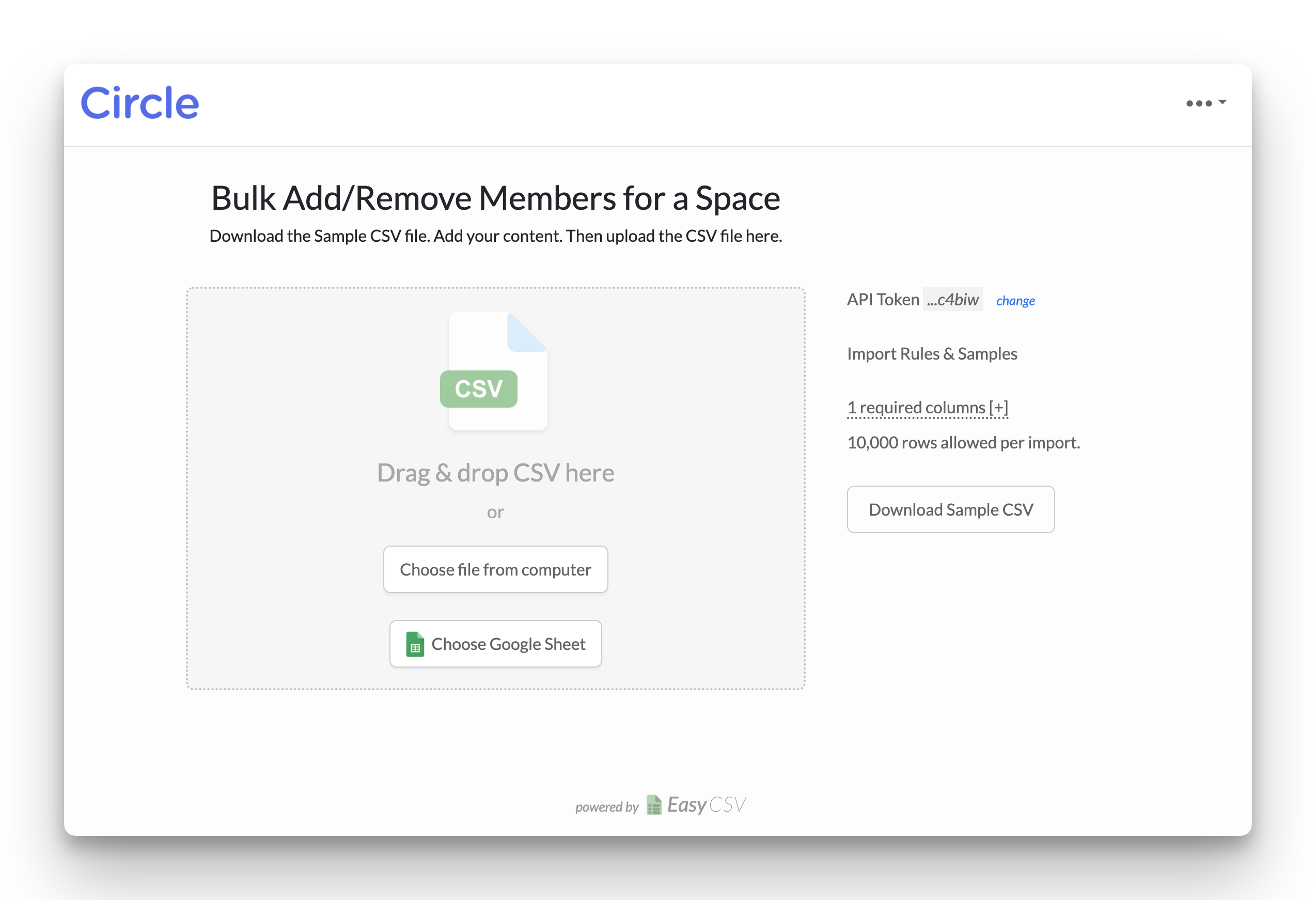
Go to one of the following links based on your use case, and upload a CSV file:
-
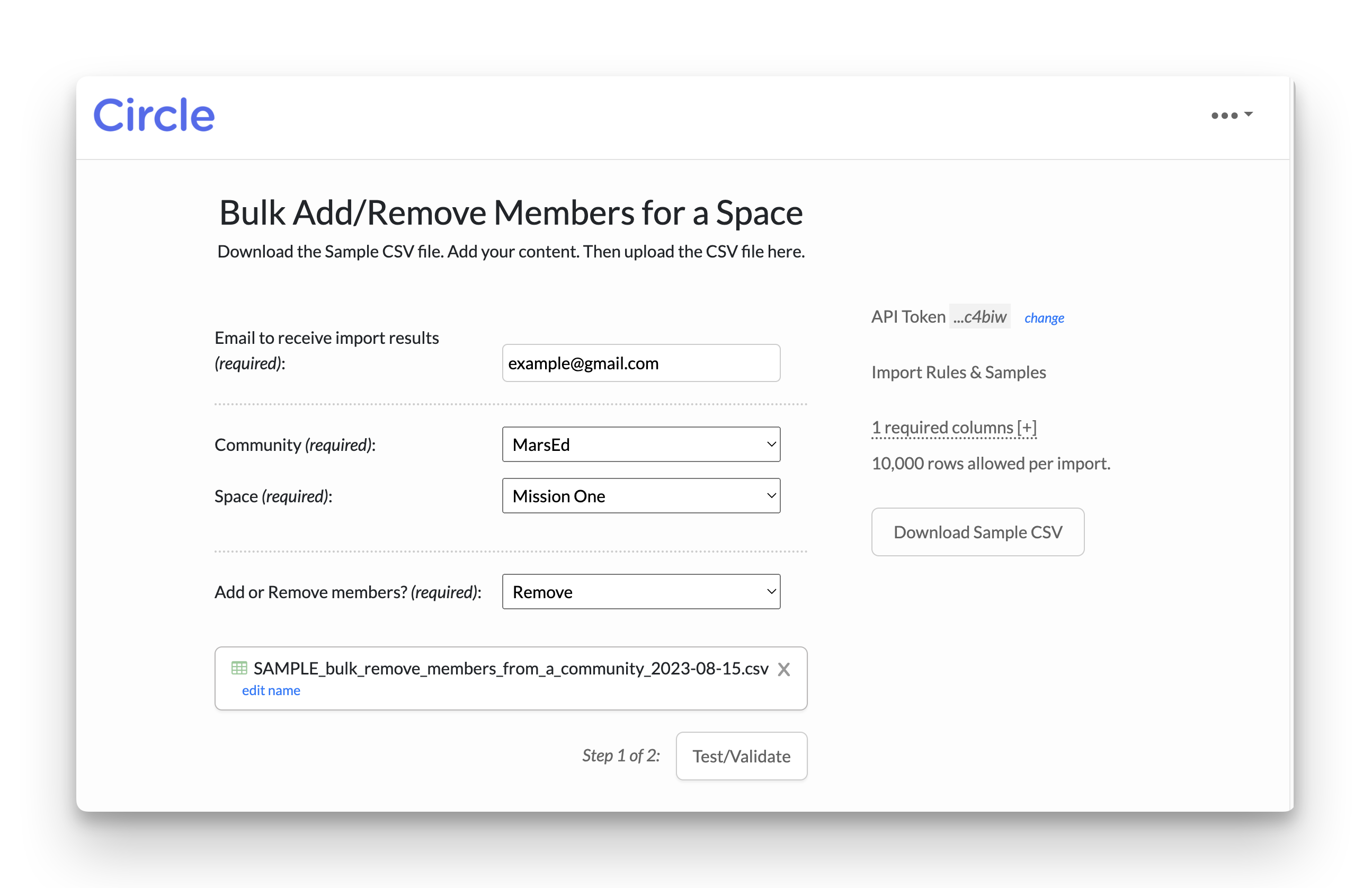
On the next step:
Enter your email address to receive the import result.
Select the relevant space or space group from your community.
-
In the Add or Remove members? dropdown, select Remove.
Click Test/Validate, and then click Import records to perform the action.
📚 For more information about EasyCSV, see Use EasyCSV to perform bulk actions.