Customize member space settings
Last updated: July 30, 2025
This article will guide you through the options for effectively managing member space configurations.
To access the space settings, navigate to the space from the sidebar. Click the Space settings (three dots) icon in the top-right corner of the space and select an option from the menu.
Customize
You can use the customize tab to make changes to general information and space access.
Update general information
You can update the space icon, name, and space group location for the member space in this section.

Hide space from the sidebar
You can hide the space from the sidebar, which allows you to declutter it while keeping only the essential ones visible.
When you enable the Hide space from sidebar toggle, the space will be completely hidden from the sidebar for everyone, including you and other community admins. However, you, your members, and visitors can still access the hidden space via its direct URL.
❗ Important: Access to the space's content is determined by the space's access configuration and whether the individual is a member of the space. For instance, if you hide a private space from the sidebar in a public community, non-members or visitors who attempt to access it via a direct link will encounter a lock screen instead of the space's content.
📚 To learn more about this setting, please see Managing space access and visibility.
Manage space access
To manage access to your member space, we offer three access options you can choose from:
Open: This option allows anyone within your community to freely join the member space. This is an ideal option for providing free and open access to the space.
Private: With private access, only community members who are added by the admin or moderator or those who have purchased paywall access can join the member space. We recommend this option when you intend to restrict access to paying members.
Secret: With this option, keep the space hidden by default for all the non-space members. Only the space members can see and access the secret member space.
Furthermore, when setting your space to private, you can display a lock icon instead of your chosen space icon. This allows you to effectively communicate the privacy status of the space to non-members. To do this, toggle on the Show lock icon to non-members of this space option.
📚 To learn more about space access, see Managing space access and visibility.
💡Tip: You can quickly see the current access status and directly navigate to this section by clicking the dropdown icon beside the space name in the header and selecting Access.

Lock screen page
When you set a space to private, you can choose your own landing page to display to non space members and visitors in web browsers or the Circle desktop app. This page can feature hero sections, testimonials, pricing blocks, and more, making it perfect for highlighting the space’s value, promoting memberships, or guiding visitors to take the next step.
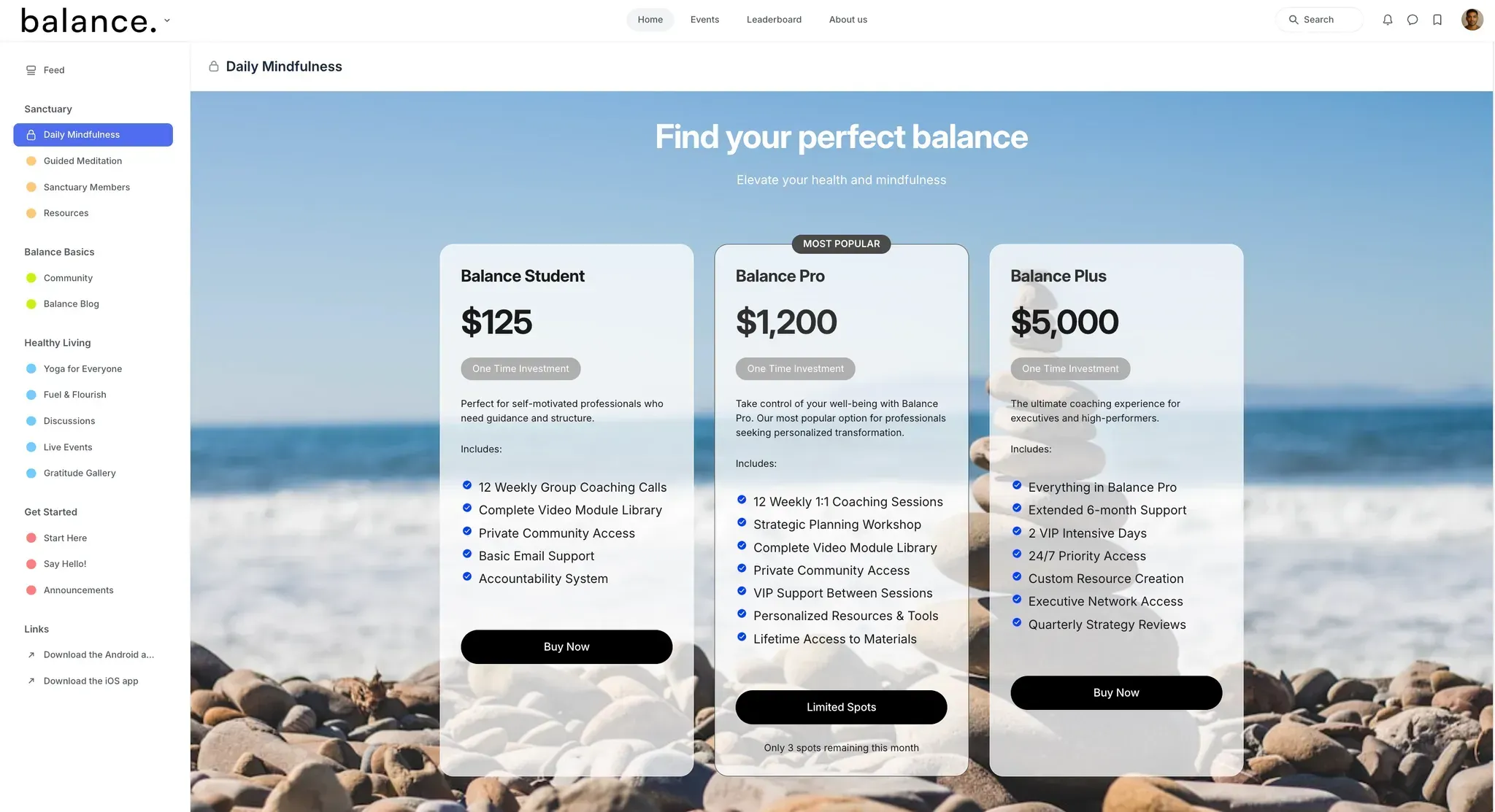
📚 Learn more about how to set up a lock screen page.
Set space layout
Select the default layout for your member space by choosing between a card view or a list view.
Card view: Members’ profile photos that are prominently featured on cards alongside their names and headlines.
List view: This view presents members in a compact, detailed list format, with their names, headlines, bios, and associated tags for quick reference.
Paywalls
You can directly link your member space under one of your existing paywalls or create a new paywall for the space.
To add this space to your paywalls, click the Link paywall dropdown and select a paywall from the list. Alternatively, you can create a new paywall for this by clicking on Create a paywall from the dropdown list.
📚 For more information on restricting access to your space using a paywall, see Gate spaces behind paywalls.

Mobile lock screen
This section lets you configure the lock screen visible on mobile apps when a space is set to private. This is particularly helpful if a paid membership is required to access the space, as the lock screen can guide potential members through the process of joining.
On the mobile lock screen, you can display a concise message with a banner, description, and a call-to-action button that links to a custom URL such as a paywall or sign up form.
❗️Important: If no lock screen page has been set for web and desktop, the mobile lock screen will be displayed by default on web browsers and the Circle desktop app.
To get a visual idea of what this lock screen looks like, take a look at the example below:
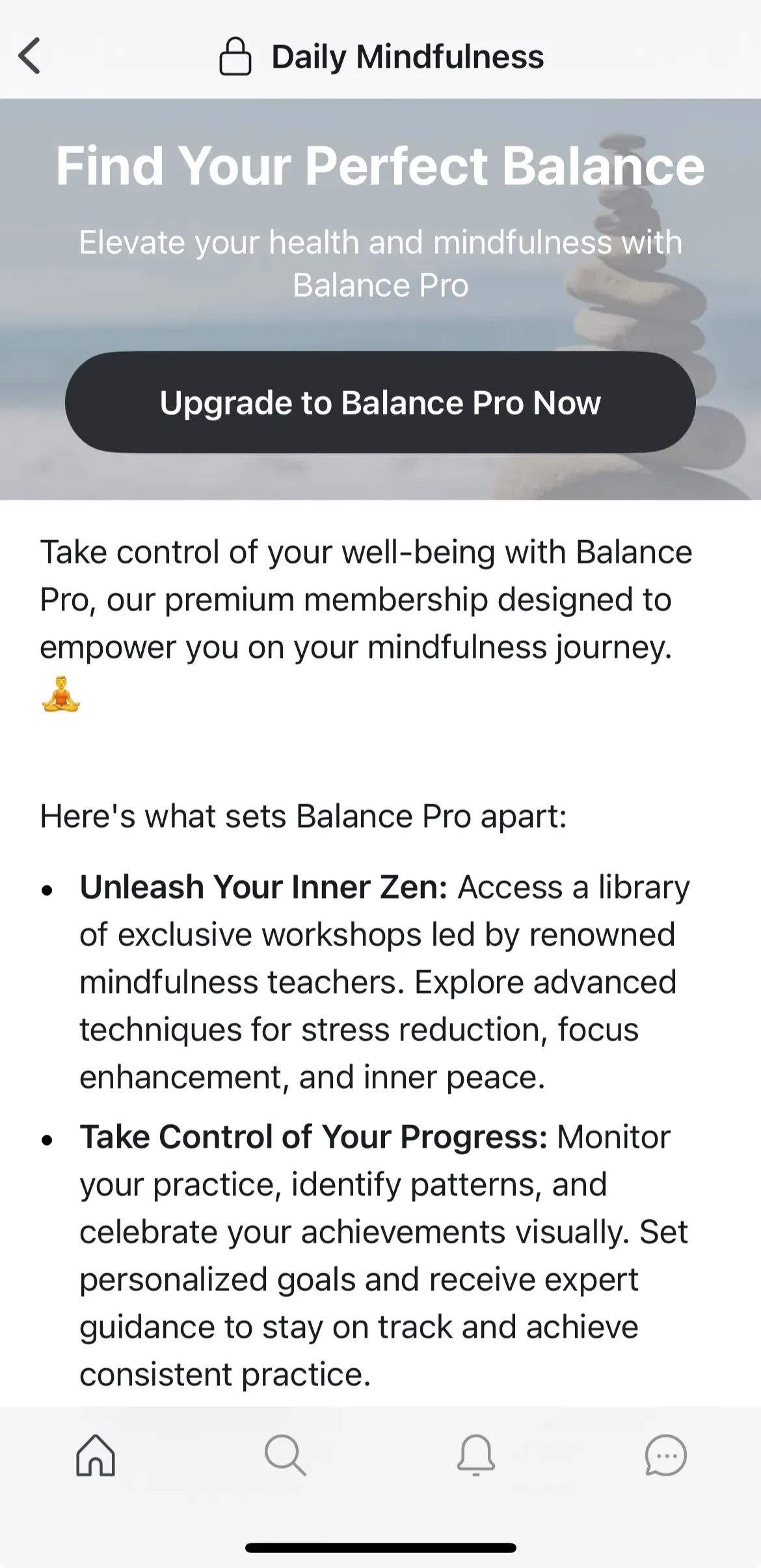
📚 To learn about the mobile lock screen setup in detail, see Setting up a mobile lock screen.
Members
Manage members of this space by adding, removing, or giving them moderation privileges using this tab.
You can also see when members joined the space, the last time they were active in the space, and if they got access to this space via a specific paywall.
🚨 Important: Please note that when you directly add members to spaces and space groups, they will be added using the invite access method and will have lifetime access to these spaces until they leave voluntarily or are removed by admin.
💡 Tip: You can also use the invite member option directly from the space settings menu by clicking the dropdown icon beside the space name in the header and selecting Invite member.
📚 For more information, see Manage members within spaces and space groups.

Options
Configure additional options for the member space from this tab.
Permissions
Allow members to add others: Toggle this option on to let space members invite other community members to the space.
Show to logged out visitors: If you have set your community to public, you can disable this toggle to hide this space from visitors.
Hide member count: Enable this to hide the member count beside the space name in the header.
Sort
Select the default sort order for members from the dropdown menu - either latest, oldest, or alphabetical.
SEO
To optimize your member space for SEO, you can:
-
Customize the member space URL slug.
Please note that changing the URL slug of a space won't free up the previous slug for use in any other space. We maintain a record of the old slugs for a space and redirect any attempts to access the space via the old slug to the new one. This prevents one URL slug from pointing to multiple spaces, ensuring clarity and accuracy of your community's content.
As a result, when you try to use the old slug already associated with a space in any other space, we will append a unique identifier to the end of the slug. This practice is a safeguard to preserving the integrity of your community's content organization.
Add meta title and description.
Add Open Graph information to preview your space content when sharing links.
📷 Recommended Open Graph image dimension: 1200 x 630 px with a 1.91:1 aspect ratio.
Workflows
You can create new workflows directly from this tab to automate actions based on dynamic events or perform bulk actions for specific members. Here, you also have access to all your existing workflows within the community.
To create a new workflow, click New workflow in the top-right corner. You can choose from one of the templates or set up a custom workflow to meet your specific needs.
📚 For more information on workflows, check out our guides here.