Set up a space icon
Last updated: September, 2026
This article will guide you through setting up and managing space icons in your community.
Space icons
You can set unique icons for the spaces displayed in the left sidebar and space header in your community. It helps members visually identify spaces making it easier to navigate the community.
When it comes to space icons, you have multiple options to choose from, including:
Emojis
Shapes
Icons
Custom icons
Add or update the space icon
Click Community in the left sidebar, then select Spaces.
Hover over the space name and click More actions (three dots) and select Edit space.
Click More actions (three dots) in the top-left corner and select Settings, then Customize.
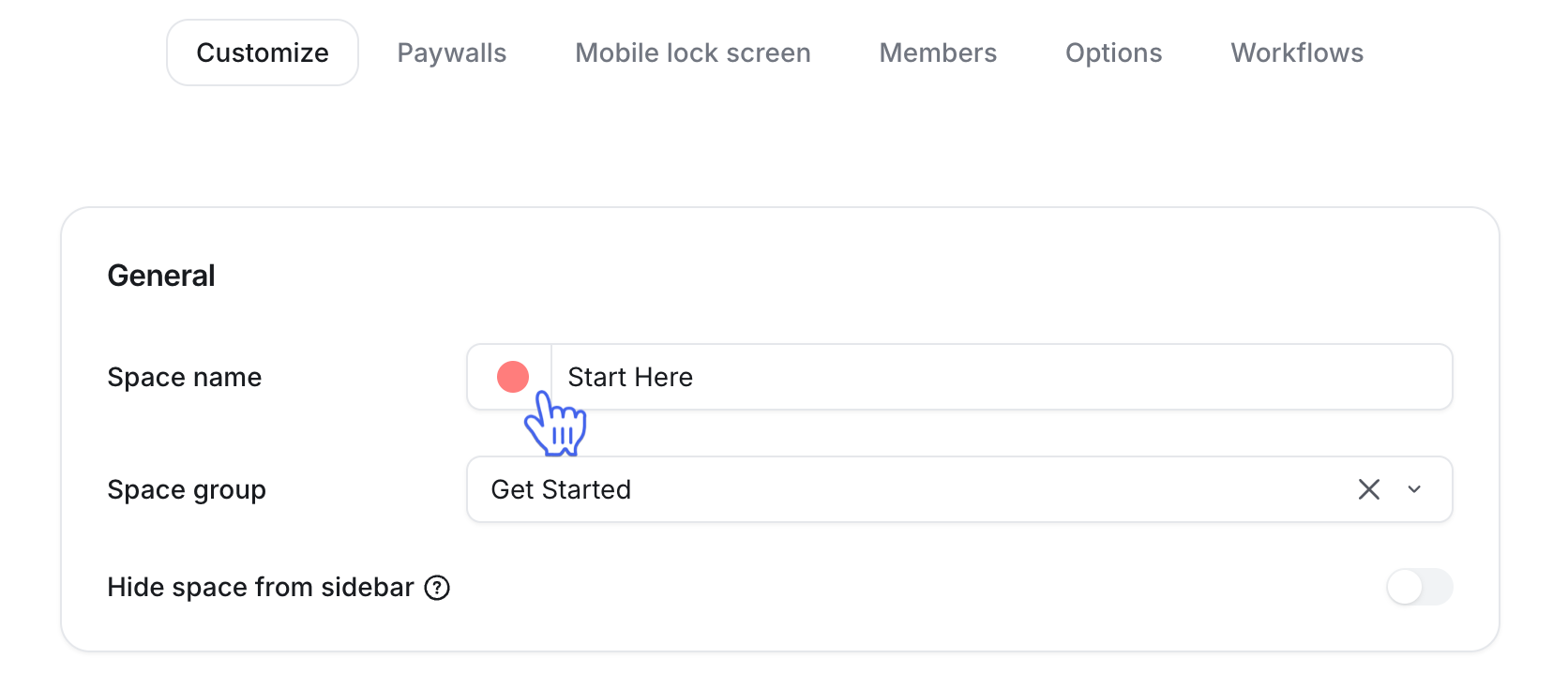
Click the icon field beside the space name to open the icon picker.
Choose an in-built emoji or icon
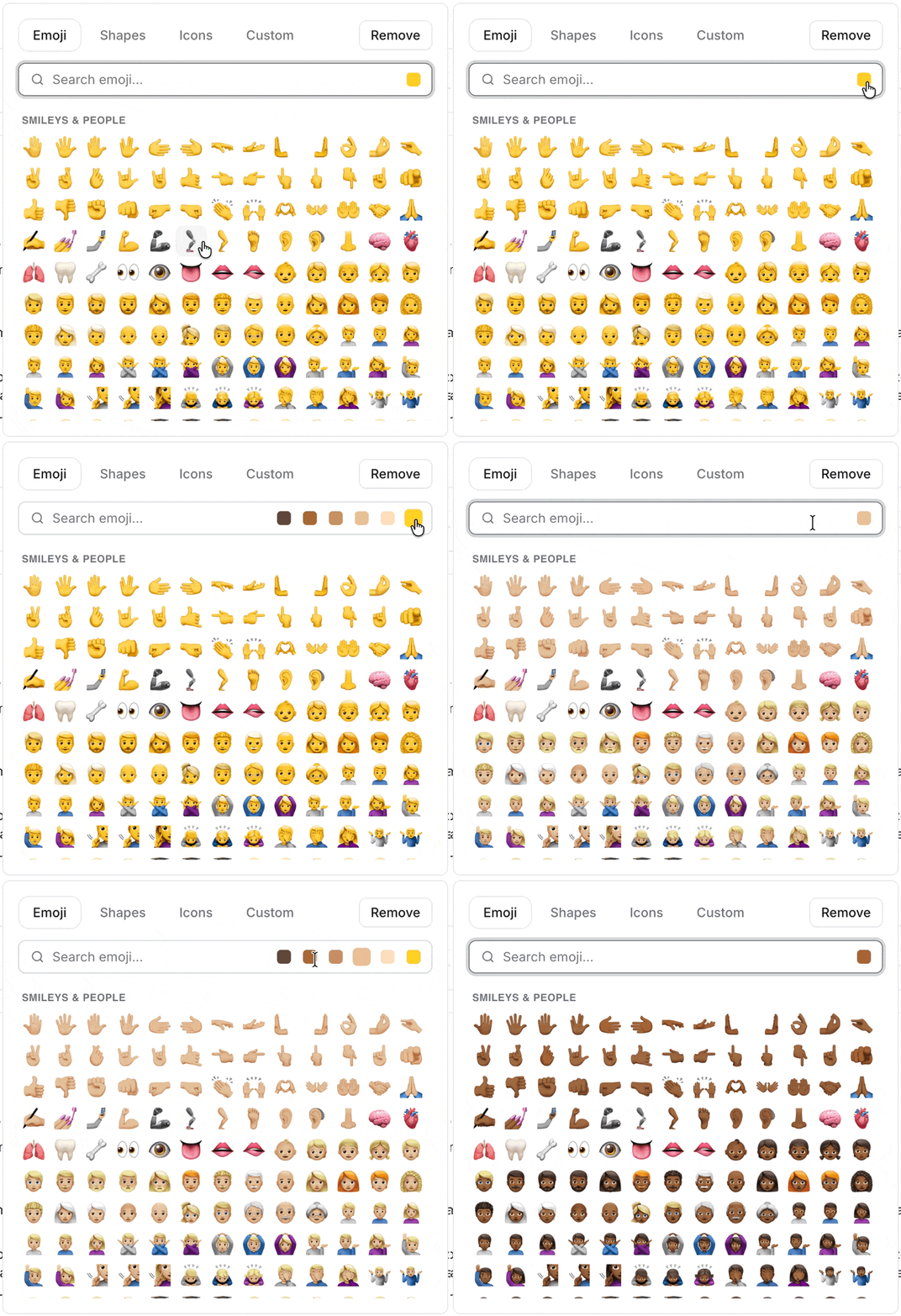
To choose from a library of built-in emojis and shapes for your space, click the Emoji, Shapes or Icon tab. You can search for a specific icon using the search bar or scroll through the library to find one.
You can also choose a skin tone for your emoji by clicking the skin tone icon beside the search bar on the Emoji tab.
Upload custom icon
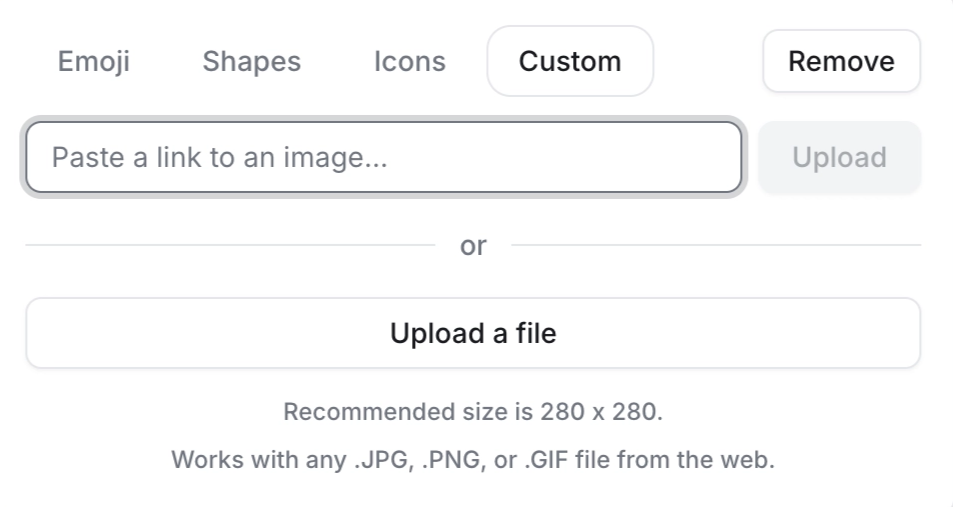
To upload a custom icon file from the web or device, go to the Custom tab:
Paste a link to an image: Use this option to upload an image from the web using an image URL.
Upload a file: Use this option to upload an image from your device.
📷 Recommended image dimension for space icon: 280x280 px
Remove the space icon
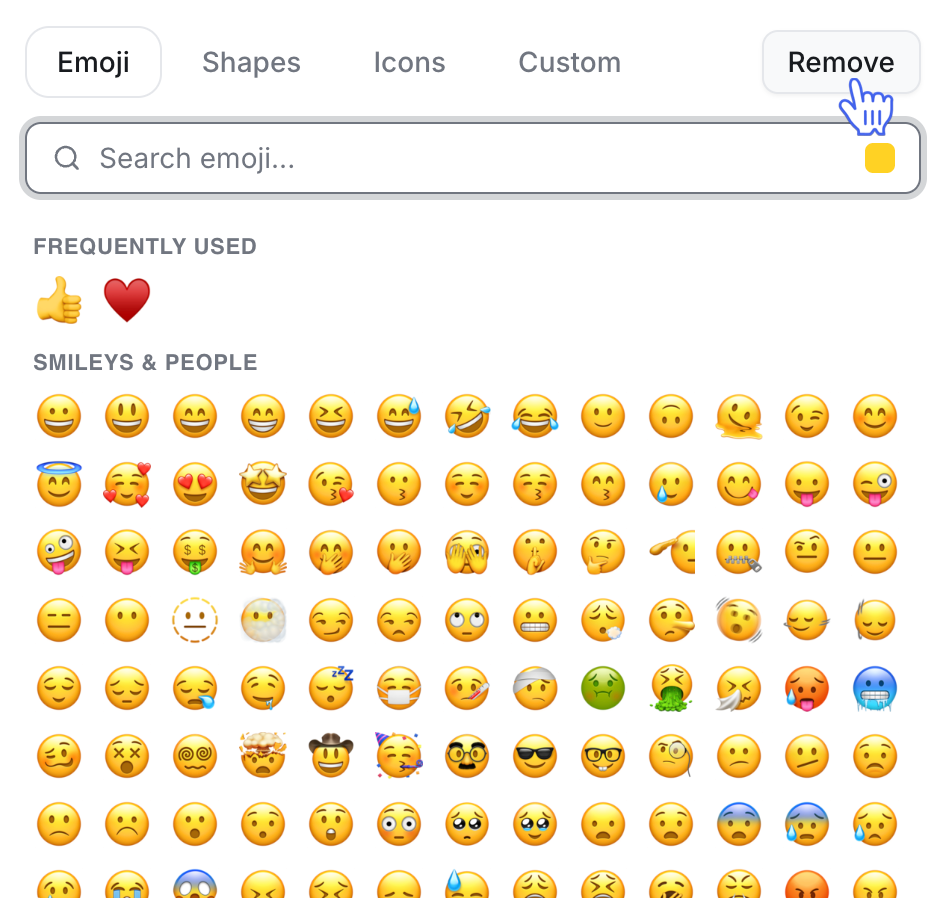
If you wish to remove the space icon, click Remove in the upper-right corner of the icon picker. Once you remove the icon, it will automatically revert to the default Circle icon if you do not select a new one.
ℹ️ Note: Currently, you can only use the custom icon feature for space icons.