Participate in the live stream
🟡 Member-focused article | Last updated: October, 2026
This article will walk you through all the available options for participating in live streams on desktop or in the Circle iOS and Android apps.
Desktop
While you’re in the live stream, you can access various functions from the control bar at the footer of your screen, which lets you:
Report technical issue
Raise hands
Reactions
Participate in a chat
Participate in a Q&A
View participants list
Leave stream
Let’s look at how to manage your options and participate in the live stream effectively.
Report technical issue
To report any technical issues you experience during the live stream, click Report issue on the control bar. You can provide the following details:
Type of issue: Audio, video, connection, screen sharing, or other technical issue
Description: A brief summary of the issue
Technical details: Toggle this option on to automatically include technical information that can help us troubleshoot the issue. If you prefer not to share this information, you can toggle it off.
Raise your hands
Raise your hand to virtually indicate that you may need assistance, want to add something to an ongoing discussion, or want to ask questions. To raise or lower your hands, click Raise hand 🤚 on the control bar. When you raise your hands, it'll be visible on your thumbnail in the live views and participant panel.
Reactions
To add a reaction, click the Reactions icon on the control bar. When you add a reaction, a pop-up with your name will appear, and the reaction will be visible to all participants.
Participate in a chat
Live stream chat helps you connect with other participants via messages and media. To access the chat panel, click Chat (💬) on the control bar.
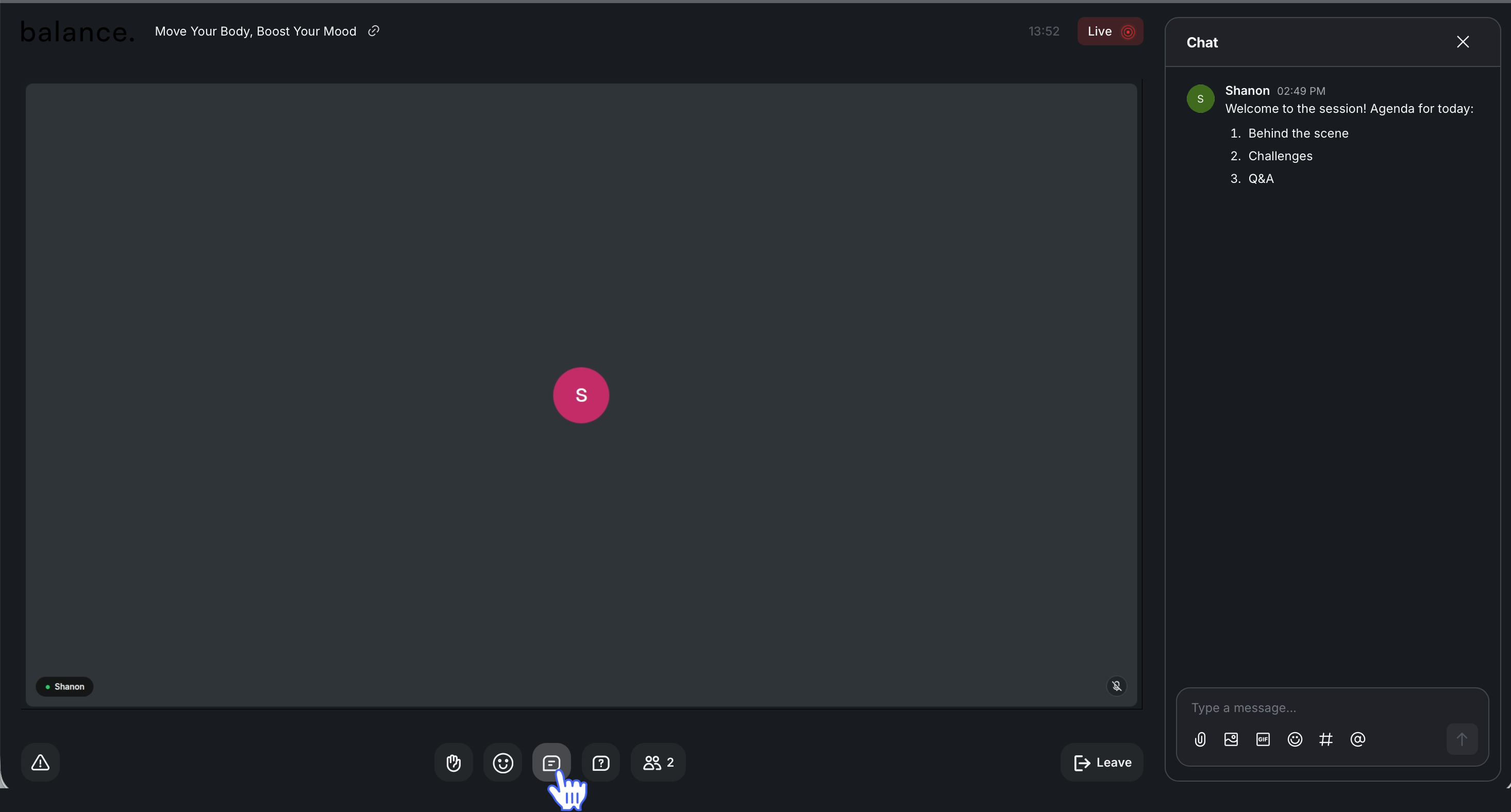
Utilize the messaging field at the bottom of the chat panel to compose and send chat messages. In addition to your text message, you can:
Share images, emojis, GIFs, and files to enrich conversations.
Mention other attendees to draw their attention.
Link to community content using Hashtags for easy reference.
📚 For a comprehensive guide on sending messages, replying in threads, and reacting with emojis, see our guide on Participate in live chat.
💡 Tip: To edit or delete your chat messages, hover over your message, and click More actions (three dots).
Participate in Q&A
To access the list of questions, click the Q&A (?) icon on the control bar.
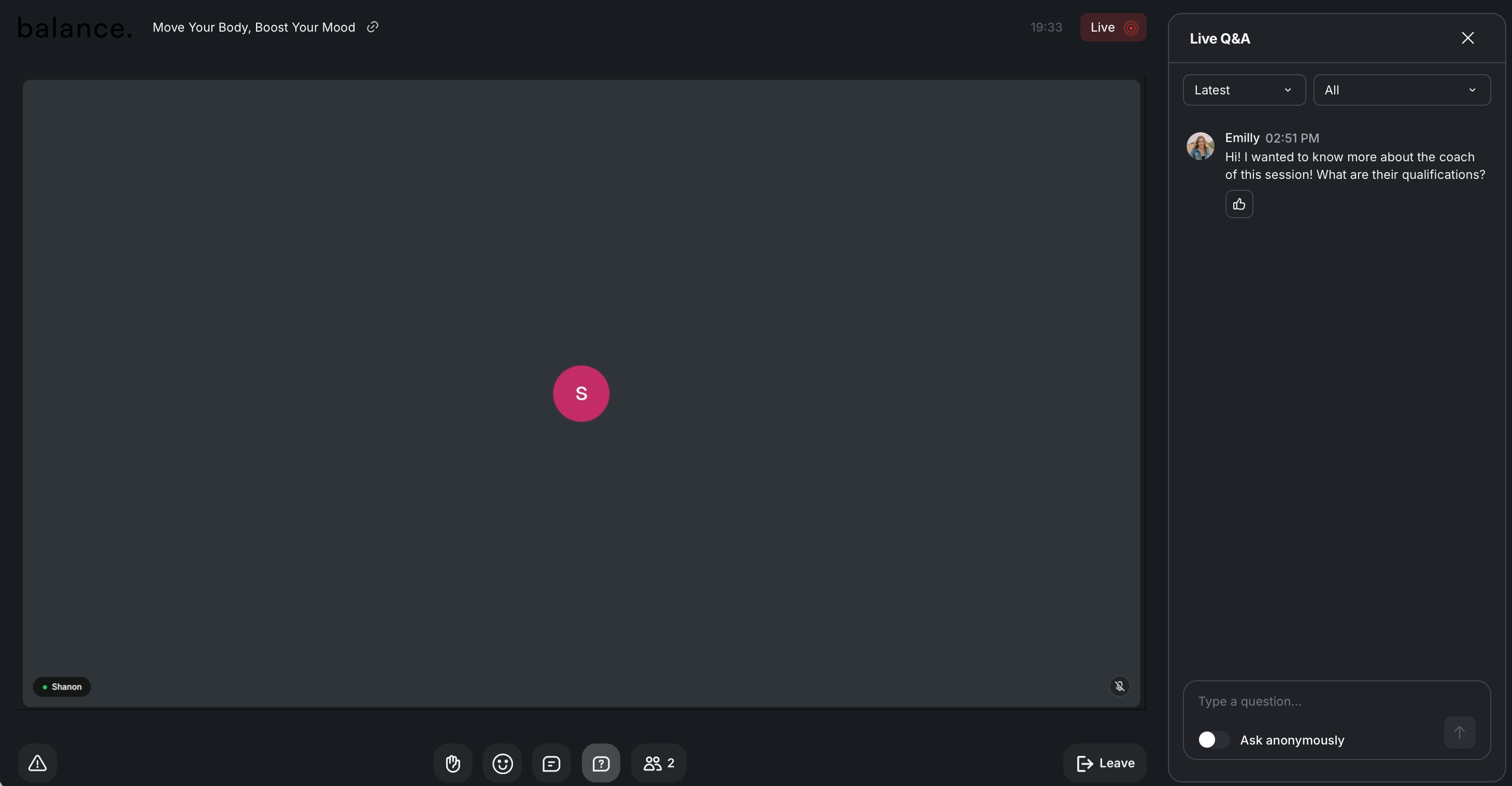
Use the messaging field at the bottom of the Q&A panel to compose and send your questions. You can also ask questions anonymously by toggling on Ask anonymously before sending.
You can also:
Reply to other participants' questions by clicking Reply to this question (💬). Once ready, press Enter or click Send (⬆️).
Delete your question by clicking Delete (🗑️) under it.
Upvote other members' questions by reacting with 👍.
Sort questions by Most popular, Latest, or Oldest.
Filter questions by type using All, Answered, Unanswered, Waiting for approval, or Dismissed.
📚 For a comprehensive guide on participating in Q&A during live streams, see our guide on Ask questions using the live Q&A.
View participants list
To view all participants, click Participants 👥 on the control bar. You can click the participant’s name or icon to view their community profile or send them a direct message.
Circle mobile apps
The Circle mobile app also has a control bar for managing options during the live stream. When joining from the app, you can do the following in the stream:
Participate in chat: Tap the Chat 💬 on the control bar to view, send, and manage your chat messages.
View participants: Tap the Participant 👥 on the control bar to see all participants. You can also tap any participant to view their profile.
Leave stream: Tap the X icon in the top-right corner to leave the stream.
💡 Tip: To go fullscreen on iOS, tap anywhere on the screen, which will also hide all the controls. Tap again to exit the full screen. If you have enabled the screen rotation on your iOS device, you can also rotate your phone to view the stream horizontally or vertically.