Join a live stream
🟡 Member-focused article | Last updated: October, 2026
You can join a live stream in your community using a desktop, mobile browser, or Circle iOS and Android apps.
Desktop
Let's explore the various ways you can join the live stream, depending on the setup the admin chooses.
In-app notification or live banner
When the admin starts a live stream in the community, you receive an in-app notification. A banner also appears at the bottom-left corner of the sidebar in your account when the admin is live in the community.
For In-app notification: Click the Notifications tab on the left sidebar, then click the live notification under the Inbox tab.
For Live banner: Click the Join in the banner located in the lower-left corner.
Click Join as participant.
Live URL
If the admin or live attendee has shared a live stream URL with you, you can use it to join the stream from your web or mobile browser:
Enter the link in the browser.
Click Join as participant.
Live stream event
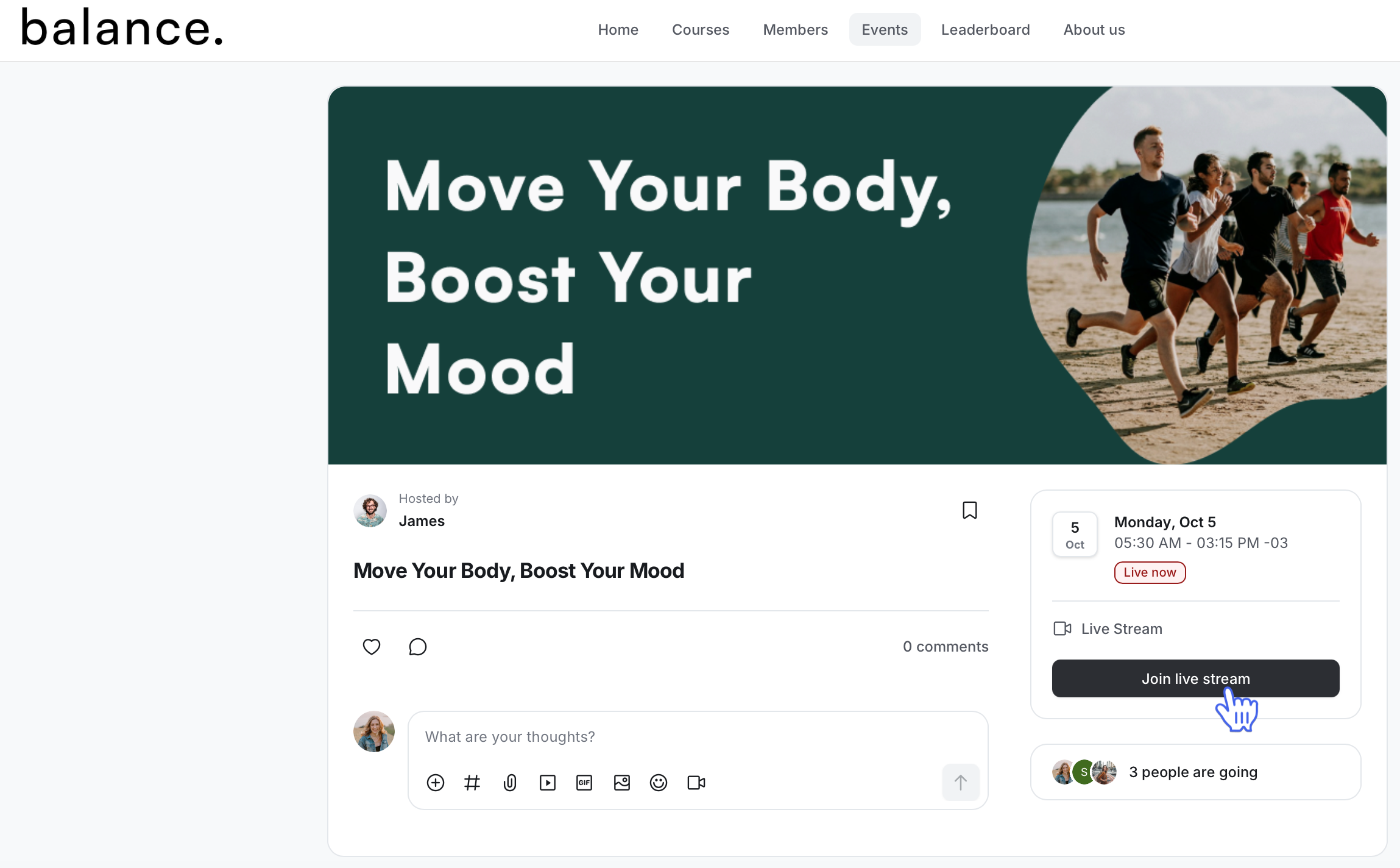
Navigate to the event space and click the event title.
-
In the location section, click Join this stream.
Click Join as participant.
Circle mobile apps
In-app or push notification
When the admin starts the live stream in the community, you'll receive a push notification and an in-app notification in your mobile app.
To join the live stream, tap the push notification. If you are already in the app, tap Notifications 🔔 on the control bar, go to the Inbox tab, and then select the live notification.
Live stream event
Navigate to the event on the app.
Tap the Link located in the Circle Live section.