Ask questions using the live Q&A
🟡 Member-focused article | Last updated: October, 2026
When attending an instant live session or a live event in your community, the live Q&A feature allows you to ask questions, engage with other participants’ questions, and view spotlighted questions. This article will guide you through the steps to make the most of the live Q&A.
ℹ️ Note: This article is intended for community members who join the live session, whether as a co-host or a participant.
View questions and answers
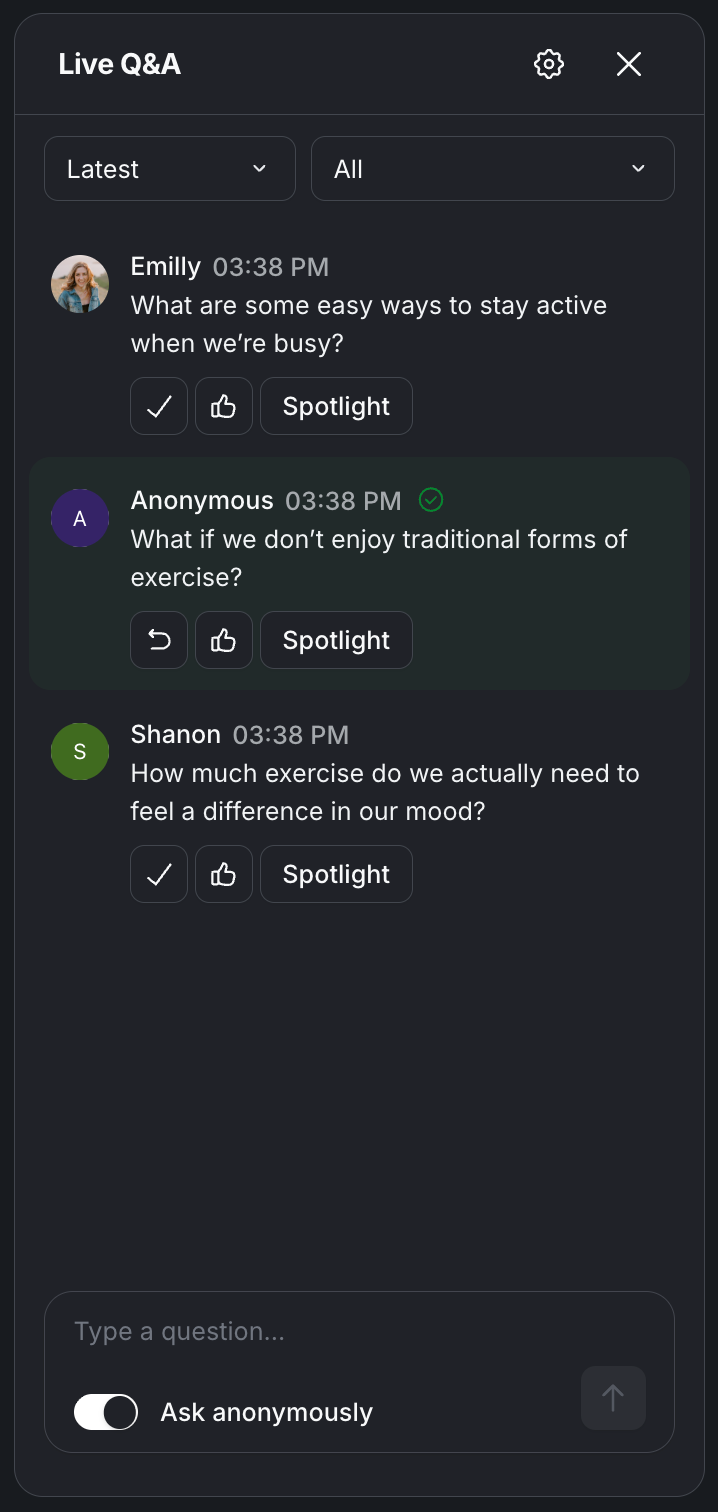
The Live Q&A panel hosts all questions asked by participants. During live sessions, click the Q&A icon on the control bar to open the panel.

When the host enables the live Q&A feature, you can ask questions and engage with other participants’ questions.
If the question has already been marked as answered, it appears with a light green background and a checkmark. If a reply is marked as the correct answer, it is highlighted and displayed prominently below the question within the panel.
Sort questions
Use the sort dropdown menu at the top of the panel to reorder questions based on the following:
Most popular: Questions with the highest number of upvotes appear at the top, so you can see which ones resonate most with participants.
Latest: The most recently submitted questions are shown first, so you can follow the latest.
Oldest: See questions in the order they were submitted, starting from the oldest at the top.
Filter questions
At the top of the panel, use the dropdown menu to view specific types of questions:
All: View all answered and unanswered questions in the session. If your question is waiting for approval or dismissed by the host it will appear in dedicated filters.
Answered: See questions that have been marked as answered by the host or live moderator, so you can focus on completed discussions.
Unanswered: View questions that have not yet been answered.
Waiting for approval: If you submit questions that are pending approval, you can view them using this filter.
Dismissed: View questions that were dismissed by the host or moderator. Only you, the host, and the moderator can see your dismissed questions.
Spotlight view
When the host spotlights a question, you’ll see the spotlight view appear on the screen.
Additionally, the spotlight indication appears on the question within the Live Q&A panel. This visual cue helps you focus on the highlighted question, regardless of other activities in the Q&A panel.
Ask questions
To send questions during a live session:
Go to the Q&A panel: Click the Q&A icon on the control bar to open the live Q&A panel.
-
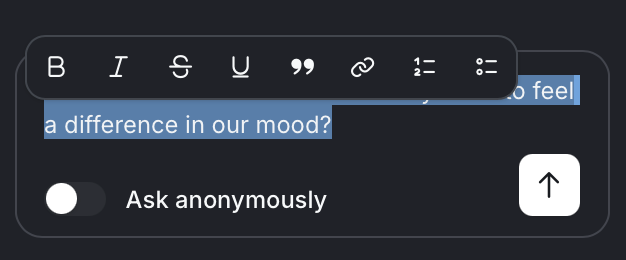
Compose question: In the text editor at the bottom of the panel, type your question. To format written text in the editor, you can also highlight the text by selecting it. A formatting bar will appear with options such as bold, italic, strikethrough, underline, quote, bullet and hyperlink.
Ask anonymously: If the host has enabled anonymous questions, you’ll see an Ask anonymously toggle at the bottom of the editor. Turn this on to send your question without displaying your name or profile.
-
Send question: Once you are ready to send the question, click Send (⬆️) or press Enter.
Depending on the host’s settings, your question may need to be approved before it becomes visible to others. See the View questions that are pending approval section below for more details.
ℹ️ Note: If the host has disabled new question submissions, you will no longer be able to send new questions in the Q&A panel. Existing questions will remain accessible.
View questions that are pending approval
If the host requires question approval, your submitted question will be marked as “Waiting for approval” and will only be visible to you until it is approved.
You can view and manage those questions using the Waiting for approval filter in the panel.
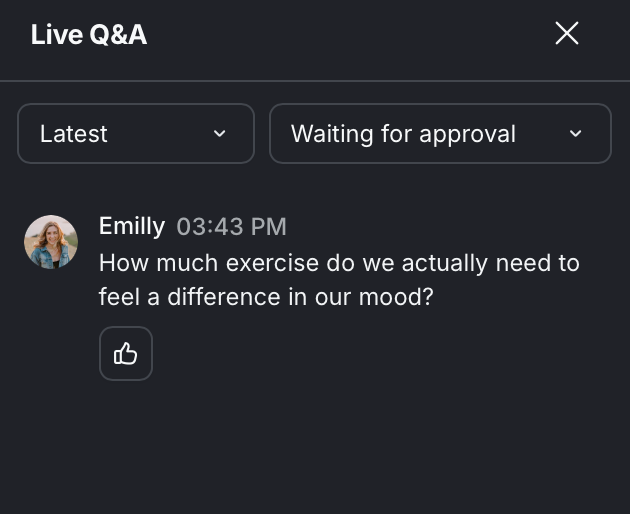
If the host approves your question, it will move to the main Q&A panel for everyone to see. If the host dismisses your question, it will appear under the Dismissed filter. You can delete these questions by hovering over them and clicking Delete (🗑️).
Engage with questions
You can interact with questions in the Live Q&A panel to show support, add insights, or answer questions.
Post replies to questions
If the host has enabled replies, you can respond to a question by following these steps:
-
Hover over the question in the Live Q&A panel and click Reply to this question (Message icon).
Type your response in the text editor. To format written text in the editor, you can also highlight the text by selecting it. A formatting bar will appear with options such as bold, italic, strikethrough, underline, and hyperlink.
Once ready, press Enter or click Send reply (Paper plane icon).
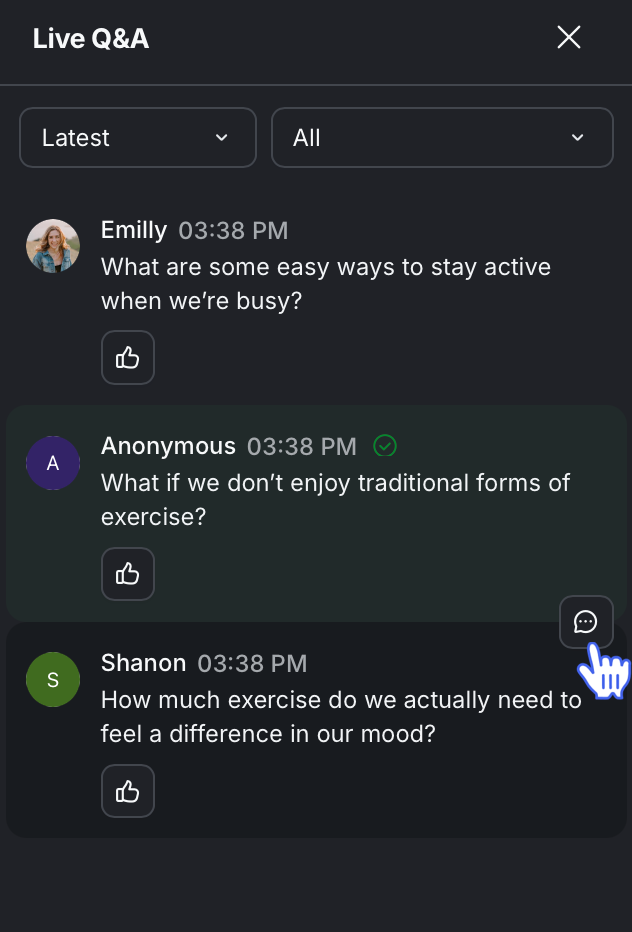
Replies are threaded under each question and include an indication of how many replies it has received. You can also click this indication to open the thread and post replies.
Upvote a question
When enabled by the host, upvoting allows you to show support for questions you find valuable or relevant. When you sort questions by Most popular, questions with the highest number of upvotes appear at the top.
To upvote a question, go to the Live Q&A panel, locate the question, and click Upvote (Thumbs up icon) below the question. You can upvote as many questions as you’d like; however, only one upvote can be cast for each question.
If you change your mind, simply click Upvote again to remove your vote.
Delete your questions
If necessary, you can delete your questions from the Q&A panel. Hover over the question you wish to remove and click Delete (🗑️). The question will be permanently removed from the Live Q&A panel for everyone.