Disabling SSO
Last updated: October, 2026
Key things to know before disabling SSO
Before disabling SSO, notify your members and set a date for the transition to prepare them for the change.
We recommend sharing instructions on how to ensure their account access remains active after the SSO is disabled (please see How can members access their accounts? section).
If you are hosting member payments using a third-party payment provider while managing their community access through SSO, please see How to manage third-party member payments? section.
Disabling SSO won’t affect your member’s community account or data.
After you disable SSO, all members, including admins, will have to use your community's default Circle sign in page to access their account.
How can members access their accounts?
When you disable the SSO in your community, member accounts stay intact. The only thing that members need to do is set up a new password on Circle, as instructed in this section.
This will apply to all active or invited members of your community. The only exception is if a member’s account is connected to other communities with the same email, they can also use their existing password or reset it.
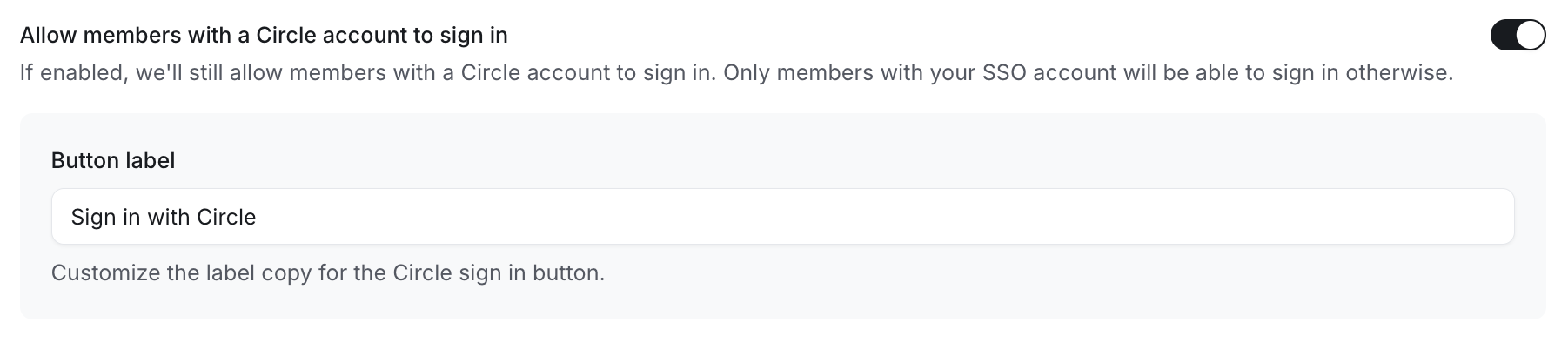
❗Important: If you previously only enabled the SSO login option, we recommend enabling the Allow members with a Circle account to sign in toggle (see the image below) to give your members an early option to reset their passwords before you disable the SSO.
If you want to keep the Allow members with a Circle account to sign in disabled until you disable the SSO, members will need to wait until the SSO is disabled before they can request a new password on the Circle login page.
To request a new password, members can:
Visit our password reset link: https://login.circle.so/users/password/new.
Enter the same email used with the SSO login.
Click Reset my password.
OR
Navigate to the community URL.
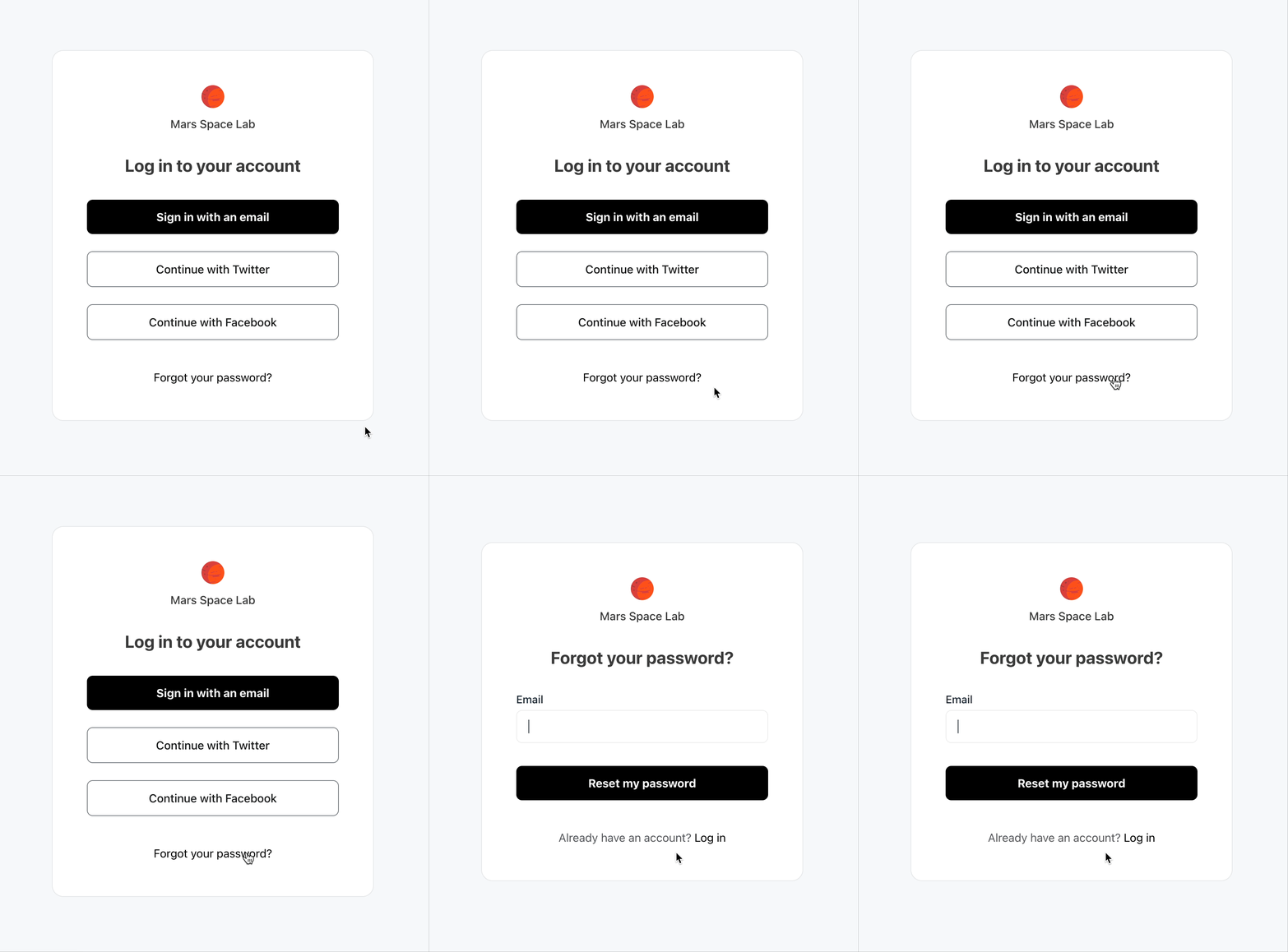
If you still have SSO enabled and allow Circle sign in.
Click Forgot your password? link on the login page.
Enter the same email used with the SSO login.
Click Reset my password.
Once the member has changed their password, Circle will sync the new password with their account, so they can use it going forward.
How to share information with members?
Once you've planned the transition, we recommend sharing it with members, including instructions for obtaining new passwords for their community accounts.
Please refer to the information on steps that members need to follow in How can members access their accounts? section.
Some of the common ways to share the transition updates are via:
Post or email
You can create a post in your community using one of your announcement spaces or email your members with this update.
Bulk messaging
You can also use our EasyCSV integration to bulk send direct messages to all your members to notify them!
📚 To learn more about EasyCSV integration and bulk send direct messages, see Use EasyCSV to perform bulk actions.
How to disable SSO?
Click the community name or logo (or the dropdown icon next to it) in the top-left corner and select Settings.
Scroll down to the Community section and select Single Sign-On
Turn off the Enable SSO toggle.
Click Save changes.
Once you have turned off the toggle and saved changes, the community’s default Circle login page will become active again.
How can members join the community going forward?
You can choose to invite members directly to your community using one of the invite access invitation methods or by sharing your paywall checkout URL if you have paywalls set in the community.
❗Since the SSO is now disabled, members will be able to create a community account by:
Accepting invitations if you have invited them using the invite access method.
Subscribing to the paywall using the checkout URL.
💡 Tip: Invite access means lifetime access until the member leave or is manually removed from the space by admin. It is considered invite access when a member is added via manual/bulk invite, invitation link, Zapier automation, or public community sign-up.
Paywall access refers to conditional access to the content gated behind a paywall when a member subscribes through a paywall checkout URL. This access is linked to their subscription and it gets revoked upon cancelation or failed payments based on failed payment configuration.
💡 Tip: Users can also sign up from your community homepage to become members and join open spaces in your community if your community is set to public (Make this a private community toggle is disabled) with Allow visitors to sign up enabled (see the image below).

📚 To learn more about invitation methods, see Explore options available for onboarding members to your community.
📚 To learn more about paywall setup, see the following articles:
How to manage third-party member payments?
You can set up automation to manage community access for your paid members if you already have a payment solution in place or want to use a payment provider outside of Circle, provided the payment solution is available for Circle integration through Zapier.
📚 To learn more about integrating a third-party payment provider with Circle to manage community access for your members, see Integrating third-party payment solutions with Circle.