Set up an affiliate program
Last updated: August, 2026
The first step to setting up an affiliate program for your community membership is configuring your commissions. This will help set the stage for how you’ll reward affiliates for boosting memberships and conversions.
To get started:
Click the community name or logo (or the dropdown icon next to it) in the top-left corner and select Settings.
Scroll down to the Payments section and select Affiliates settings.
Step 1: Set up a commission rate
In this step, we will set up the default commission to reward your affiliates.
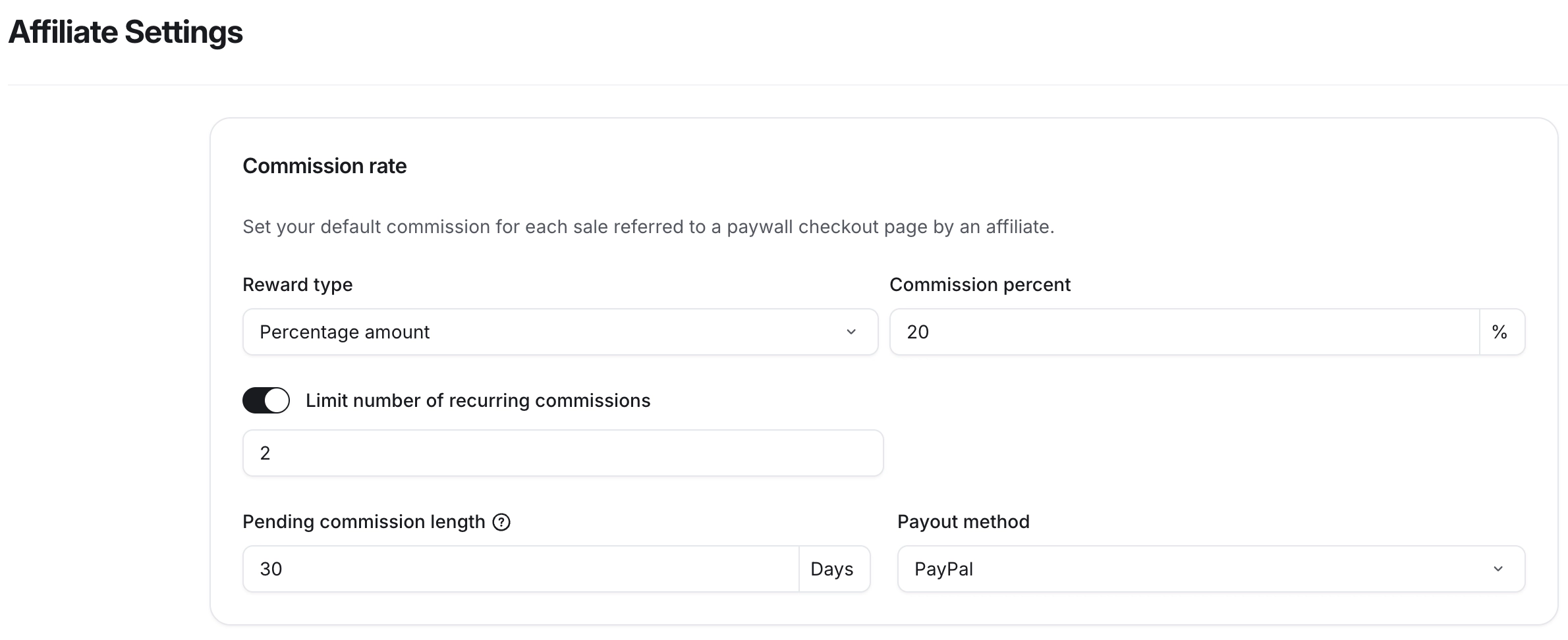
Reward type: You can choose between a fixed commission amount or a percentage-based commission. This commission is calculated on both initial and subsequent successful payments.
Commission amount/percent: Specify the commission amount or percentage that you want to offer to your affiliates. This commission will be applied as a default across your chosen paywalls and their associated prices. You can override it for a particular paywall or its price to offer unique commissions on paywalls.
-
Limit number of recurring commissions: To control recurring commissions, toggle on this option to limit them exclusively to the number of recurring payments, including the initial purchase. After enabling the toggle, specify your desired count for commissions.
For instance, suppose you aim to provide commissions for two recurring payments following a referral's purchase of a recurring subscription or installment. Enable the toggle and set the value to three.
Enabling or updating the limit for recurring commissions applies to any existing conversions with recurring payments as well.
If you left the toggle turned off, commissions will be calculated for both the initial and all subsequent successful payments.
Pending commission length: You can set a number of days commissions remain pending before they are considered due for payment. We recommend setting this value to 30 days or more, providing a buffer for potential refunds.
Payout method: You can select either PayPal or Wise as the default payout method. During the onboarding, affiliates will be asked to provide the email of their PayPal or Wise account, depending on your chosen method.
Step 2: Enable promotional link (optional)
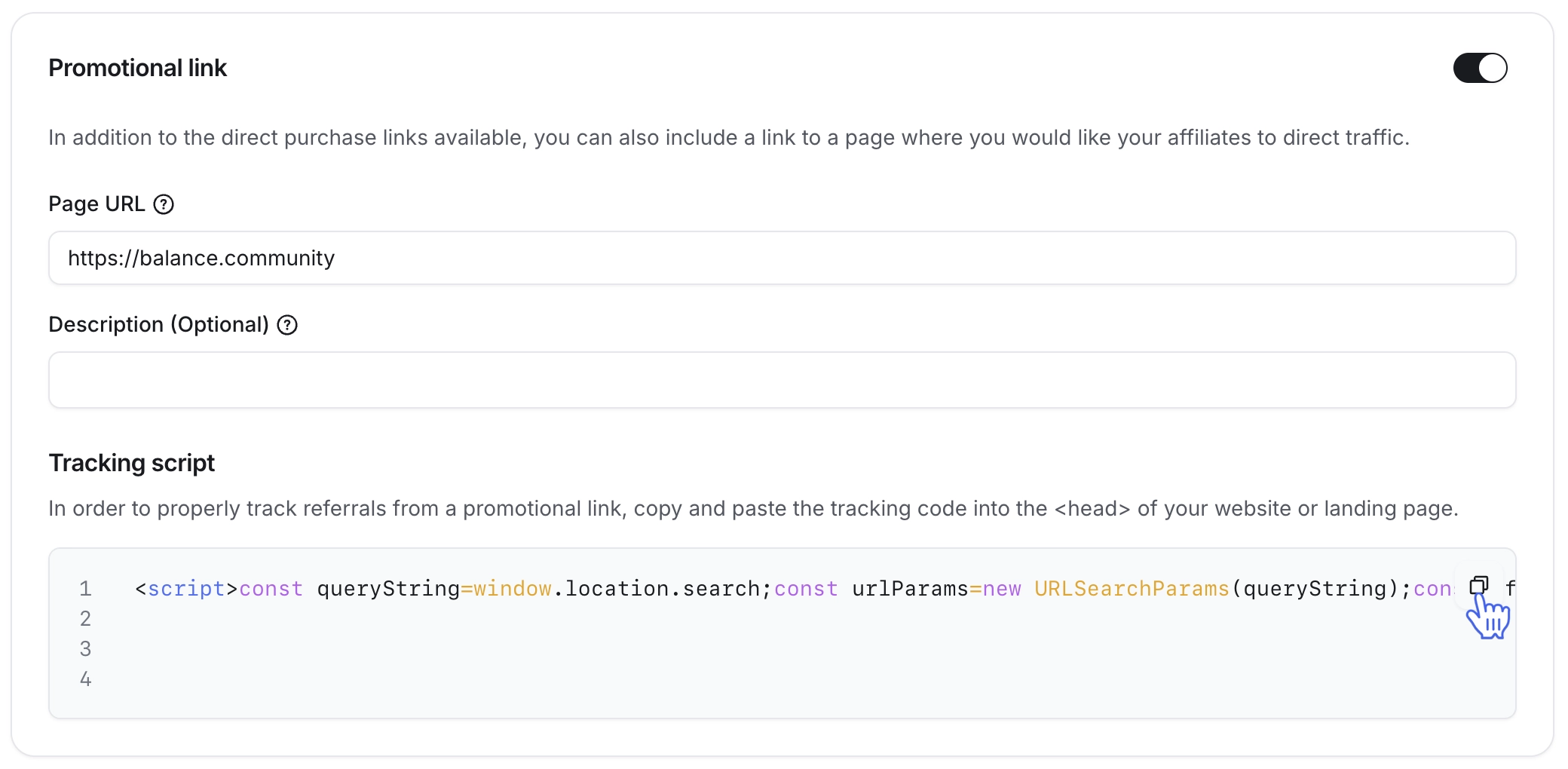
In the affiliate program, you can add a promotional link to track referrals via an external web page, such as your website or landing page, where you have added detailed information about various paywall offerings along with links to the paywall checkout page.
When someone purchases a paywall via your website using an affiliate's promotional link, and that paywall is part of the affiliate program, the affiliate will receive a commission.
To set up the promotional link, follow these steps:
Enable the Promotional link toggle.
Enter your website URL and a brief description of the promotional link. This description will be visible on affiliates' dashboards.
-
Click the Copy icon next to the tracking script and add this script to the <head> section of your website. This step ensures proper tracking of referrals from the promotional link.
📚 To learn more about the promotional link, check out our guide here.
Step 3: Choose paywalls
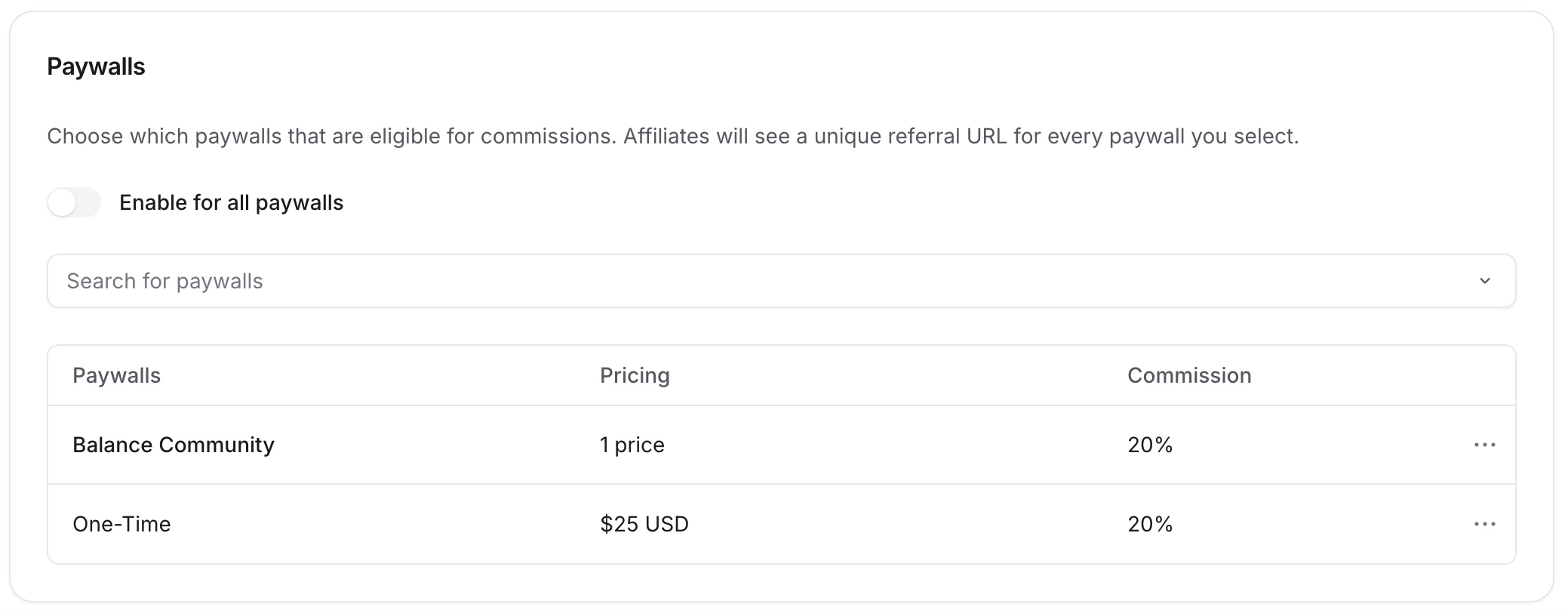
You can choose which paywalls to include in the affiliate program.
If you would like to include all paywalls, simply turn on the Enable for all paywalls toggle.
To add specific paywalls in the program, turn off the Enable for all paywalls toggle. Now, use the search bar to find a paywall, or click the dropdown icon next to the search bar to open the list of paywalls.
To remove any paywall from the list, hover over the paywall name, click More actions (three dots) and select Remove paywall.
❗ Important: Please note that paid events created in event spaces are not eligible for the affiliate program.
Step 4: Adjust commission for a specific paywall or a price (optional)
For added flexibility, you can modify the default commission rate for individual paywalls or specific prices within the paywall. This modification allows you to better adapt your commission structure to your use case and specific pricing tiers.
Here are some examples:
You can set a 10% commission for all prices within the Basic Membership paywall and a fixed $5 commission for all prices within the Premium Membership paywall.
If your Premium Membership paywall features quarterly and yearly pricing, you can offer a 20% commission on annual subscriptions and a 15% commission on quarterly subscriptions.
Follow these steps to adjust the commission rate for a particular paywall or a specific price within the paywall:
-
Hover over the paywall name or one of the prices, click the More actions (three dots) icon, and select Override commission.
-
In the Override default commission dialog, set up the following:
Choose your updated reward type.
Adjust the commission amount/percentage accordingly.
Enable the Limit number of recurring commissions toggle if you want to limit commissions to only a number of recurring payments.
After reviewing the changes, click Save.
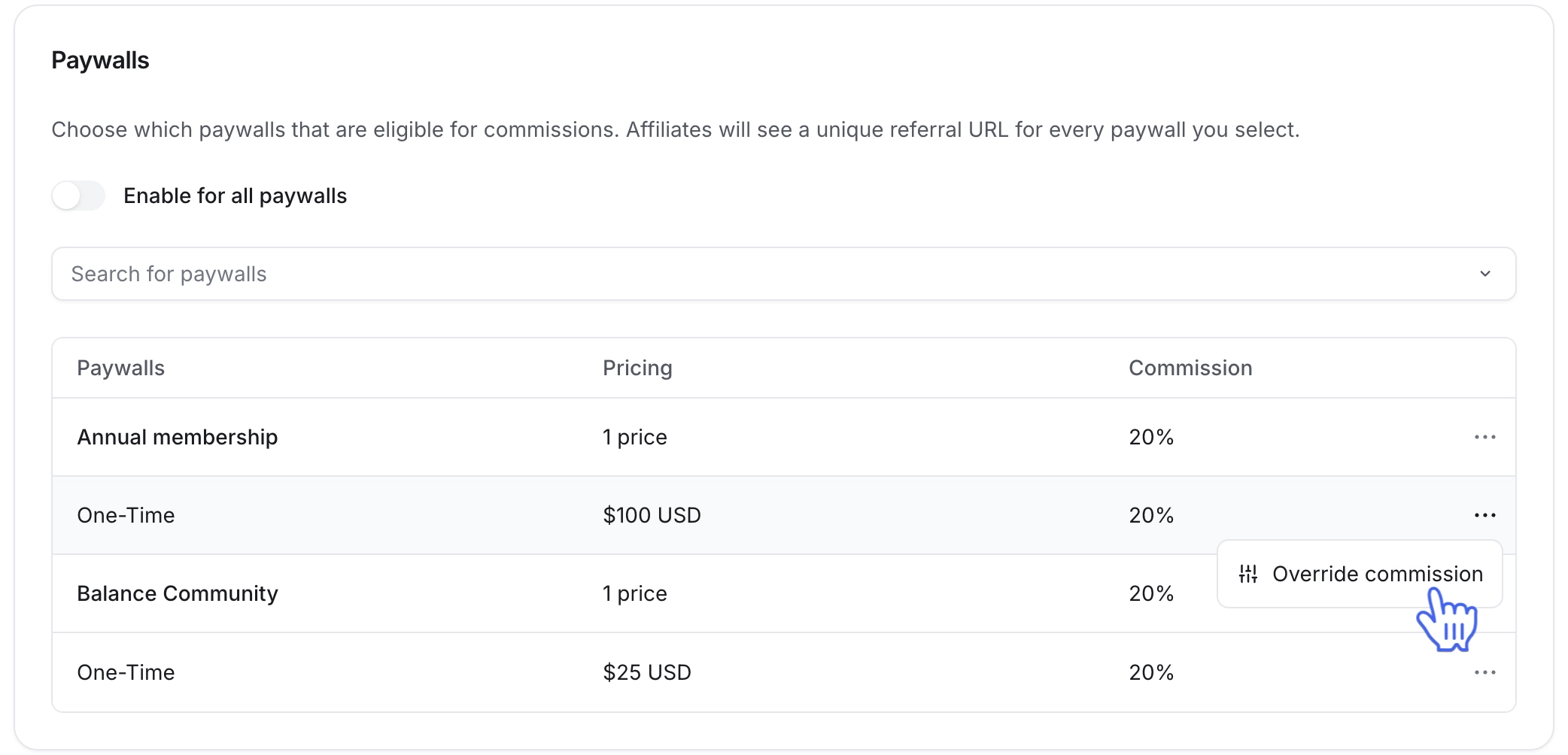
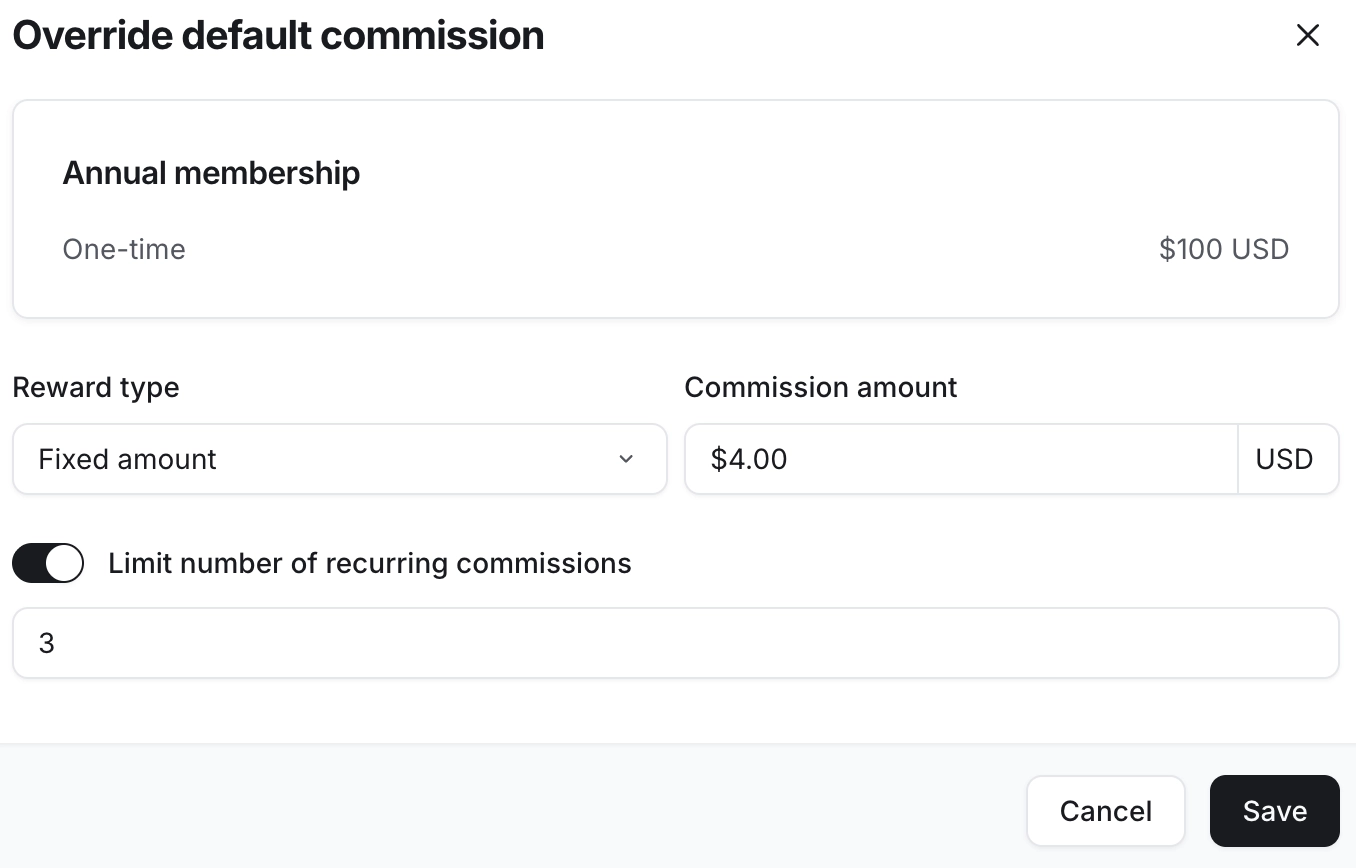
The commissions for this paywall or price will be calculated using your updated commission rate configuration.
Once you’ve configured all steps, click Save changes in the top-right corner.
Ready to invite affiliates?
Now that you're all set with your affiliate program, it's time to take the next exciting step – inviting affiliates to join your journey. 🚀
📚 For more information on inviting and onboarding affiliates, please refer to the following guides: