Add a promotional link to your affiliate program
Last updated: August, 2026
Enhance referral tracking in your affiliate program by allowing affiliates to direct visitors to a promotional page URL that provides more information about different offerings and tracks conversions.
About promotional links
In the affiliate program, you can add a promotional link to track referrals on an external web page. This promotional link is available in addition to the default direct purchase links, which are essentially paywall checkout URLs with the affiliate’s unique code.
❗Important: If a purchase is made for a paywall that is not added to your affiliate program, the referral will not be tracked, even if the purchase is made via a promotional link.
This promotional link could be your external page or a specific area community.
Using an external web page as a promotional link
You can utilize a website, landing page, or sales page hosted outside your community. On this page, you can list all available paywall membership options, each linked to its corresponding paywall checkout URL.
For example, you can set up a promotional link to a website that displays pricing options for multiple membership tiers. The page can include detailed descriptions, comparisons, and benefits of each tier, helping potential members make informed decisions. When users select a membership, they are directed to the appropriate paywall checkout page to complete their purchase.
Using community URL as a promotional link
You can also use a link to a specific community area as your promotional link. This could be:
A private space with a paywall block showcasing membership tiers.
A post containing details about memberships, paywall options, and direct checkout URLs.
When you use a community URL as a promotional link, there’s no need to install the tracking script anywhere.
For instance, you can set up a lock screen on one of your private spaces featuring multiple paywall options. Affiliates can then share the promotional URL from their affiliate dashboard with potential members. Users clicking the link will see the lock screen, explore the paywall options, and proceed to the checkout page to purchase a membership.
How the promotional link works
Once the promotional link feature is enabled, affiliates can access both the direct purchase link and the promotional link directly from their affiliate dashboard. This flexibility allows affiliates to choose the most effective link for their audience, enhancing their promotional efforts and potentially increasing conversions.
The promotional link available to affiliates is automatically appended with the affiliate's unique affiliate code. For example, if your promotional link is “https://abc.com,” then the affiliate’s promotional link would look like this:
https://abc.com?affiliate_code=dcaf27Here’s the overview of how tracking via promotional link works:
The affiliate shares their unique promotional link from their affiliate dashboard with their audience.
-
When a person clicks the promotional link to visit your website, a cookie is stored in their browser. At this stage, we do not yet track this as a visit.
The cookie is essential for tracking and attributing visits and conversions to affiliates on the paywall checkout page.
The cookie remains active in the person’s browser for 90 days and refreshes its expiration timeframe if they visit the promotional link again during this period.
ℹ️ Note: Tracking only works if the purchase is made using the same browser where the cookie is stored. Purchases made using a different browser or different device won’t be tracked.
When the person clicks the paywall checkout link on the website to purchase the paywall, the link will automatically include the affiliate’s unique code. Once they are on the checkout page, we will track this as a visit.
If the person then purchases a paid membership from the paywall checkout page, we will track this action as a conversion and award a commission for the paid purchases based on your configured commission rate for the respective paywall price.
Enable the promotional link
To add the promotional link to your affiliate program:
Step 1: Add promotional link
Click the community name or logo (or the dropdown icon next to it) in the top-left corner and select Settings.
Scroll down to the Payments section and select Affiliates settings.
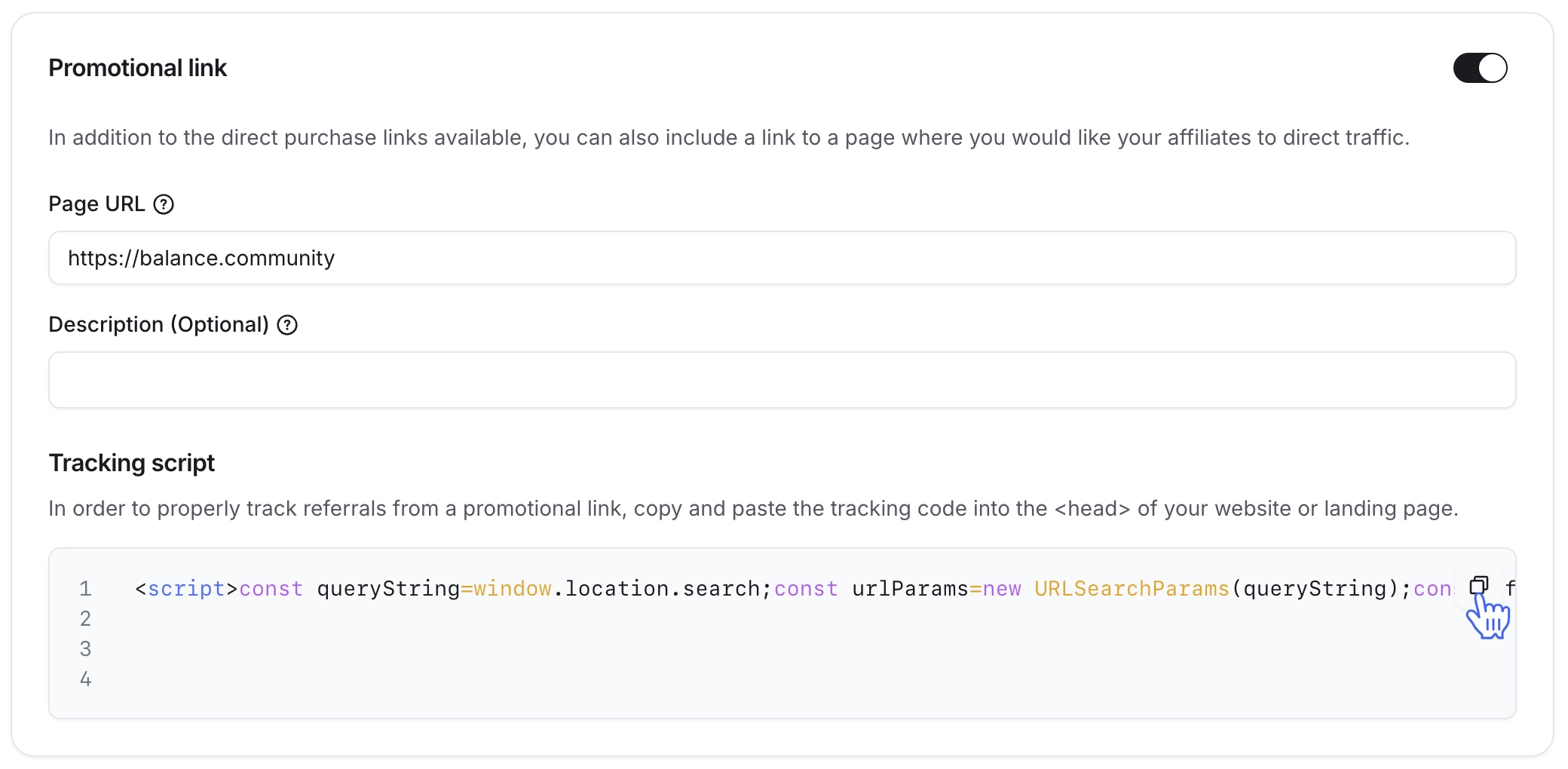
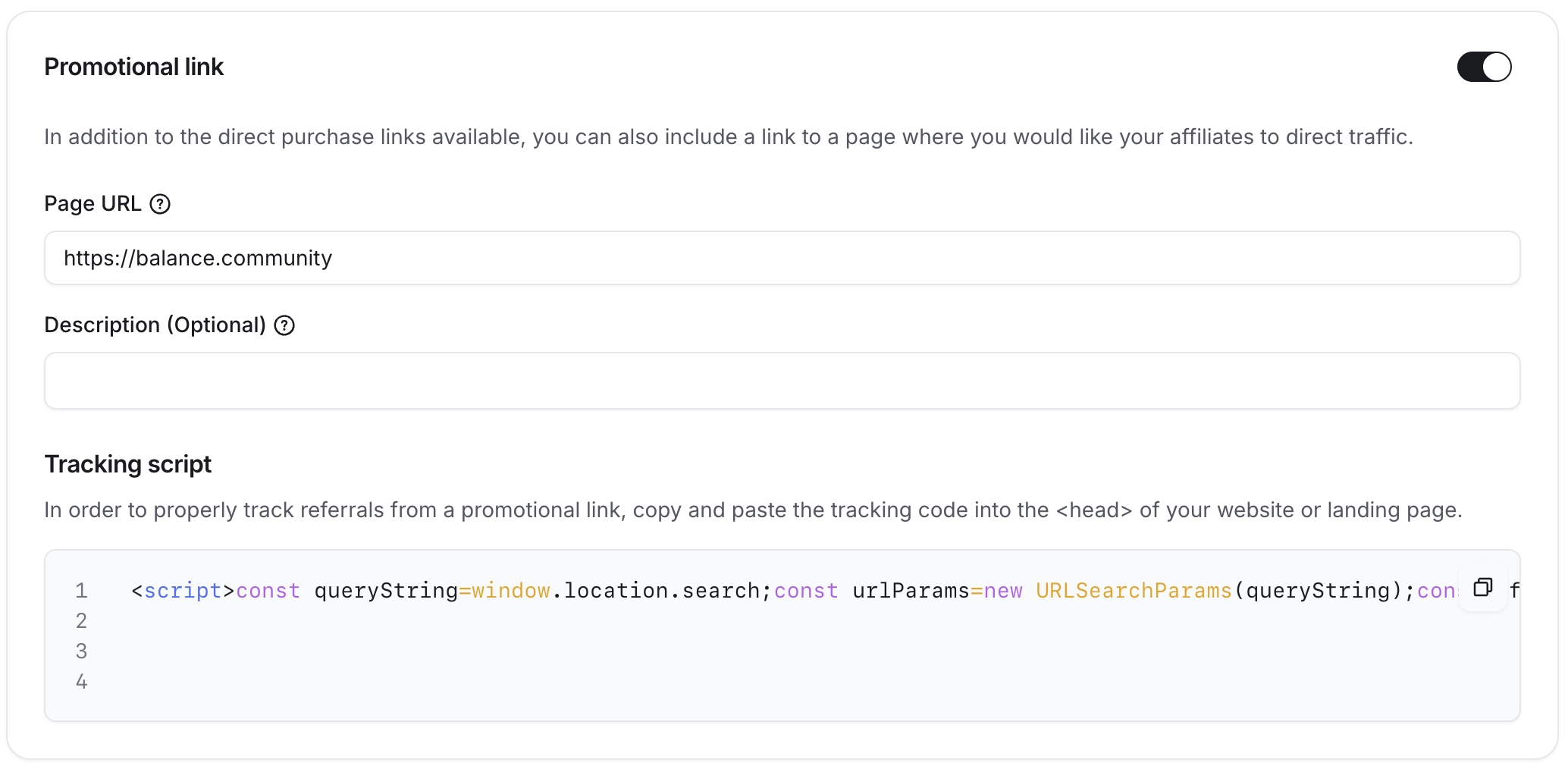
Enable the Promotional link toggle and enter your website URL in the Page URL field. Optionally, add a description for this promotional link that will be displayed to affiliates in their dashboard. This description may include details about the link and how to use it.
-
Click Save changes at the top-right corner.
Step 2: Add tracking script to your website
To successfully track referrals from the promotional link, you’ll need to add the tracking script to your website.
Copy the tracking script by clicking the Copy icon next to it, then add the script to the <head> section of your website. This is a crucial step for tracking referrals generated through a promotional link.