Get to know the course directory
Last updated: July, 2026
The course directory brings together all available courses in one easy-to-navigate place. It serves as your members' go-to destination for discovering and enrolling in courses tailored to their interests and goals. This guide will walk you through the features and functionality of the course directory for both learners and course creators.
Access the course directory
Admins and members can access the course directory by clicking the Courses tab on the top navigation bar. If you've customized the name of the course directory link, the updated name will appear on the navigation bar instead.
❗️Important: The top navigation bar may not be visible when using Circle AI. To access it, click your community name in the top-left corner of the Circle AI workspace and select Back to community. This takes you back to the community view, where you can access the top navigation bar and course directory.
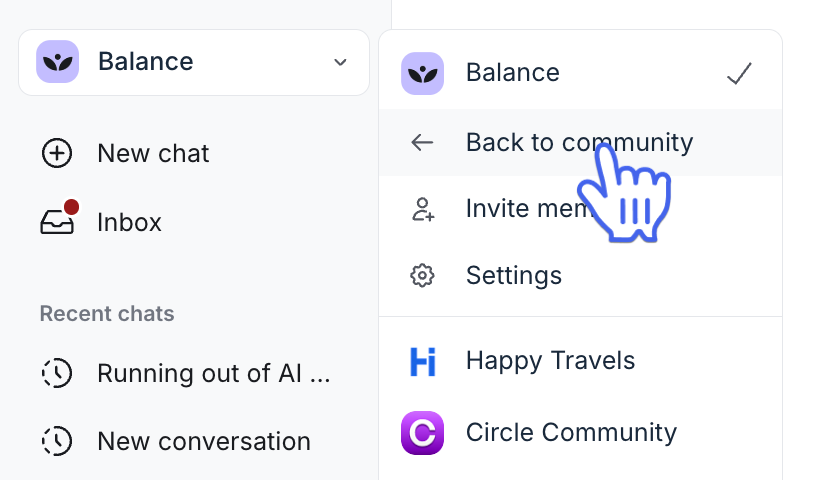
The course directory is available on desktop and mobile browsers, as well as iOS and Android mobile apps.
ℹ️ Note: If the Courses (or its updated name) tab is not visible on the top navigation bar when using a smaller browser window, click More to access the dropdown list, which includes the remaining tabs that don’t fit on the bar. If the tab doesn’t appear at all, an admin may have disabled its visibility.
When you access the course directory, all courses appear in the default card view layout. If topics are added to course spaces, they will also be visible above the course cards. You can also set up a banner at the top of the directory.

On the course space cards, you can see the following course-related information:
Course thumbnail: A preview image representing the course. This is the thumbnail image you’ve added to your space customization settings. A badge also appears on the space thumbnail for newly published courses and those in draft status.
Space name and icon: The title and icon associated with the course.
Space group: The space group to which the course belongs.
Depending on the access level set for the course space, the following details are also displayed on the cards:
Open: Open spaces are indicated with the number of students enrolled in the space. If a member is not enrolled in an open course space, they will see the option to join the course on the card.
Private: Private spaces are marked with a 🔒 Private space badge.
Secret: Secret spaces are indicated with a 🔒 Secret space badge.
About course space visibility in the directory
As an admin, you can view all the course spaces in the directory regardless of their access or publication status.
For members, course visibility in the directory depends on two main factors: the course space's access settings and the member's access to the course space.
Here are some key things to know about the visibility of the course directory and courses for members:
Course directory availability: The course directory is visible to members and visitors (if your community is public) only if there is at least one published course with open or private access in the community.
-
Visible courses: Members can see a list of all courses set to open or private within the community, in addition to the courses they are enrolled in.
Hidden courses: Course spaces that are set to secret or still in draft mode do not appear in the directory for members. They can only see a secret course space within the directory if they are enrolled in it.
Joining open courses: Members have the option to voluntarily join courses that are set to open directly from the course directory.
Private courses: Course spaces that are set to private appear with a 🔒 Private space badge in the directory. If a member clicks the private course space, they will be redirected to the lock screen.
ℹ️ Note: If the visibility of the course directory link for the top navigation bar is restricted to Admin only or Disabled, the directory link will not appear on the navigation bar. In this case, however, members can still access the directory by directly entering the URL in their browser: [Your community URL/courses].
💡 Tip: You can customize the course directory link by modifying its name, managing how the link opens, and controlling its visibility on the top navigation bar for desktop and mobile browsers. For Circle mobile apps, you also have the option to customize the name of the course directory tab and reorder it on the navigation bar.
📚 For more information about how members can use the course directory, see Discover available courses in the community.
Filter courses using topics
Enhance the course discovery experience by assigning topics to course spaces to organize them by interest or category.
Once you have assigned topics to at least one course space within your community, the topic navigation bar will appear above the course cards. This navigation bar displays all the topics you’ve added to the course spaces, arranged in alphabetical order by default, along with the default All topic option. When there are numerous topics available in the directory, you can click the More dropdown menu in the navigation bar to see the list of remaining topics.
By using these topics in the navigation bar, members can quickly filter the directory to find courses that align with their interests or educational goals.
📚 To assign or manage topics for a course space, please refer to our guide here.
Set thumbnail images
You can set thumbnail images for course space cards in the directory. To add the space thumbnail, navigate to the Customize tab in the course space settings.
📚 For more information, see Add a thumbnail image to the course space.