Add a thumbnail image to the course space
Last updated: July, 2026
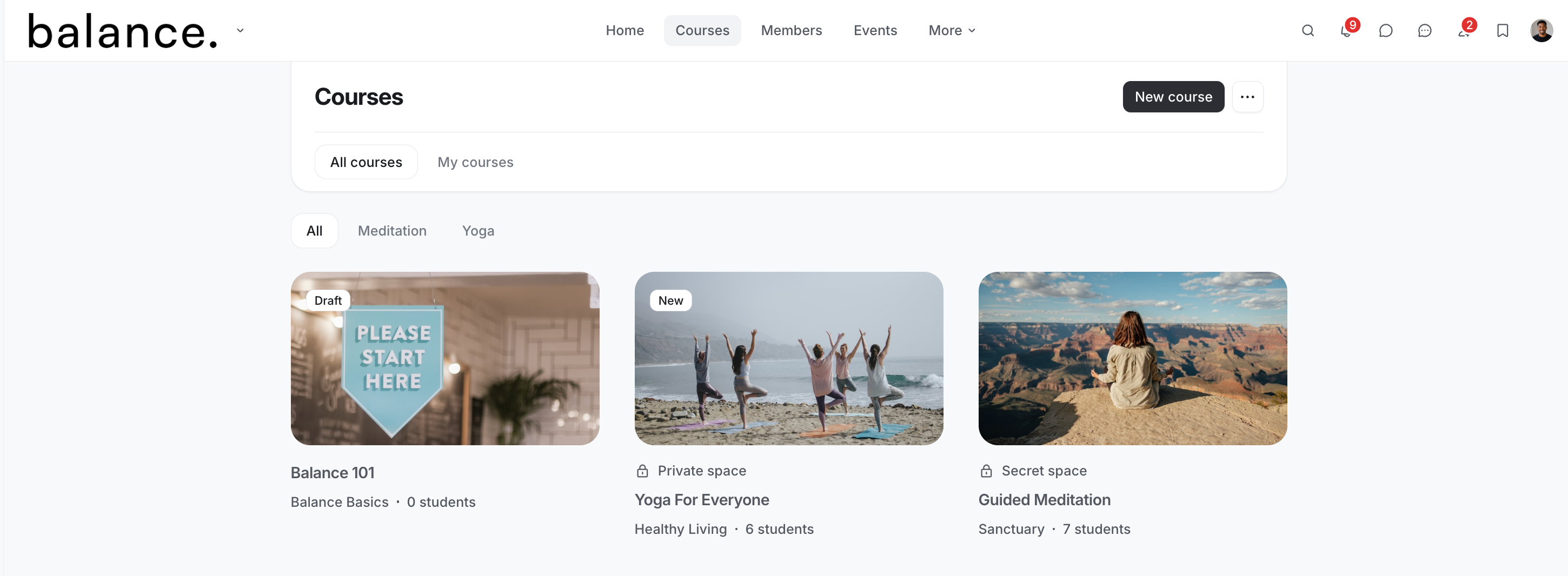
A well-chosen thumbnail image can make your course stand out in the course directory, enhancing its visual appeal. The thumbnail on the course space card in the directory helps learners quickly identify your course.
📷 Recommended image size: 16:9 aspect ratio with minimum image dimension 800 x 450 px.
To add a course thumbnail image, follow these steps:
Click Courses on the left sidebar and select Courses.
Click the More actions (three dots) icon on a course entry and select Edit course.
Select the Customize tab.
-
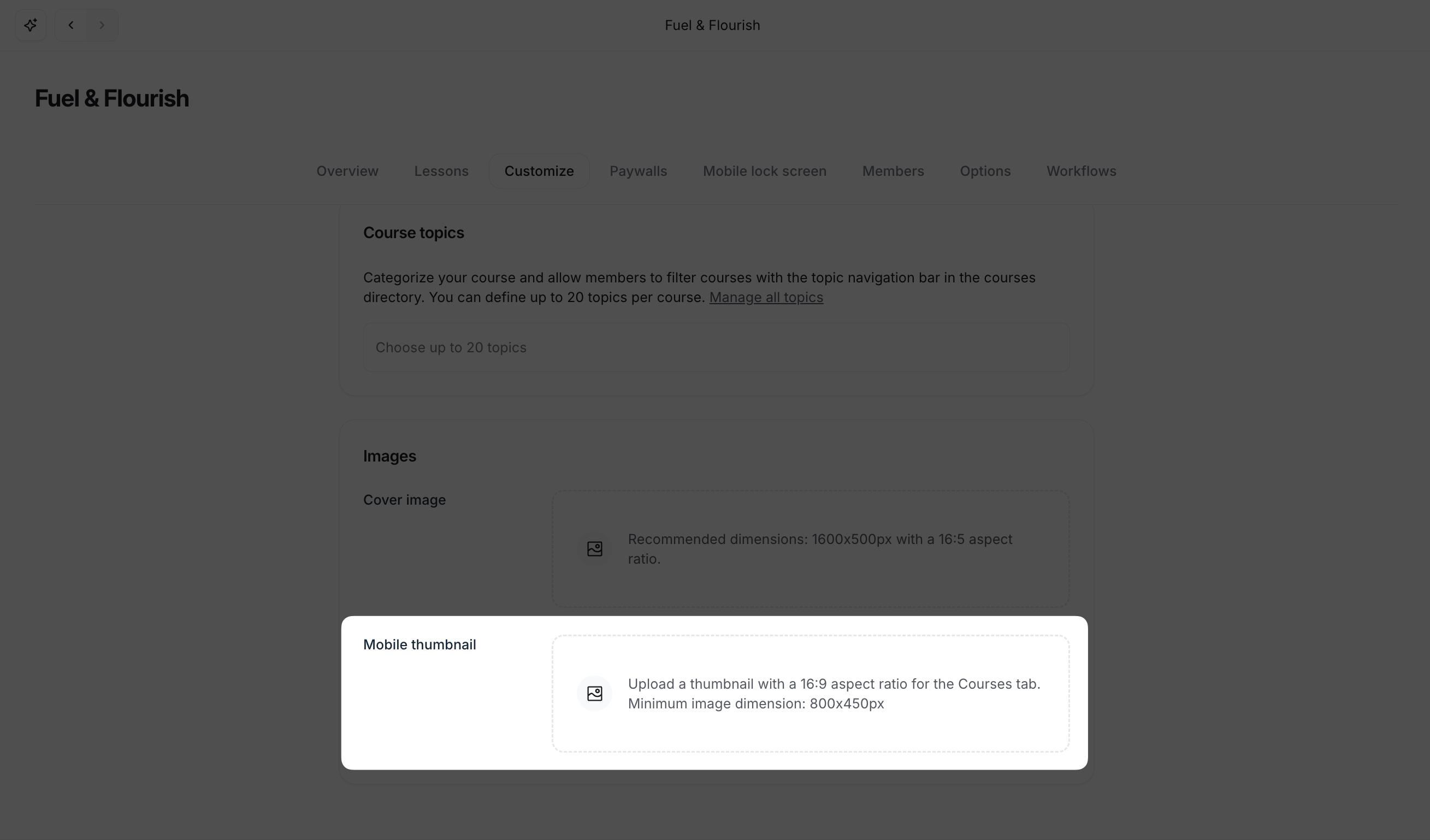
Scroll down to the Images section and click Upload next to the Mobile thumbnail option.
-
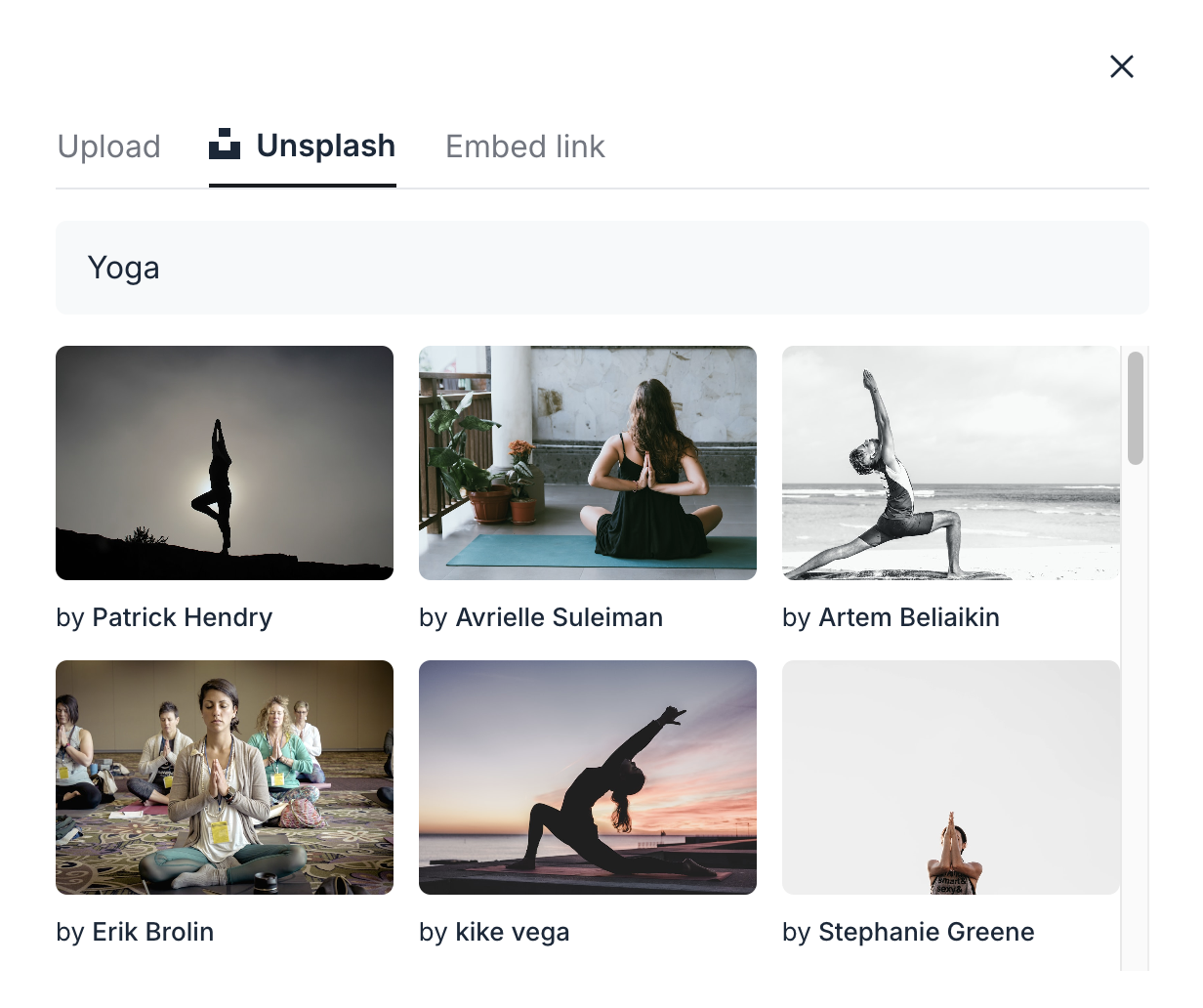
In the dialog, click one of the tabs to:
Choose an image from the Unsplash library
Upload the image from your desktop
-
Embed link
-
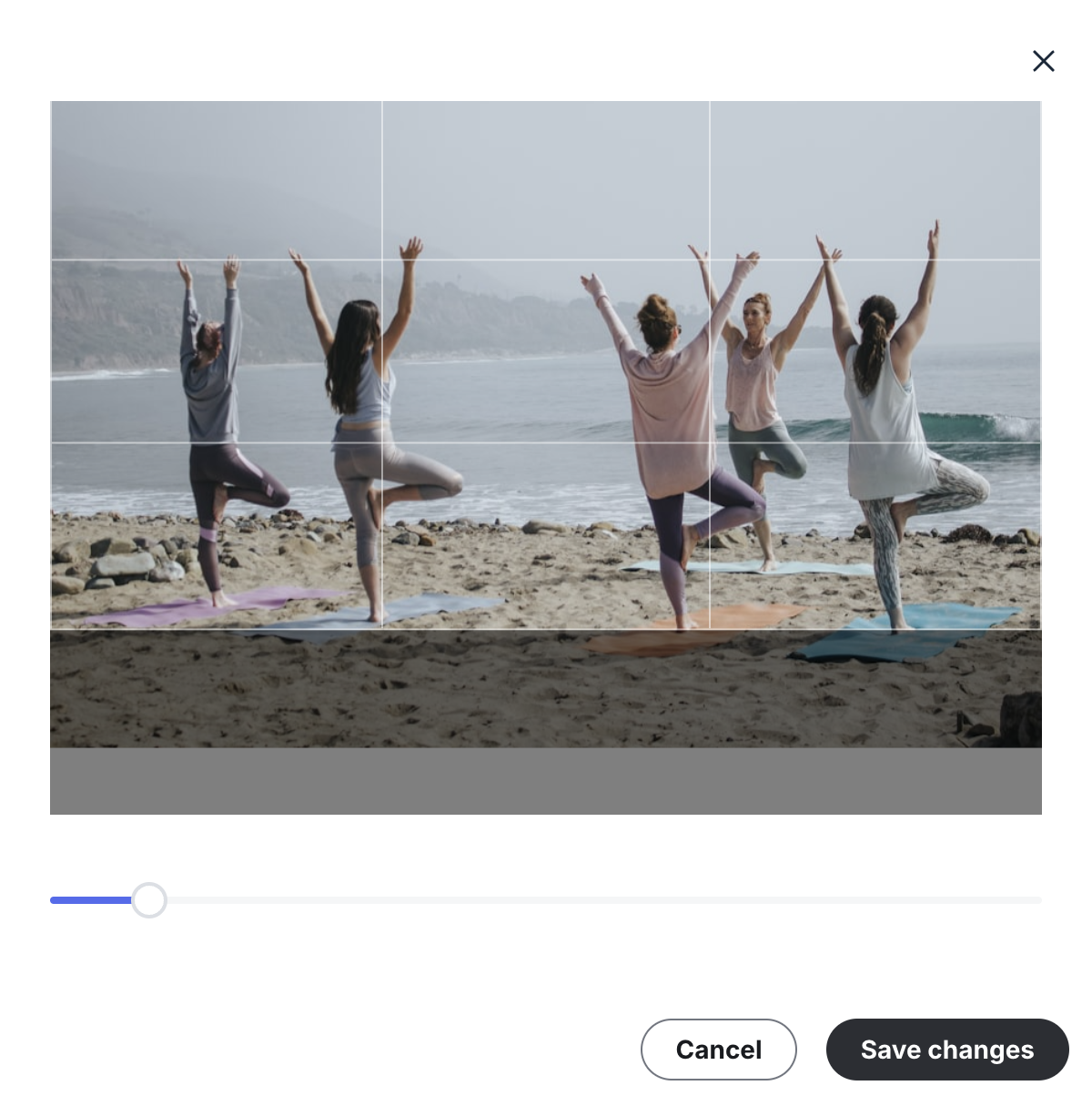
To adjust the image after the upload is successful via any of the options, you can:
Click and drag the image to fit within the allowed dimension.
-
Use the slider at the bottom of the dialog to zoom in or out on the image.
Click Save changes.
After adding the image to the course space, navigate to the course directory to view it displayed on the course space card.