Customize navigation tabs for mobile apps
Last updated: September, 2026
Customize navigation tabs for your community apps to create an intuitive navigation structure that aligns with your community's preferences and improves the user experience. This guide will walk you through the process of customizing tab names and ordering in your mobile apps.
About navigation tabs
As a community admin, you can personalize the mobile app experience by modifying tab names and reorganizing their order. This allows you to prioritize the most important section of your community, ensuring the members land on the tab that matters most upon opening the mobile app.
❗ Important: Please note that any custom links added to the navigation bar or changes made to the header navigation links will not appear in the mobile apps. On the Android and iOS mobile apps, you only have the option to customize the names of the system tabs and reorder them specifically for mobile apps.
To access the settings for navigation tabs:
Click the community name or logo (or the dropdown icon next to it) in the top-left corner and select Settings.
Scroll down to the Community section and select Mobile app.
In the Reorder Home tabs section, you'll see a list of all available navigation tabs.
Availability
These customizations are reflected across both the Circle iOS and Android apps. If you are subscribed to the Circle Plus plan, this setting will also apply to your branded apps.
Understanding navigation tabs on mobile apps
The Circle mobile app features key navigation tabs for members to access various community sections.
These tabs are located at the top of the mobile app. Here's a detailed overview of each tab:
Feed: The Feed tab keeps your members informed about the latest happenings within the event and post spaces they're involved in.
Spaces: The Spaces tab serves as your community's central navigation hub. It displays all spaces organized by space groups, just like the sidebar layout of the desktop version. It helps members easily browse and navigate different spaces within your community.
-
Members: The Members tab provides access to your community's member directory, enabling networking and connection between community members.
ℹ️ Note: If your member directory is set to private, this tab will only be visible to community admins in the app.
Courses: The Courses tab provides direct access to your community's educational content through various course spaces. Members can browse various courses visible to them and also access their enrolled courses.
Leaderboard: The Leaderboard tab provides an engaging, competitive way to track your progress alongside the most active members at the community level.
-
Events: The events tab provides access to the events directory in your community. Depending on their space access, members can view events from various event spaces.
ℹ️ Note: The Events tab is currently available exclusively on iOS, with Android support coming soon. If your event directory is set to private, this tab will only be visible to community admins in the app.
Customizing tab names
You can customize tab names for your mobile apps to match your community’s terminology. When customizing names, we suggest to keep tab names clear and concise. Use familiar terms that your community members will understand and are consistent with the web version.
To customize the name:
-
Click More actions (three dots) next to the tab and select Assign custom name. If you have already assigned a custom name, you’ll see the Edit custom name option instead.
Enter your preferred name and click Save.
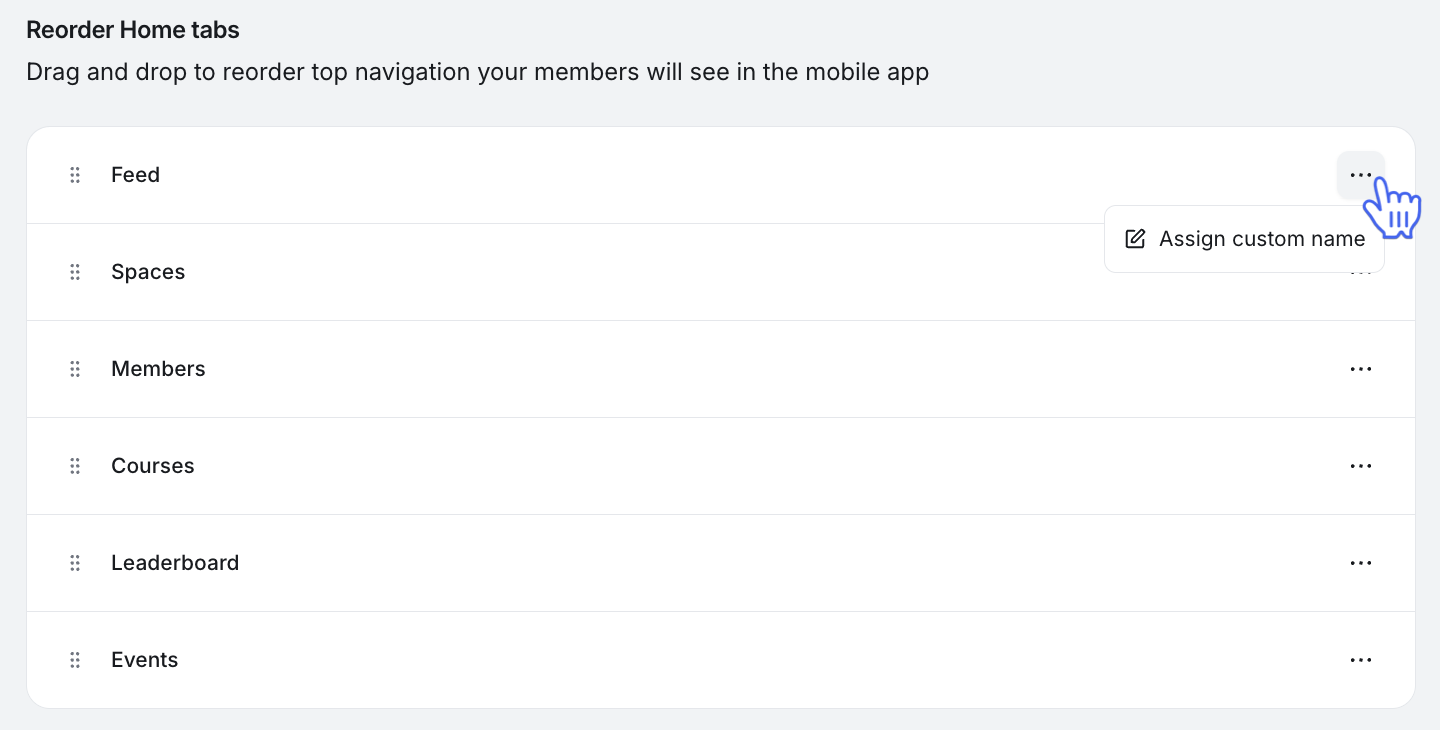
When members close the app and reopen it, they will see the name changes reflected in the app.
Reordering navigation tabs
The tab order significantly affects how members interact with your mobile app, as the first tab is the default landing page when they open the app.
💡 Tip: Choose your default landing tab strategically. Place your most engaging or frequently accessed tab in the first position to help members quickly access important content.
To customize the tab order:
Click and hold the tab you want to move.
Drag the tab to your preferred position.
Release to place the tab in its new position.
Click Save changes to apply the new arrangement.
Once members close the app and reopen it, they will see these changes reflected in the new arrangement.