Re-run workflows
Last updated: January 16, 2025
You can re-run the bulk action and scheduled workflows to execute tasks multiple times as needed. This functionality simplifies repetitive processes, saving you valuable time and effort. This article will guide you through the steps to re-run both types of workflows.
Re-run a bulk action workflow
To re-run a bulk action workflow:
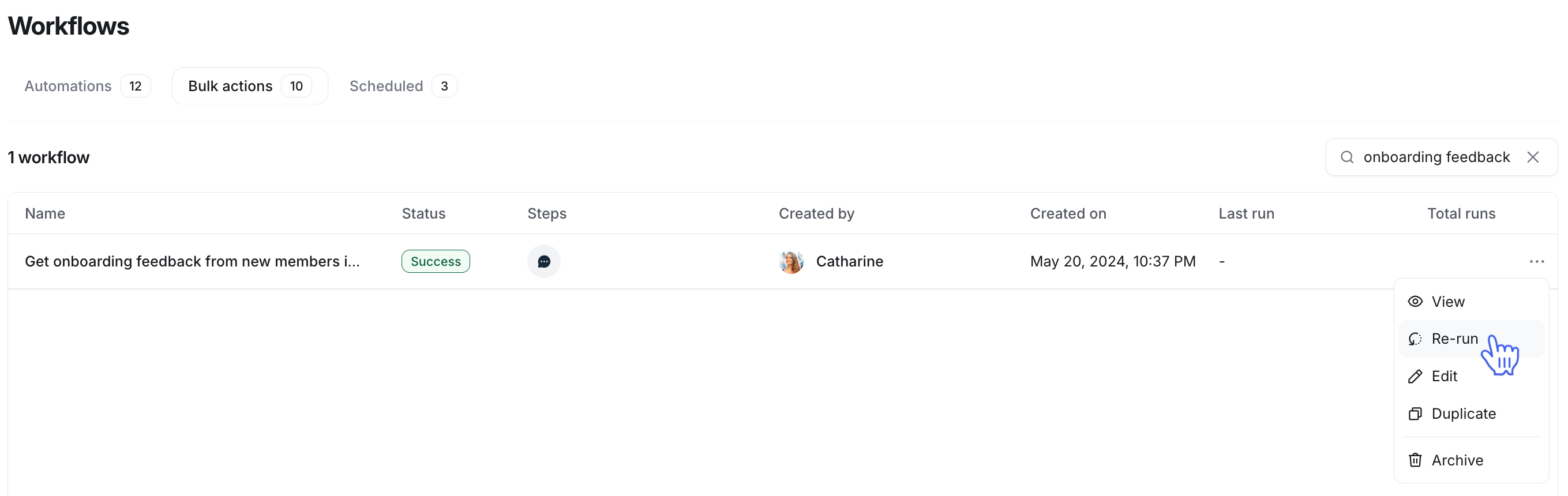
Click Workflows in the left sidebar, then select Workflows.
Navigate to the Bulk actions tab and locate the workflow.ℹ️ Note: You can also use the search bar in the top-left corner to quickly find the workflow.
-
Click More actions (three dots) next to the workflow name and select Re-run.
-
In the re-run dialog, choose from the following:
Include members I’ve already run this workflow for: Run this workflow for all members who meet the audience rule criteria, regardless of whether the workflow has been previously executed for them.
Exclude members I’ve already run this workflow for: Run this workflow for only new members who match the audience rule criteria since the last run.
Once you have selected your preferred option, click Continue.
In the Re-run summary dialog, review the summary and click Confirm & run.
You are all set! After the workflow completes, you will be taken to the Runs tab to view the task status for this run.
📚 To learn more about the task history for the bulk action workflows, see View task history of workflows.
Re-run a scheduled workflow
Similar to bulk action workflows, you can also re-run scheduled workflows once their scheduled runs are complete. Since you are re-running scheduled workflow, you will be able to run it right away or schedule it again.
To re-run a scheduled workflow:
Click Workflows in the left sidebar, then select Workflows.
Navigate to the Bulk actions tab and locate the workflow.ℹ️ Note: You can also use the search bar in the top-left corner to quickly find the workflow.
Click More actions (three dots) next to the workflow name and select View.
-
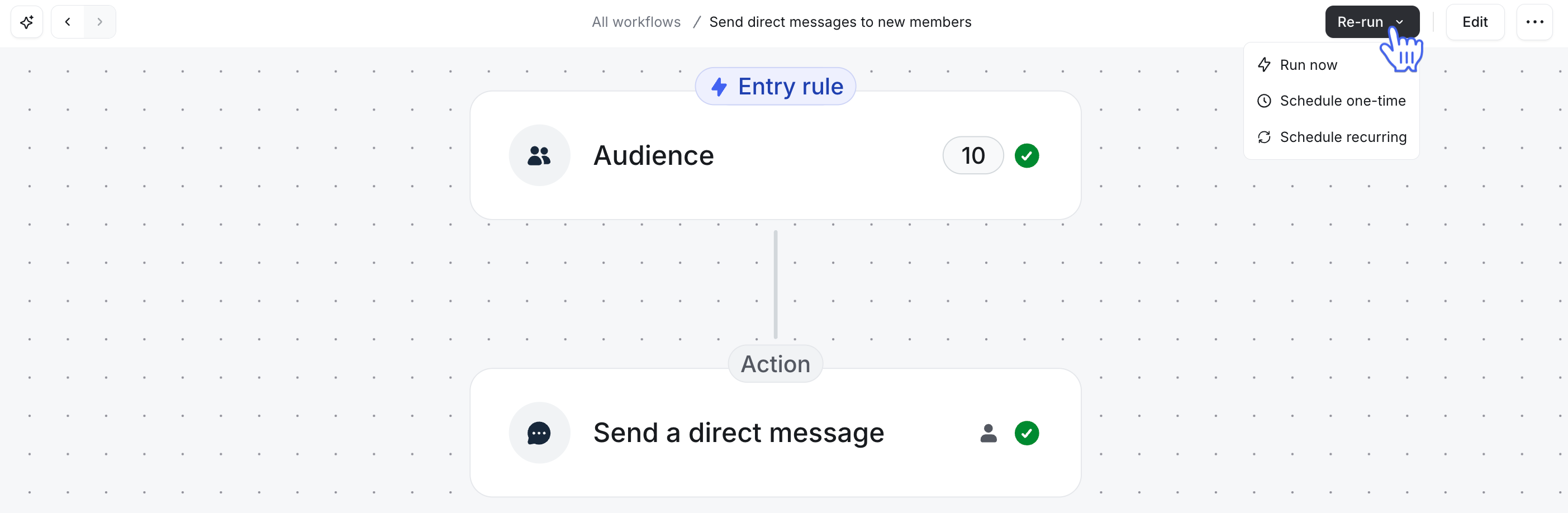
On the workflow overview page, click Re-run at the top-right and select one of the following:
Run now: Execute the workflow immediately for one instance.
Schedule one-time: Schedule the workflow to run once at a specific date and time.
-
Schedule recurring: Set the workflow to run on a specific start date and at a specified frequency.
-
After selecting an option, specify how the workflow should handle the audience:
Include members I’ve already run this workflow for: Run this workflow for all members and non-members (if applicable) who meet the audience rule criteria, regardless of whether the workflow has been previously executed for them.
Exclude members I’ve already run this workflow for: Run this workflow for only new members and non-members (if applicable) who match the audience rule criteria since the last run.
Once you have selected your preferred option, click Continue.
In the Re-run summary dialog, review the summary and click Confirm & run.
You are all set! To view the status of completed workflow runs, navigate to the Runs tab on the workflow overview page.