Offer installment pricing options for paywalls
Last updated: August, 2026
Installment plans break down a single paywall price into a manageable number of equal payments, offering your potential members greater flexibility to choose a payment structure that aligns with their financial comfort. In this article, we will guide you through understanding installments and setting them up within your paywalls.
Get to know installment pricing
With an installment plan, you are essentially dividing the one-time fee into multiple payments, ultimately reaching the total paywall price over a specified payment frequency. Once all installments are completed, members will no longer be charged and will gain access to paywalled spaces forever, just like with one-time-fee paywalls.
For instance, suppose you aim to provide members with access to paywalled content for a one-time fee of $1500, granting lifelong access. To make this more budget-friendly, you can offer a monthly payment plan by dividing the one-time paywall price into four manageable installments. You can achieve this by setting up a monthly payment option with four rebills, maintaining a total price of $1500.
ℹ️ Before getting started, please review the following information about installments.
Installment setup
Payment flexibility: You can divide the one-time paywall price into equal multiple payments at weekly, biweekly, monthly, quarterly or annual intervals.
Multiple prices: You can add multiple installment pricing options to a paywall, including the ability to configure upfront payments. Check out our guide for more details on upfront payments.
Trials and coupons: You have the flexibility to offer a free or paid trial for installment pricing. Additionally, you can offer coupons with installment pricing, which works similarly to any other type of paywall pricing.
Limitations on subscription groups: Paywalls with installment pricing cannot be added to a subscription group. Therefore, the option to change the billing cycle or plan is unavailable for purchases of an installment paywall.
Permanent access upon installment completion: Upon completing all installments for the paywall, the member’s installment status will be set to Completed. Members gain access to paywalled content forever, similar to a one-time fee paywall. Their access remains intact unless manually removed by admins or upon deactivation of their community account.
Failed payments and cancellations
-
Cancelations: Once the member has purchased a paywall with the installment pricing, they cannot cancel the plan on their own. Only admins have exclusive authority to manually cancel installment plans effective immediately. When the installment plan is canceled, members will lose access to paywalled spaces.
ℹ️ Note: Once member’s all installments are paid and the status is set to Completed, the option to cancel becomes unavailable. However, you can still provide refunds for any installment payments if you would like.
Failed payments: If installment charges fail, the member's plan is canceled, and access is revoked as per your failed payment configuration in Stripe.
Account deactivation: Members cannot deactivate their community account until the installment remains to be paid. They must ask the admin to cancel the plan and deactivate the account on their behalf.
Ability to repurchase installments
Members can repurchase the installment paywall plan if their previous installments for the same paywall have been paid and the status is Completed. You do not have to take any steps to enable this for installment paywalls.
You can simply set up installment paywalls for your offerings, such as paid coaching or consultation sessions. Members can pay for these services in installments and repurchase the paywall once all installments are completed.
💡 Tip: If you do not intend to provide access to any particular community content for this purpose, you can simply add any free or open space to the Access tab when setting up the installment paywall.
❗Important: Please note that since members gain forever access to spaces and space groups gated behind the installment paywall, they won’t automatically get removed once their installment payments are completed. If you do not want members to retain access to paywalled spaces and space groups indefinitely, you will need to remove them manually. To automate this process, you can set up workflows with delay action to set up an automation to remove members after a certain time duration.
Set up installment pricing
To add installment pricing to a paywall, follow these steps:
-
When setting up installments for:
New paywall: Start by creating a paywall using the guide here.
Existing paywall: Go to the paywalls page, hover over the paywall, and click the More actions (three dots) icon → Edit.
Select the Product tab and click Add price in the Price options section.
-
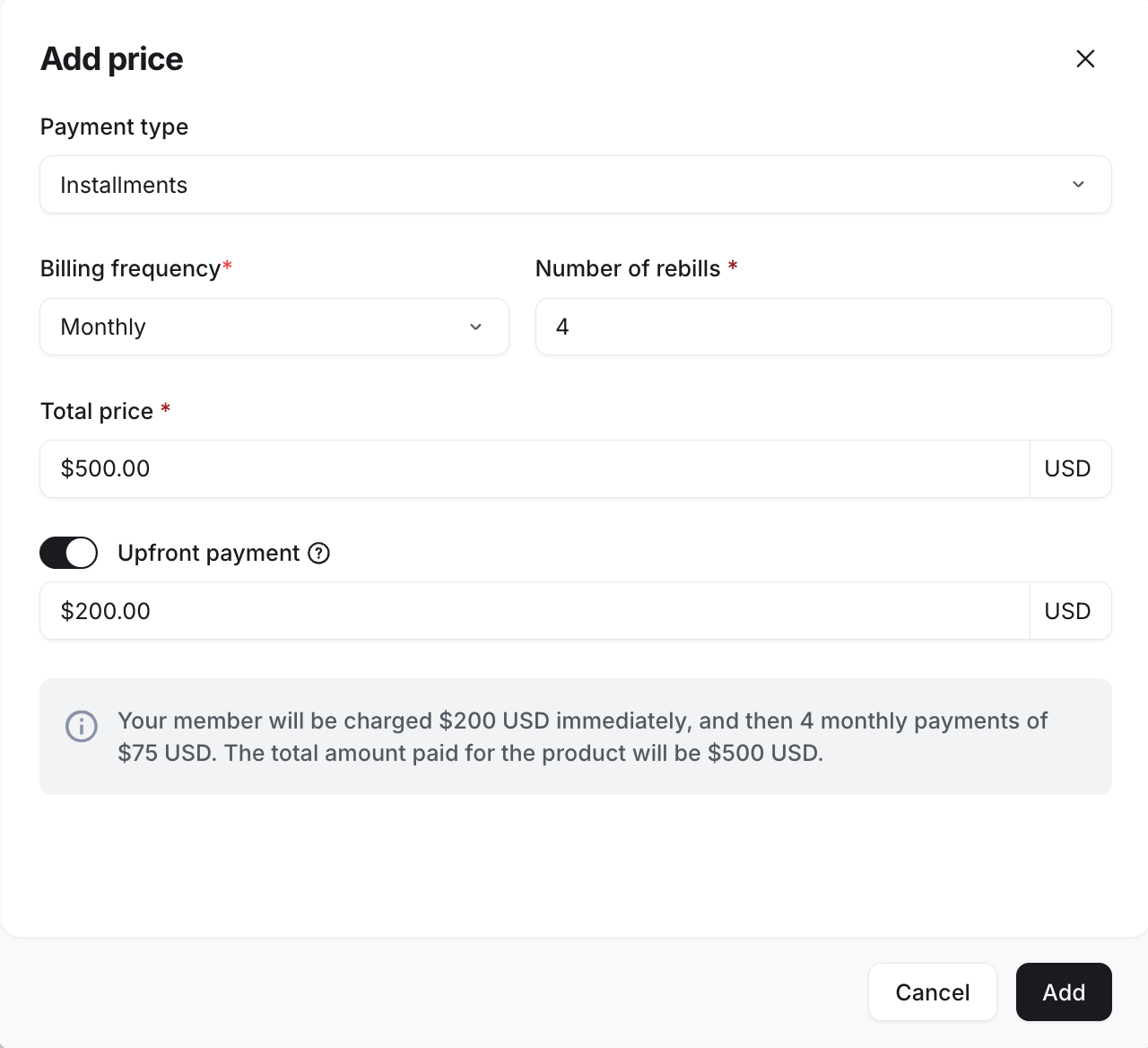
Select Installments in the Payment type dropdown menu, and configure the following:
Billing frequency: Choose from weekly, biweekly, monthly, quarterly or annual plans.
Number of rebills: Enter the number of total installments you would like to offer. You can add a minimum of two installments to a maximum of 50, depending on your preference.
Total price: Enter the total amount for the paywall price you want to collect from members in installments.
(Optional) Upfront payment: You can enable this toggle to charge your members with an initial upfront payment out of the total price and then split the remaining amount in a number of rebills. For instance, let’s say the total paywall price is $500 with four rebills. With this option, you can charge $200 upfront and then $75 each month for the next four months.
-
Required before trial: If you’ve enabled the trial period for this paywall, turn off the Required before trial toggle to offer a free trial with upfront payments. On the other hand, enable the Required before trial toggle to charge your member with an upfront payment amount for the paid trial. For more information on setting up trials, see Offer paywall trials.
-
Click Add.
If you have added installments to a new paywall, continue with the remaining setup by clicking Next.
If you have added installments to an existing paywall, click Save again to save your changes.
❗Important: Please note that if you are adding installments to an existing paywall, the installment pricing will only be available to new subscribers who join after the installment pricing has been implemented.
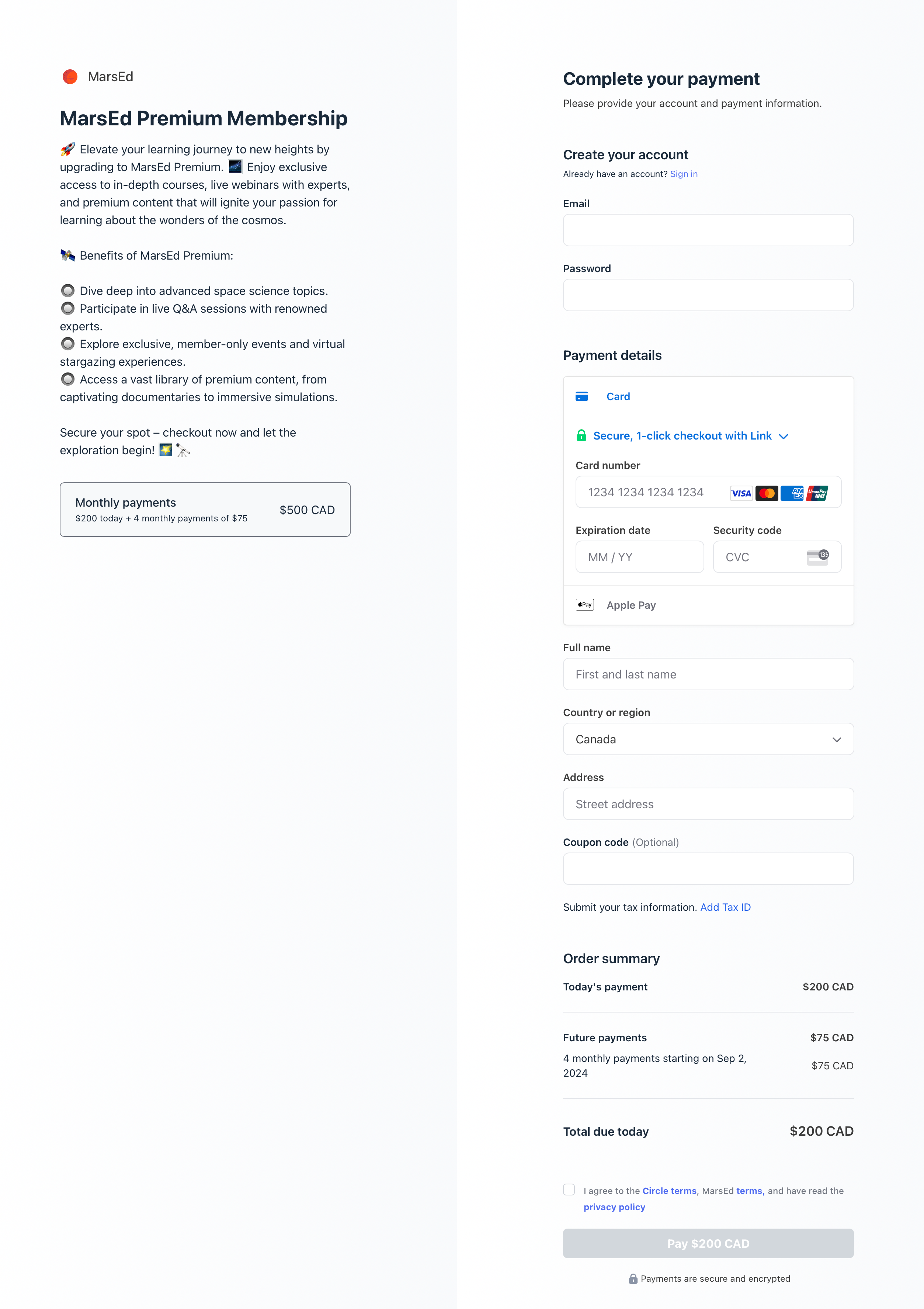
After the installment plan is added to a paywall, new subscribers can see a breakdown of the payment structure on the checkout page. This includes the information on the amount due today, which represents the initial payment, and the number of future payments required to complete the payment plan.
ℹ️ Note: If you have enabled tax collection in your community, the tax information is also displayed in the breakdown for the amount due and future payments.