Set up upfront payments for subscription and installment prices
Last updated: August, 2026
If you are looking to offer your members a flexible payment structure that includes an initial fee followed by regular payments, we've got you covered!
With upfront payment, you can charge your members a distinct initial payment followed by recurring subscription or installment payments.
Let's take a look at how you can use upfront payment for the following paywall pricing:
Subscription: Suppose the paywall with a recurring subscription is priced at $20 per month. You could charge $10 for the first month and then $20 monthly thereafter.
Installment: If the total paywall price is $500 with four rebills. With this option, you can charge $200 initially for the first month and then $75 monthly for the next four months.
Key things to know about upfront payment
Multiple prices: You can only configure upfront payments for a recurring subscription or installment pricing.
Trials and coupons: You have the flexibility to offer a free or paid trial with an upfront payment price. You can also provide discounts to your members by offering coupons that can be applied to reduce the initial upfront payment and/or subsequent recurring payments or installments.
-
Subscription changes: Members who have purchased recurring subscriptions with an upfront payment have the option to switch to a new plan or billing cycle. If the new plan or billing cycle requires upfront payment, members will be charged the upfront amount in full when they make these changes.
ℹ️ Note: The option to change the billing cycle or plan will only appear if there are multiple pricing options or paywalls available within the subscription group. For example, if the paywall has only one pricing option, they won’t see the option to change the billing cycle.
To learn more about how admins can change the billing cycle or plan on behalf of a member, see our guide here.
Cancelations: If members decide to cancel their subscription with upfront payment pricing, they won't have the option to resume the subscription once the cancellation process has been initiated.
Price modifications: Once you have created a paywall price with an upfront payment, you cannot edit or disable the upfront payment from the paywall price. To switch from an upfront payment price to regular pricing, we suggest removing the price with an upfront payment from the paywall and creating a new one without an upfront payment configuration. Please note that any existing paywall purchases with upfront pricing will remain unaffected even if the price is removed.
Configure upfront payment
-
When setting up:
Select the Product tab and click Add price in the Price options section.
Choose either Installments or Subscription in the Payment type dropdown menu, and configure the pricing options.
-
Turn on the Upfront payment toggle and enter the payment amount you’d like to charge.
Click Add.
If you’ve enabled the trial period for this paywall, turn off the Required before trial toggle to offer a free trial with upfront payments. On the other hand, enable the Required before trial toggle to charge your member with an upfront payment amount for the paid trial. For more information on setting up trials, see Offer paywall trials.
-
Once ready, click Save.
If you have added the price to a new paywall, continue with the remaining setup by clicking Next.
If you have added the price to an existing paywall, click Save again to apply your changes.
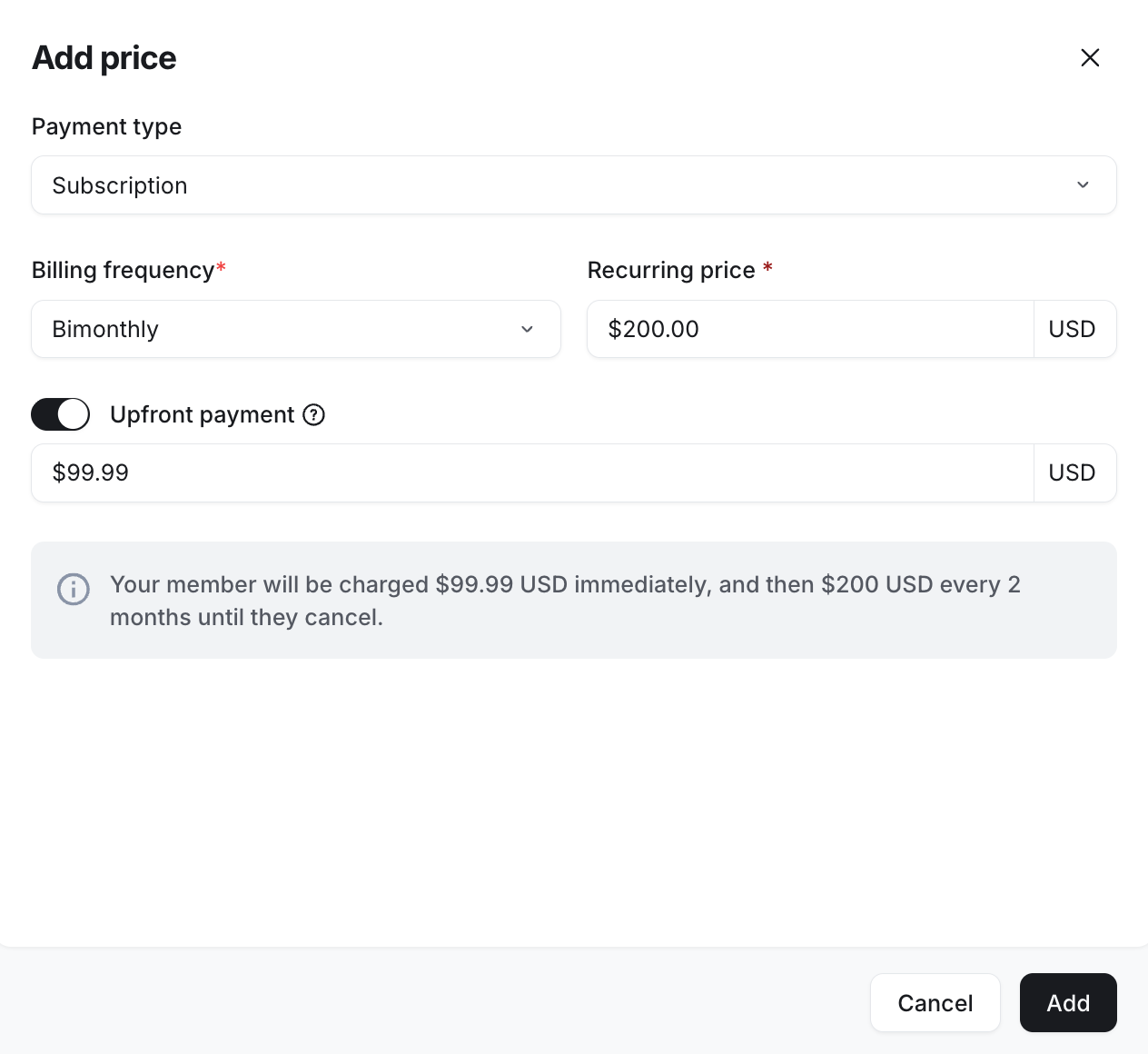
Repeat these steps to add multiple prices with upfront payments to the paywall.
You are all set! Members can see a detailed breakdown of the charges, including the initial upfront payment, when they select the paywall price configured with upfront payment on the checkout page.