Understand and manage paywall notifications from Circle and Stripe
Last updated: August, 2026
In this article, we will take a deep dive into the different paywall notification options and guide you on how to set them up using your Circle community and Stripe.
About paywall notifications
Paywall notifications help you and your members stay updated about every stage of the billing cycle, from trials to renewals and refunds.
Who can manage paywall notifications
Community admins can manage notifications for post-purchase and trials directly in Circle through desktop and web browsers.
A Stripe admin who has access to your Stripe dashboard can manage email notifications from Stripe.
Notifications from Circle
Circle offers notifications related to paywall signups, trial creation, and trial expiration.
💡 Tip: When new members purchase a paywall or sign up for a trial, they also receive your onboarding email if you have configured it from onboarding settings in your community. To learn more, see our onboarding guide here.
Post-purchase thank you email
When a new or existing community member signs up for a paywall with a trial or purchases a paywall, they will get a personalized thank-you email. You can personalize this email to welcome members and thank them for joining. To enable and customize it, go to the Post purchase tab in paywall setup. To learn more about setting up this email, see the Post purchase step in our paywall setup guide.
Trial notifications
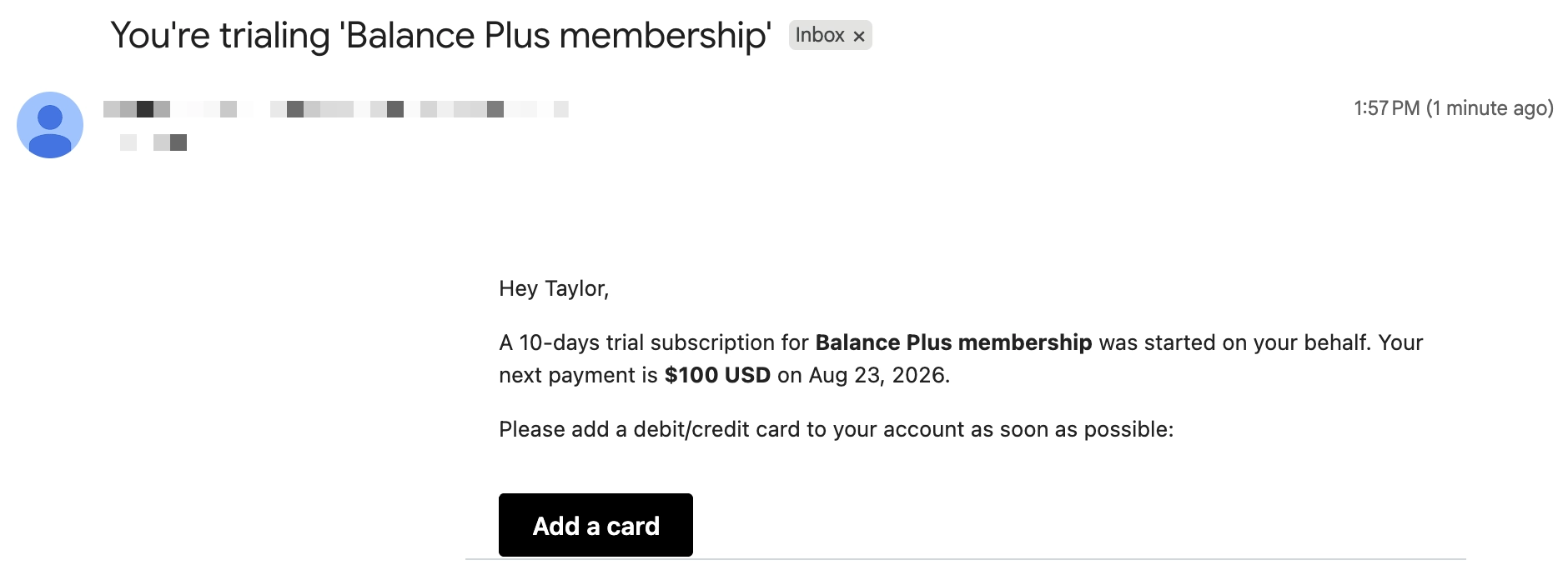
Trial creation email (via admin action): When creating a trial subscription for members through your admin account using methods like invites or manual trial creation via member profiles, you can choose to send them an email to let them know that you’ve started a trial for them. Please note that when creating a trial for a member, the post-purchase email will be skipped automatically.
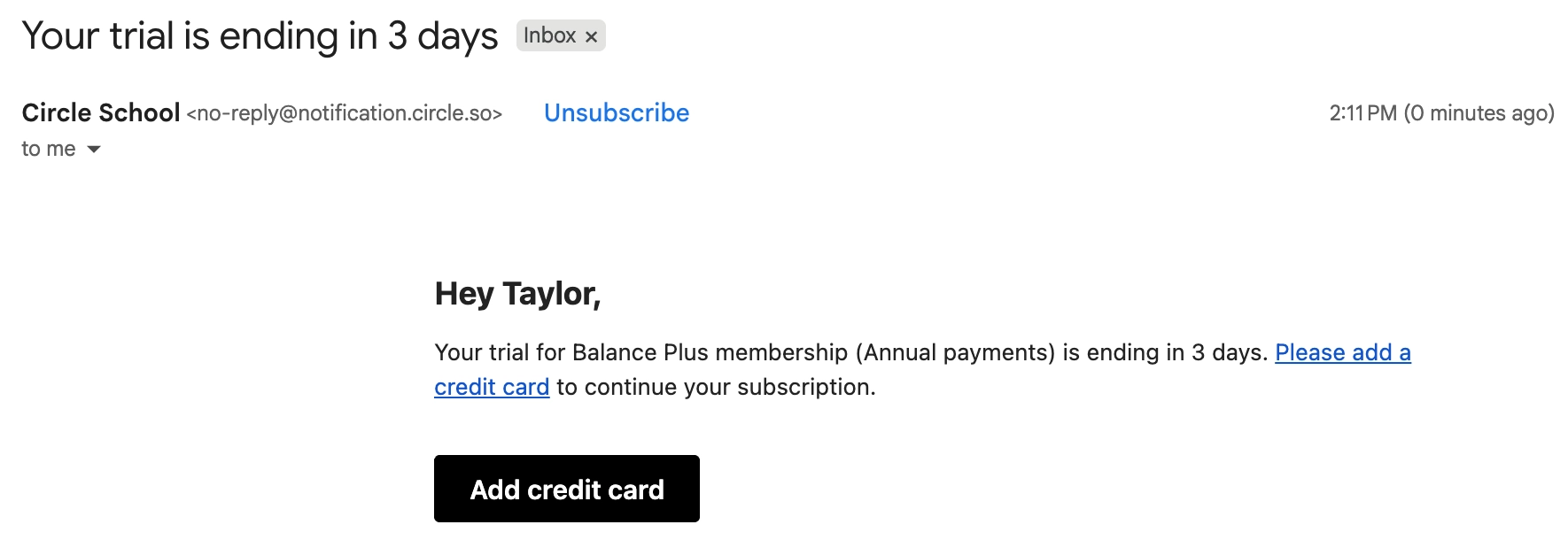
Approaching trial expiration (automatic): Members who haven’t added their payment method will get an in-app and email reminder three days before their trial ends. This reminder will ask them to add their credit card information to ensure a seamless transition to the paid subscription or installment plan.
At trial expiration (automatic): If the trial moves to canceled status, an in-app and email notification will be automatically sent to members. This notification encourages members to renew their subscription or installment plan if they want to access paywalled content again.
Notifications from Stripe
From your Stripe account, you can also enable billing-related email notifications such as trials, renewals, failed payments, successful charges, and refunds.
Customer emails for trials, renewals, and failed payments
To turn billing emails on, follow these steps:
Log in to your Stripe account connected to your Circle paywall.
Go to Settings → Billing → Subscriptions and emails. Or you can follow this link directly.
-
Navigate to the Email notifications and customer management section.
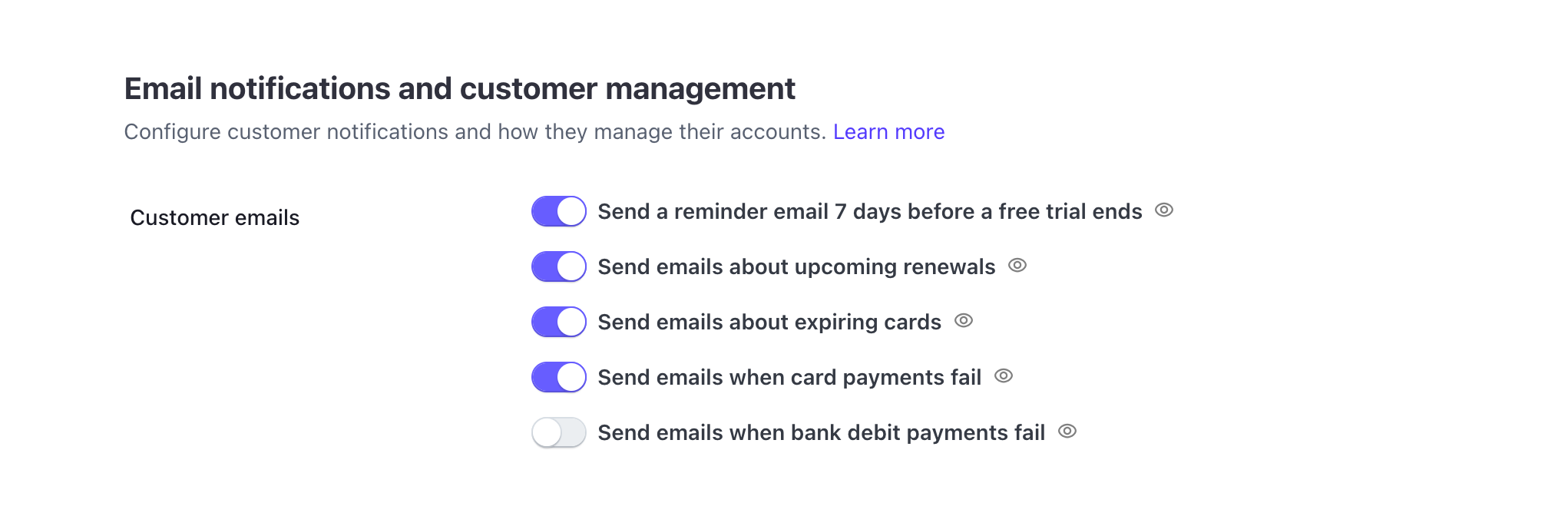
Here, you can enable the following:
Send a reminder email 7 days before a free trial ends
Send emails about upcoming renewals
Send emails about expiring cards
-
Send emails when card payments fail
-
❗Please note that this notification only applies to payments in the following scenarios:
The member has already purchased a paywall, and upon their recurring payment, Stripe’s attempt to charge them fails.
The member is already signed up for a trial paywall and has added a payment method, but their initial payment fails. If there is no payment method added to a member’s account, Stripe won’t send a failed card payment email.
-
📚 For more information on setting up these notifications and a custom link to manage subscriptions and update payment methods, see Set up failed payment settings and customer emails in Stripe.
Successful payments and refunds
To enable receipts and refund notifications:
Log in to your Stripe account connected to your Circle paywall.
-
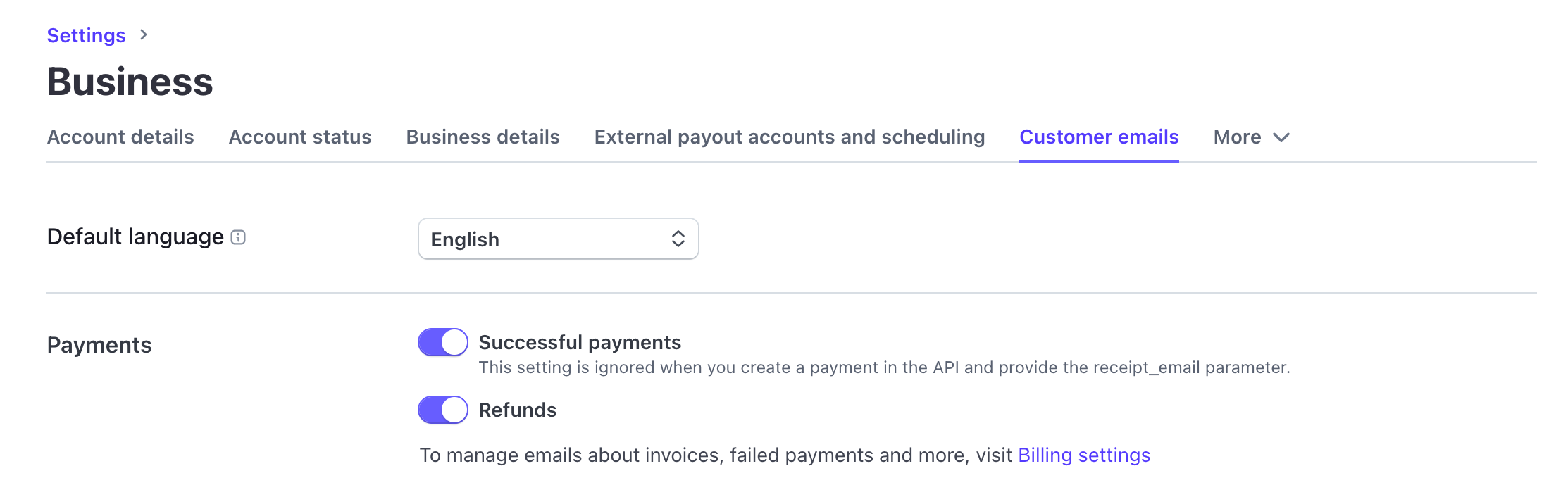
Go to Settings → Business → Customer emails. Or you can follow this link directly.
-
Under the Payments tab, you can enable:
Successful payments: Send invoices and receipts for both the initial purchase and recurring payments.
Refunds: Send an email whenever you issue a refund.
💡 Tip: To personalize your branding and include a custom message in the memo and footer sections of invoices/receipts, please navigate to Branding and Invoice settings in your Stripe account.
Cancelation notifications
For paywall cancellations, the notifications are not available in Circle or Stripe yet. However, you can use the following workarounds to notify your members of recurring subscriptions:
-
Workflows: You can create an automation workflow to send an email or DM to the member once the cancellation is initiated for their active subscription.
-
When setting up the workflow, use:
Trigger: Use the Member unsubscribed from paywall trigger. For cancellations regarding the trial period, use the 'Member ended trial without subscription' trigger instead.
Action: Use an action such as Send an email or Send a direct message.
-
Zapier: If you are looking to send your members a custom email notification upon cancellation, you can create a Zap with a Member canceled subscription and an action to send an email using your preferred application.
Frequently asked questions
How can I check if Stripe sent notification emails to a member?
You can check whether Stripe sent any emails to your customer in the last 30 days from the customer page. To access email logs:
Navigate to your paywall-connected Stripe account.
Go to Customers and search for the member.
Select the member’s name to open details.
Scroll to the Sent emails section to view a log of notifications sent within the last 30 days.
Can members manage their notification preferences for paywall purchases?
No, members can’t disable or customize paywall-related emails.
How can I receive notifications for disputes, failed payments, and other relevant events?
As an admin of your Stripe account, you can also set communication preferences to receive notifications for important payment events like disputes or failed payments. To enable these notifications:
Navigate to your paywall-connected Stripe account.
-
Go to Settings → Communication preferences. Or you can follow this link directly.
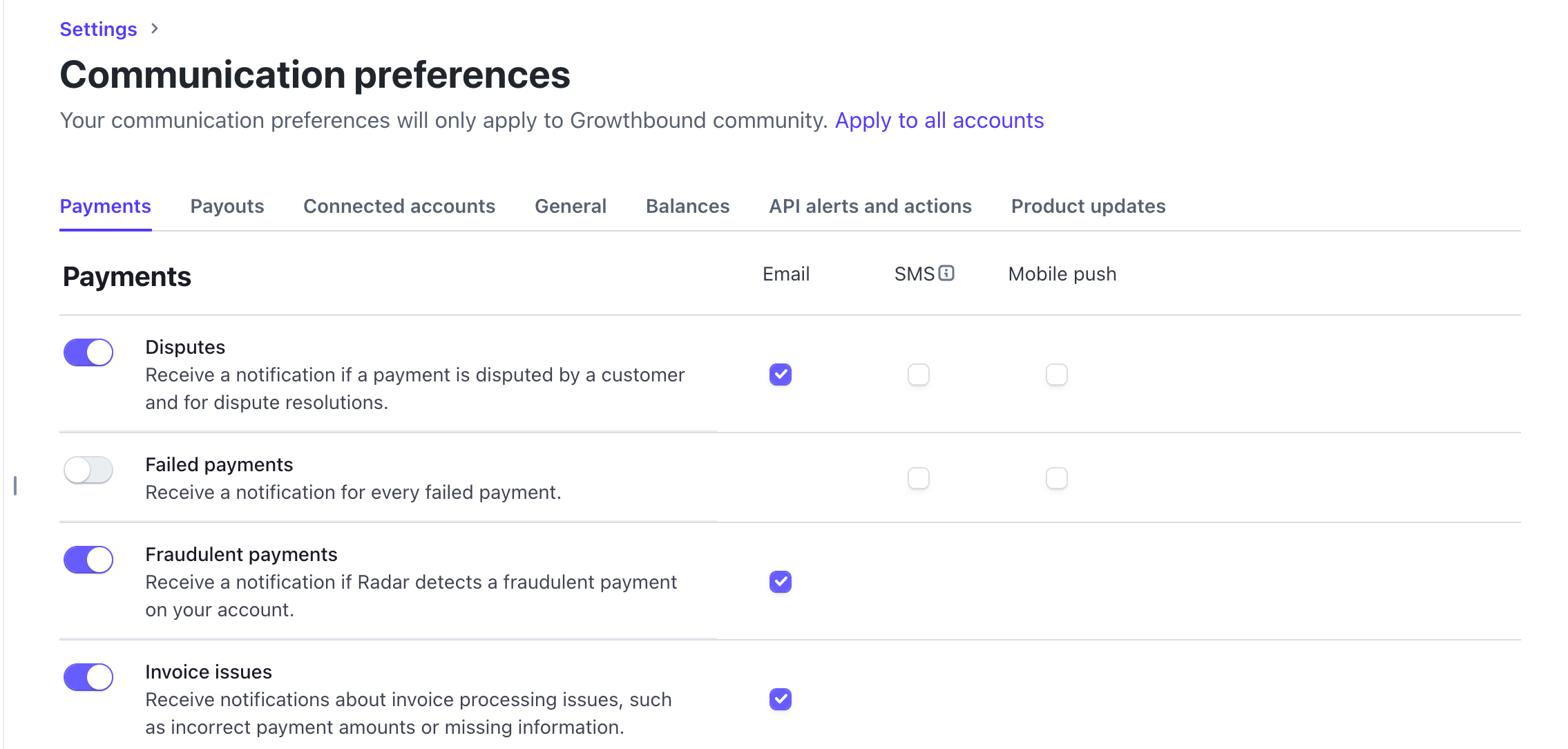
In the Payments tab, you can set preferences for various things, such as:
Disputes
Failed payments
Fraudulent payments
Successful payments
Once enabled, Stripe will email the account admin when any of these occur.