Integrating rewardful with Circle paywalls
Last updated: August, 2026
You can use Rewardful to set up your own affiliate/referral program with Circle paywalls. This article will guide you through the steps to set up an integration with Rewardful.
💡 Tip: We offer a built-in affiliate program specifically designed for Circle paywalls in your community. This allows you to build and manage your own affiliate program right within your community. For more information, check out our guide on Affiliates overview.
🚨 Warning: This is an advanced feature, and we recommend working with your developer to ensure the correct setup.
To get started with integration:
Step 1: Setup your Rewardful campaign
First, make sure to create a Rewardful account here. Next, complete the following campaign setup process:
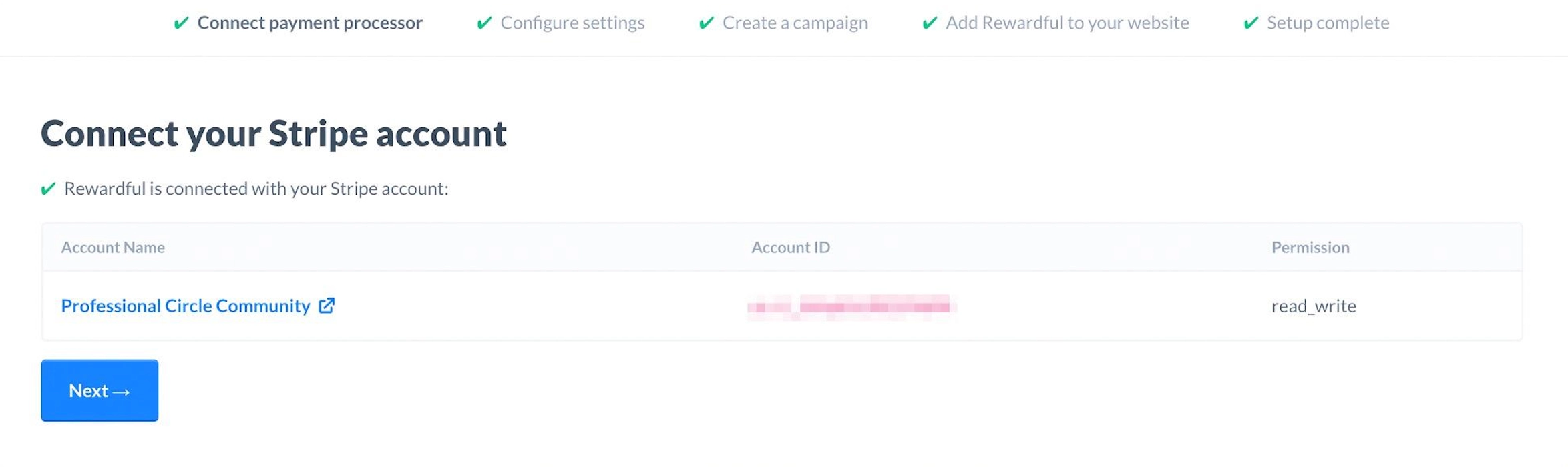
Connect Stripe account
Connect the Stripe business that was created during your Stripe integration with Circle paywalls.
❗Important: You must connect your existing Circle Paywall Business created during your Stripe integration with Circle and avoid creating a new one.
You can find and copy your Account ID in Stripe by navigating to Settings → Account.
You can switch between your Stripe businesses by clicking on the business name in the top-left corner as shown in the following visual.

Configure currency
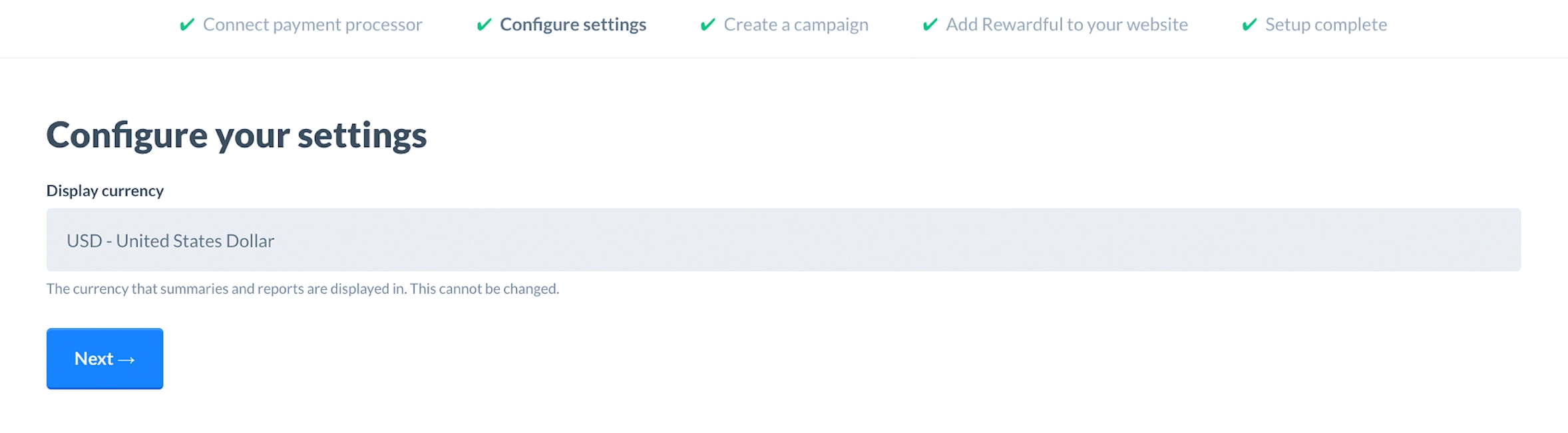
In this step, set your currency and click Next.
Create a campaign
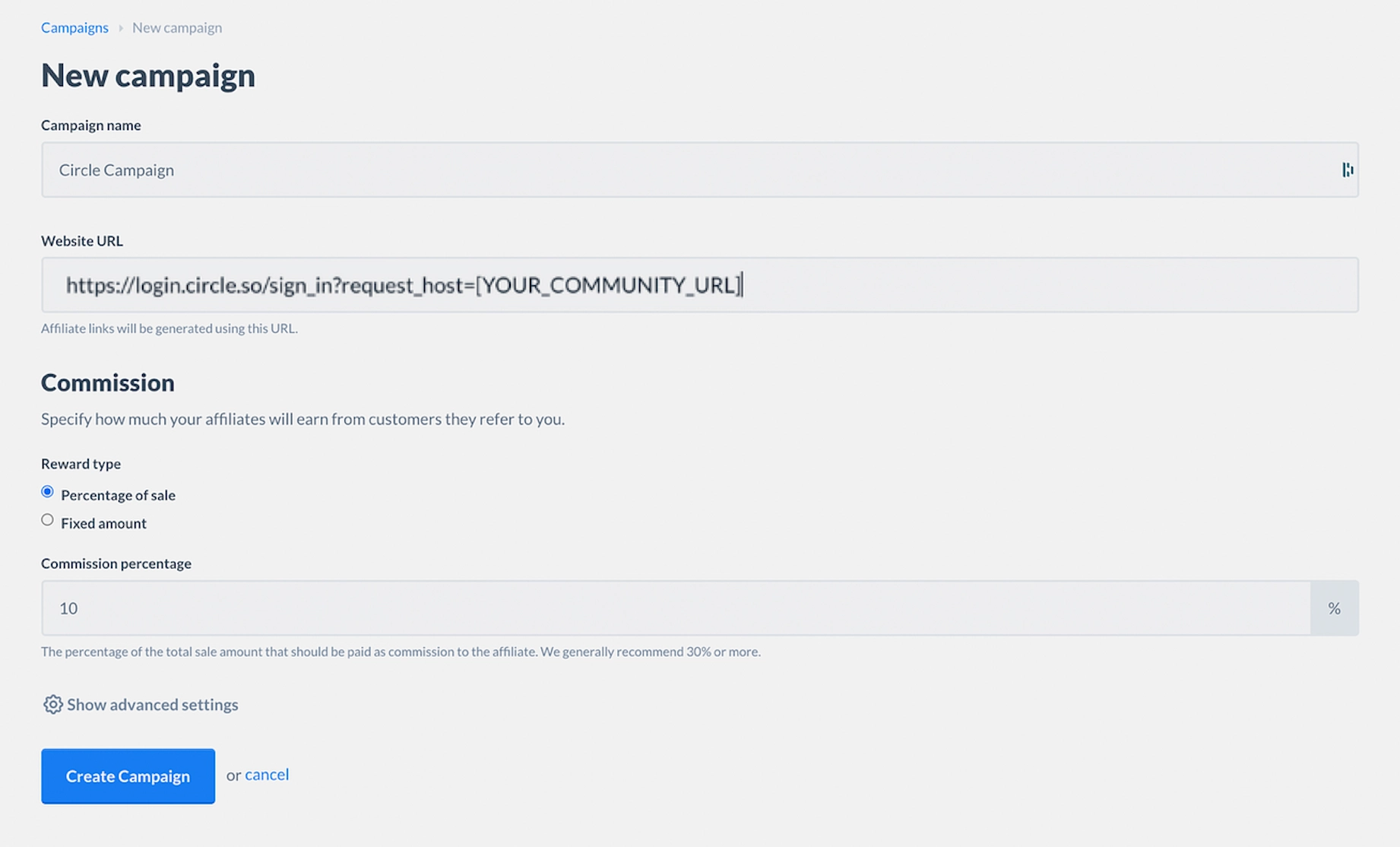
When creating a campaign, add your campaign website as follows:
If your community is private and has enabled the white-labeled auth pages with a custom domain:
[YOUR_COMMUNITY_URL]/users/sign_inIf your community is private without white-labeled auth pages:
https://login.circle.so/sign_in?request_host=[YOUR_COMMUNITY_URL]If your community is public:
https://[YOUR_COMMUNITY_URL]/homeOnce the information is filled in, click Create Campaign.
ℹ️ Note: This will need to be changed to your paywall checkout URL once we finish the setup. This initial step is required for Rewardful to identify the scripts being loaded correctly.
Step 2: Add your tracking code to Circle
To add the tracking code:
Get Rewardful API key
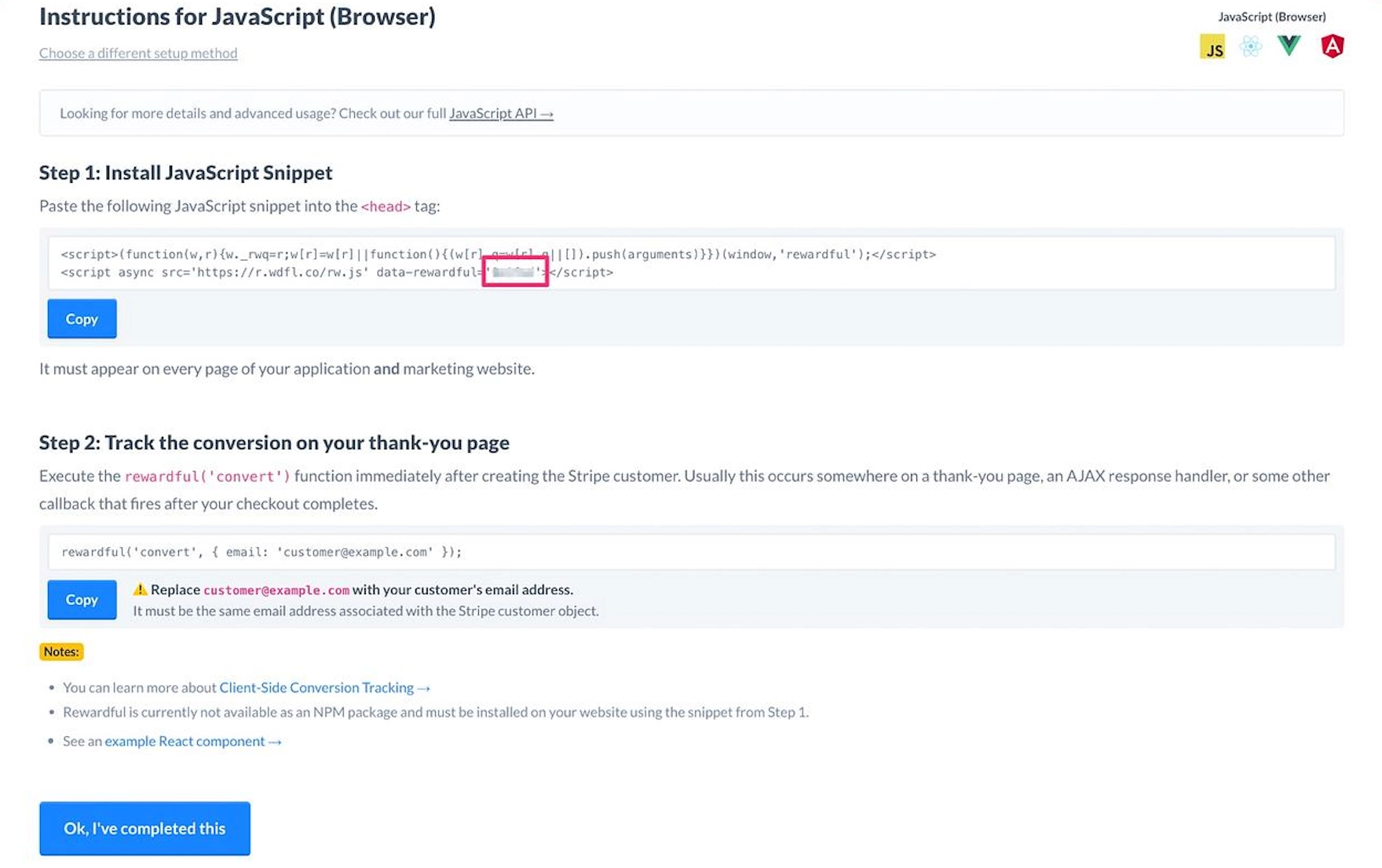
Get your Rewardful API key using this link.
💡Tip: The API key is located in the data-rewardful attribute within the Step1: Install JavaScript Snippet field.
Add Snippets in Circle
To add the code snippet to your community:
Click Website in the left sidebar, then select Code snippets.
In the JavaScript code snippets field, add the following code.
❗Important: Replace YOUR_API_KEY with your Rewardful API KEY first.
(function(w,r){w._rwq=r;w[r]=w[r]||function(){(w[r].q=w[r].q||[]).push(arguments)}})(window,'rewardful');

(function(a,b,c,d){scriptElement=a.createElement(b),head=a.getElementsByTagName("head")[0],scriptElement.async=1,scriptElement.src=c,scriptElement.setAttribute("data-rewardful",d),head.appendChild(scriptElement)})(document,"script","//r.wdfl.co/rw.js","YOUR_API_KEY");
ℹ️ Note: If you have a landing page outside of Circle, use the following snippet to allow sharing affiliate information between cross domains:
  (function (w, r) {
	  w._rwq = r;
	  w[r] =
	    w[r] ||
	    function () {
	      (w[r].q = w[r].q || []).push(arguments);
	    };
	})(window, "rewardful");
	(function (e, a, b, c, d, e) {
	  (scriptElement = a.createElement(b)),
	    (head = a.getElementsByTagName("head")[0]),
	    (scriptElement.async = 1),
	    (scriptElement.src = c),
	    scriptElement.setAttribute("data-rewardful", d),
	    scriptElement.setAttribute("data-domains", e),
	    head.appendChild(scriptElement);
	})(
	  window,
	  document,
	  "script",
	  "//r.wdfl.co/rw.js",
	  "<YOUR_API_KEY>",
	  "<mydomain1.com>, <mydomain2.com>"
	);
Once you have added code snippets in your community settings, click Save changes.
This will load Rewardful snippets in your community and track your referrals visiting your page once they get to any URL in your community.
Step 3: Add a tracking snippet and enable thank you page in the paywall
To add a tracking snippet in your paywall:
Click Payments in the left sidebar, then select Paywalls.
Hover over a paywall and click More actions (three dots), then select Edit.
Go to the Tracking tab and add the following snippet.
Click Save.
❗Important: Replace YOUR_API_KEY with your Rewardful API KEY first.
💡 Tip: In addition to {member_email} variable, using the Add variable {…} icon you can add various other dynamic variables to track paywall-related information such as paywall price, name, or coupon code. For information, see Add conversion tracking code to paywalls.
<script>
(function(w,r){w._rwq=r;w[r]=w[r]||function(){(w[r].q=w[r].q||[]).push(arguments)}})(window,'rewardful');

(function(a,b,c,d){scriptElement=a.createElement(b),head=a.getElementsByTagName("head")[0],scriptElement.async=1,scriptElement.src=c,scriptElement.setAttribute("data-rewardful",d),head.appendChild(scriptElement)})(document,"script","//r.wdfl.co/rw.js","YOUR_API_KEY");

rewardful('ready', function() {
  rewardful('convert', { email: "{member_email}" });
})
</script>
ℹ️ Note: If you have a landing page outside of Circle, use the following snipped to allow sharing affiliate information between cross domains:
<script>
	(function (w, r) {
	  w._rwq = r;
	  w[r] =
	    w[r] ||
	    function () {
	      (w[r].q = w[r].q || []).push(arguments);
	    };
	})(window, "rewardful");
	(function (e, a, b, c, d, e) {
	  (scriptElement = a.createElement(b)),
	    (head = a.getElementsByTagName("head")[0]),
	    (scriptElement.async = 1),
	    (scriptElement.src = c),
	    scriptElement.setAttribute("data-rewardful", d),
	    scriptElement.setAttribute("data-domains", e),
	    head.appendChild(scriptElement);
	})(
	  window,
	  document,
	  "script",
	  "//r.wdfl.co/rw.js",
	  "<YOUR_API_KEY>",
	  "<mydomain1.com>, <mydomain2.com>"
	);

	rewardful('ready', function() {
	  rewardful('convert', { email: "{member_email}" });
	})
</script>
ℹ️ Note: This will load Rewardful snippets and run their convert action on your thank you page.
If you haven't already, take the following steps to enable thank you page:
Click Payments in the left sidebar, then select Paywalls.
Hover over a paywall and click More actions (three dots), then select Edit.
Go to the Post purchase tab and turn on Thank you page toggle.
Click Save.
Step 4: Complete the Rewardful setup
Finish setup in Rewardful by using the via=install param
Open a new incognito window and go to the following URL:
If your community is private and has enabled the white-labeled auth pages with a custom domain:
[YOUR_COMMUNITY_URL]/users/sign_in??via=installIf your community is private without white-labeled auth pages:
https://login.circle.so/sign_in?request_host=[YOUR_COMMUNITY_URL]?via=installIf your community is public:
https://[YOUR_COMMUNITY_URL]/home?via=installConfirm the setup
Use this link to confirm the setup has been successful.
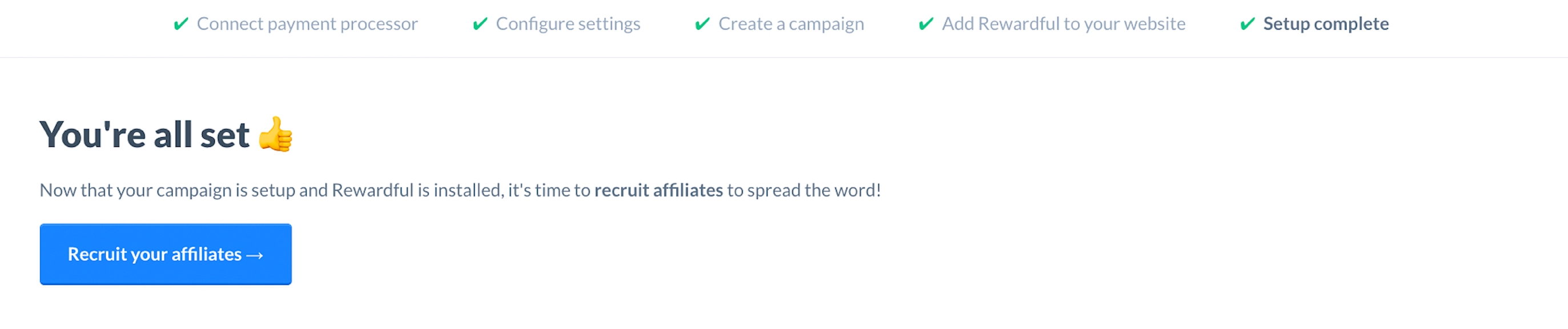
Update your Rewardful campaign URL
Take the following steps to change your Rewardful campaign URL to your expected paywall checkout URL.
❗Important: If you are using a landing or marketing page hosted outside of Circle:
You must use your landing page URL as the Rewardful Campaign Website URL.
You must add your Rewardful script to your landing page as well as your Circle JavaScript code snippets and Paywall Conversion Tracking code field.
For example, if your landing page is https://example.com, your community domain could be something like https://community.example.com, and you would use https://example.com as your Rewardful Campaign Website URL.
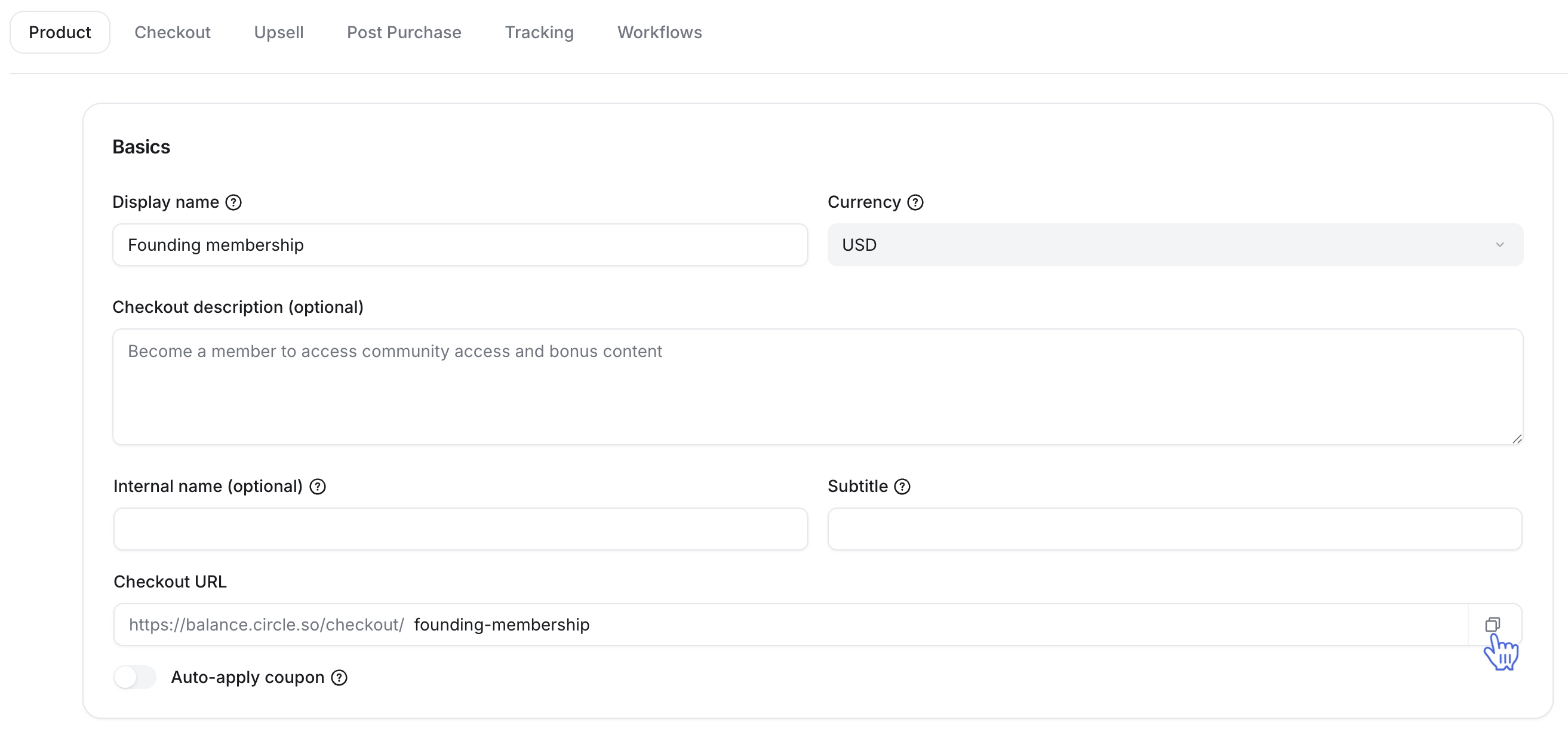
Click Payments in the left sidebar, then select Paywalls.
Hover over a paywall and click More actions (three dots), then select Edit.
Under the Product tab, in the Basics section, click the Checkout URL copy icon.
Open your Rewardful campaign and click Edit campaign.
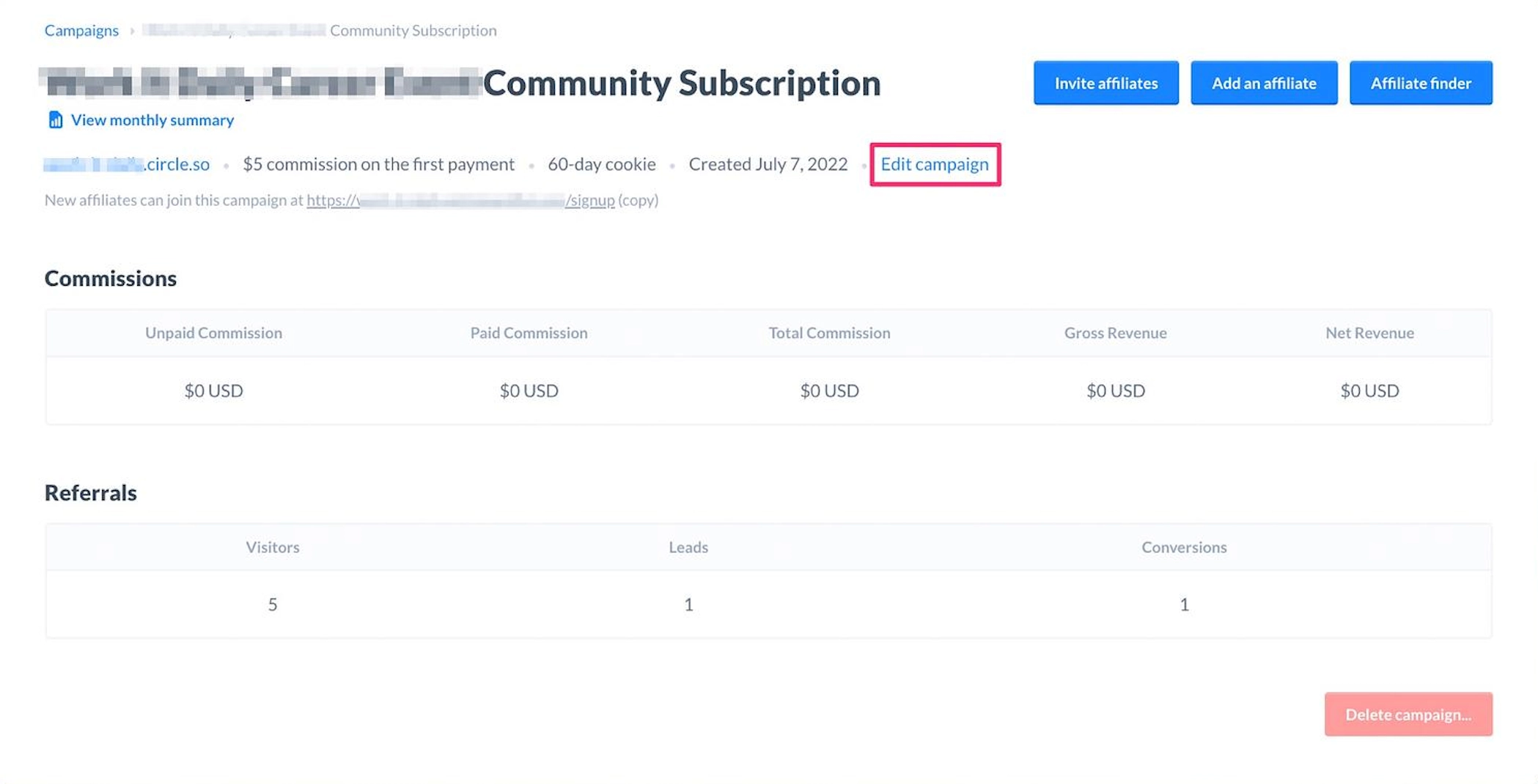
Update the website URL with your Circle paywall checkout URL.

You're all set 🎉 It's time to share your campaign registration URL with your affiliates! Once they join, they will have a shareable link to send to their referrals that redirects to your paywall checkout URL. Rewardful will handle commission calculations.
📚 For more information about our conversion tracking code feature or how to set up your paywall, please refer to the following articles: