Limit RSVPs for events
Last updated: September, 2026
Have you ever wanted to create a sense of exclusivity and urgency for your event? We’ve got you covered! With our RSVP limit feature, you can limit the RSVP to a set number of spots. In this article, we will guide you on how to set this up when creating your event.
Understanding RSVP limits
The RSVP limit allows you to control your attendee list by controlling the number of members who can RSVP.
There are a number of benefits when using this option:
Optimizing event capacity: Limiting event RSVP is particularly valuable when you are dealing with limited attendee space on your virtual event locations, such as Circle live stream, room, or custom app, and venue space for in-person events.
Sense of exclusivity: Creating a sense of exclusivity can generate excitement and anticipation around the event. When members know that attendance is limited, it can encourage more individuals to RSVP promptly to secure their spot.
Better event experience: A more intimate setting often leads to a better overall experience for attendees. With restricted RSVP seats, you can focus on providing a personalized and engaging event for each participant.
How RSVP limits work
RSVP limits only apply to members who RSVP to the event themselves. If you manually add or invite members to the event, they are included as attendees outside of the RSVP system and are not counted toward the RSVP limit.
Key things to know about RSVP limits
The number of members who can RSVP are limited by the RSVP cap.
Members added manually to the event (for example, from the People tab) can exceed the RSVP limit.
Admins, moderators, and event creators can add attendees to the event regardless of the limit.
Setting up an exclusive Circle live event experience with an RSVP limit
In addition to the overarching benefits, you can leverage the RSVP limit feature to create a private Circle live event experience.
If you want to limit RSVPs and only want to allow those RSVPd members to be able to access the private live event, you can use the RSVP limit combined with the following options from the Basic info page of the event setup:
Visibility: Set the event visibility to Event attendees to restrict live banner visibility and notifications to members who RSVP to the event or members whom you add as attendees for your event.
Hide location from non-attendees: You can also hide the event location from non-attendees by turning on this toggle. This ensures that only confirmed RSVPs gain insights into the event's location.
Disable live link sharing: Turn on this toggle to prevent unauthorized access. This measure ensures that only those who meet the visibility criteria can access the event.
📚 To learn more about live event visibility, see Understanding visibility options for Circle live events.
Setting up RSVP limit
To set up an RSVP limit when creating or editing an event:
Click Community in the left sidebar, then select Spaces.
Click the space name to open the event space and locate the event.
Click More actions (three dots) next to the existing event and select Edit event.
Navigate to the Advanced tab in the event setup.
-
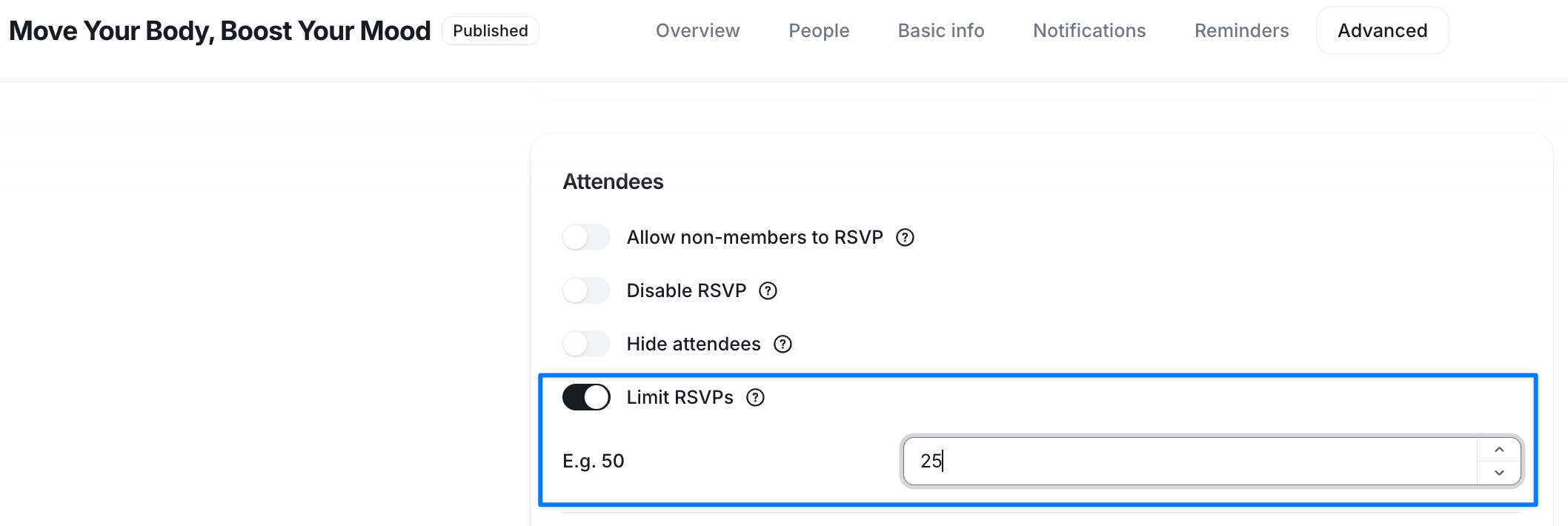
Under Attendees section, turn on the Limit RSVPs toggle and enter the number of members who can RSVP.
Click Save.
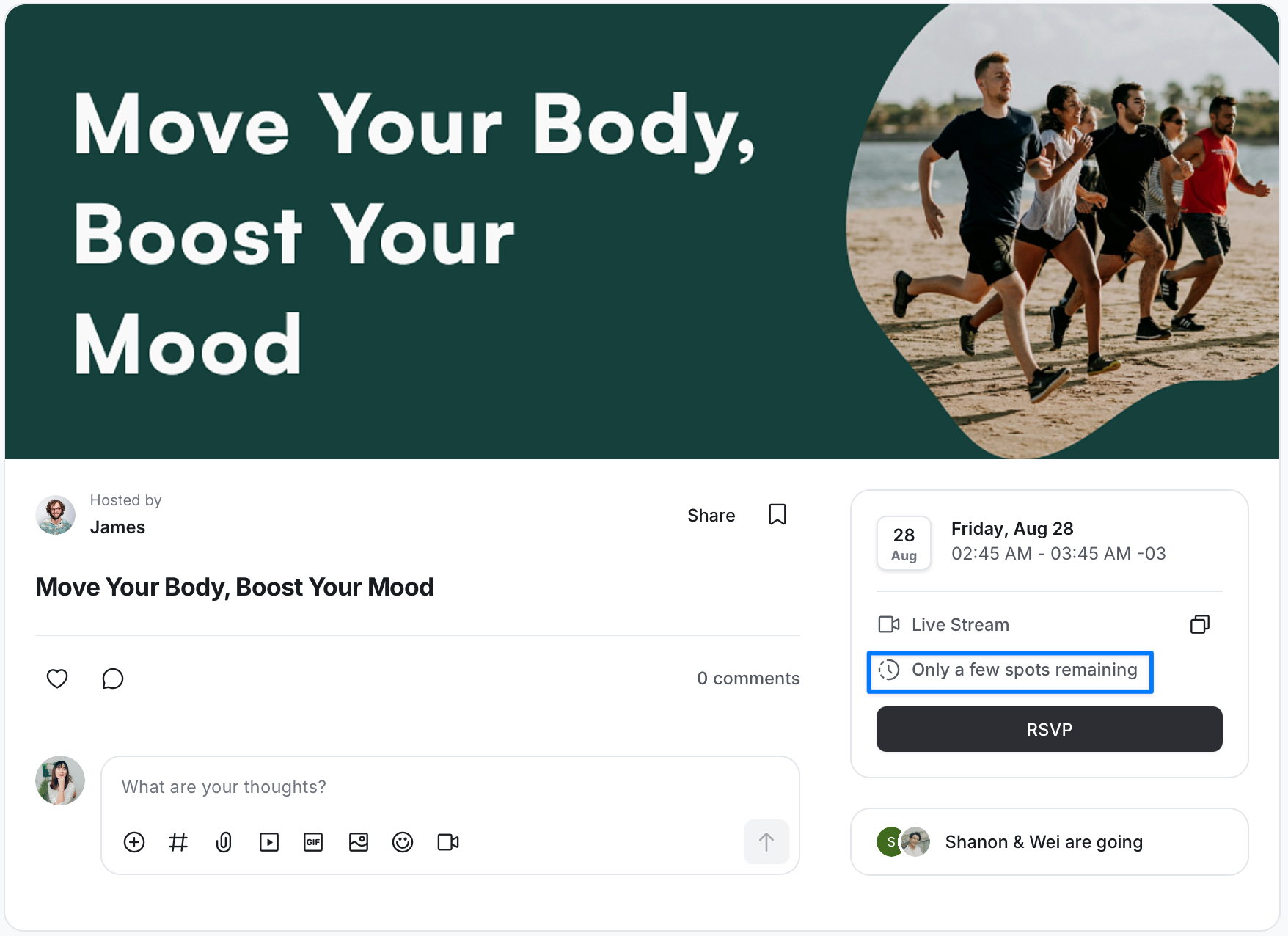
Once you add the RSVP limit, members will see an "Only a few spots remaining" message on the event listing and event detail pages when 10 spots remain. Once the RSVP limit is reached, members will see the Event is full message on the event listing.