Event directory overview
Last updated: September, 2026
If you want a single place where members can see every event across your community, the event directory automatically pulls them together. This article covers how to access and manage it.
About the event directory
The event directory automatically gathers events from all event spaces into one place. Members see a list of events based on their access to these spaces. This means they can view events from spaces they’ve joined and spaces that are set to open.
Let’s explore the key details about the event directory to help you make the most of it:
Availability: The event directory is available on desktop and mobile browsers, as well as iOS and Android mobile apps.
Privacy: You can make the event directory public or private at any time.
Directory link modifications: In addition to directory privacy, you can customize the directory link by modifying its name, managing how the link opens, and controlling its visibility on the top navigation bar. For more details on managing the directory link, refer to our guide here.
Admin and moderator capabilities: As an admin, you can create, edit, duplicate, and delete an event directly from the event directory. If the event directory is public, moderators can manage events listed from their respective spaces.
Member capabilities: If a member has created an event or is assigned as an event host, they can edit or delete the specific events they are hosting directly from the event directory.
To access the event directory on the desktop, click the Events tab on the top navigation bar. If you’ve modified the event directory link name, the updated name will appear in the top navigation bar instead.
ℹ️ Note: You may not see the header (where the event directory is located) while using the Circle AI workspace. To exit the Circle AI workspace and view the directory, click the community logo in the left sidebar and select Back to community.
ℹ️ Note: If the Events (or its updated name) tab is not visible on the top navigation bar when using a smaller browser window, click More to access the dropdown list, which includes the remaining tabs that don’t fit on the bar. If the tab doesn’t appear at all, an admin may have disabled its visibility. To learn more about adjusting link visibility follow our guide here.
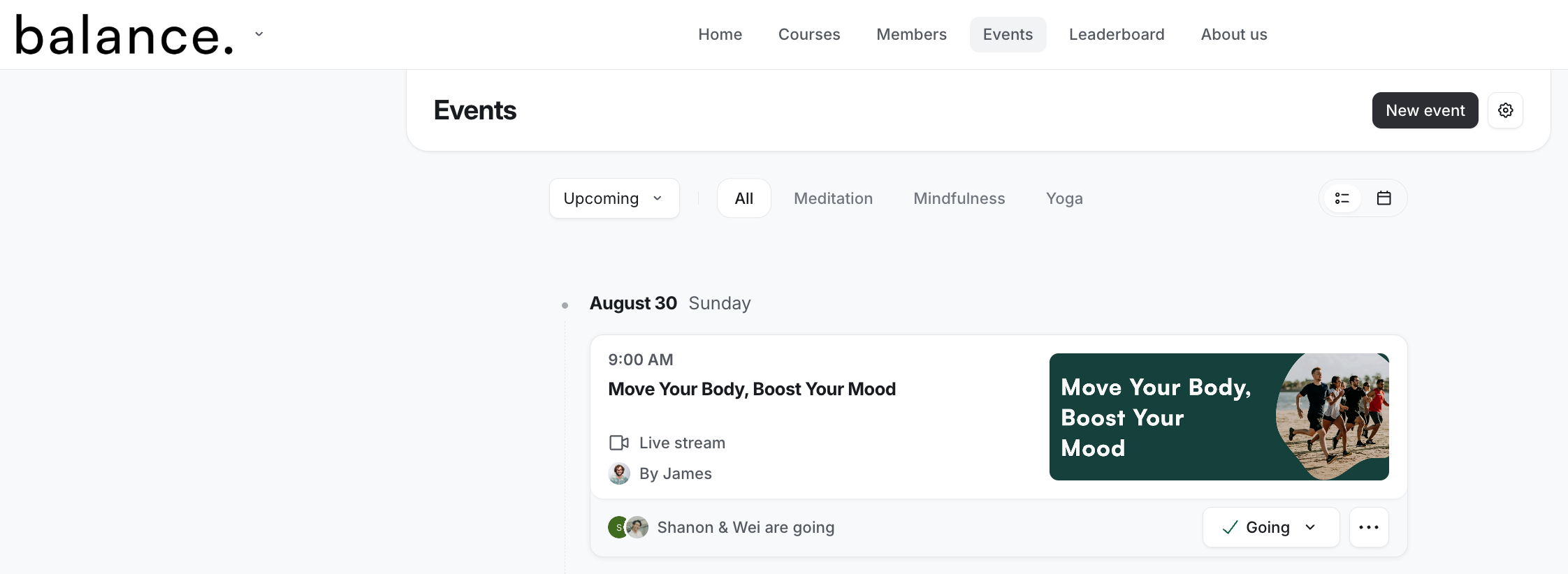
Set event directory view
You can choose from three flexible options for displaying the event directory:
Thumbnail: The thumbnail view displays the event list with attractive thumbnails. In this view, the event cover image serves as the event thumbnail.
List: The list view offers a clean, concise overview of events, highlighting each event's start date. It is ideal if you prefer a more minimalistic approach to presenting event information.
Calendar: This view lets your members see all events in a monthly calendar and RSVP. Members can also view events from past and future months.
💡 Tip: When the directory is set to thumbnail or list view, all events are neatly categorized into two primary tabs: Upcoming and Past. This organization ensures that events are easy to find and follow. Additionally, these views highlight the next event in the directory, ensuring you and your members do not miss out on the latest happenings.
To set the default view, click the Settings (gear) icon in the top-right corner, then select your preferred view from the Default View dropdown in the View Settings dialog. The selected view will be the default for all members.
Allow members to switch view
While you can enforce the default event directory view for all members, you can also let members choose their preferred directory view. To set the default view, click the Settings (gear) icon in the top-right corner. In the View settings dialog, enable the Allow members to switch view toggle.
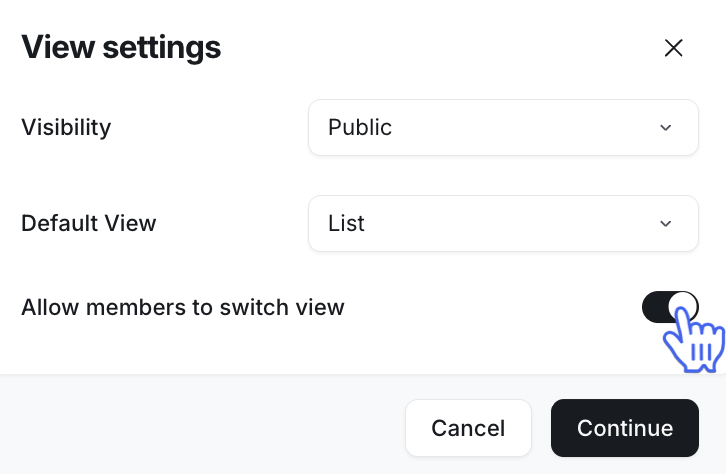
Once enabled, members can use the view icons located on the directory navigation bar to switch to their preferred view for the event directory.
Manage visibility
You can set the visibility of the event directory as either public or private. The current visibility status is displayed on the directory navigation bar. To change it, click the Settings (gear) icon in the top-right corner, then select your preferred option from the Visibility dropdown in the View Settings dialog.
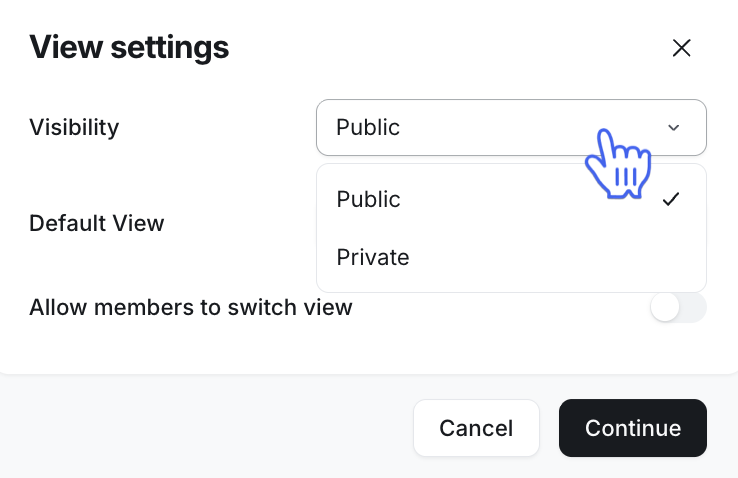
Public
Setting the event directory to Public makes it accessible to all community members and visitors (if your community is public). Members can explore events from spaces that they have joined and spaces that are set to open within the community.
Key things to remember:
Visibility of events: Members will not see events from spaces that are set to private or secret unless they are members of those spaces. Visitors will only be able to see events from the open event spaces.
No events: If there are no events in the spaces a member has access to or if no event spaces are available to them, the event directory will display a message indicating that no events are available to them yet.
Directory link visibility: If the event directory is set to public but the visibility of the event directory link for the top navigation bar is restricted to Admin only or Disabled, the directory link will not appear on the navigation bar. In this case, however, members can still access the directory by directly entering the URL in their browser: [Your community URL/events].
Private
When the event directory is set to Private, only admins can view and manage it. This setting is ideal for keeping the directory exclusive to the administration team, allowing them to monitor and update events across multiple event spaces in one centralized location.
When the directory is private, members, including moderators, won't see the directory link or access it, regardless of the link visibility settings in the top navigation bar.