Examples of space access configuration for public communities
Last updated: August, 2026
With several content visibility and access options, you can configure your public community's spaces and space groups in different ways to achieve your preferred goal. This article will guide you through common space access-related use cases by providing example configurations.
In a public community, you have more flexibility to define space visibility and access for both visitors and members. This article covers two key setups:
Offer everyone free access to all areas in your public community: Visitors can view all space content without being members. Members can freely join spaces they're interested in to actively participate in them. Ideal for entirely free communities.
Offer customized access with a mix of open, private, or secret areas in your public community: Visitors can access specific spaces to view content for free. Members enjoy additional content at no cost, while some spaces remain restricted, accessible only through purchasing a paywall or invitation by admin. This setup is great for communities offering free introductory content while reserving premium content behind paywalls or via admin invite.
❗Important: To ensure that your community is configured according to your preference, we recommend testing the access setup by setting up a test member account and making a test transaction for paywall (if applicable) before onboarding community members.
In addition to the setup example provided in this article, you can also configure the following to enhance the community experience:
Community sign up: Enable visitors to sign up and become members to participate in the community. Once they become members, they can join open spaces by themselves.
Welcome banner: Personalize the Feed’s welcome banner for visitors and members of the community.
Default landing page: Set a separate default page for visitors, existing members, and new members, to which they’ll first be taken when they visit the community URL. You can set up the Feed or any space as a default page.
Default space access: Provide new members with automatic free access to a default set of spaces once they join the community. To set up default access, see Automatically grant free access to spaces when members join your community.
Let’s look at the two example setups for your public community.
Offer everyone free access to all spaces in your public community
You can take this approach if you prefer the following type of access in your public community:
View community content: All your community content within spaces is freely visible to visitors without setting up a member account.
Join and participate: Allow members to join any space within the community voluntarily. Once members sign up for an account, they can join the space that interests them and actively participate in it, such as creating posts, leaving comments, and RSVPing to events.
💡 Tip: Want a space that only admins or specific team members can see and participate in? You can create a space with access set to Secret. It's visible only to admins and any members you grant access to. This is ideal for exclusive, hidden spaces in your community. If you add a member to a space group, it grants access to all of the spaces within that group. To be extra cautious, we strongly recommend creating a separate space group for these secret spaces, to avoid accidentally granting access. See the Secret access space group example in the following section.
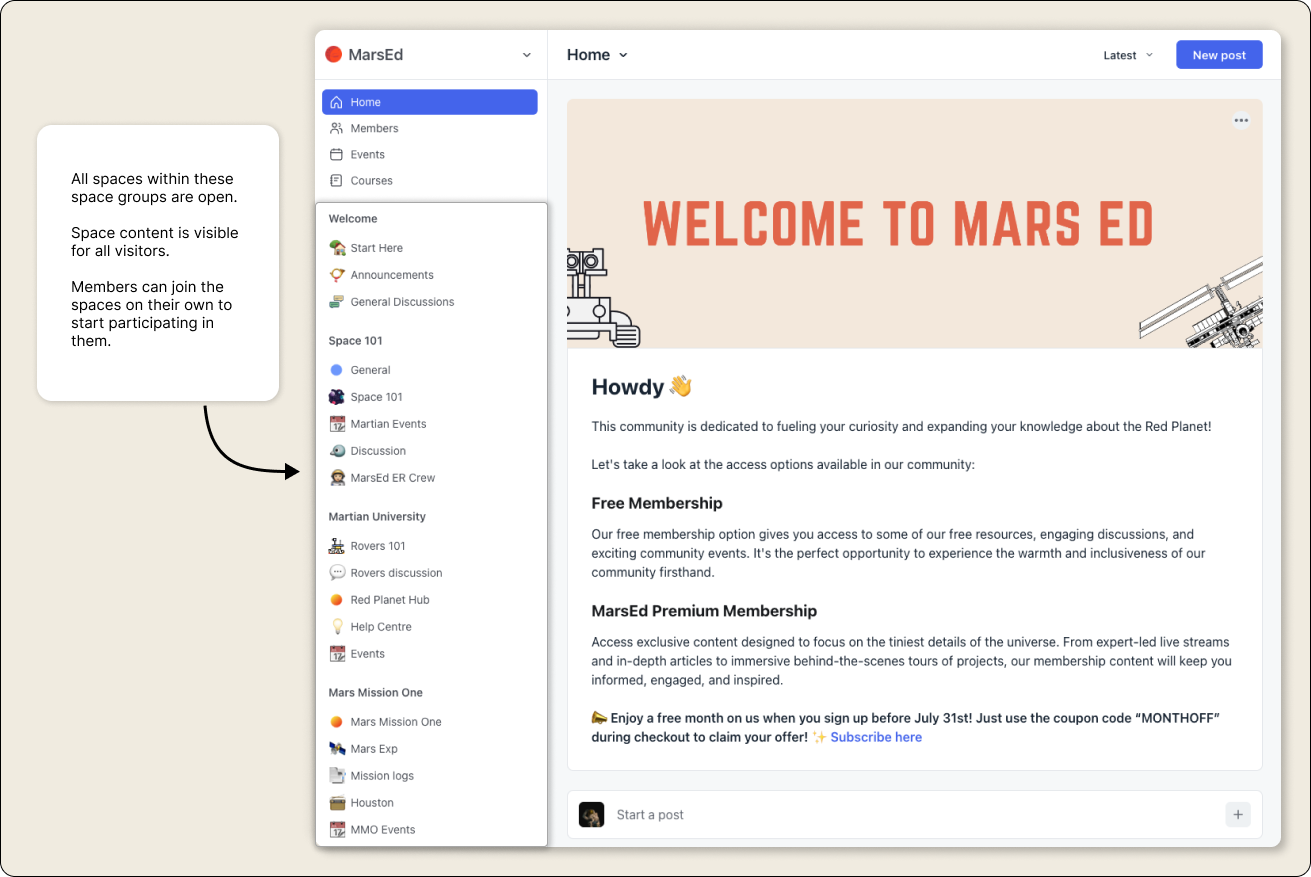
To achieve this, check out the following table with suggested configurations for each space group and its spaces.
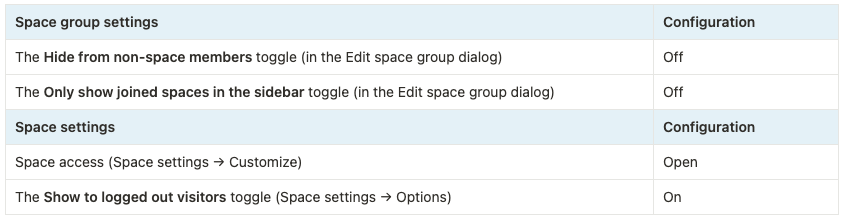
📚 For a detailed guide on managing these settings, see Managing space access and visibility.
Offer customized access with a mix of open, private, or secret areas in your public community
You can take this approach if you prefer a mix of free and restricted content for different user groups within your community. Dividing spaces into distinct space groups lets you vary access levels.
Here are four different ways you can set up a space group depending on your preferred visibility:
Public access space group: Allow free entry to all spaces within the space group for everyone, including visitors.
Members-only space group: Keep your post, event, and member spaces within the space group hidden from visitors and only visible to logged-in members.
Restricted access space group: Keep all spaces visible in the sidebar to everyone but accessible only to invited members or paywall purchasers.
Secret access space group: This space group and its spaces are completely hidden from visitors. Make it visible and accessible only to invited members or paywall purchasers.
💡 Tip: You can apply these example configurations to multiple space groups to achieve your preferred setup. For instance, you might opt to keep all space groups private, granting access via paywalls (Restricted access space group). You could also have an introductory space group with visible open spaces for visitors and non-members. Here, you can offer information about paywalls alongside any free content.
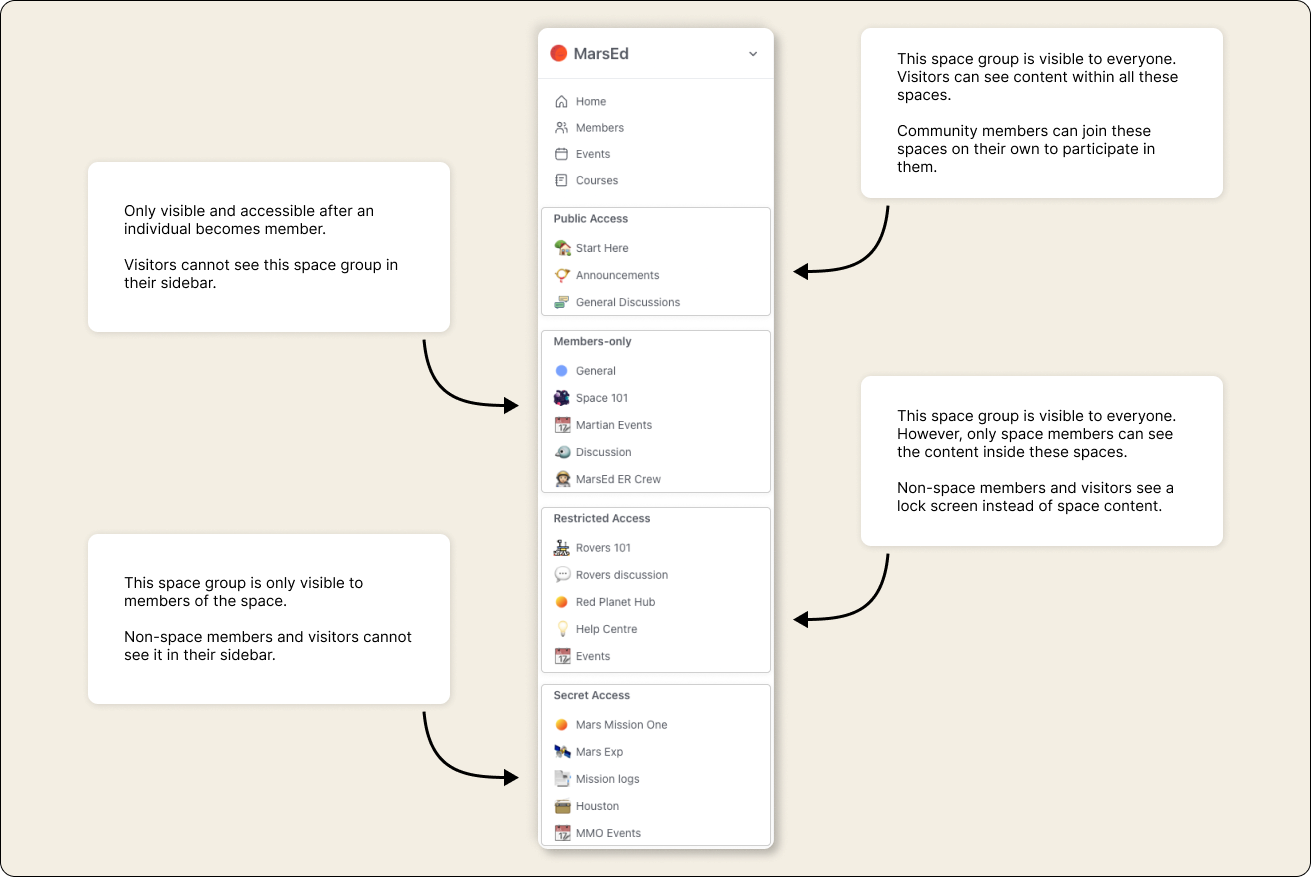
Let’s look at the ideal space and space group settings for these space groups.
Public access space group
This setup provides free access to space content and is visible to everyone, including visitors and community members.
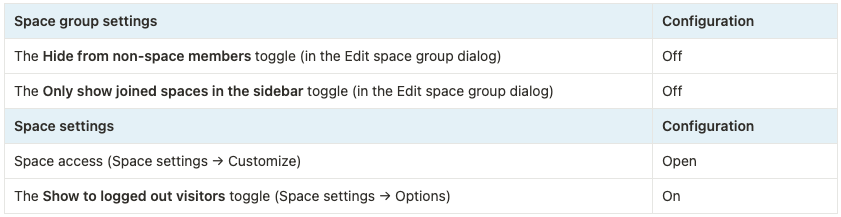
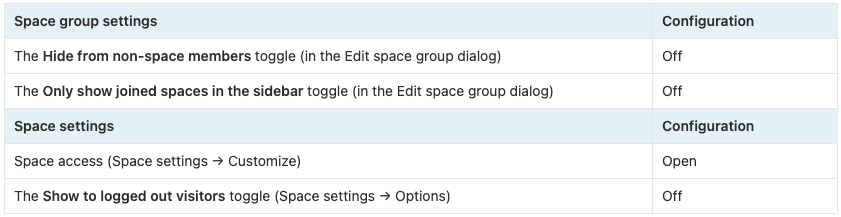
Members-only space group
Within this space group, posts, events, and member type spaces are visible in the sidebar and available to join for free only for users who become community members.
Visitors won't find these spaces listed under the space group in the sidebar. In cases where the members-only space group contains chat spaces, visitors will see it listed in the sidebar. However, they encounter a prompt encouraging them to become members to access the chat space content. As for course space, it will be listed in the sidebar for visitors. They can view the curriculum but won't have access to lessons until they become members and join the course space.
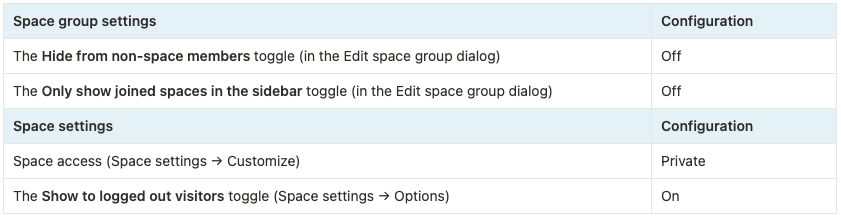
Restricted access space group
This type of space and space group access setup is ideal for premium content:
Spaces are accessible only when you manually add a member to spaces using your admin account or when a member purchases a paywall that provides access to space.
Visitors and non-space members can view these spaces listed in the sidebar but cannot access them; they encounter a lock screen instead.
This configuration is great for gating spaces behind paywalls and promoting your paywall membership via the lock screen.
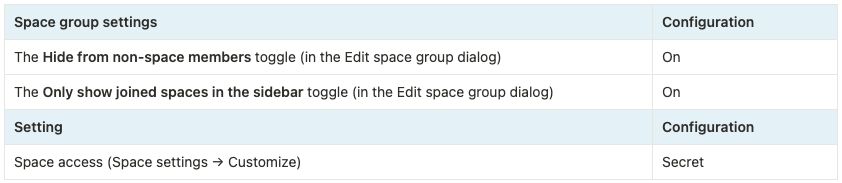
Secret access space group
This type of space and space group access setup is ideal for exclusive access:
Only members who are manually added by the admin or members who purchase paywalls can see and access the spaces within this group.
Members can only see the space group in the sidebar if they are part of at least one space in the space group.
Members can only see the spaces they are part of within the space group in the sidebar.
Visitors or non-space members cannot see the space group or its spaces in their sidebar.
Set up additional space access setting
In addition to managing visibility settings for your spaces and space groups, you can enable an optional setting to automatically grant members access to new spaces within a space group.
Turn on the Automatically add members to new spaces within group setting to automatically add all space group members to any newly created spaces in that group, regardless of the new space's access settings.
ℹ️ Note: This setting is only available to communities created before January 29, 2025. if you are using access groups, this setting will grant manual space access to members separate from the access group.
📚 For a detailed guide on managing this setting, see Managing space access and visibility.