Enable visitors to preview and join your public community
Last updated: August, 2026
When visitors navigate to your public community using the community URL, they are able to preview and join the community based on various community settings. This article will explain how visitors can preview and join your community.
💡Tip: If you haven’t already, please check out our article on public community setup here: Set up a public community.
Preview your community
Anyone with your community URL can visit the community and view all open content via a web browser. To share your community URL with visitors, you can use communication tools, as well as your website and social media accounts.
Feed with a welcome banner
If you've enabled the Feed and set up a welcome banner, visitors will be greeted with a prominent message upon navigating the Feed.
Additionally, when visitors visit your community URL, they will be directed to the default landing page you configured for your community.
Sidebar visibility
The space groups and spaces will appear for the visitor based on your visibility and access configurations.
It’s important to note that if you have enabled or disabled the following settings:
Show to logged out visitors: Spaces with this option toggled off won’t appear in the sidebar for the visitors.
Hide from non-space members: Space groups with this option turned on won’t appear in the sidebar for the visitors.
Lock screens
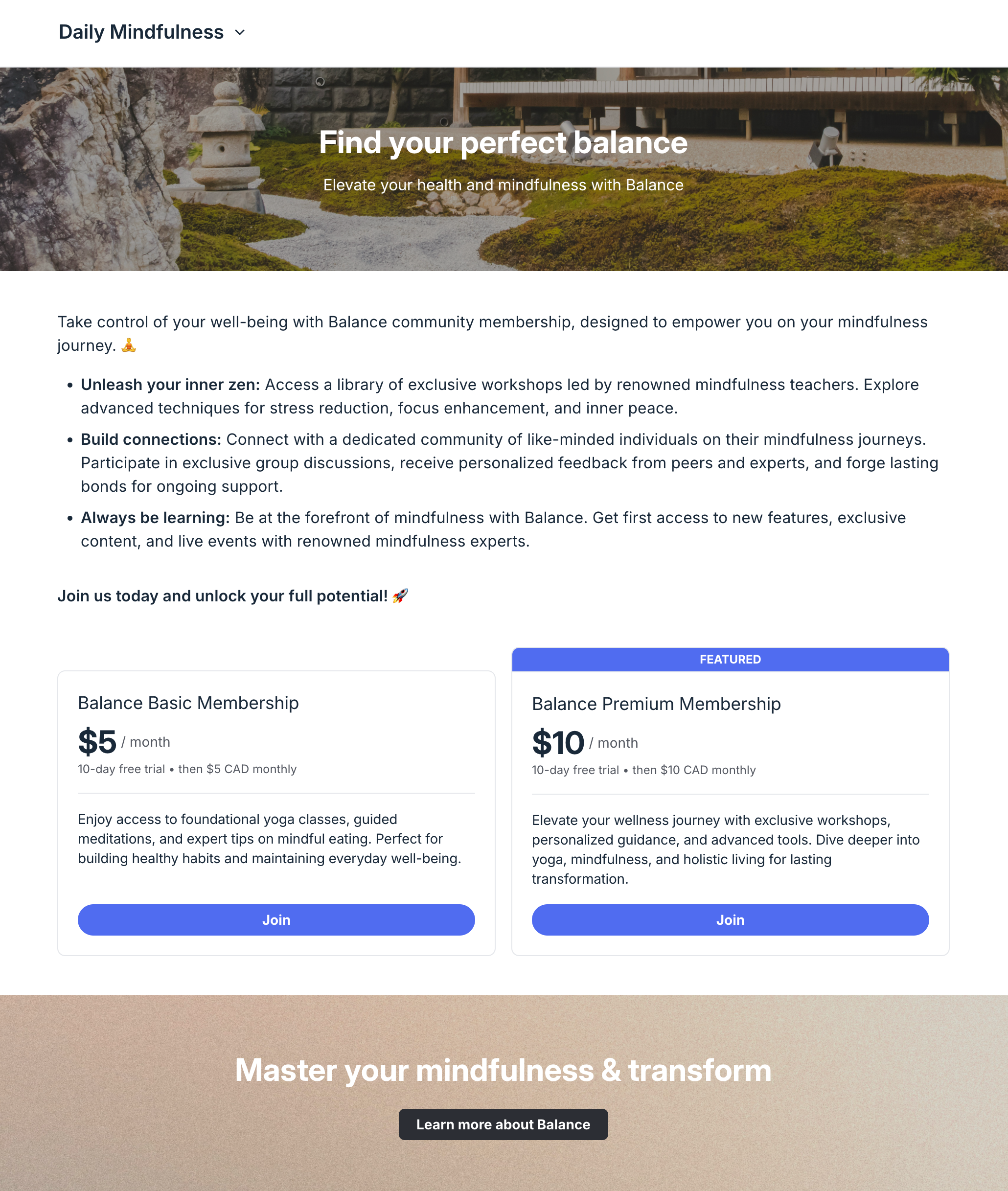
If you have set your space access to private and customized a lock screen, visitors will encounter a locked page when they try to access the space. On the lock screen, you can include enticing page blocks such as a banner, media-rich description, and paywalls.
Join your community
If you've enabled visitor sign-up, anyone visiting your community can sign up and become a member.
Once visitors become members of your community, they will be able to join any open space on their own and actively participate in them, such as creating posts, leaving comments, RSVPing to events, or starting to learn through an open course!
To sign up, the visitor needs to:
-
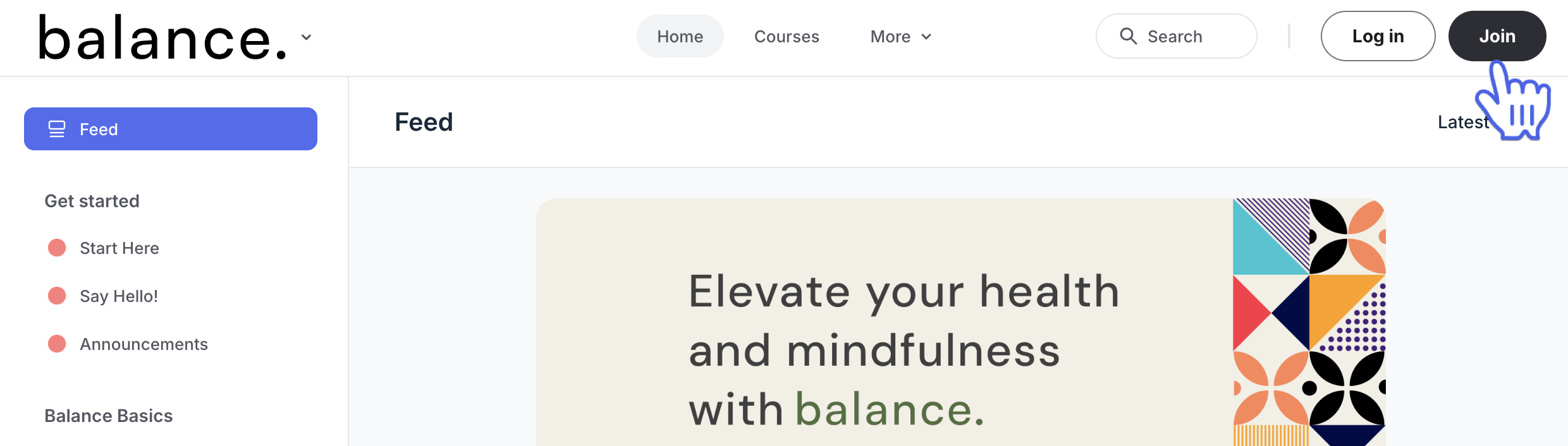
Click Join in the top-right corner of the community page.
-
Choose one of the options to sign up:
Sign up with an email
Continue with Google
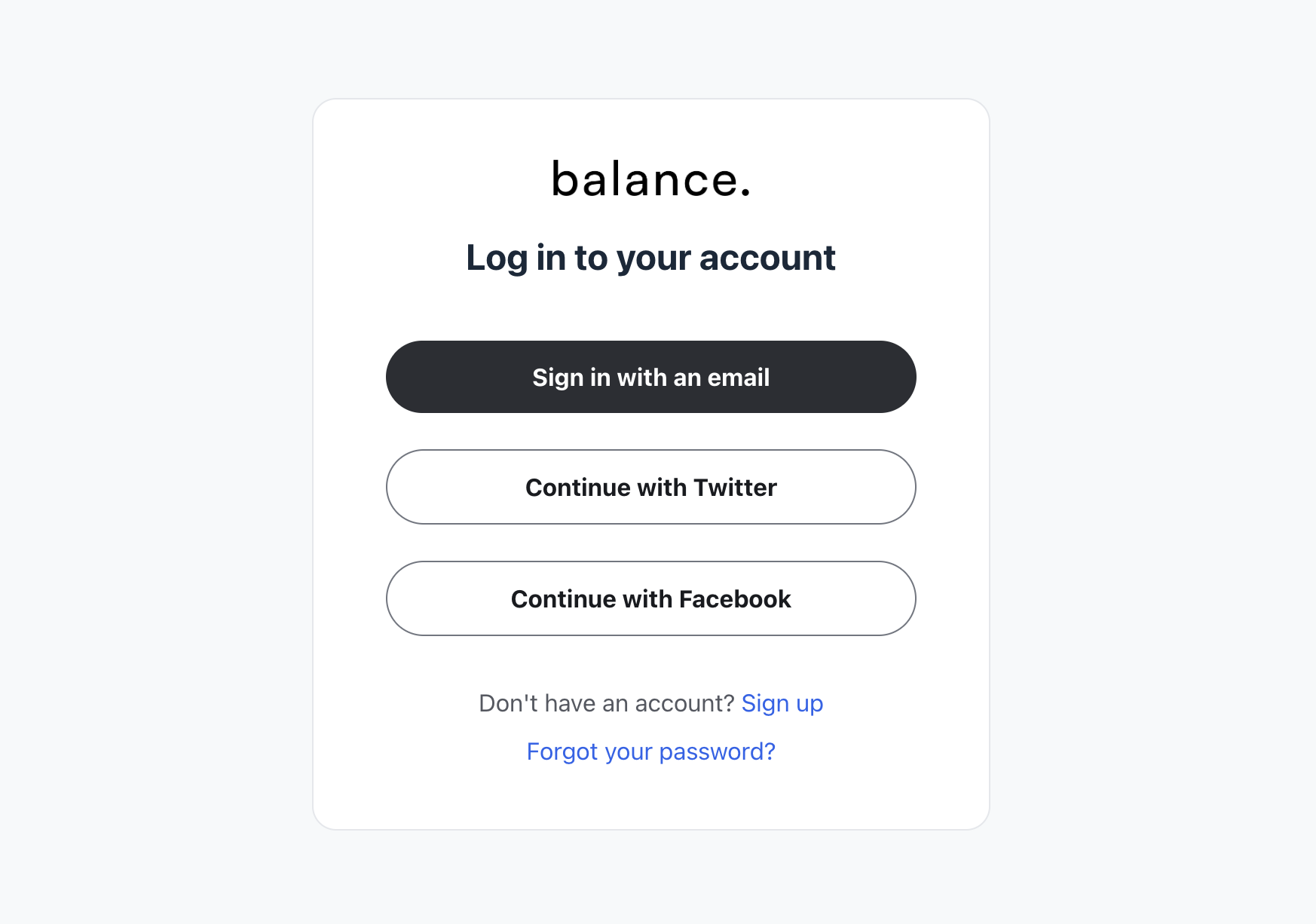
Continue with Twitter
Continue with Facebook
-
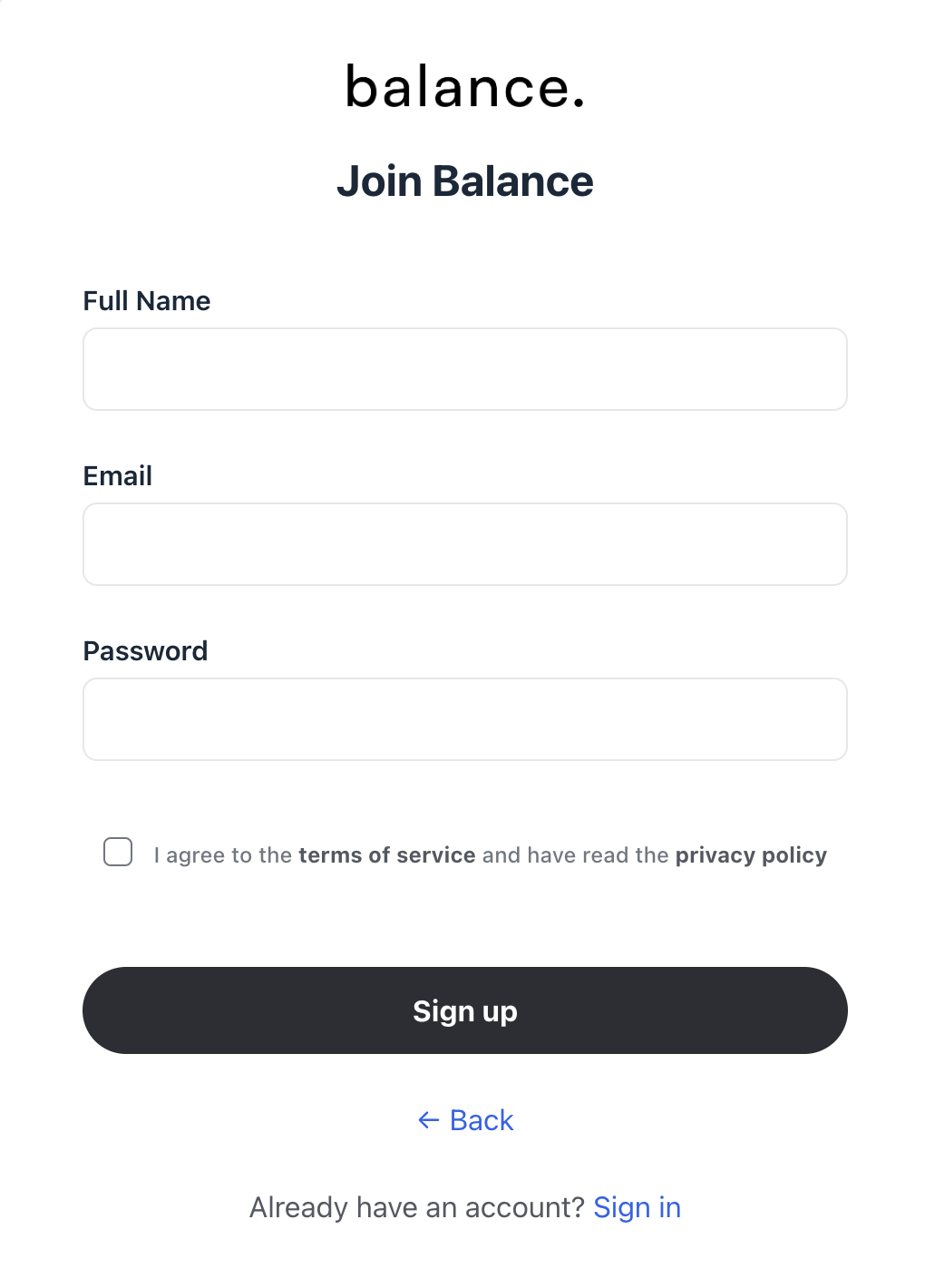
Provide your name, email, and password. Select the checkbox to agree to the community terms, and then click "Sign up."
You may be asked to verify your email using a six-digit authentication code that will be sent to your email address. Once verified, you will be taken to the profile creation page.
-
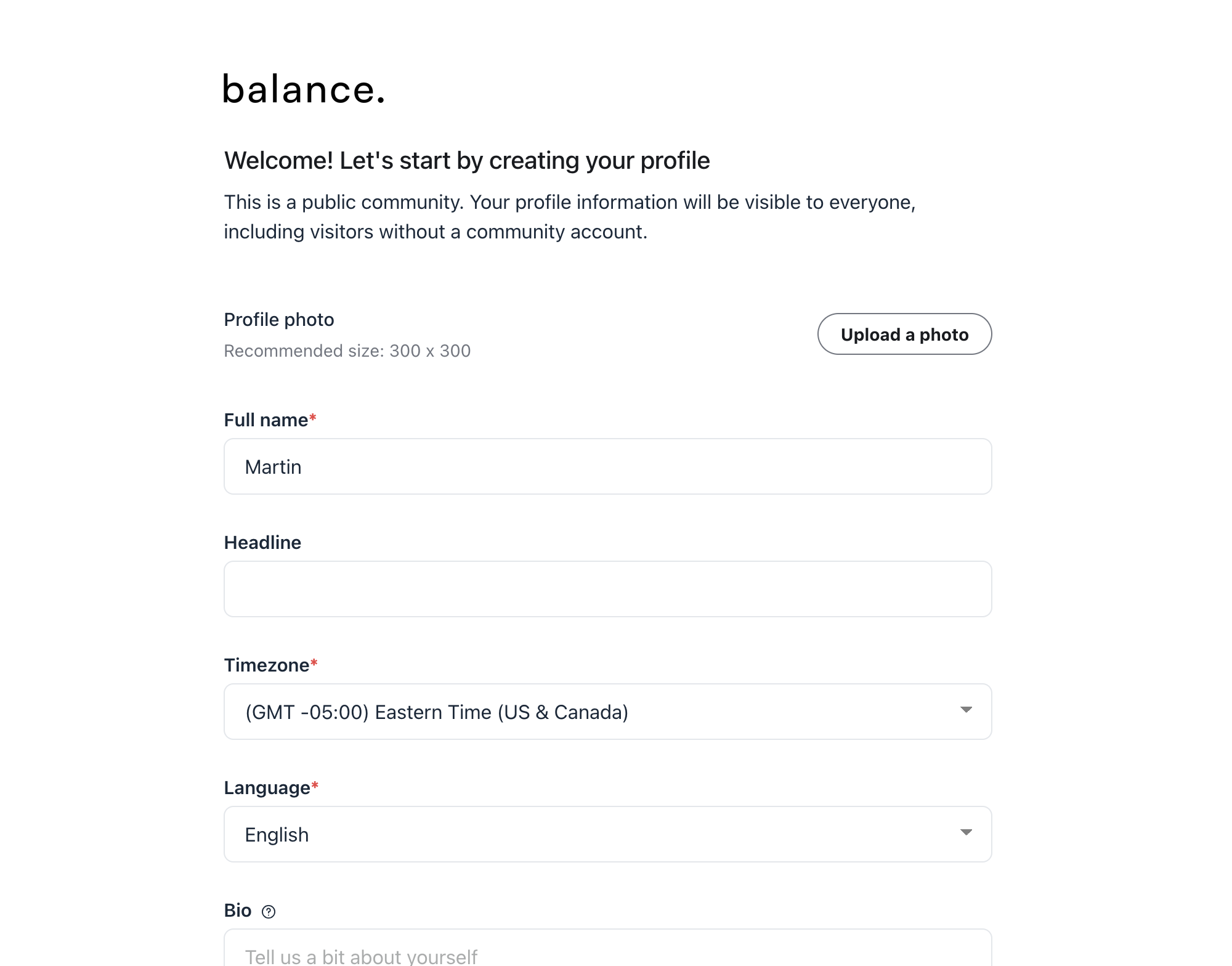
On the profile creation page, choose to:
Enter your profile details and click Continue.
-
Skip this step to do it later by clicking Skip.
💡 Tip: We provide default sign-up and sign-in options with Google, Twitter and Facebook for non-SSO communities.
ℹ️ Note: If you have added custom profile fields that are marked as required, members won’t be able to skip the profile creation.
If your visitor navigates to the community login page, they can also click the Sign up link to go to the community sign up page.