Guide members through the community onboarding process
Last updated: May 20, 2024
After you’ve initiated the onboarding for a member, depending on the method used, they will need to complete the onboarding process and activate the account.
Key things to know about member onboarding
Members must complete the initial steps of the onboarding, including accepting the invite and creating a password for their account through a browser on either a desktop or mobile device.
If you have enabled the email verification feature for your public community, members must verify their email with a six-digit authentication code before proceeding to the profile creation step.
To successfully activate a member account, members must complete the final step of sign up process, which involves creating a profile. This step can be accomplished using either a browser or the Circle mobile app.
If members leave the onboarding process without completing the final step, their profile will remain in invited status. Members who haven’t started or completed the onboarding show up under the Invited tab on the Manage audience page. For more information, see Understanding reasons some members appear on the invited tab.
Onboarding through invitation method
Let’s take a look at the onboarding flow for members via one of Circle’s built-in invitation methods or an integration (which essentially happens via the invitation method).
Invitations
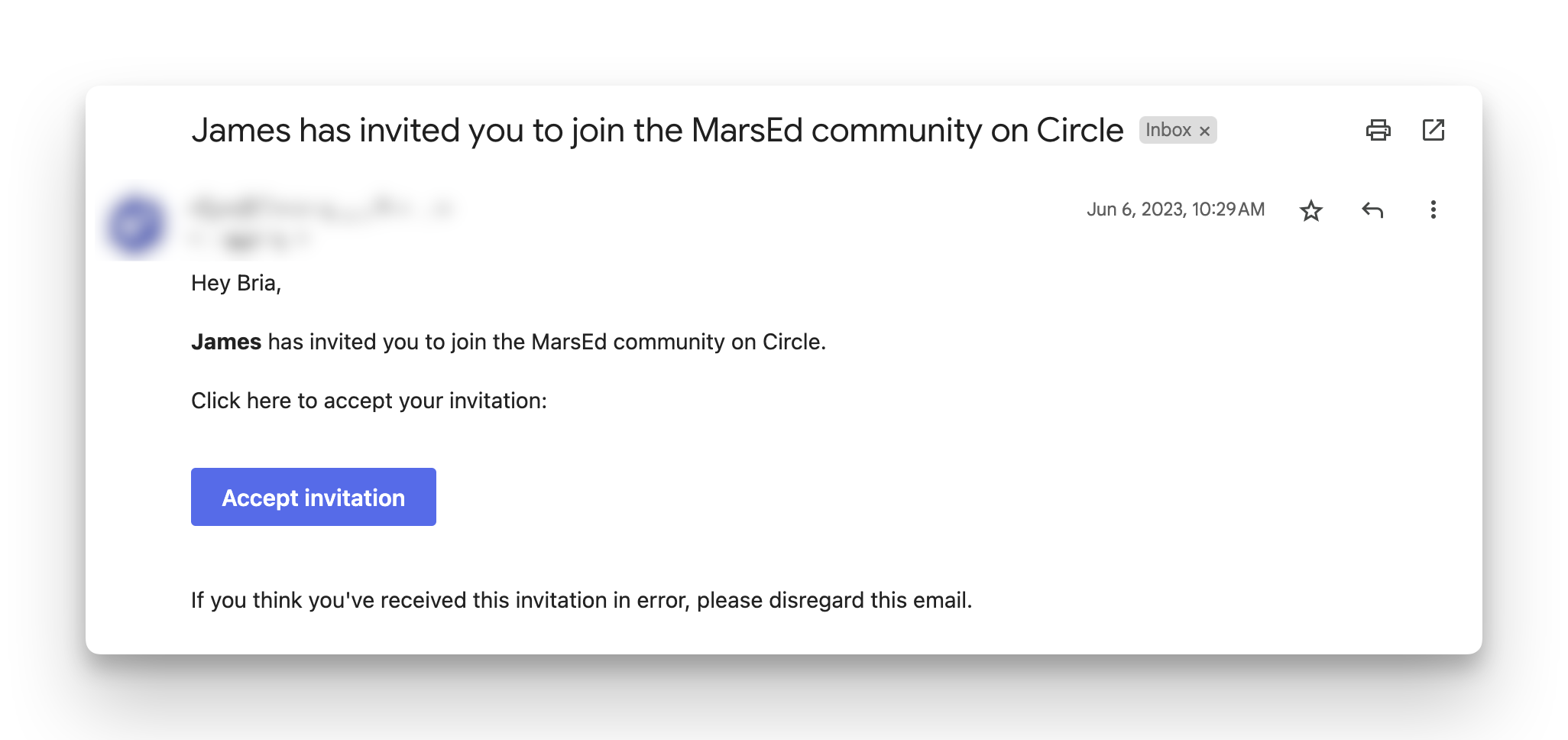
If you have sent member invitations using invites or integrations, members will receive an email invite. The email invitation includes a CTA button encouraging new members to complete the onboarding.
💡 Tip: You can customize the onboarding emails for new members with or without existing Circle accounts by navigating to Community settings → Onboarding. For more information, see Customizing the onboarding experience.
Invitation links
If you have shared the invitation link with members, they can directly use it in the browser to initiate the sign up process.
Complete onboarding
To start the onboarding process, members need to take the following steps:
-
Initiate the onboarding:
Invitations: Navigate to the invitation email and click the CTA to accept the invitation or visit the community.
Invitation link: Go to the invitation URL in a web browser.
-
Join community:
-
If you do not have an existing account under the same email with any other community on Circle: You will be taken to the join community page.
Invitation: Enter your full name, email, and password. Select the checkbox to agree to sign up terms. Once you have filled in all the information, click Sign up.
Invitation link: Enter your full name, password and click Accept invitation.
If you already have an existing account under the same email with any other community on Circle: You will be redirected to the login page. Use your email and existing password for the Circle account and click Sign in.
-
When signing up for a public community, you may be asked to verify your email using a six-digit authentication code that will be sent to your email address. Once verified, you will be taken to the profile creation page.
-
On the profile creation page, choose to:
Enter your profile details and click Continue.
Skip this step to do it later by clicking Skip.
ℹ️ Note: If you have added custom profile fields that are marked as required, members won’t be able to skip the profile creation.

Onboarding via paywall checkout URL
When potential members would like to subscribe to community membership, they can sign up and check out for the membership via the paywall checkout URL.
📚 For more information about onboarding via a paywall, see the following articles: