Connect Zapier to your community
Last updated: October, 2026
Connect your Circle community to Zapier to integrate with thousands of apps and set up automation workflows by configuring a specific trigger and action in your connected apps.
If you’re on the Circle Professional plan or above, you can utilize a dedicated Zapier token to connect your community with Zapier.
Set up Circle app connection in Zapier
Once you connect your community with Zapier, depending on where you select the Circle app (in the trigger or action editor or in both), you can choose from event options while creating workflows between your connected apps.
To get started:
Set up a Zapier account if you haven’t already.
If you are new to Zapier, check out their guide on creating Zaps for your connected apps.
Add connection (see below).
Step 1: Get an API token from your community
Click the community name or logo (or the dropdown icon next to it) in the top-left corner and select Settings.
Scroll down to the Developers section and select Tokens.
Create a new Zapier token if you haven’t already. We recommend using a dedicated Zapier token to connect your app. Please note that the Admin v2 token is not supported for integration with platforms such as Zapier and Integrately.
-
Copy the token by clicking the Copy token icon next to the token.

Step 2: Add a new app connection in Zapier
In your Zapier account, hover over the left sidebar menu and click My Apps.
-
Click Add connection in the top-right corner.
Search for the Circle app. A new browser tab or window will open.
-
Paste the API token from your community that you copied earlier.
Click Yes, Continue.
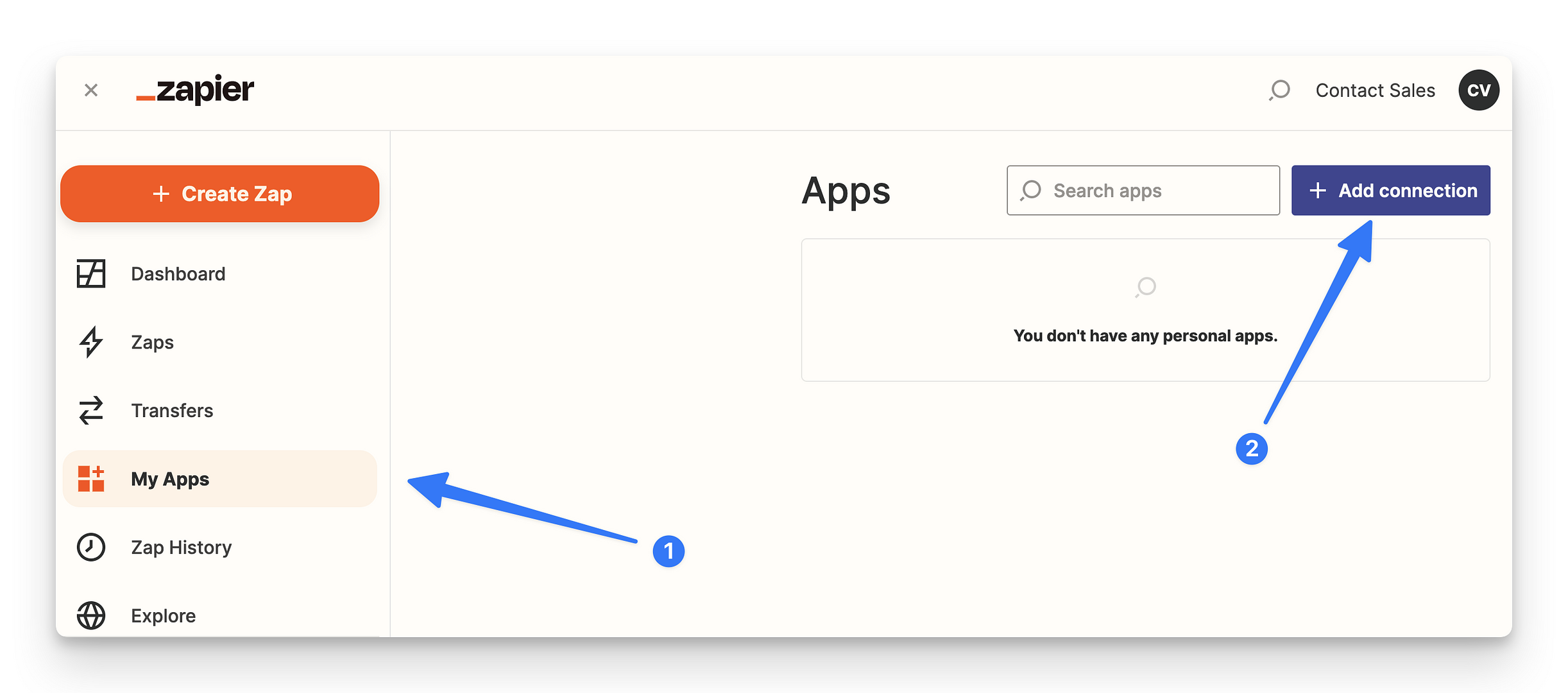
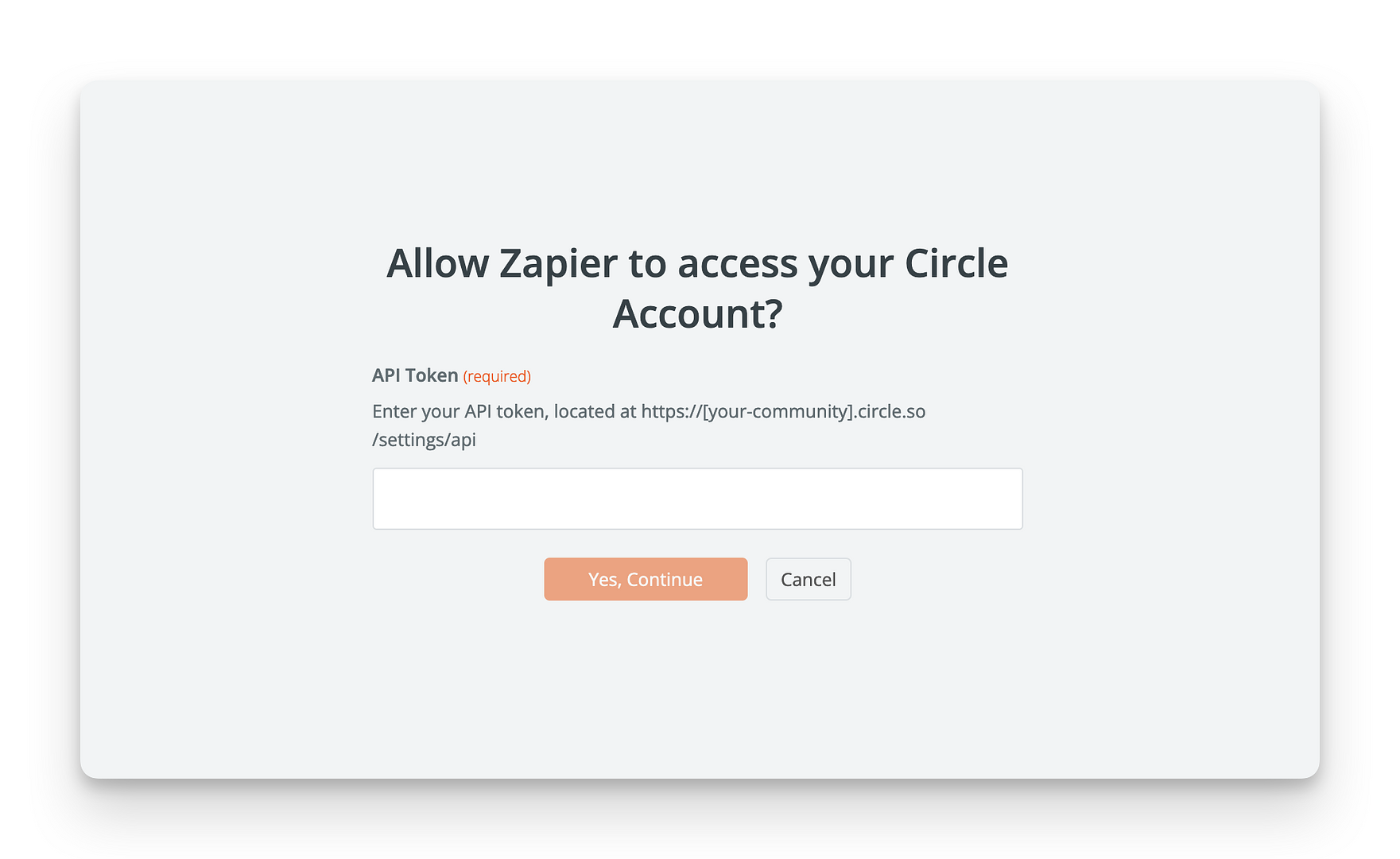
You can follow similar steps to add any other app connection to your Zapier account.
Create a Zap
Once you have added connections, you are all set to create Zaps!
💡 Tip: You can choose the Circle app for both trigger and action events when setting up a Zap to perform workflow actions within your community.
To set up a new Zap, follow these steps:
In your Zapier account, hover over the left sidebar menu and click Create a Zap.
-
Select a trigger for Zap:
Choose an app and a trigger event.
Choose from an account that you connected or connect a new account directly from the Zap editor.
-
Select an action for Zap:
Choose an app and action event.
Choose from an account that you connected or connect a new account directly from the Zap editor.
After you set up and name your Zap, click Publish.
Check out available Zap events
When creating Zaps between Circle and other apps, the possibilities of workflows are endless! On Zapier's Circle integration page, you can see the full list of available actions and trigger events with definitions, as well as popular Zap examples.
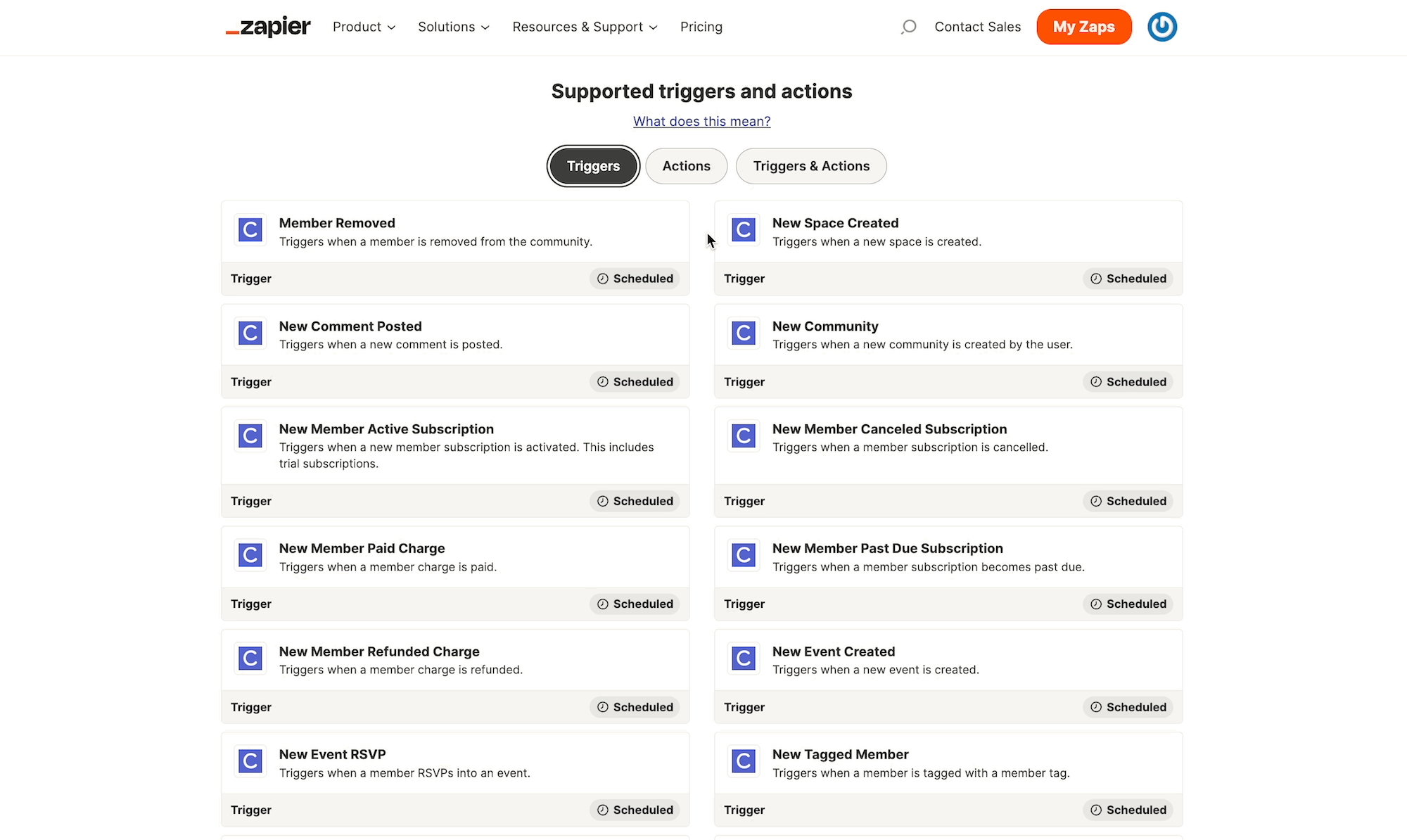
Here are some of the popular Circle app triggers and actions:
Triggers
New Member Added: Triggers when a new member joins the community, or when a member is added by an admin with a password set.
New Member Active Subscription: Triggers when a new member subscription is activated. This includes trial subscriptions.
New Member Past Due Subscription: Triggers when a member subscription becomes past due.
New Member Canceled Subscription: Triggers when a member subscription is canceled.
New Post: Triggers when a new post is created.
New Event Created: Triggers when a new event is created.
New Event RSVP: Triggers when a member RSVPs into an event.
Actions
Invite Member: Invite a member to your community.
Tag Member: Tag a community member with a member tag.
Send Direct Message: Send a direct message to a member.
Add Member to Space Group: Add a member to a space group and all its spaces.
Add a Member to a Space: Add a member to a space.
Create Post: Creates a new post on a community.
Create an Event: Create an event in your community.
Remove Member: Remove a member from your community.