Customize elements and blocks
Last updated: September, 2026
Website builder uses a modular system of blocks to help you create professional-looking web pages without needing to code. Blocks act as the foundational layout of your page such as a Hero, Pricing, or Testimonial sections. Inside each block are elements, such as text, buttons, images, and dividers, which you can customize individually.
Add and customize blocks
You can build your page in two ways:
Choose a pre-designed block to get started quickly with fully customizable, ready-made layouts.
Create custom blocks for full creative control using layout elements.
Add a pre-designed block
Start building your page with pre-designed blocks such as:
Hero
Features
CTA
Pricing
Testimonials
Team
Stats
Blog
Contact
FAQs
To start with a pre-designed block:
Click Blocks in the left sidebar.
Choose a category that fits your page (e.g. Sales, Blog, Homepage).
Click a block preview to insert it into your page.
Build a custom block
Combine layout elements to build a block from scratch. This gives you more design flexibility.
Here’s a quick overview of each layout element:
Section: A full-width area that sets the background and padding for a block. Think of it as the outer boundary.
Container: Keeps content centered and responsive across screen sizes.
Stack: Organizes content vertically or horizontally. Offers fine control over spacing and alignment.
Grid: Adds rows and columns for more precise layout control.
To create a custom block:
Click Elements in the left sidebar.
Under Layout, drag a Section onto your page.
Inside the section, add a Container, Stack, or Grid to begin your layout.
Once your block is ready, you can start customizing it, drag and drop other elements such as images, paragraphs and buttons into your block and select an element to reveal the customization options in the right sidebar.
Customize blocks
Once you’ve added a block to your page, you can customize it to better fit your content and branding.
Block actions
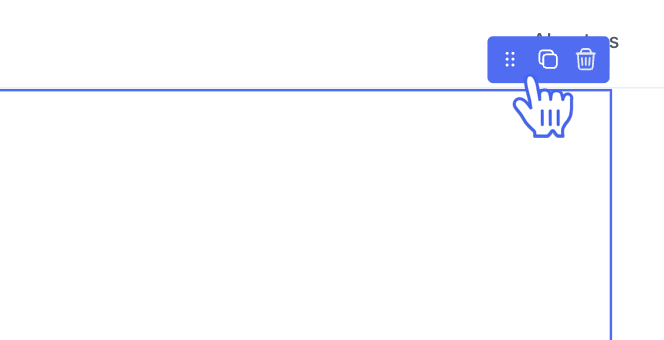
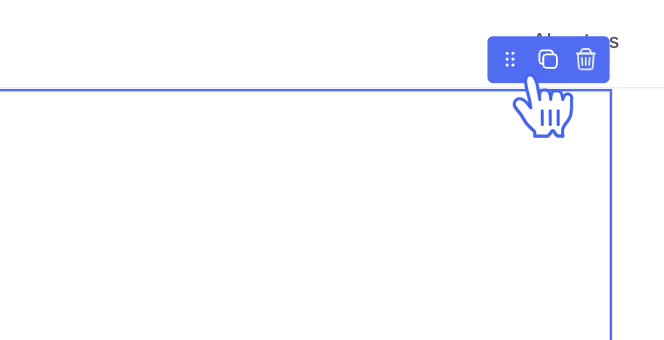
Click a blank space in the block to select it, then reveal the block actions in the preview pane. Here, you can move the entire block around the page using the Drag handle (⠿), Duplicate the block, and Delete it.
Editor options
With the whole block selected, you can customize its general settings in the right sidebar editor. Here, you can adjust the background color and opacity, padding, and margins. If you’ve selected a block that includes a background image, you will also see the option to upload or embed a new image.
Block ID
Giving a block an ID lets you link directly to it from a button or link element elsewhere on the same page. This is useful for navigation menus, CTA buttons that jump to a pricing section, or any "scroll to section" interaction.
Click a blank space in the block to select it.
In the right sidebar editor, click More actions (three dots).
Select Edit block ID.
Enter a short, descriptive ID with no spaces (for example, pricing or contact-form).
Click Save.
To link to that block from a button or link element, enter # followed by the block ID in the link field (for example, #pricing).
Save customized blocks
You can save any block you’ve customized or built and reuse it on any page. Saved blocks include all your design and content changes, so you can build faster and keep your sites consistent.
Once you’ve built a custom block or customized an existing one, follow these steps to save it:
-
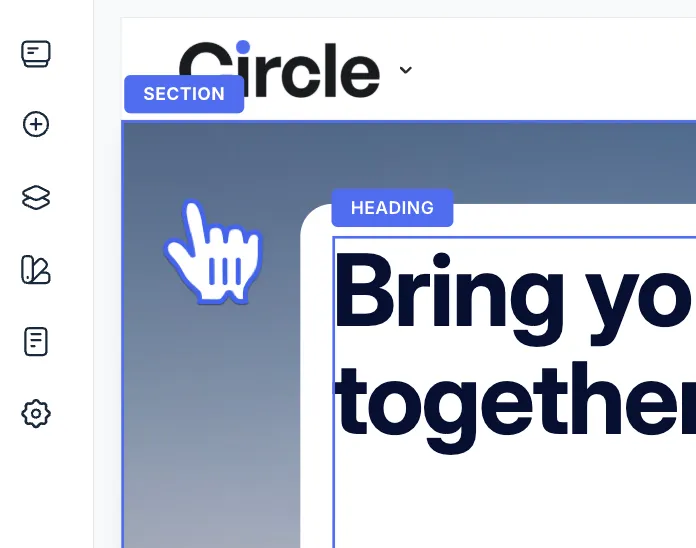
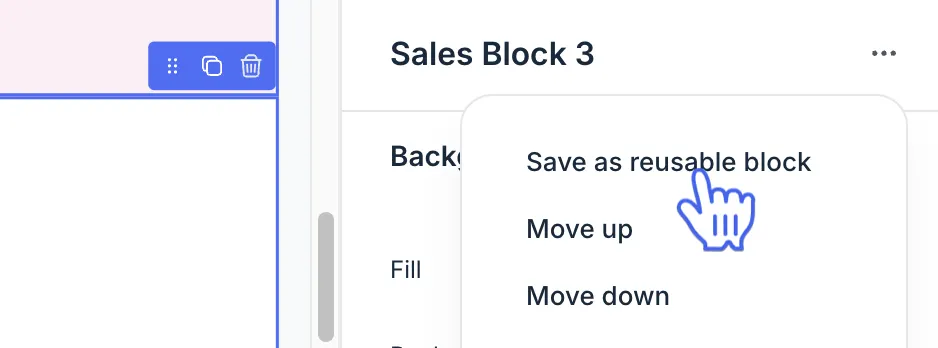
Click a blank space within the block to select it.
-
Click More actions (three dots) in the right sidebar editor and select Save as reusable block.
Name the new custom block and click Save.
To reuse a saved block:
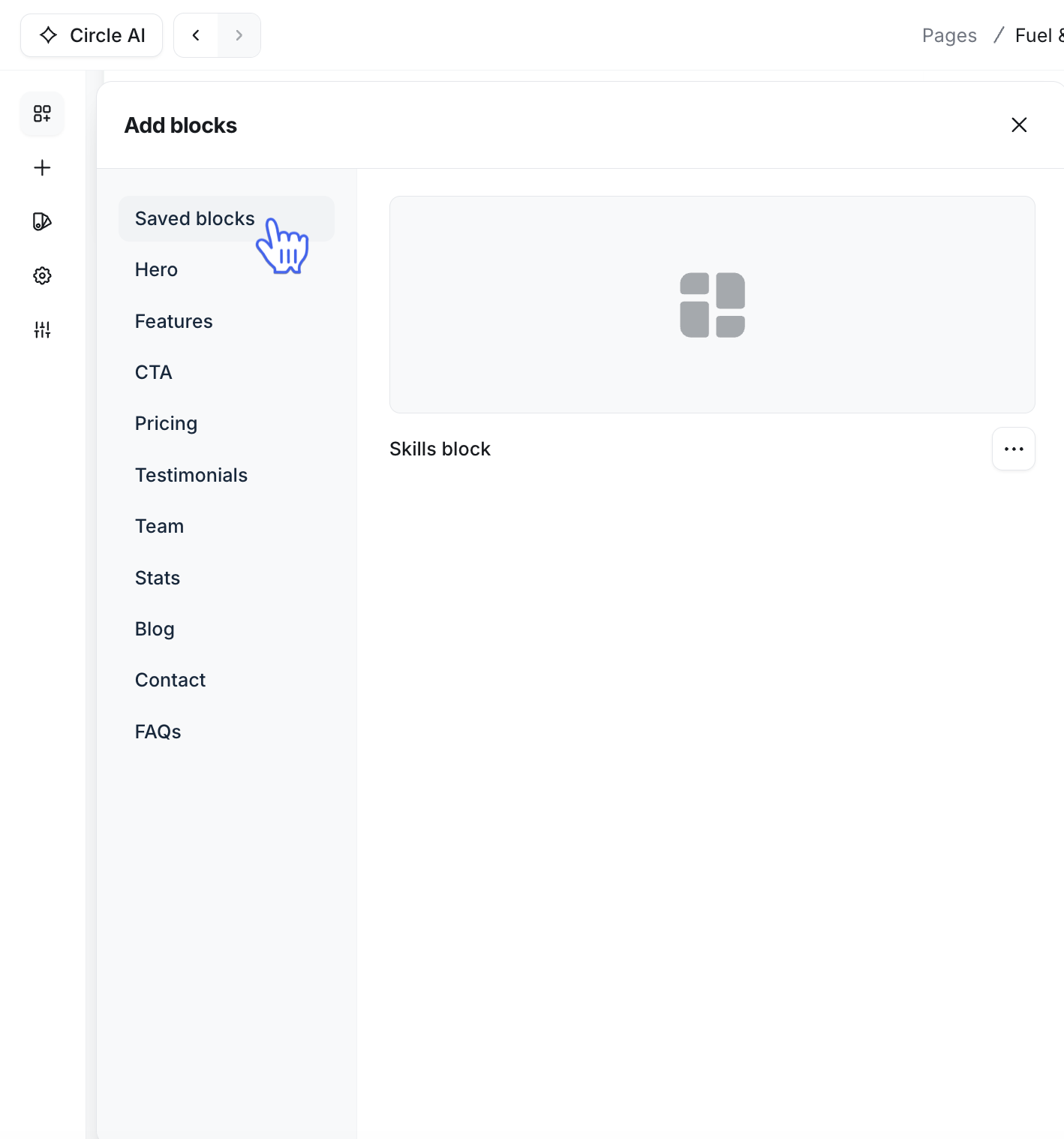
Click Blocks icon in the left sidebar.
-
Select Saved blocks to view all your saved blocks.
Click or drag and drop the block into your page.
Add and customize elements
Elements are the building blocks of your web page and are used to display content such as images, paragraphs, buttons, badges, or custom HTML in your web page. While blocks contain a number of individual elements, you can add more from the Add elements section in the left sidebar of the page builder.
Here is an overview of all available elements:
-
Layout
Section: A full-width area that sets the background and padding for a block. Think of it as the outer boundary.
Container: Keeps content centered and responsive across screen sizes.
Stack: Organizes content vertically or horizontally. Offers fine control over spacing and alignment.
Grid: Adds rows and columns for more precise layout control.
-
Text
Paragraph: Add blocks of text for body content or descriptions.
Heading: Create titles or section headers to organize your page content.
-
Actions
Button: Add a clickable button that links to another page, external URL or to a section on the same page using an anchor link.
-
Form: Embed a sign up created through Email Hub into your web page.
📚 See Create forms to learn more about setting up forms.
Link: Insert a hyperlink to direct users to another page, external site or to a specific section on the same page using an anchor link.
-
Media
Embed: Display external content such as maps, social posts, or widgets using embed codes.
Image: Add and display images with adjustable sizing and alignment options.
Video: Embed or upload videos to visually enhance your page.
-
Basic
Badge: Display a short, highlighted label to call out key information (like “New” or “Beta”).
Badge list: Show multiple badges together, useful for labeling categories or features.
Blockquote: Highlight quoted text for emphasis or testimonials.
Code: Display formatted code snippets with syntax styling.
Custom HTML: Add your own HTML code for more customization or third-party integrations.
Line: Insert a horizontal divider to visually separate sections.
List: Create ordered (using emojis) or unordered lists to present items clearly.
To add an element to your block:
Click Elements (➕) in the left sidebar.
Drag and drop the element into the available spaces in the preview pane.
ℹ️ Note: Available spaces will be highlighted with a dotted box in the preview pane.
Customize elements
When you select an element on your page, such as a button, heading, or paragraph, the right sidebar editor opens with all available properties in a single panel. From here, you can update the element’s content (like text, images, or videos) and adjust its design, including spacing, colors, and typography. Select an element to reveal options to customize the content and design properties such as:
Text (e.g., for headings, body copy, or button labels): You can edit text inline or in the right sidebar editor for elements such as paragraphs, headings, buttons and badges. Double click the element to enter edit mode.
Images and alt text: Add an image and alt text that is displayed if the image cannot load.
Links: Add link text, URLs and control where the link opens using the target options. To link to a section on the same page, enter # followed by the block's ID in the URL field (for example, #pricing). See Set a block ID for anchor links for how to set up the destination block first.
Lists: Add items to a list with custom list markers.
Spacing: Adjust padding and margins to control the space around the element.
Typography: Modify your text with options such as font, size, style, color, line height, alignment, font weight, and text transform (e.g., UPPERCASE or Capitalize).
Object characteristics: For elements like buttons, you can change the corner radius, update hover styles, and adjust background and border colors.
Each type of element offers its own set of design controls. For example:
Buttons: include options for hover effects, corner rounding, color and primary/secondary types.
Text blocks offer alignment, font styles, and spacing controls.
Images include scaling, alignment, padding, opacity and corner rounding.
Element actions
Selecting an element will also reveal additional actions allowing you to move the entire element using the Drag handle (⠿), Duplicate the element, and Delete it.
Cascading styles
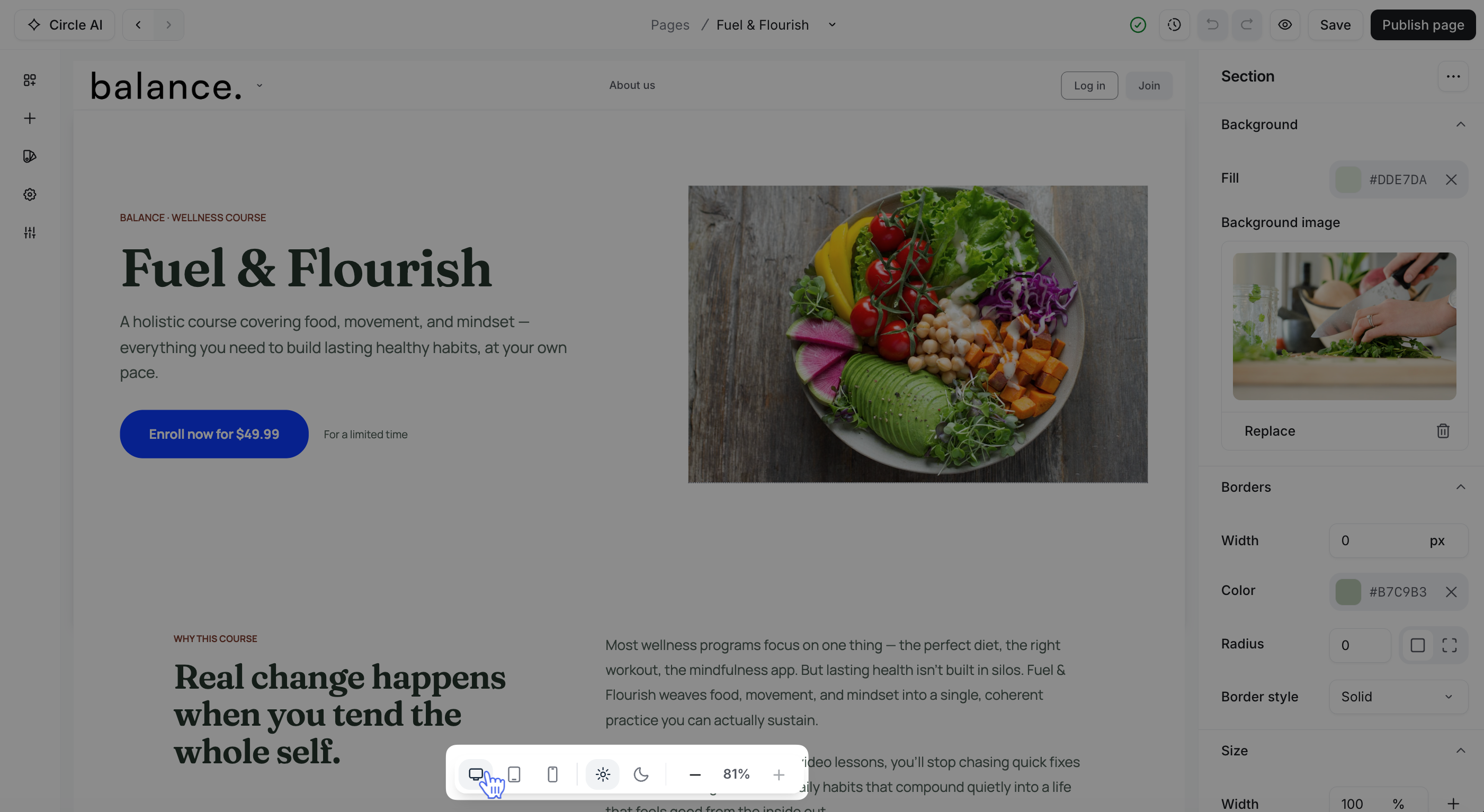
Cascading styles let you tailor the look and feel of your web pages based on how your audience accesses them, whether from a desktop, tablet, or mobile device. This ensures your content always looks its best, no matter the screen size.
Here’s how it works:
Changes made on Desktop: Also apply to both tablet and mobile views.
Changes on Tablet: Only affect tablet and mobile, not desktop.
Changes on Mobile: Apply only to mobile.
To do this:
-
Select the view you’d like to customize from the tool bar at the bottom of the preview pane.
Make the necessary changes.
Once done, click Save in the top right corner.
This approach gives you the flexibility to optimize the design or customize the look of your page for each device type without duplicating effort.
Next, we’ll discuss the available customization controls in more detail so you know exactly what each one does.
Understanding content and design controls
Different elements will reveal different content and design controls based on their type. Here is a glossary of all the available design controls and what they affect.
Content
Text: The body of your heading, paragraph, or button label.
-
Rich text: Format text in paragraphs, headings or buttons with Bold, Italic or Underline.
ℹ️ Note: Rich text support for list items is coming soon.
Heading level: Heading hierarchy (H1, H2, H3).
Paragraph style: Primary, secondary, or supporting paragraph text.
URL: The link for embedded content, such as videos or a calendar.
Target: Controls where a link opens. Self opens the link in the same tab, while Blank opens the link in a new tab.
Link: The link a button leads to when clicked.
Image: The image displayed on the page.
Alt text: A text description of the image. Used to boost your pages' accessibility, SEO, and provide context when images don’t load.
-
Code: Custom head or body code.
ℹ️ Note: This is an advanced feature and intended for developers only. Unfortunately, our support team cannot help you with custom HTML code.
Design
Color: The color of your text or item.
Text transform: Convert your text to uppercase, lowercase, or capitalize.
Font: Website builder supports Google fonts, allowing you to choose from hundreds of fonts for your pages.
Font style: Normal, italic, or oblique.
Font weight: Bold, medium, semibold, or normal.
Font size: Adjust the size of the selected font.
Line height: Set the vertical spacing between lines of text.
Text decoration: Underline, overline, or strike through.
Text align: Left, right, center, or justified.
Margins: Adjust the space outside the element, between its border and other elements.
Padding: Adjust the space inside the element, between its border and content.
-
Button type: Assign a button as primary, secondary, or custom.
Primary button: The most popular subscription option or a CTA.
Secondary button: Alternative options.
Size: Set the standard, minimum, and maximum width and height.
Default/Hover toggle: This toggle lets you configure your button's appearance in its default state and when hovered.
Background color and opacity: Set the color and opacity of a badge or button.
Border: Set the border color and width of a button or badge.
Corner radius: Set the corner radius of your buttons, images, or videos.
Object fit and position: Adjust how an image or video fills its frame.