Add conversion tracking to paywalls
Last updated: October, 2026
Conversion tracking tells your ad platforms when a paywall visitor completes a purchase, so you can see which ads are driving sales. Circle supports two ways to do this:
Native conversion tracking: Circle supports a built-in server-side conversion tracking feature that connects your paywalls directly to Meta and Google Analytics, reporting checkout, payment, and subscription events straight to your ad accounts without any code.Use this option if you run ads on Meta or track with Google Analytics and want the quickest setup.
Custom conversion tracking: The conversion tracking code field in your paywall settings, where you add a custom JavaScript snippet to your paywall’s thank you page to track successful payments. Use this option if you advertise on a platform that native tracking doesn’t cover yet (such as LinkedIn, Pinterest, Reddit, or Snap), or you need more control over what gets tracked.
Before you begin
This article assumes you’re already running ads and tracking conversion data on Meta or Google. You can learn more about ads and tracking at the following links:
About Circle’s native conversion tracking
Previously, a tracking code sat on the checkout page and reported each sale back to the ad platform. This method is increasingly unreliable (ad blockers remove the code, Safari and iPhone privacy settings block it) and most browsers now delete the cookies it depends on within days. Every year, a larger share of real sales goes unreported this way, resulting in inaccurate data.
Server-side tracking solves this by reporting conversions from Circle’s servers instead of the buyer’s browser. Circle’s payment system already knows when a purchase completes, because it processed the charge. Circle reports the sale straight to Meta or GA4 from its own backend, where browser settings cannot block it.
This is the approach Meta, Google, and most major ad platforms now recommend. Building it normally requires an engineer who can work directly with each platform’s technical requirements. With native conversion tracking, Circle has already built that connection and keeps it up to date as the platforms change, so you don’t need an engineer or any code. You connect your accounts once, and your sales are reported accurately to your ad platforms.
Circle automatically sends four events to each platform you connect:
Checkout start: A visitor begins paywall checkout.
Payment info entered: A visitor submits or selects a payment method.
Purchase: A visitor completes a purchase.
Subscription start: A visitor starts a recurring subscription.
You don’t need to configure these events yourself. Circle tracks and sends them as soon as you connect a platform.
Complete, accurate data also improves your results beyond reporting. Ad platforms use your conversion data to find more people who resemble your actual buyers and to spend your budget on the visitors most likely to convert. Gaps in that data limit how well the platform can learn who your buyers are; the more complete your conversion data, the better your ad platform can target future buyers.
Enable conversion tracking
To enable conversion tracking for your community:
Click the dropdown beside your community name and select Settings.
-
Select Conversion tracking in the Payments section.
💡 Tip: You can also search for “Conversion tracking” in the settings search bar.
-
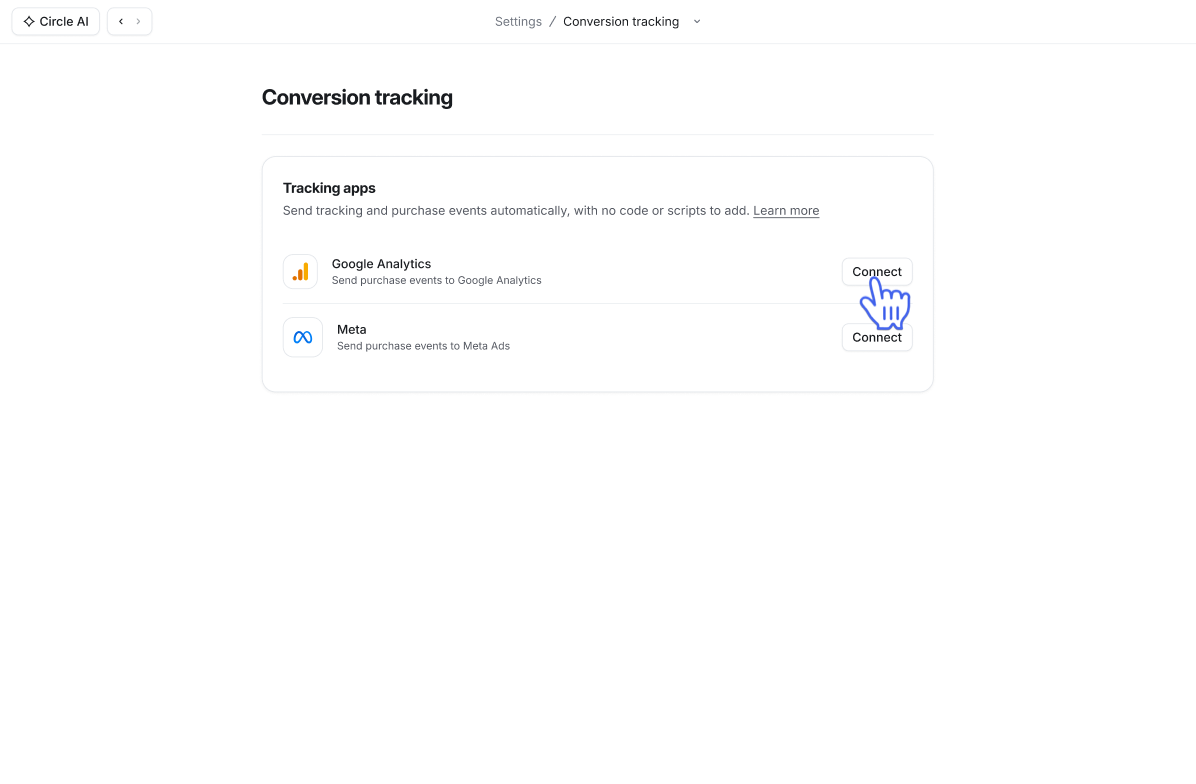
Click Connect on the platform you want to connect.
-
Enter the credentials for that platform.
-
For Meta, enter your Pixel ID and Access token. To find these:
-
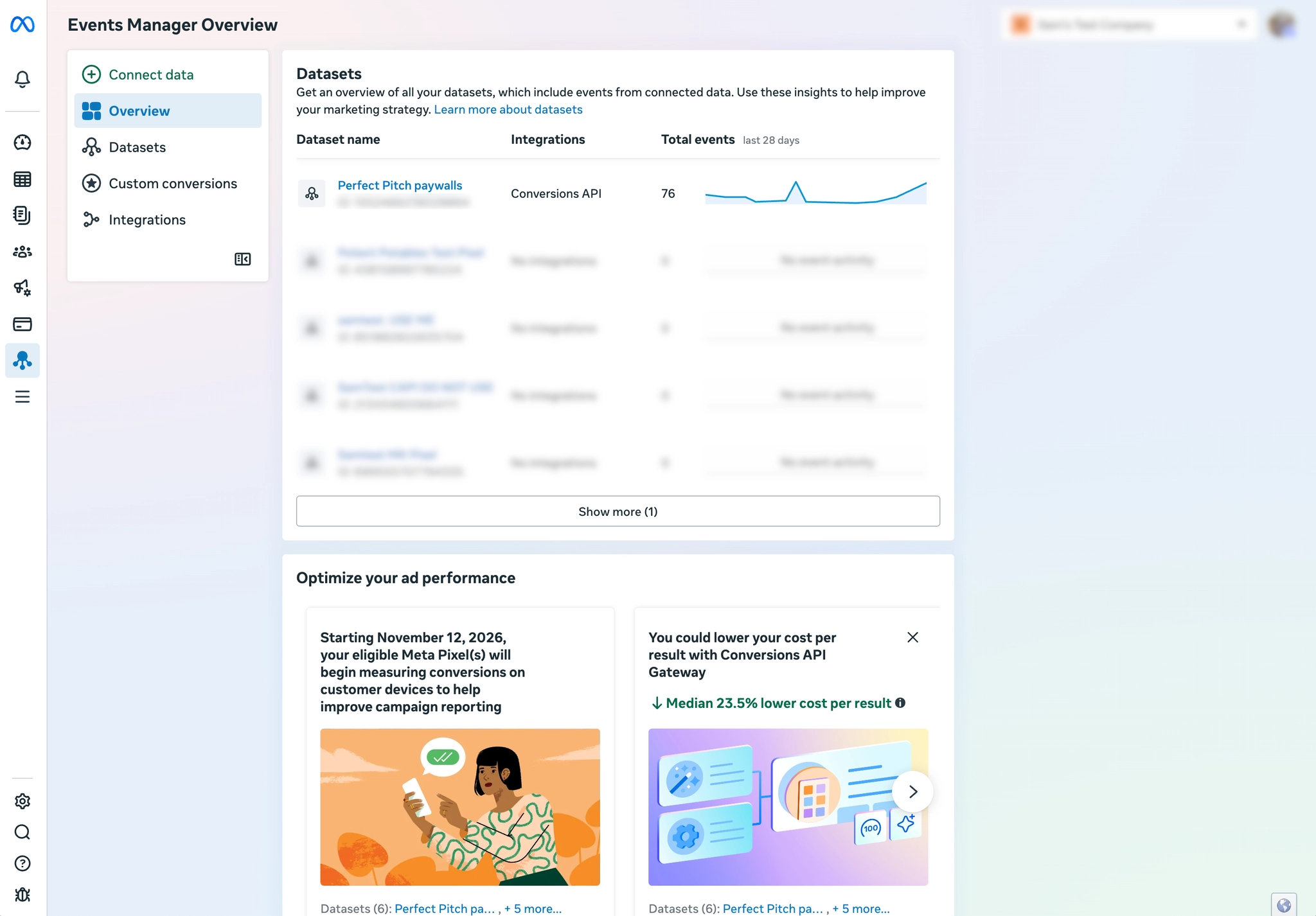
Sign in to your Meta Events Manager account.
Click Datasets and select the dataset you’d like to connect.
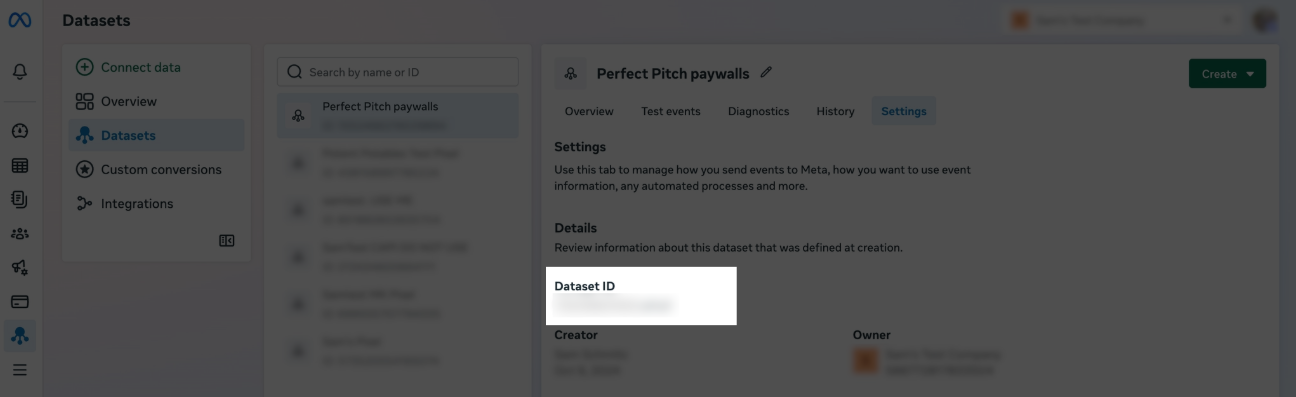
Select the Settings tab.
-
Copy your Pixel ID (sometimes labeled Dataset ID) from the top of the page.
-
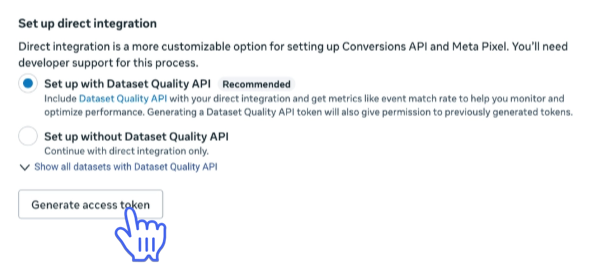
Scroll to the Conversions API section and click Generate access token to create a new token.
Copy the Access token.
-
-
For Google Analytics, enter your Measurement ID and API secret key. To find these:
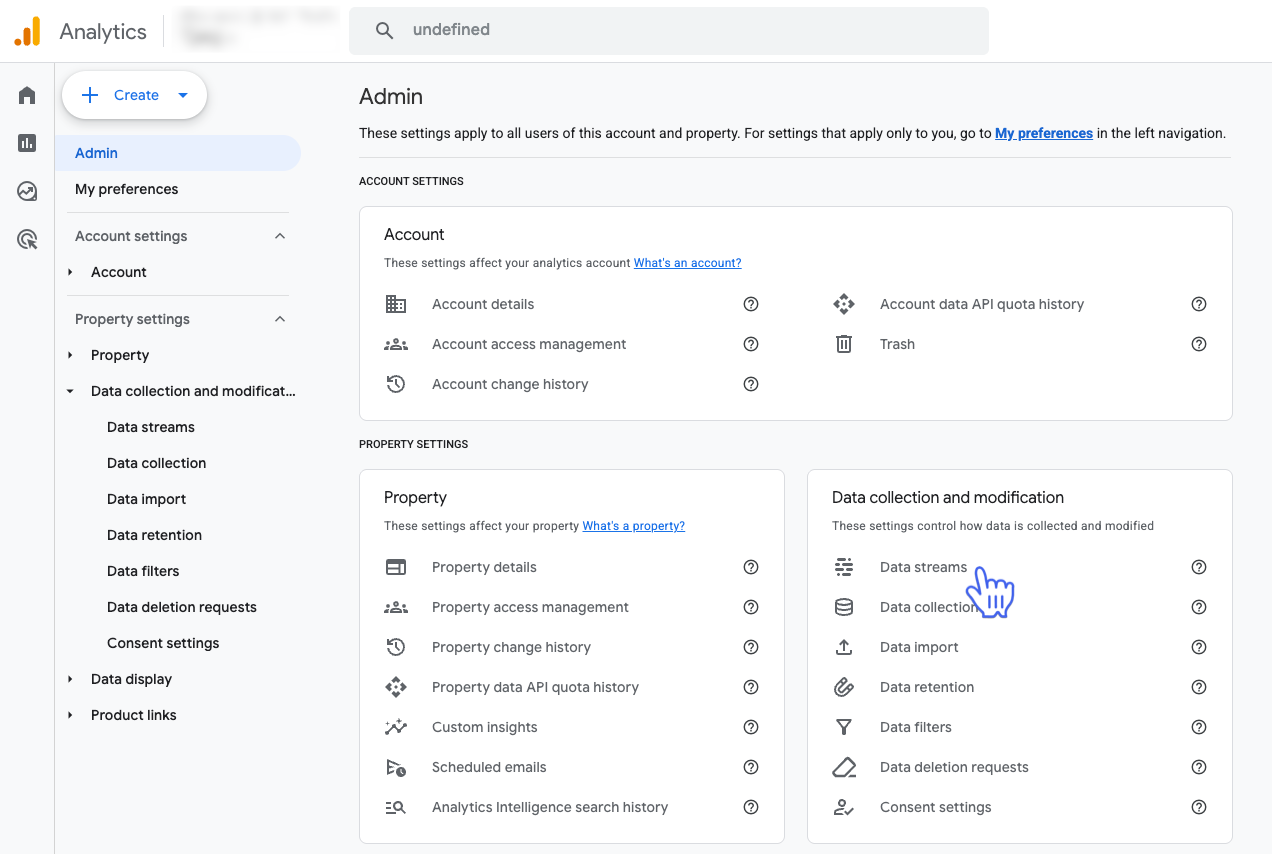
Sign in to your Google Analytics account and click the Admin ⚙️ icon in the bottom left corner.
-
Select Data streams.
-
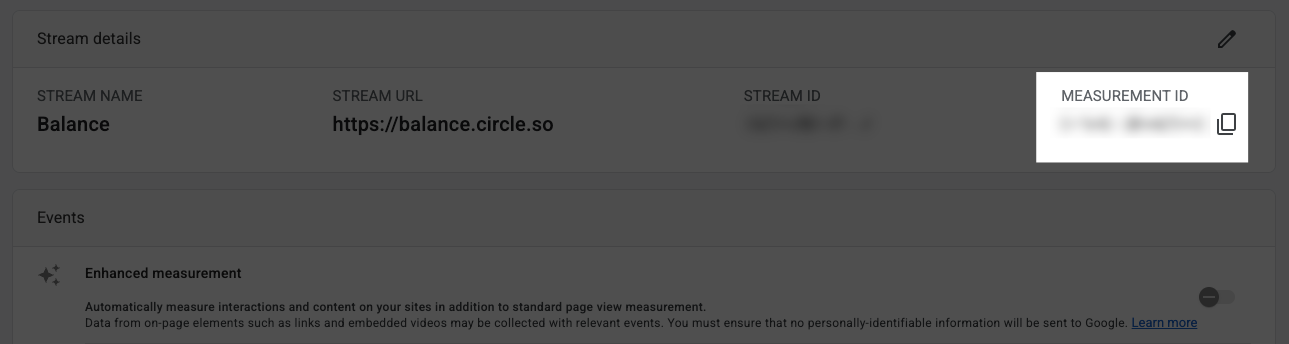
Select your stream and copy the Measurement ID from the top of the stream details page.
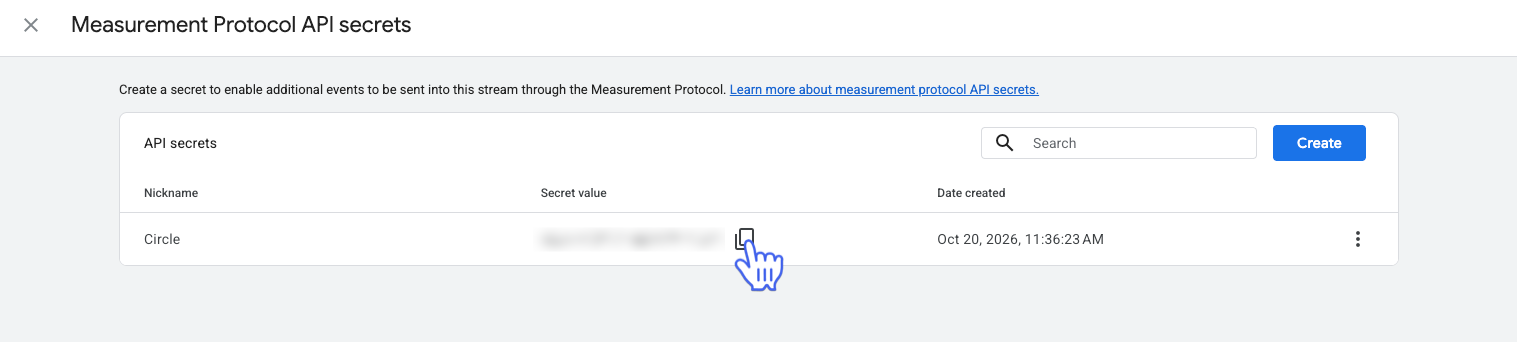
Select Measurement protocol API secrets on the stream details page.
Click Create in the top-right corner, enter a Nickname for your API key, then click Create.
-
Copy the Secret value (API secret key).
-
-
(Optional) Toggle on Turn on tracking for all current and future paywalls to immediately start tracking all your paywalls.
ℹ️ Note: To turn off tracking for a single paywall without disconnecting the platform, open that paywall’s settings and disable conversion tracking under the Tracking tab.
Click Save and connect.
Once connected, Circle starts sending conversion events across all your paywalls for any platform you’ve connected.
💡 Tip: To confirm your events are reaching Meta or Google Analytics you can use TagHound, a browser extension that verifies events.
❗️Important: You can enable paywall conversion tracking without using a custom domain. However, to support session continuity between your marketing website and Circle’s checkout, your Circle custom domain must share your marketing website’s root domain. For example, www.circle.com and community.circle.com. Without this setup, tracking is limited to click-ID attribution, rather than full session continuity.
Add conversion tracking code (optional)
ℹ️ Note: When using our native Meta and GA4 integrations (mentioned above), adding custom tracking code will cause duplicate events. We recommend removing all instances of custom conversion tracking code to prevent this.
🚨 Warning: This is an advanced feature, and we recommend working with your developer to ensure the correct setup.
To add a conversion tracking code when creating or editing your paywall:
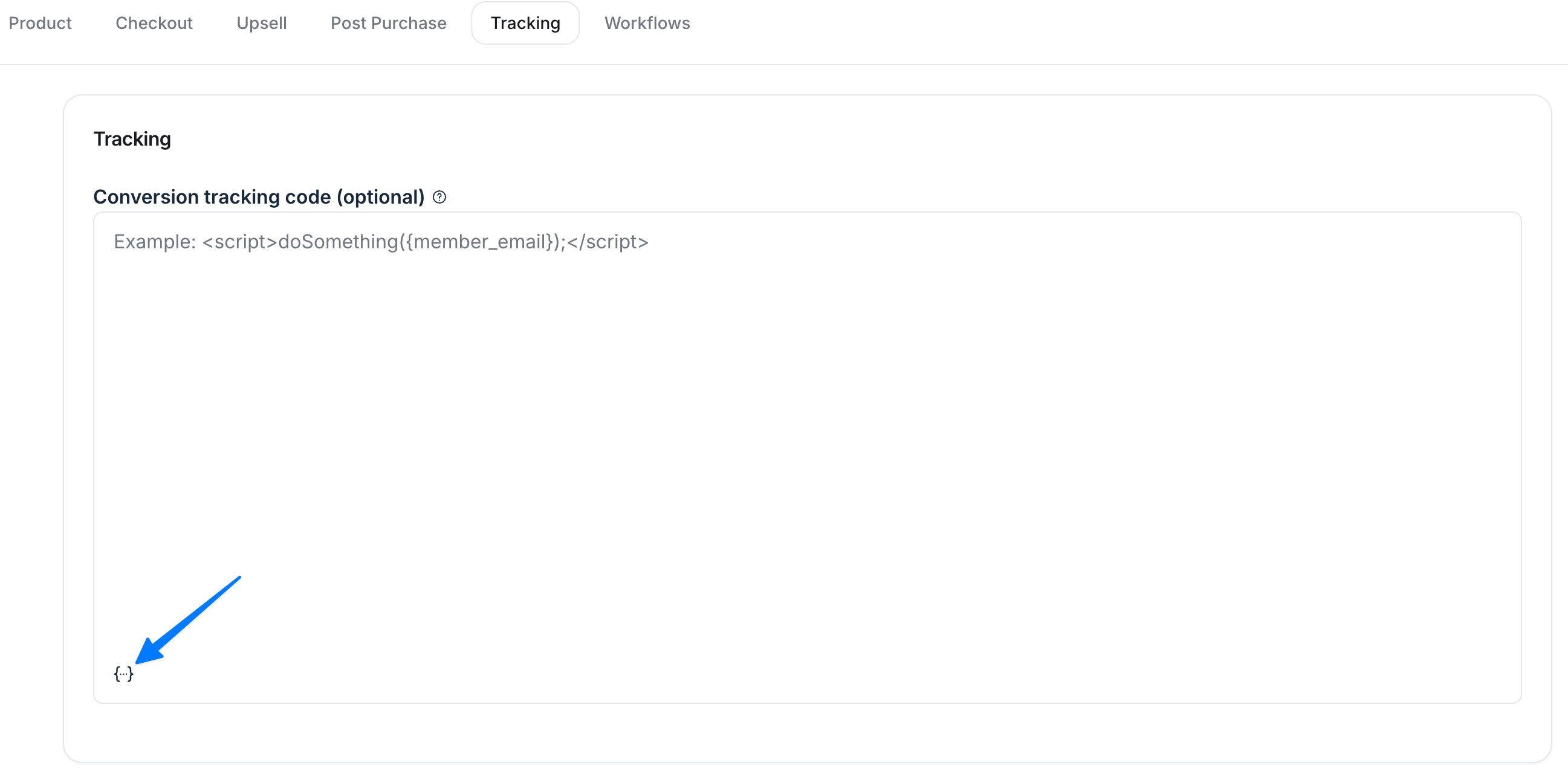
In the paywall setup, navigate to the Tracking tab and add your code in the tracking code field.
-
To add dynamic variables in the code, click the Add variable {…} icon and select an option from the list. In addition to {member_email}, you can add the following variables:
{amount_paid}
{coupon_code}
{paywall_internal_name}
{paywall_display_name}
{paywall_trial_days}
{paywall_price_amount}
{paywall_price_interval}
{paywall_price_type}
Click Save on top-right corner.
ℹ️ Note: If you keep your own custom tracking script running on a paywall with the native conversion tracking enabled, Circle’s automatic deduplication won’t apply to it. Circle tags our own Meta browser script and server event with a matching identifier so Meta counts the sale once, but it doesn’t recognize a custom script you’ve added. Running both at once can cause Meta to count the same sale twice.
Good to know
The <script> tags are required and must wrap your code. Be sure your code is valid and has no runtime issues before you save your paywall. Example code:
<script>
	doSomething(
		console.log("It works!");
	);
</script>
If your scripts include async load statements, you must change them to follow a function pattern. See the following example:
Original async load snippet
<script async src='https://sample.js' data-attribute='ATTRIBUTE_VALUE'></script>Required function load snippet
<script>
(function(a,b,c,d){scriptElement=a.createElement(b),head=a.getElementsByTagName("head")[0],scriptElement.async=1,scriptElement.src=c,scriptElement.setAttribute("data-rewardful",d),head.appendChild(scriptElement)})(document,"script","//sample.js","ATTRIBUTE_VALUE");
</script>
Do you want to set up your own affiliate program?
We offer a built-in affiliate program specifically designed for Circle paywalls in your community. This allows you to build and manage your own affiliate program right within your community. For more information, check out our guide on Affiliates overview.