Using Circle with Teachable
Keep your Teachable course one click away from your Circle posts! With the use of embeds, you can easily display your community making it easy for students to engage in discussions. By using code snippets you can insert an icon in the lower right-hand corner of your Teachable Course that will pop-up when clicked to display an embed your community contents.
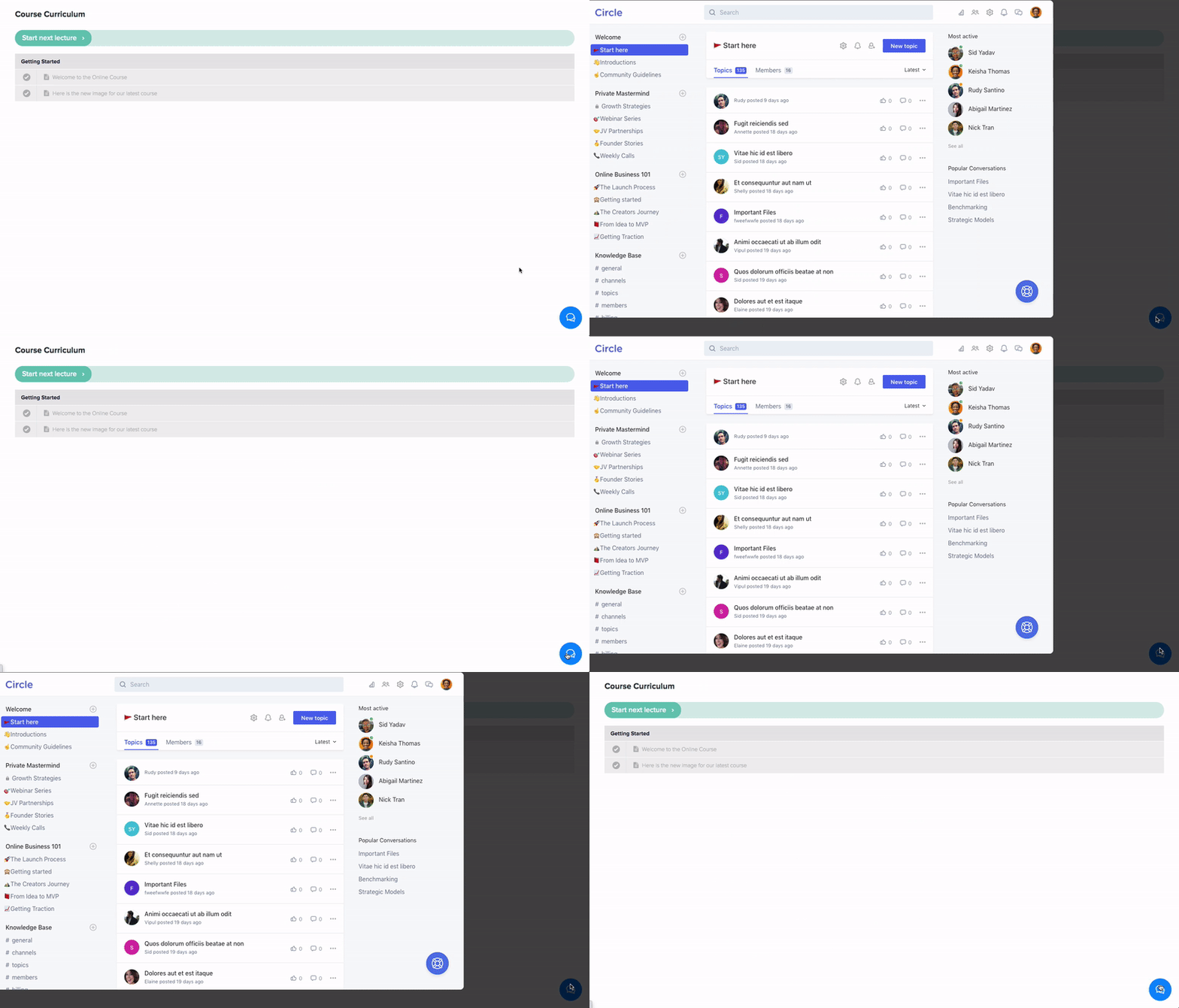
Option 1: Community Widget
In Teachable, navigate to Admin → Site → Code Snippets → Logged Out/In Snippets
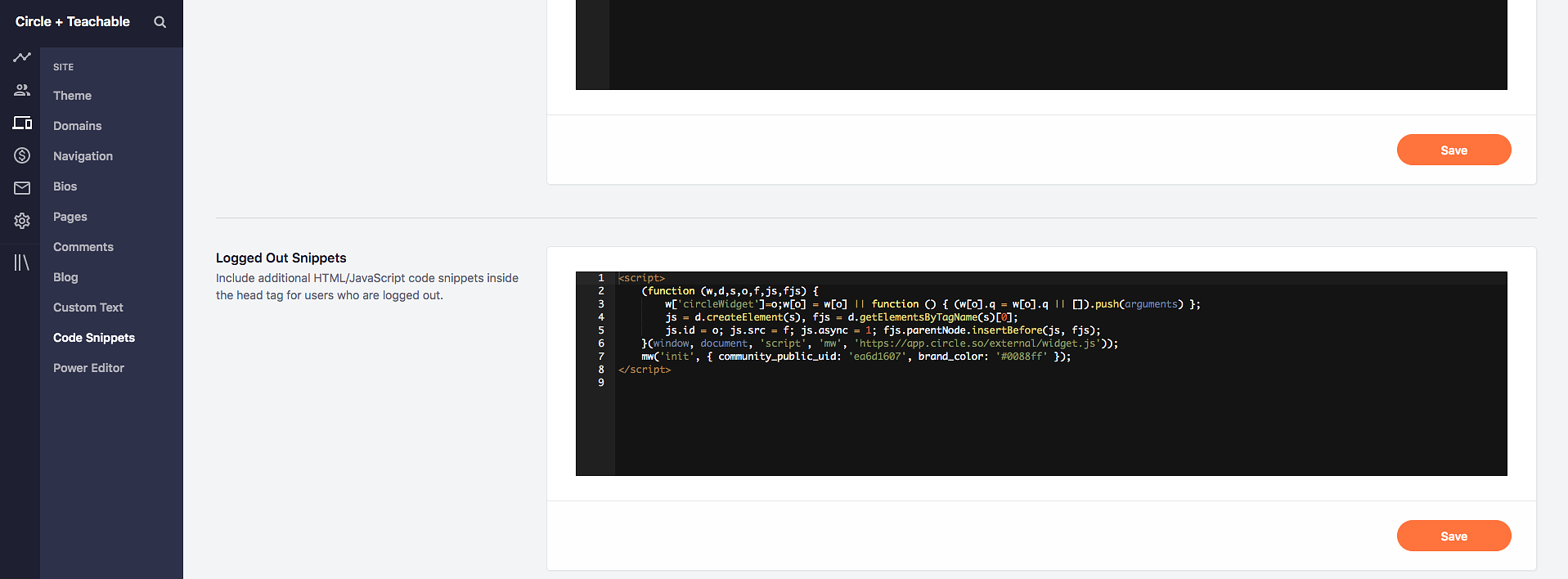
To find your custom embed code:
Click the community name or logo (or the dropdown icon next to it) in the top-left corner and select Settings.
Scroll down to the Community section and select Embed.
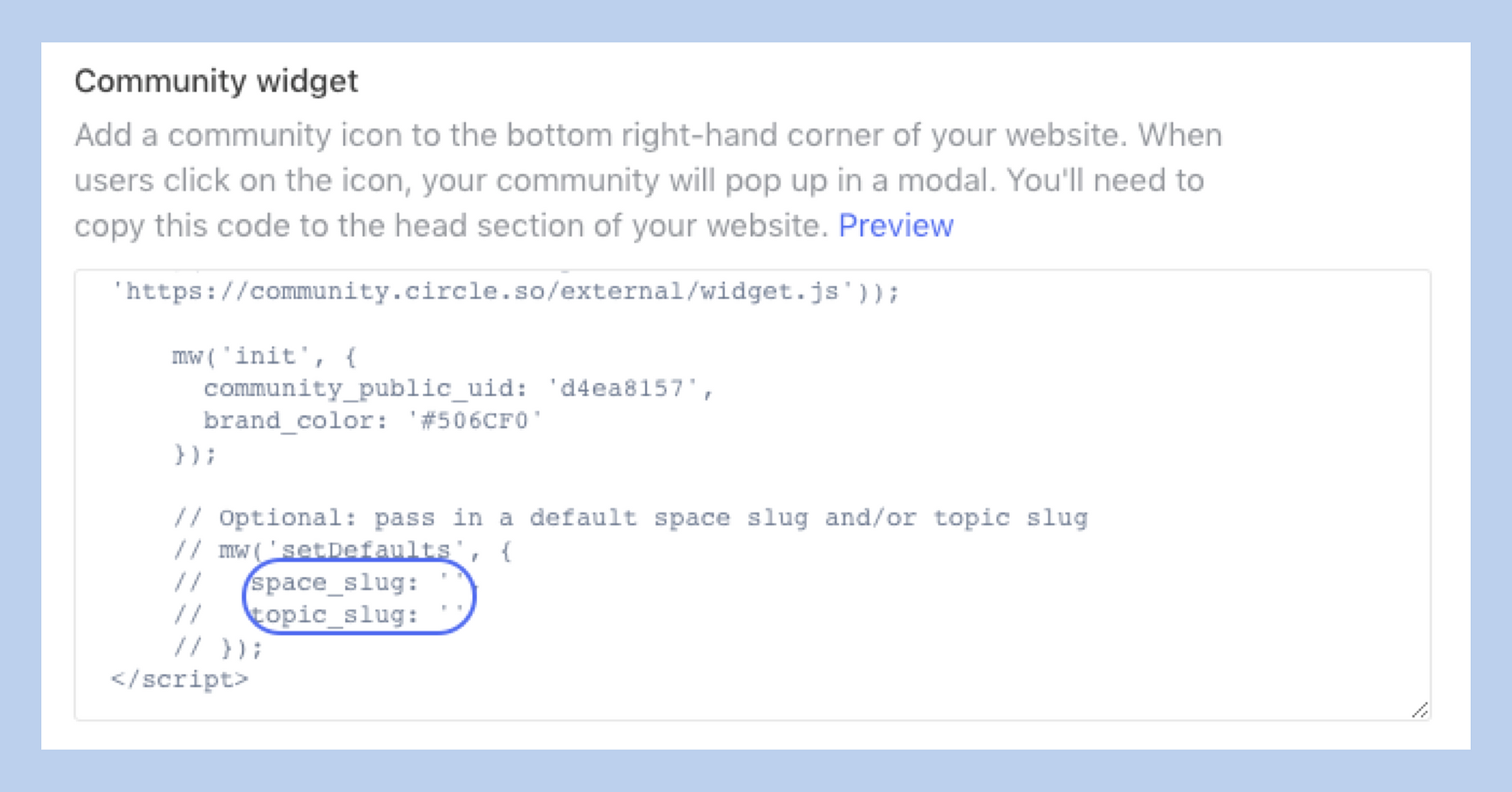
You can optionally specify a default space or post slug, otherwise, your community will land on the default space selected under Settings.
To find your space slug:
Click Community in the left sidebar, then select Spaces.
Hover over the space and click More actions (three dots) and select Edit space.
Navigate to Options tab.
Under the SEO section, you can find the Custom URL slug for the space.
To find your post slug:
Click Community in the left sidebar, then select Posts.
Hover over the post and click More actions (three dots) and select Edit post.
Click Settings (⚙) in the dialog header.
In the Settings dialog, you can find the Custom URL slug for the post.
You will want to make sure you:
Insert the slug between the ' ' characters
-
Remove the // characters before each line
Option 2: Embed a Space or Post on a Specific Course Page
Step 1: First, make sure that your space slug (Space → Edit in Circle) and Teachable's course "friendly URL" (Courses -> Course -> Information in Teachable) are the same.For example, your URLs should resemble the following: demo.teachable.com/p/onboardingdemo.circle.so/c/onboarding
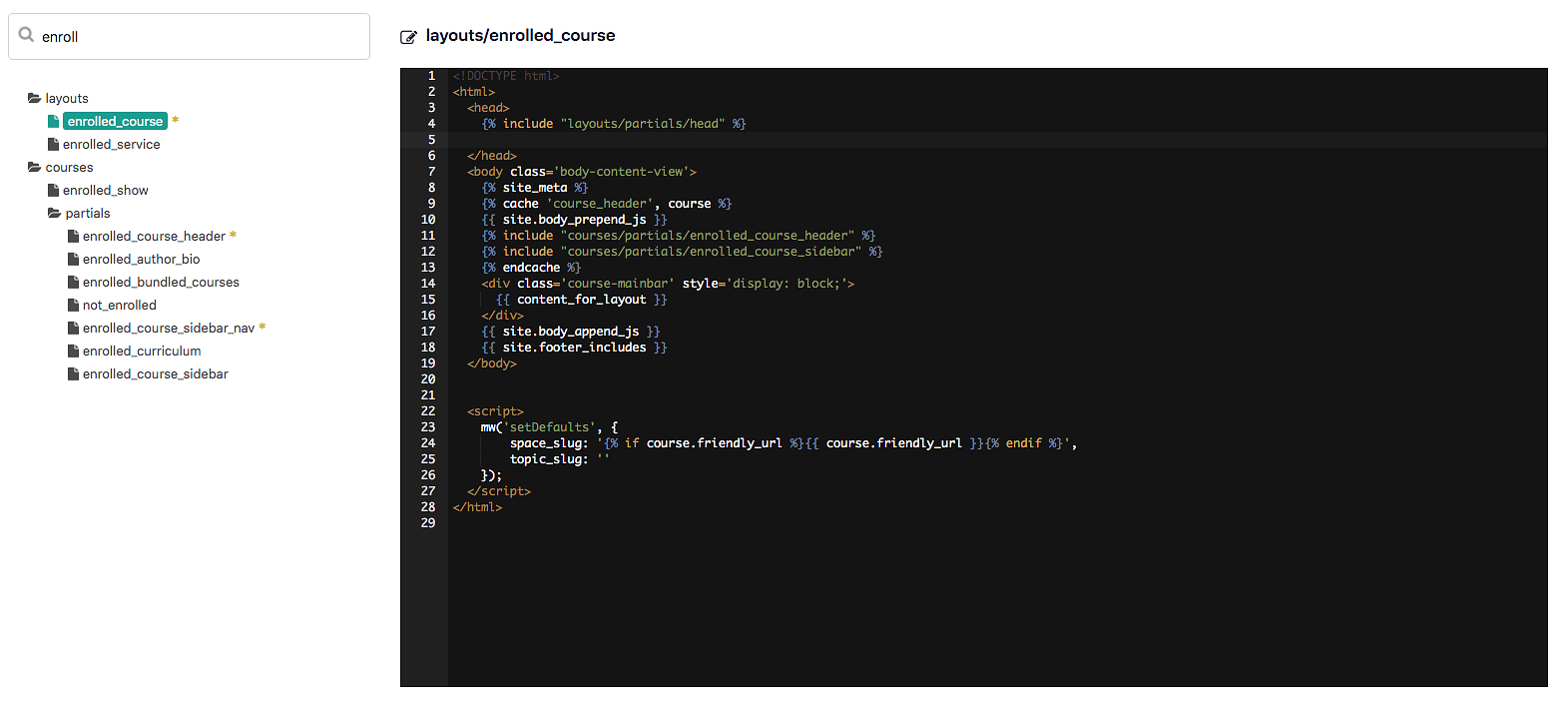
Step 2: Insert Community Widget into 'layouts/enrolled_course' templateNavigate to Admin → Site → Power Editor → Search for 'layouts/enrolled_course'.
You will want to use your Community Widget. Navigate back to Circle to copy your code. To do so:
Click the community name or logo (or the dropdown icon next to it) in the top-left corner and select Settings.
-
Scroll down to the Community section and select Embed.
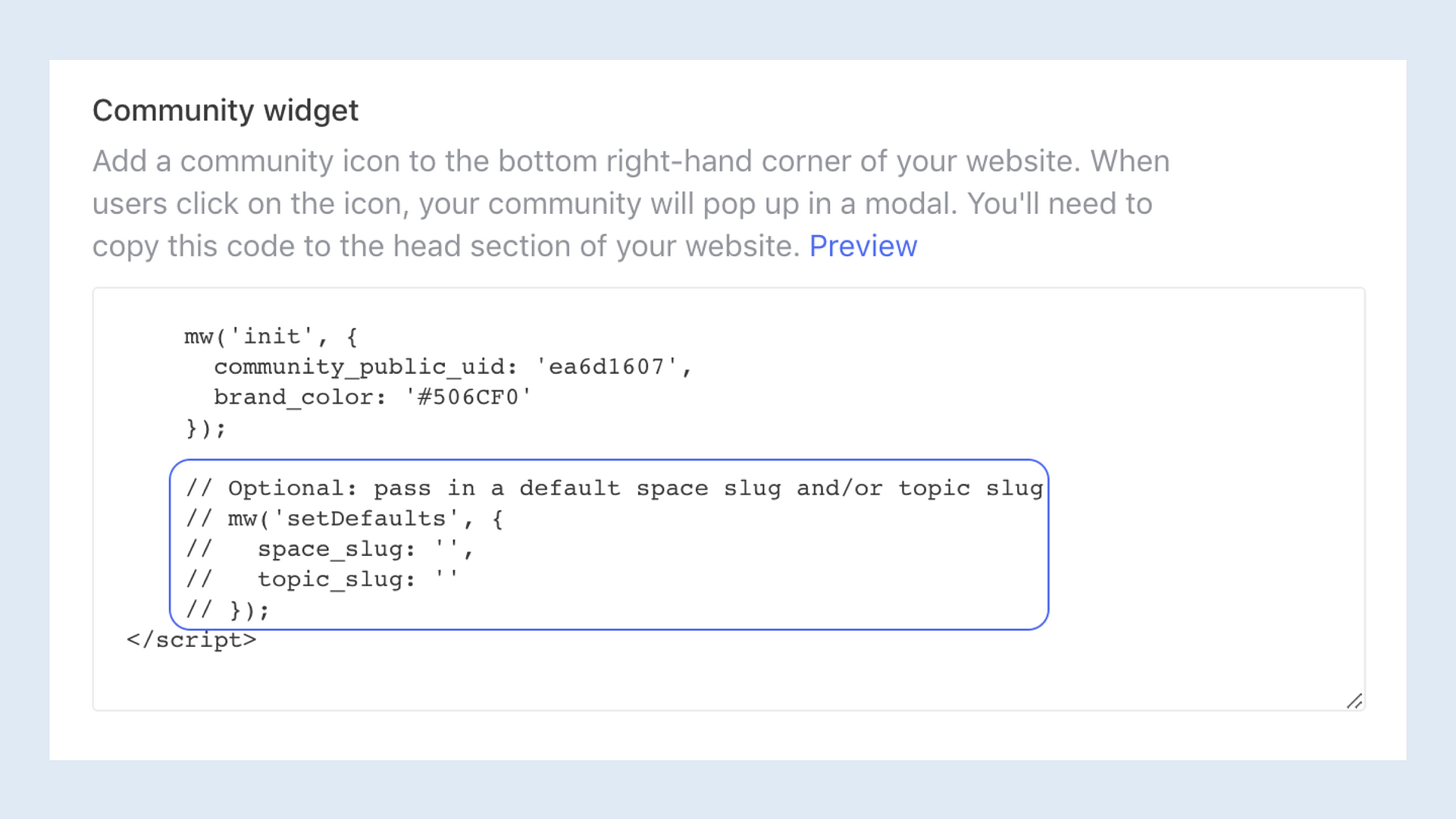
Replace the lines beginning with the "//" characters, with the code below:
    mw('setDefaults', {
    space_slug: '{% if course.friendly_url %}{{ course.friendly_url }}{% endif %}',
    post_slug: ''
    });
You can insert this code just before the </head> tag within Teachable. Hit Save and Publish when you're done!
Step 3: Copy and paste the code from Step 2 into the 'layouts/lecture' folder
Place this snippet right before your code begins:
{% if course.friendly_url == "insert-slug-here" %}Paste this snippet at the very end of your code:
{% endif %}Step 4: Save and publish your changes!
Option 3: Embed Post Comments on a Page
You can take engagement a step further and connect specific posts created in your Circle Community, to specific Teachable lessons. This is the perfect way to boost your community engagement and integrate those conversations natively.
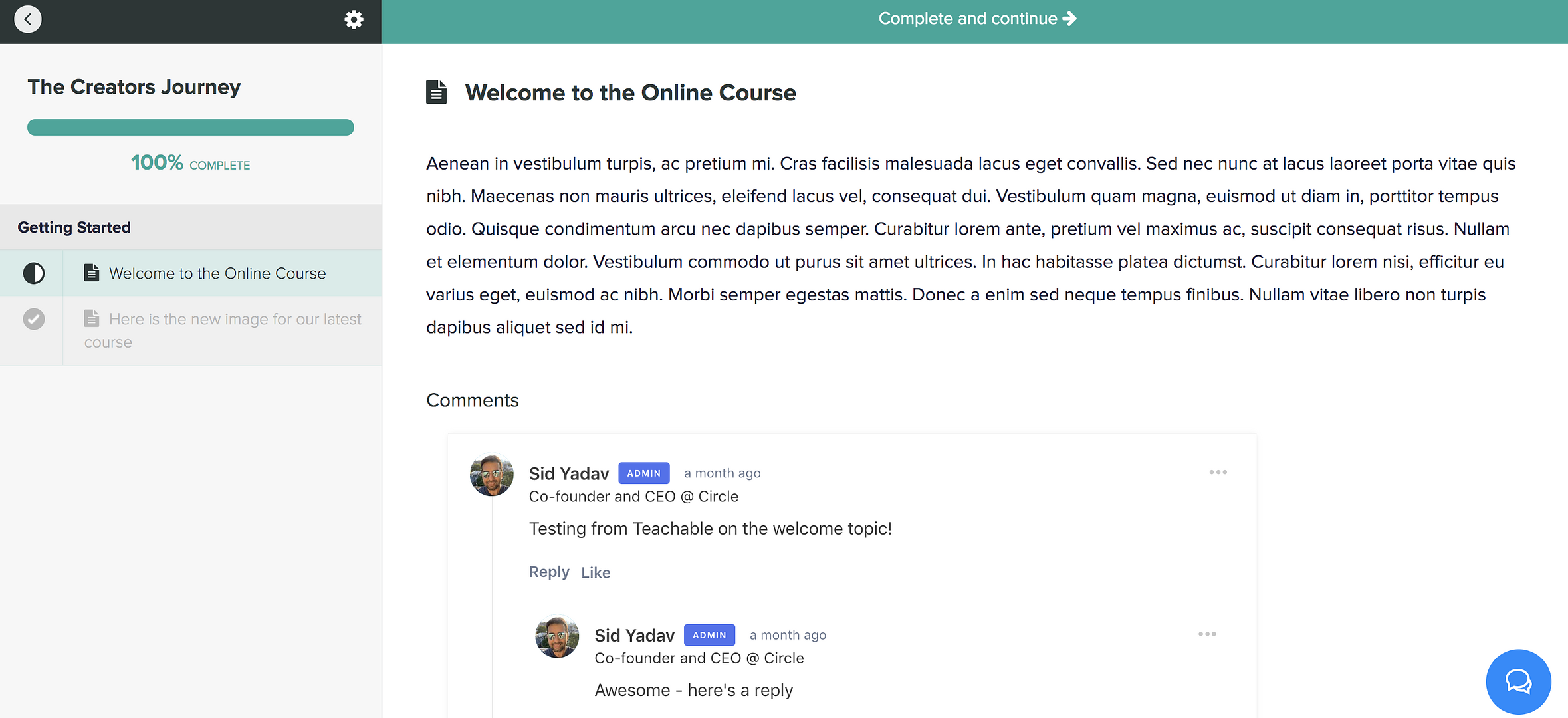
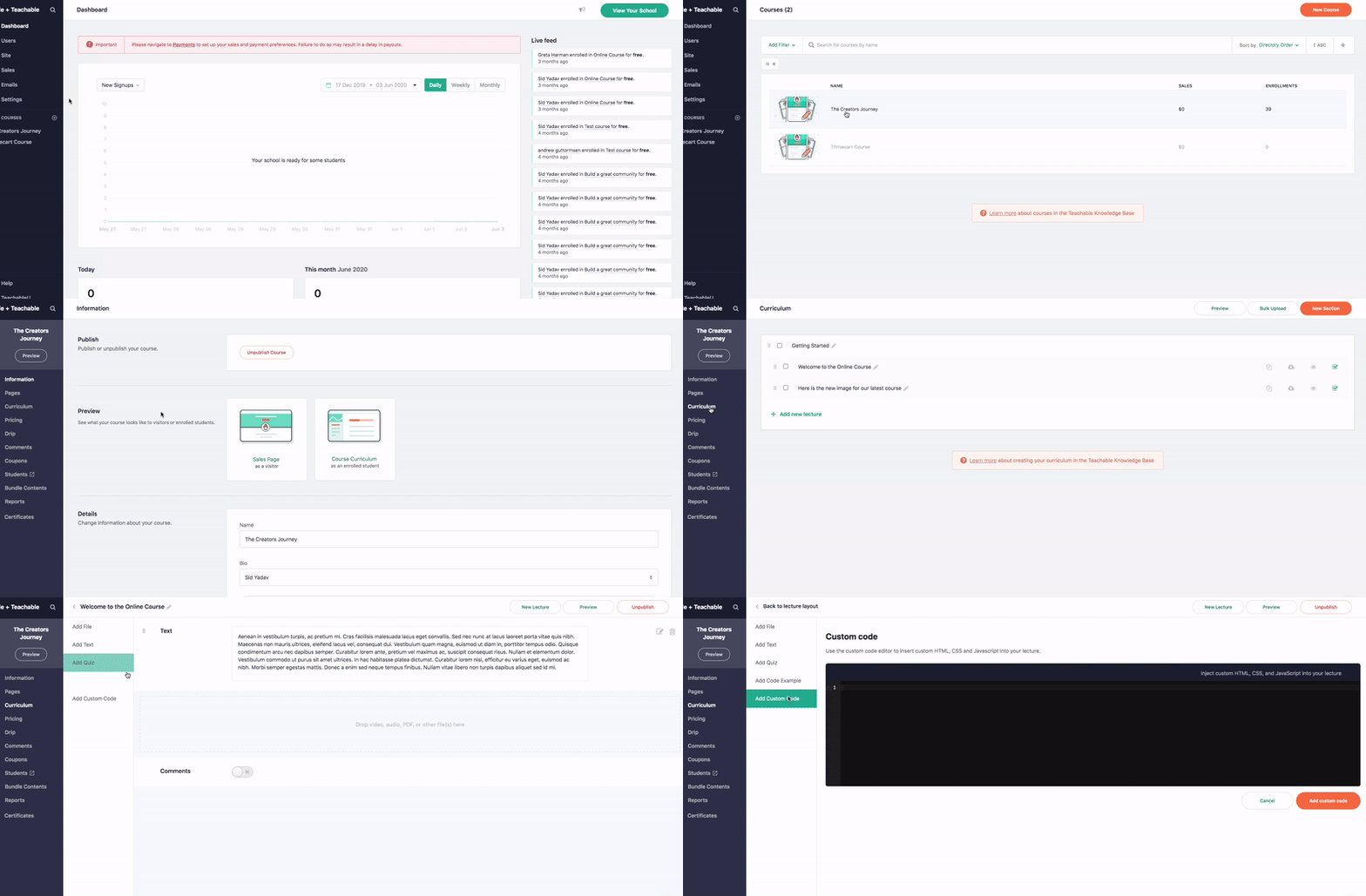
In Teachable, navigate to Admin → Courses → Lesson → Add Custom Code
To locate the custom code in Circle:
Click the community name or logo (or the dropdown icon next to it) in the top-left corner and select Settings.
Scroll down to the Community section and select Embed.
To find your post slug:
Click Community in the left sidebar, then select Posts.
Hover over the post and click More actions (three dots) and select Edit post.
Click Settings (⚙) in the dialog header.
In the Settings dialog, you can find the Custom URL slug for the post.
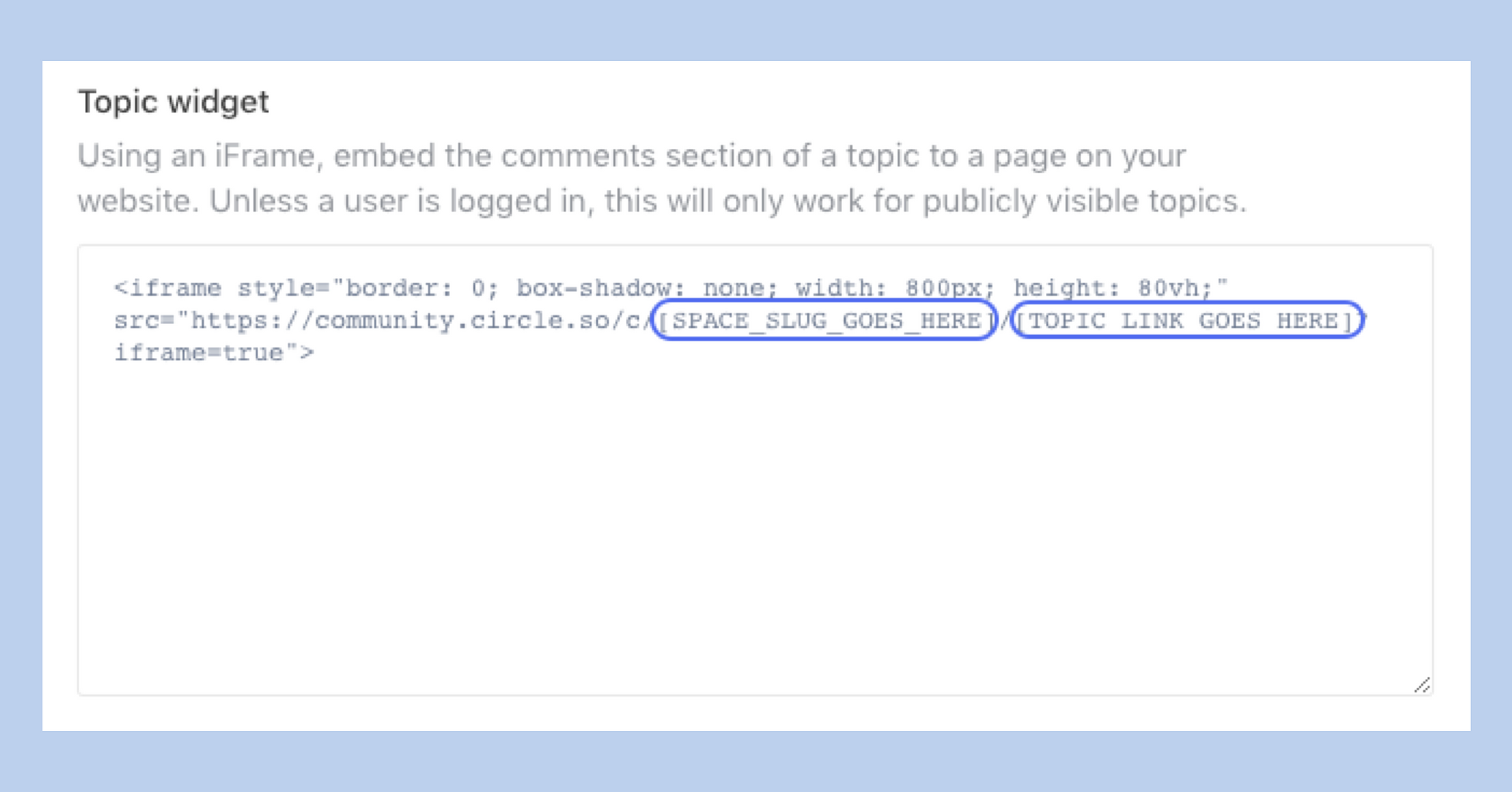
The post widget will allow you to embed a specific post to a lesson. All comments will appear across both platforms! If the post you are embedding is in a private space, a user will need to be logged in to Circle as well to view this within Teachable.