Connect my Circle post comments to Teachable lectures
Last updated: October, 2026
By dynamically loading your comments, you can easily associate comments from a specific Circle post to any Teachable lecture.
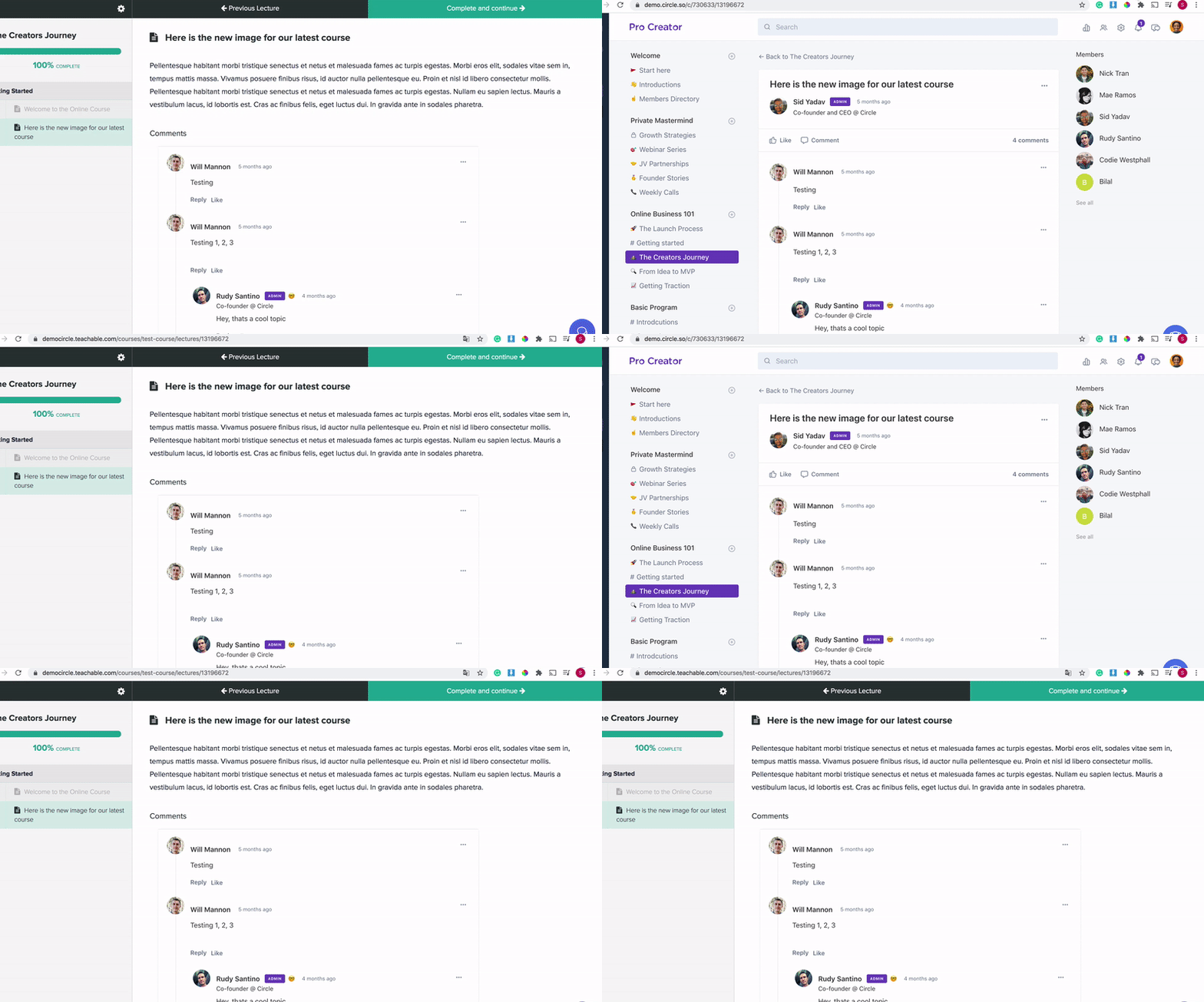
The key to making this work under any lecture where you'd like to implement this feature is to ensure that the Circle post slug and Teachable's lecture ID are identical. You'll also want to ensure that your Circle space slug and Teachable course slug are the same as well. For example, your URLs should resemble the following:
Teachable URL: democircle.teachable.com/admin/courses/730633/curriculum/lectures/13196672
Circle URL:demo.circle.so/c/730633/13196672
To implement this in your Teachable courses, complete all of the following steps:
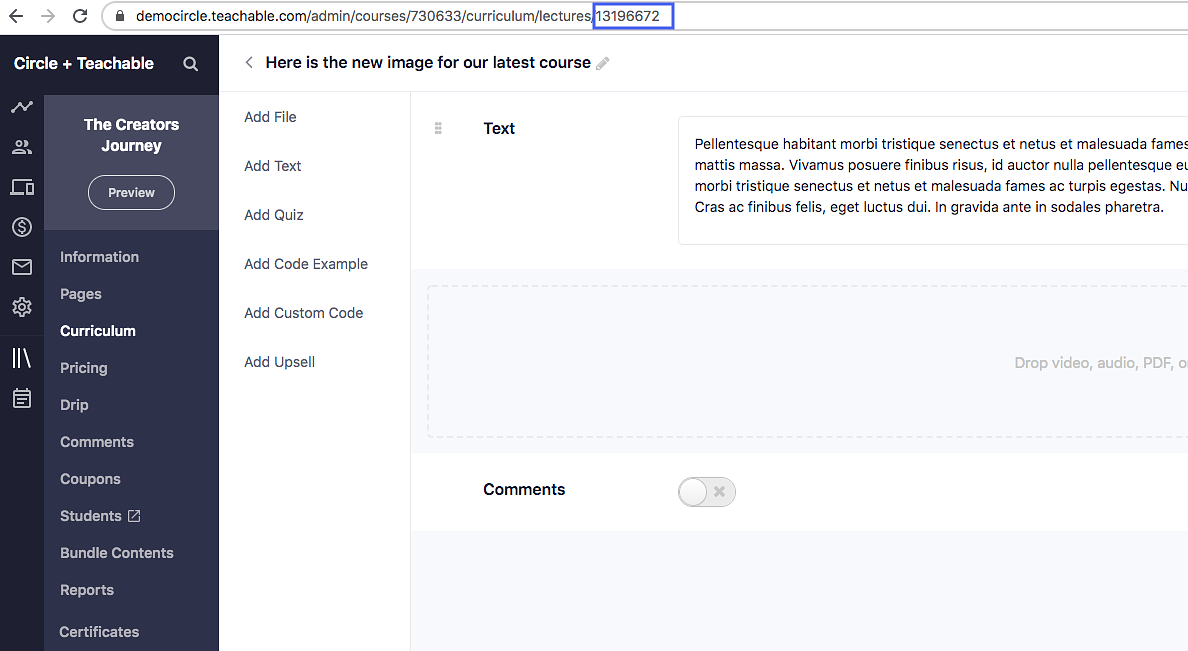
Step 1: Find your Teachable lecture ID
To find your Teachable lecture ID, navigate to Courses → Select Course → Curriculum → Click on the Lecture → Locate ID.
The ID is the set of numbers at the very end of the URL.
Step 2: Update your Circle post slug
To update your slug for a Circle post:
Click Community in the left sidebar, then select Posts.
Hover over the post and click More actions (three dots) and select Edit post.
Click Settings (⚙) in the dialog header.
-
In the Settings dialog, you can find and update the Custom URL slug for the post.
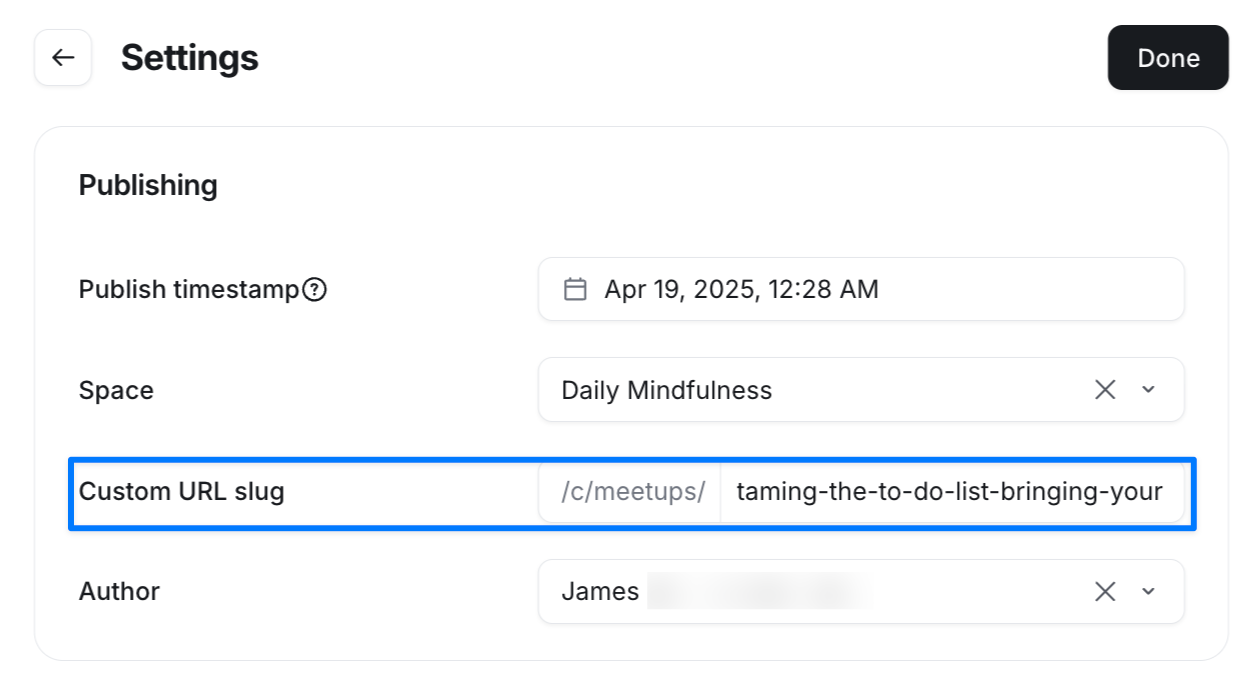
Paste your Teachable lecture ID here. Then click Done.
Going forward, you’ll want to make sure that when you add new lectures to your Teachable course, you create a Circle post with the same slug.
Step 3: Find your Teachable course slug
To find your Teachable lecture ID, navigate to Courses → Select Course → Curriculum → Locate ID.
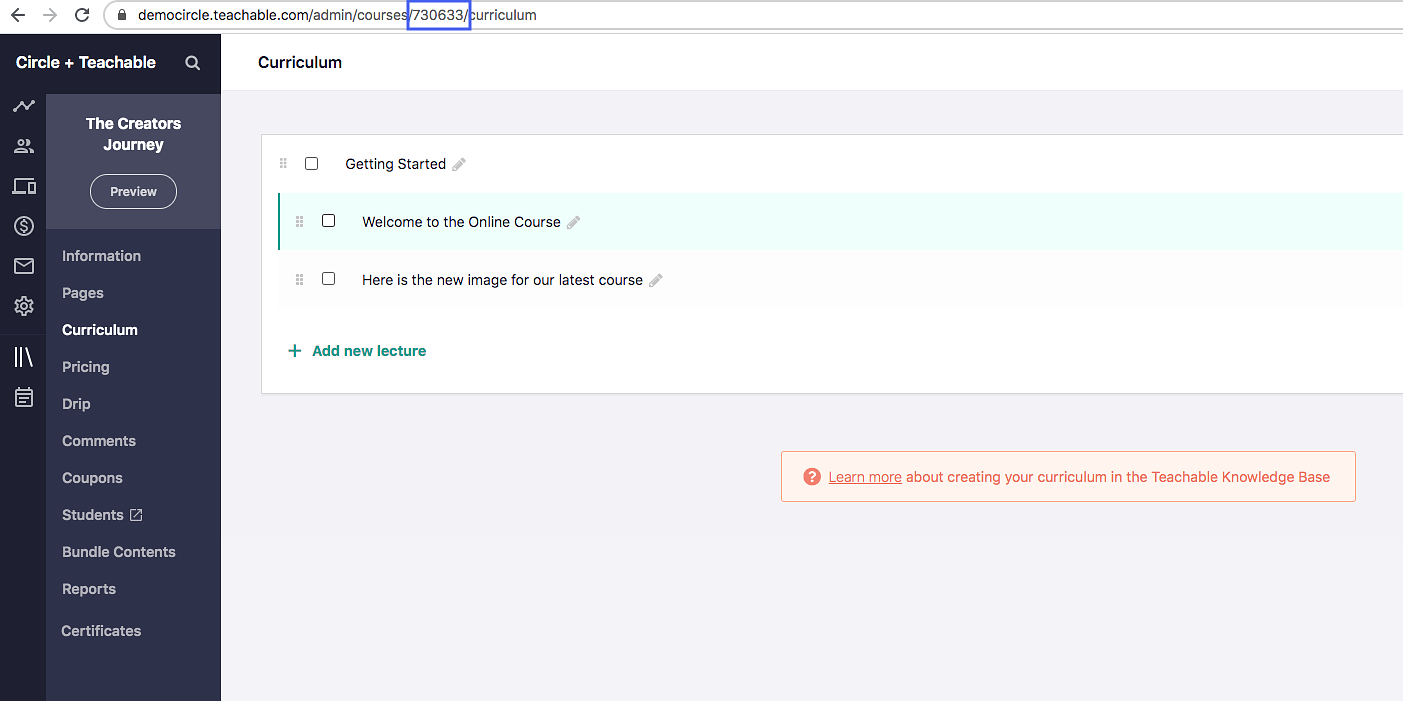
Copy the number located in the URL.
Step 4: Update your Circle space slug
In Circle:
Click Community in the left sidebar, then select Spaces.
Hover over the space and click More actions (three dots) and select Edit space.
Navigate to Options tab.
-
Under the SEO section, you can find the Custom URL slug for the space.
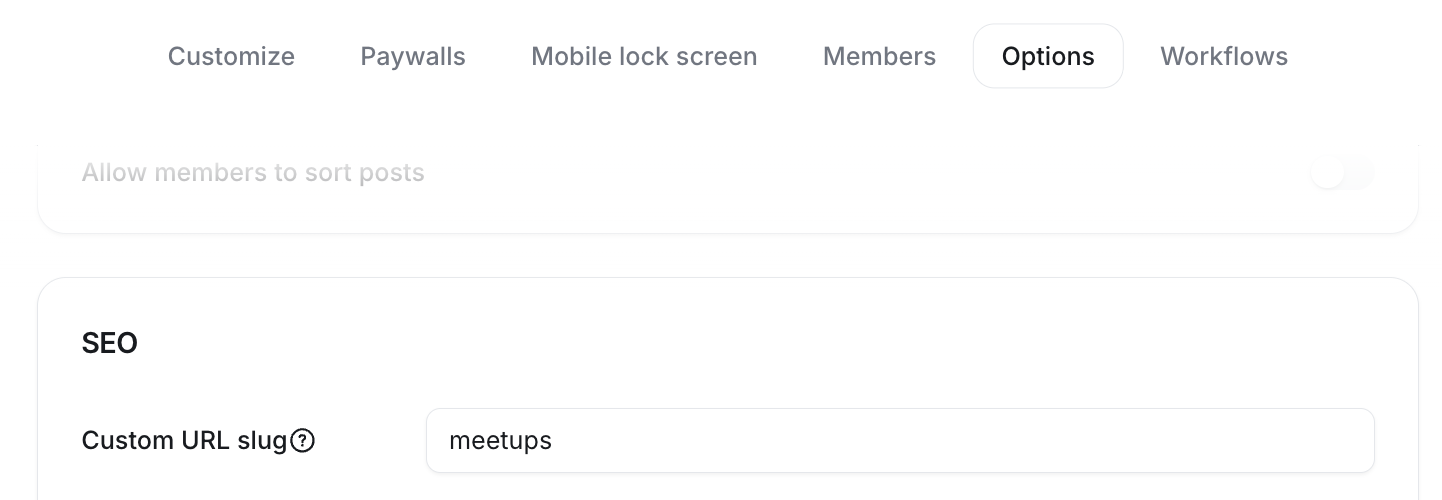
Here is where you will paste the curriculum ID that we found in Step 3!
Step 5: Insert your Circle post code into Teachable's Power Editor
Within Teachable, navigate to Admin → Site → Power Editor and search for the 'lectures/show' folder.
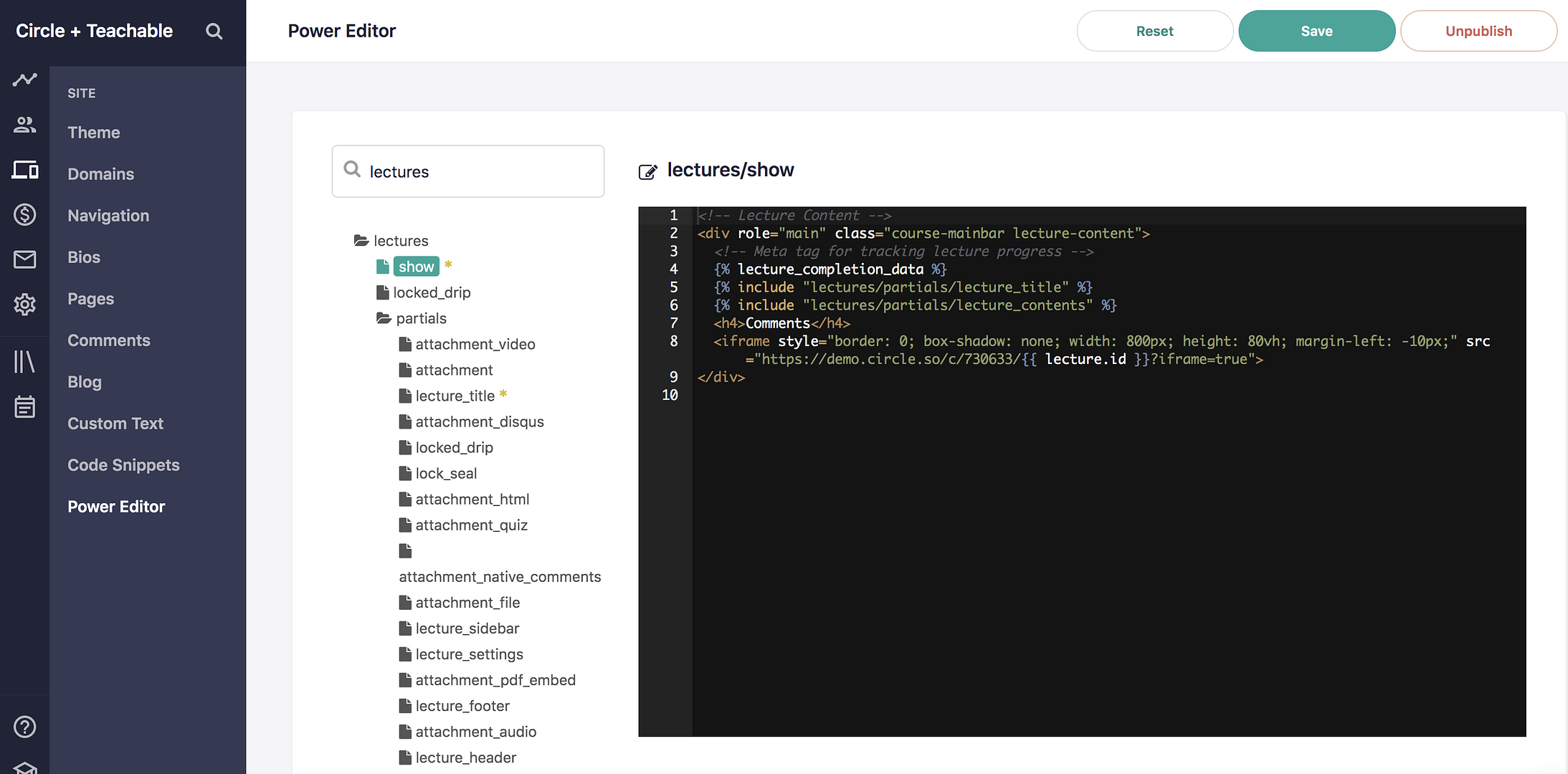
Just above the closing </div> tag you will want to copy and paste the following code. Replace [INSERT YOUR SPACE SLUG] with the Circle space slug that we modified in Step 4, and [INSERT YOUR COMMUNITY URL] with your community base URL Don't forget to remove the brackets!
It should look something like this:https://demo.circle.so/c/730633/13196672
{% include "lectures/partials/lecture_title" %}
  {% include "lectures/partials/lecture_contents" %}
  <h4>Comments</h4>
  <iframe style="border: 0; box-shadow: none; width: 800px; height: 80vh; margin-left: -10px;" src="https://[INSERT YOUR COMMUNITY URL]/c/[INSERT YOUR SPACE SLUG]/{{ lecture.id }}?iframe=true">
🏁 Click 'Save' in the Power Editor when you're done to make the update in your Teachable course.
💡 If you'd like to implement this for different courses, repeat steps 1-5 to make sure that your Teachable course slug and Circle space slug match, and to ensure the Teachable lecture ID and post slug match. When you copy and paste your code from step 5, simply update it with the new space slug!