Setup Circle & Teachable: An overview
Last updated: October, 2026
Teachable is a third-party online course platform where creators can sell, host, and deliver online courses. Circle offers a direct integration with Teachable.
This integration is available on all of Circle’s plans.
So how does the integration work?
There are really three steps you’ll want to take to integrate Circle and Teachable:
Setup Teachable SSO (single sign-on). You can easily let your Teachable students login to your Circle community with their Teachable account, instead of having them create a new account on Circle. This reduces friction for your students and allows a unified, seamless login experience for them.
Offer community features and discussions alongside your Teachable courses, so that you and your students can connect. You can embed Circle spaces, and posts inside of your Circle lectures. Or use Circle as a standalone community experience alongside your Teachable courses. Or both.
Seamlessly invite your students to access your Circle community. You may want certain students to have access to certain spaces in Circle. (For example, you might have dedicated spaces, just for specific courses or groups of students/members.)
This article reviews how to set up and manage the Circle integration with your Teachable school.
There are a few popular use-cases for using Circle and Teachable together:
Offer a standalone community home for your students alongside your courses on Teachable.
Create a community that connects to your courses — embedding Circle community features directly inside your courses.
Create a membership, which includes monthly access to your courses on Teachable, coaching, and Circle community.
Offer cohort-based courses, interaction between lessons, alumni groups for your students, and more.
To use this integration, you’ll need to have a Teachable account. As a Circle customer, you can sign up for a Teachable plan at a discounted rate by signing up directly via this link.
Step 1: First, we recommend setting up SSO (single sign-on) between Circle and Teachable
Once you have signed up for a Teachable account, you will be able to set up the integration with your school and enable single sign-on (SSO) for Circle. This reduces friction for your students and allows a unified, seamless login experience.
Your Teachable students and members will not need a separate account or login credentials to access your Circle community space—they can automatically access the Circle community once they are logged in with their Teachable account. The SSO integration works for both myTeachable and non-myTeachable schools.
Once you set up the integration between your Teachable school and your Circle community, users cannot sign up for your Circle community directly. They must use their account in your Teachable school to sign up and access the community.
📚 Here is a step-by-step walkthrough for setting up Single Sign On with Circle and Teachable.
Step 2: Optionally, you can embed discussions from Circle directly inside Teachable.
You may prefer to offer Circle as a standalone community alongside of Teachable. Where your students access part or all the Circle community. You can offer them different access to different parts of the community, depending on which courses or programs they’ve enrolled in.
In the case above, you may not need Circle to be embedded directly into your Teachable school. This is common.
However, sometimes you might want to embed specific discussions from Circle directly underneath the lectures on your Teachable courses.
📚 If you’d like to learn more and set this up, here’s a step-by-step walkthrough for how to implement this.
Step 3: Invite your members to Circle.
One of the most common ways to invite your Teachable students or members to join and access your Circle community is through the use of invitation links.
To use an invitation link to invite your members:
Click Audience in the left sidebar, then select Invite links.
Click New invite link in top-right corner and fill out the Name, Spaces, and Space groups fields according to your preferences. For more information on spaces and space groups, check out our support documentation here.
Then, click Create. Upon creation, a link URL will be created that can be copied. These URLs will continue to exist unless you choose to edit or delete them.
You can then copy the invitation link and paste it onto any specific page, course lecture, or coaching space across your school. You can also include it in a confirmation email when a student enrolls in a course, and tell them to accept the invitation to get access to the community.
We provide a few other options for adding members to your community on Circle. For example, you can use our member invitations feature to directly invite members by adding individual emails or in bulk, or can use Zapier to automate invitations.
📚 For more information on alternative methods for inviting users to your community, refer to our support documentation on this topic or contact our support team directly at support@circle.so.
The student experience
If a user does not yet have an account in your Circle community, they will be prompted to set up their profile details the first time they click on your Circle invitation link.
Clicking your invitation link will lead the student to the Teachable login page (if they are not logged in already). After successful login, it will navigate to the Teachable <> Circle authorization page, where they will have to click Authorize to access the community.
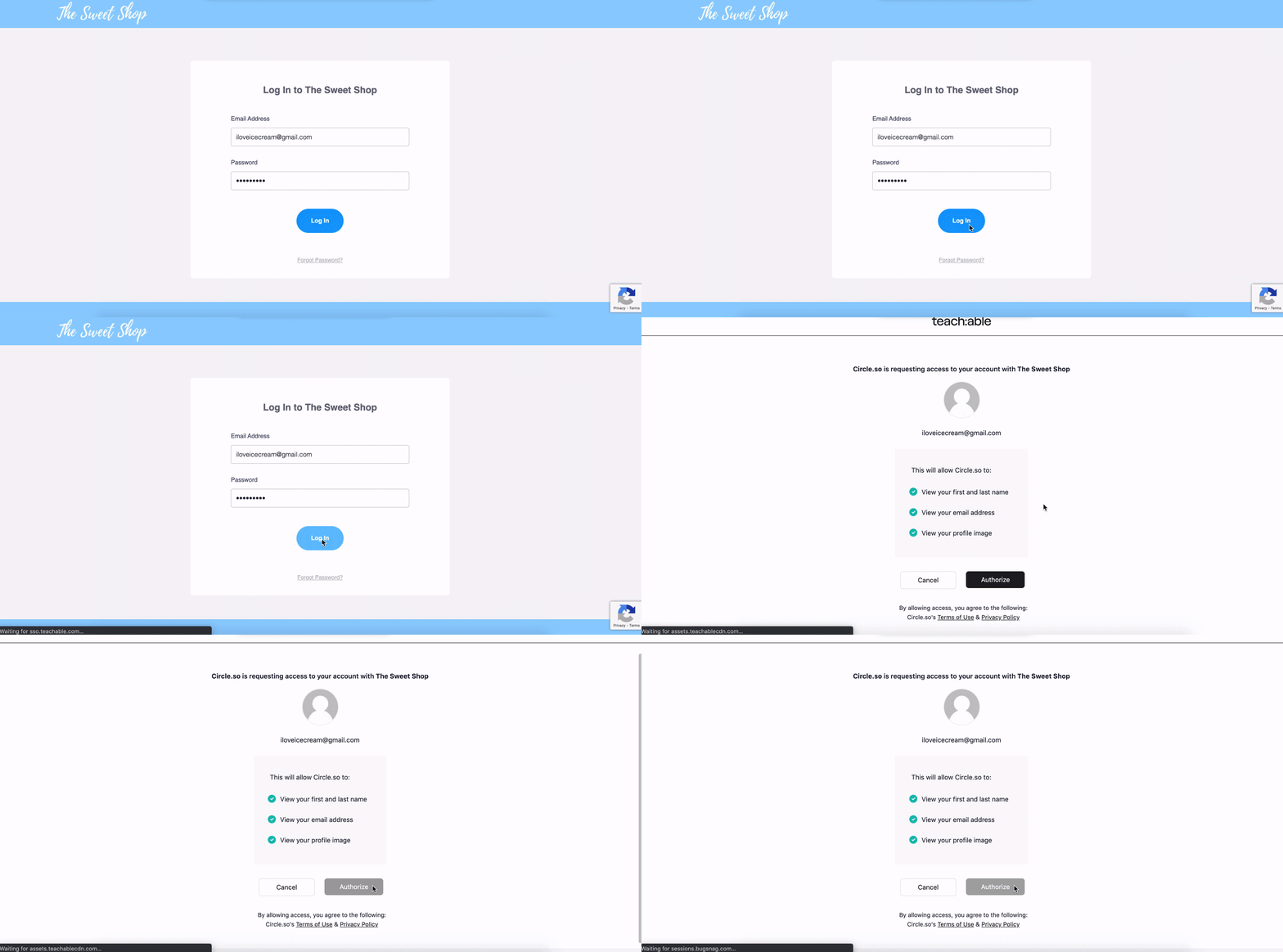
It’s important to note that users who do not have an account in your Teachable school will also be directed to the Teachable login page when clicking your Circle link.
If you would like to provide an option for students to create an account in your Teachable school directly on the Teachable login page, you can toggle on the Sign Up button from your Teachable Site > Navigation > Navigation Bar menu.
Once they’ve created an account on Teachable, the student will be redirected to your Circle community with an action to authorize Teachable to be used for Circle.
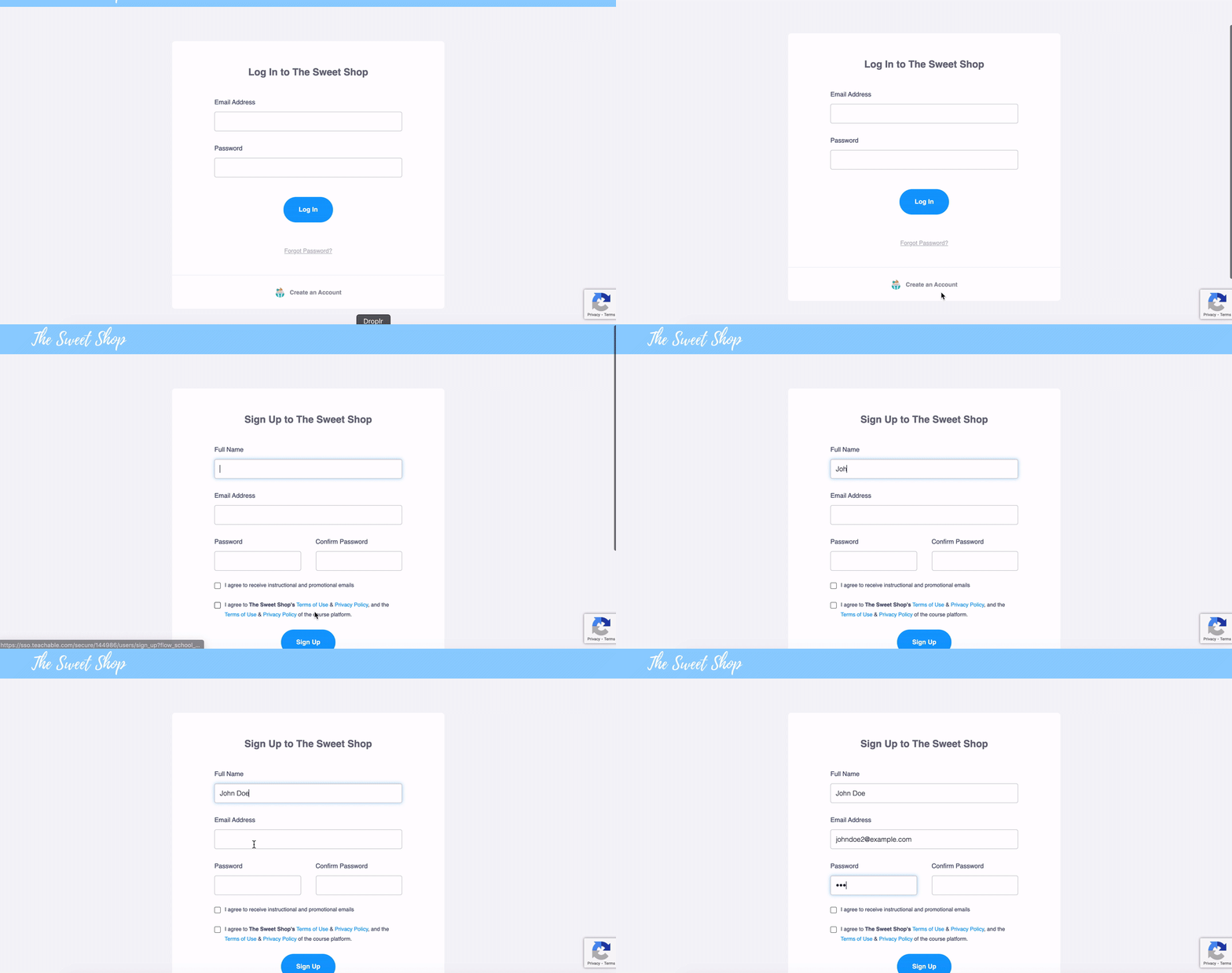
If you prefer to limit community access to those with course enrollments, you can keep the Sign Up button toggled off from your Teachable Site > Navigation settings.
Once they have set up their profile in your Circle community, any time they click your Circle community link they will be prompted to login via their Teachable account credentials (if they are not currently logged in). Once they login via their Teachable credentials, they will be redirected to your Circle community.
As always, if you have any questions about how this integration works, please reach out directly to support@circle.so.