Get to know the Circle MCP
Last updated: October, 2026
MCP overview
MCP (Model Context Protocol) is an open standard that lets AI tools connect to external platforms and services. When an AI tool like Claude or ChatGPT supports MCP, it can read data from and take actions on connected platforms without requiring code or custom integrations.
Think of it as a universal connector, instead of building separate integrations for each AI tool, MCP provides a common way for AI to talk to the platforms you already use.
About the Circle MCP
Circle’s MCP connects your AI tools with your Circle community. Once connected, you can ask questions about your community and take actions directly from your AI tool of choice.
The Circle MCP is built on the Admin v2 API, which means anything available through the API is also available through MCP. This includes:
Asking questions about your community such as How many members do I have? or "What are my most engaged spaces?
Performing actions like inviting members, commenting on a post, or sending a DM without navigating to the community.
Chaining multiple tools and platforms together. For example, inviting your Hubspot contacts to Circle.
Availability
MCP is an admin-only feature and available to communities on the Business plan and higher.
Billing
Similar to the Circle Admin API, every action the AI takes counts as one API request against your community's monthly limit. For more information on API billing and overages, see Understanding and managing your API billing.
You can also monitor your usage from the Developers section in your community. For more information, please see Monitor your API usage.
Key things to know about MCP billing:
When interacting with your community through your AI tool, each prompt consumes one API request (for example, “Show me all members” counts as one request, and a follow up prompt to delete specific members from that list counts as another request).
There is a rate limit of 2,000 requests per 5 minutes.
If you hit your monthly limit, the AI will let you know that it can't complete the action.
Connecting Circle MCP with your AI tools
You can connect Circle to any AI tools that support MCP, such as Claude, ChatGPT, Cursor, Visual Studio Code, and Windsurf.
In this section, we’ll explore how to connect Circle MCP with Claude and ChatGPT. For advanced setup, please refer to our developer guide.
❗️Important: The email you use to sign in to your AI tool must match the admin email for your Circle community. For example, if your Circle admin account uses admin@community.com, your Claude account must use this same email. This allows your tools to authenticate and communicate with your community.
Connect Circle MCP to Claude (web and desktop)
Connect Circle’s MCP with Claude using an individual Pro or Max plan:
Click Customize in the left sidebar menu and then select the Connectors tab.
Click the Add (+) icon and select Add custom connector.
Enter “Circle” for the connector name.
Enter the Circle MCP URL: https://app.circle.so/api/mcp
Click Add.
Once you’ve added Circle as a connector, it will appear in your connectors list. Follow these steps to complete the setup:
Select Circle from the connectors list and click Connect.
You’ll now see a list of all the communities linked to your admin email.
-
Select the community you’d like to connect and choose from the two access level options:
Read only: Select this option to only allow Claude to view community data (analytics, members, spaces and posts). Not make any changes.
Full access: Select this option to give Claude the ability to read and modify content.
Click Authorize.
Connect Circle’s MCP with Claude using Team or Enterprise plans:
If you’re on a Team or Enterprise Claude plan, an owner must first add the connector to the account. To do this as an owner:
Sign in to Claude on web or desktop.
Open Organization settings and select Connectors.
Select Add → Custom → Web.
Enter the Circle MCP URL https://app.circle.so/api/mcp and click Add.
Once Circle is added as a connector, follow the steps above to select it from the connectors list and authorize your account.
📚 To learn more about connectors with Claude, see Get started with custom connectors using MCP.
Manage your permission settings
After connecting Circle’s MCP, you can control how your AI tool is allowed to use specific actions. To access these settings, go to Settings → Connectors → Circle in Claude and click Configure.
You can configure permissions at the category level or for each individual action.
Always allow: Claude can take this action without asking for approval each time.
Needs approval: Claude will ask before taking the action.
Blocked: Claude cannot take this action.
Custom: Configure the permission level for each tool individually.
For example, you can set Read-only tools to Always allow so Claude can look things up without interrupting you, and set Write/delete tools to Needs approval **so Claude asks before making any changes to your community.
Connect Circle MCP to ChatGPT
Custom MCP apps in ChatGPT are currently in beta and require Developer mode to be enabled before you can add them. Follow these steps to enable developer mode and connect Circle with ChatGPT:
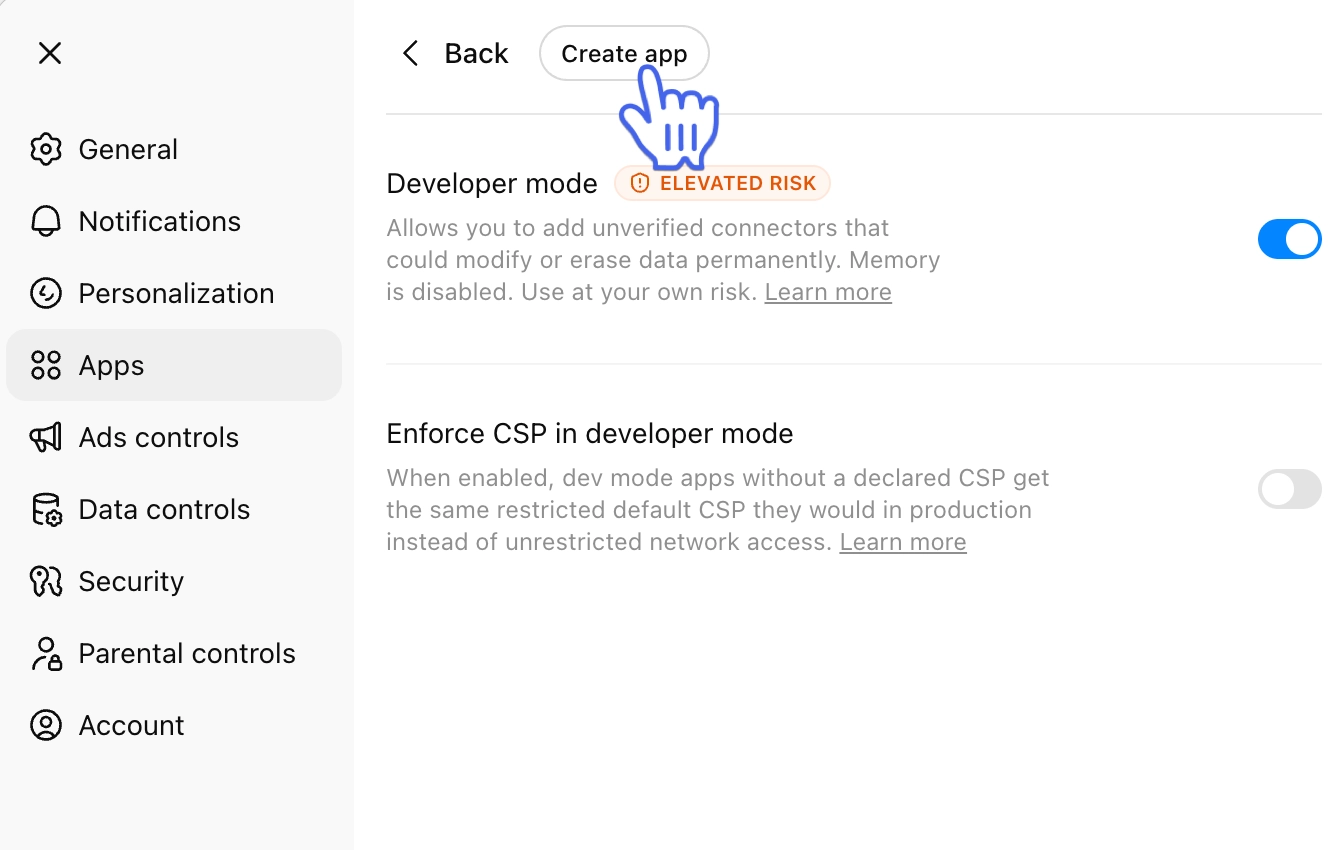
Sign in to ChatGPT and navigate to Settings → Apps → Advanced Settings.
Toggle on Developer mode.
-
With developer mode toggled on, you will now see a Create app button in the header.
ℹ️ Note: If you're a workspace admin, go to Workspace Settings → Apps → Create instead.
-
Click Create app and enter the following details in the New app dialog:
Name: Circle
MCP Server URL: https://app.circle.so/api/mcp
Authentication: OAuth
Click Create.
You’ll now see a list of all the communities linked to your admin email.
-
Select the community you’d like to connect and choose from the two access level options:
Read only: Select this option to only allow ChatGPT to view community data (analytics, members, spaces, and posts). Not make any changes.
Full access: Select this option to give ChatGPT the ability to read and modify content.
Click Connect.
For workspace admins
After creating the app, it will appear as a draft in Workspace Settings → Apps. Before your workspace can use it, you'll need to review and publish it.
You can also configure which actions the app is allowed to take before publishing. Once you're ready, click Publish to make it available to your workspace.
📚 If you experience any issues with your ChatGPT account, see Developer mode and MCP apps in ChatGPT.
What you can do with Circle MCP
The actions available to your AI tool depend on the permission level you selected when connecting your community.
View and explore (Read-only and Full access)
Browse members, spaces, posts, events, courses, and tags
Search for specific members or content
View analytics, form submissions, and live room transcripts
Get AI-generated summaries of space activity
Create and manage (Full access only)
Invite, update, or remove members
Create, edit, or delete posts, comments, and events
Set up courses, sections, and lessons
Send direct messages and chat messages
Manage tags, segments, and access groups
Upload files and images
Frequently asked questions
Is it safe to give an AI tool access to my community?
When connecting your community, you choose the level of access the AI tool receives:
Read Only: The AI tool can view community data, members, posts, spaces, and other resources, but cannot make any changes.
Full Access: The AI tool can both read and modify community content.
This means that even if an AI tool makes an unexpected call, it's limited to only what you've explicitly permitted at the Circle level.
Can multiple admins connect their own AI tools?
Yes, each admin can connect with their own account and pick their own access level.
I’m an admin of more than one community on Circle. Can I connect multiple communities to my AI tool?
You can only connect one community to your AI tool at a time. To link a different community, disconnect the current one first, then select a new community when reconnecting.
The AI says it can't perform an action, what do I do?
There are two reasons your AI tool may not be able to complete an action:
Access level: If you’ve configured the connector with Read only access, your AI tool will not be able to perform write actions such as inviting members, creating spaces or publishing a post. In this case, disconnect and reconnect the MCP with Full access.
API credit limit: You may have hit your monthly credit limit. You can review your usage from the Overview section of the Developers page in your community.