Automatically remove the member's access from paywalled content after the trial ends
Last updated: October 15, 2025
You can use Stripe’s failed payment configuration to control how strictly or leniently failed payments are retried. This determines how quickly members lose access to paywalled content after a trial or recurring payment fails.
Before you start
Updating your failed payment configuration affects trials, active subscriptions, and installment plans across all paywalls connected to your community. If you set a stricter retry policy, it will also affect active recurring subscriptions and installments.
Circle has automated notifications to help notify members who have signed up for trial paywalls. Stripe also provides an option to send an email notification to members before their trial ends. For more information, see our guide on paywall notifications here.
How to access the subscription and email settings
To access the subscription and email configuration settings, follow these steps:
-
Navigate to your Stripe account dashboard that is connected to your community paywalls.
❗Important: If you have multiple businesses under your account on Stripe, please ensure that you are viewing the correct business dashboard. You can switch between your businesses by clicking the business name in the top-left corner and selecting the one connected to Circle paywalls.
Click the Settings (Gear icon) in the top right corner to navigate to the menu.
Select Billing and then click Subscriptions and emails. Alternatively, go directly to this link: https://dashboard.stripe.com/settings/billing/subscriptions.
Set a retry schedule
You can set a retry policy in Stripe to control how many attempts it takes before member access to paywalled content is removed.
If you prefer a lenient approach, you can configure multiple retries over several days up to 27 days using a custom policy or up to 2 months using Stripe’s Smart retry policy.
If you want to revoke access quickly, select the 1 day after the previous attempt option under a custom retry policy. With this setup, Stripe retries the charge once, one day after the initial attempt.
To configure this:
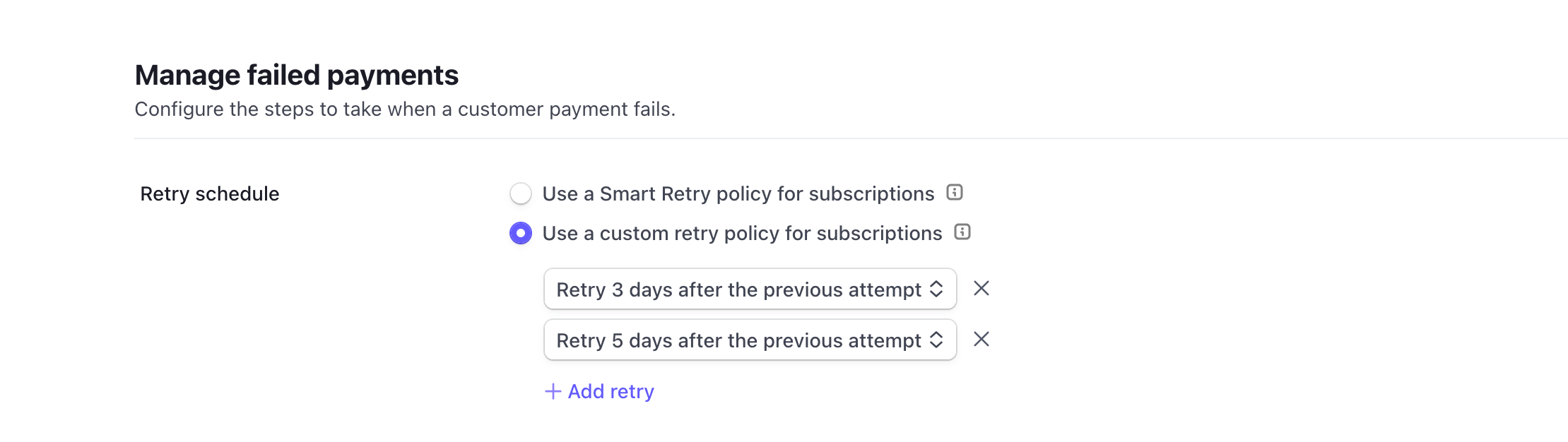
Navigate to the Manage failed payments section.
Select the Use a custom retry policy for subscriptions.
-
Select one of the policies and set up the preferred retry schedule.
Remove any additional retries by clicking the X icon next to it.
Click Save.
📚 For a detailed guide on Stripe’s failed payment settings and customer emails, see Set up failed payment settings and customer emails in Stripe.
Set subscription status after failed payments
Next, you’ll define what happens after all retries fail.
In the same Manage failed payments section, navigate to Subscription status.
From the dropdown, select Cancel the subscription when all retries fail.
This ensures Circle can automatically revoke access to paywalled content as soon as the trial, subscription, or installment plan is canceled in Stripe.
Automate workflow actions for trial cancellations
In addition to configuring Stripe settings, you can also automate what happens when a member’s trial ends or is canceled.
For example, you might want to:
Add them to free content: Keep them engaged with free spaces so they can stay connected with your community even after the trial ends.
Add a tag: Assign a tag to members who didn’t convert after their trial (for example, “Trial ended”) so you can easily track or retarget them later.
Send them an email or DM: Reach out personally to ask for feedback, understand why they didn’t continue, or offer help to reduce churn.
Remove them from your community (deactivate their account): Keep your member list clean and ensure that only subscribed members retain access.
To set this up, use the Ended trial without subscription event as your trigger and choose your preferred actions.
📚 To learn more about automation workflows, see Set up a custom automation workflow.