Mute participants
Last updated: September, 2026
To maintain smooth, focused live sessions in your community, you can mute members' microphones when necessary. This article will guide you on muting microphones both during setup and throughout your live stream or room session.
Mute all participants when they join a live session
When scheduling a live stream/room event or initiating an instant live, you can choose to automatically mute all co-hosts or participants when they join a live session.
After joining the live session, participants can unmute themselves. If you would like to mute all participants anytime during the live session, please see the following section.
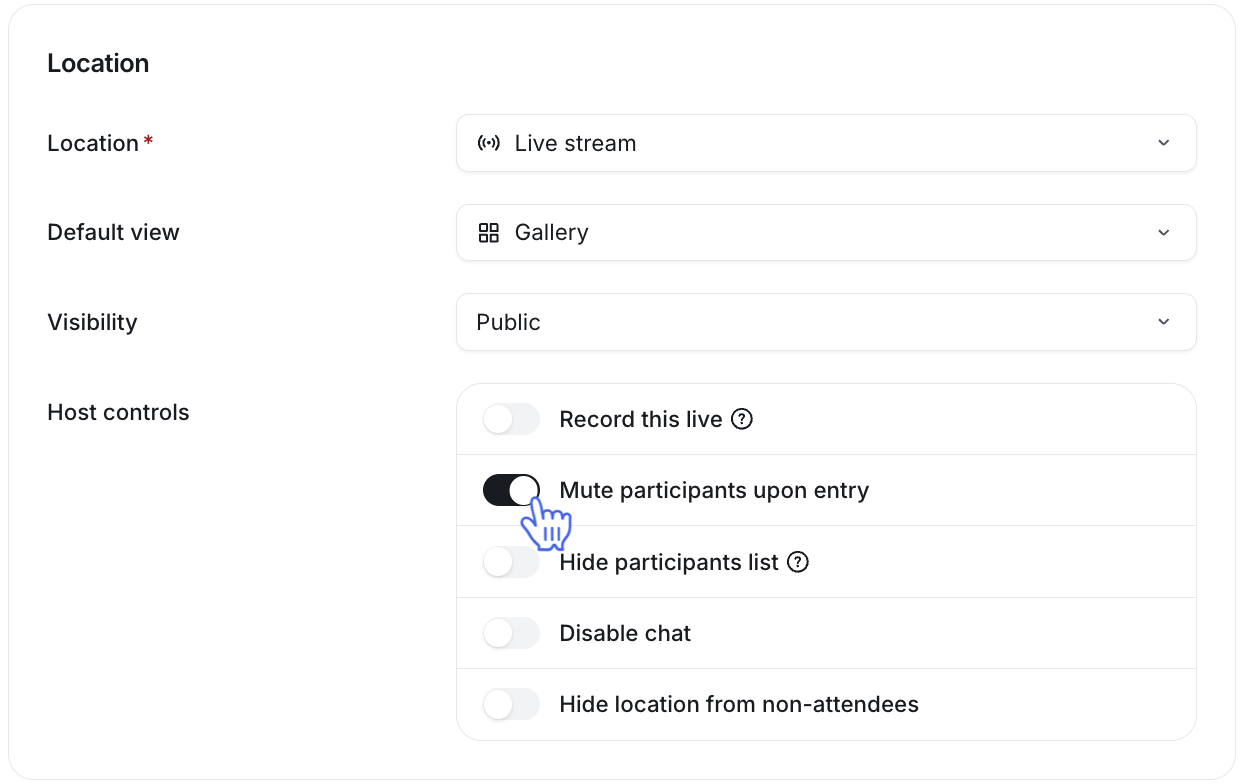
To mute all participants when setting up the live event, turn on the Mute participants upon entry toggle in the Location section.
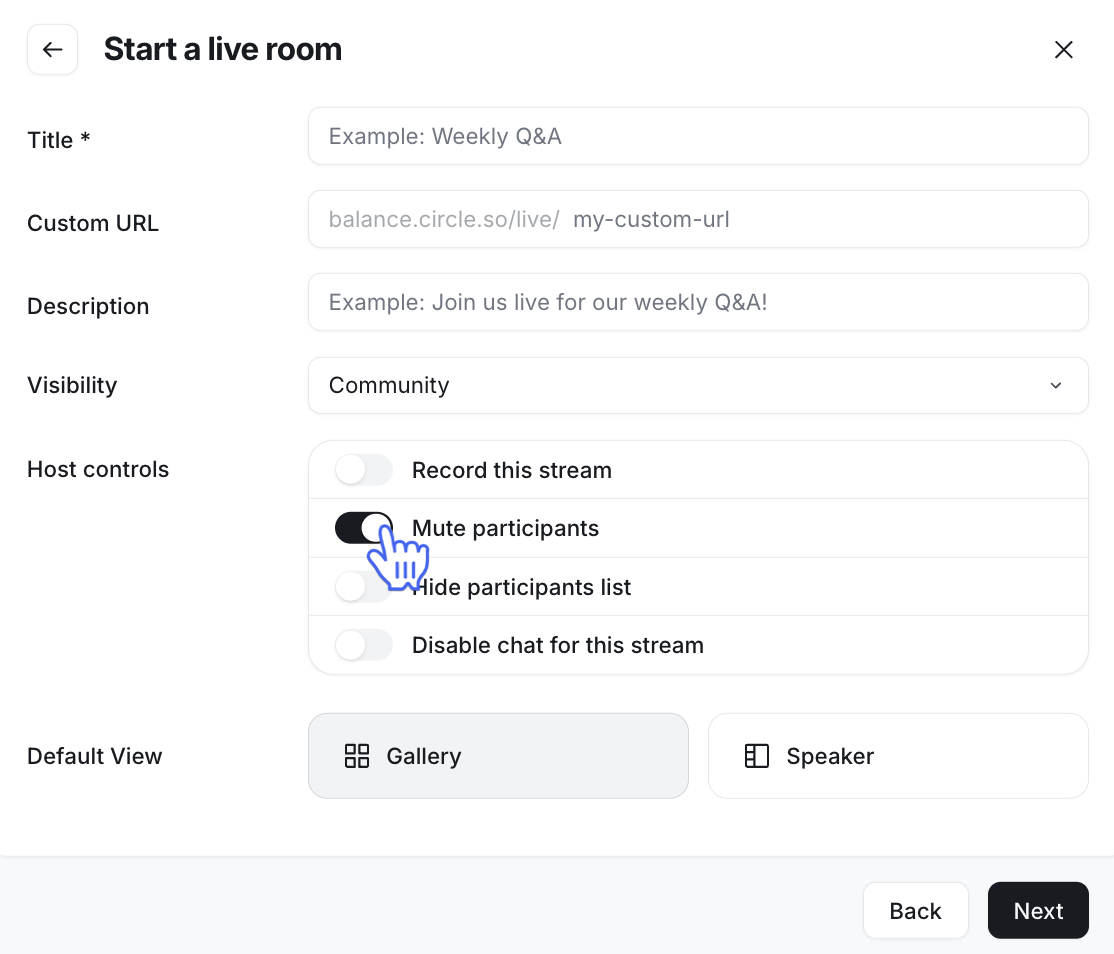
To mute all participants when setting up an instant live session, turn on the Mute participants toggle.
Mute all participants during a live session
The host can quickly mute all co-hosts and participants during the live stream or room session with just a couple of clicks.
It's important to note that you can use the mute all participants feature as many times as needed during the live session. However, it does not restrict co-hosts or participants from unmuting themselves again if they wish to speak.
On the control bar, click Participants 👥. The Participants panel will appear on the right side.
-
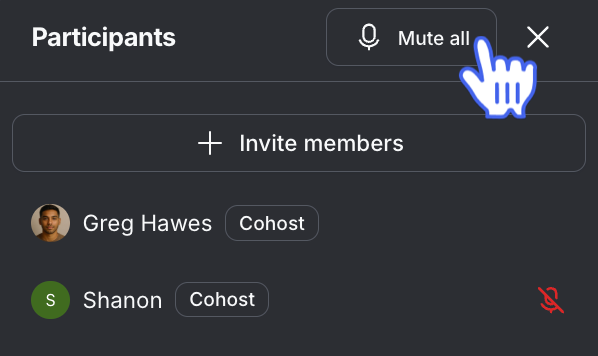
In the Participants panel, click Mute all and confirm the action.
Mute individual participants during a live session
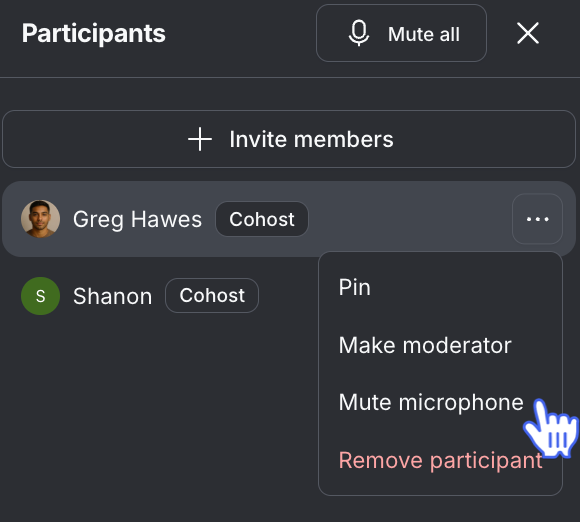
Whether it’s an unmuted participant in a live room or an unmuted co-host in a live stream, both the host and live moderator can mute an individual’s microphone during a live session.
On the control bar, click Participants 👥. The Participants panel will appear on the right side.
-
Hover over the participant or co-host’s name, click More actions (three dots) and select Mute microphone.