Understanding time zones for events
Last updated: September, 2026
Community events are scheduled and displayed in specific time zones to ensure that participants from around the world can conveniently see and join events based on their time zones. Let’s take a deep dive into how time zones are handled for your community events.
How are time zones considered for events?
Let's explore how time zones come into play in event creation and attendance.
Creating and updating event
When you create or edit an event, the time zone is shown in the event setup based on your browser's settings, which match your computer's operating system time zone.
Does your time zone observe daylight savings? What you should know:
When you are creating an event in a time zone that observes daylight saving time, please keep in mind that we take this into account and keep the event time the same for you through daylight saving time changes.
For instance, if you create a daily recurring event series with a start time of 10 AM from March 01 to March 30 in the EST timezone, the timing will remain consistent in your time zone, even after the daylight saving change (assuming it occurs) on March 09.
However, note that members in time zones that don’t observe daylight saving time will experience a one-hour shift in the event’s start time, effective March 9 onward. For instance, a participant in the IST zone will see the event begin at 8:30 PM on March 1. But after March 09, this will change to 7:30 PM for them.
Similarly, if you create a recurring event series in a time zone that doesn’t observe daylight saving changes, like IST, but your member’s EST zone does, they will experience a one-hour shift in the event’s start time after daylight savings begins for your time zone.
💡 Tip: When creating recurring events that span daylight saving time changes, consider the potential time shift. If you prefer to avoid the automatic time adjustment, it may be best to create two separate recurring event series—one for the period before daylight saving time starts and another for after it begins.
Viewing events
Any event in space will always display the event time according to the time zone set in the member's profile. This way, members can keep track of event times based on their current time zones. If a member is seeing a different time zone, please encourage them to update it in their member profile.
RSVP to events
When members RSVP to an event, a confirmation modal displays the time zone configured in their community profile. The event time is displayed with automatic adjustments for daylight saving time if either the member’s or the event creator’s time zone observes these changes.
When members add the event to their calendar, the time will automatically adjust to match the time zone they've set in their calendar if it differs from the one they’ve selected in their community profile.
How can I update my profile time zone?
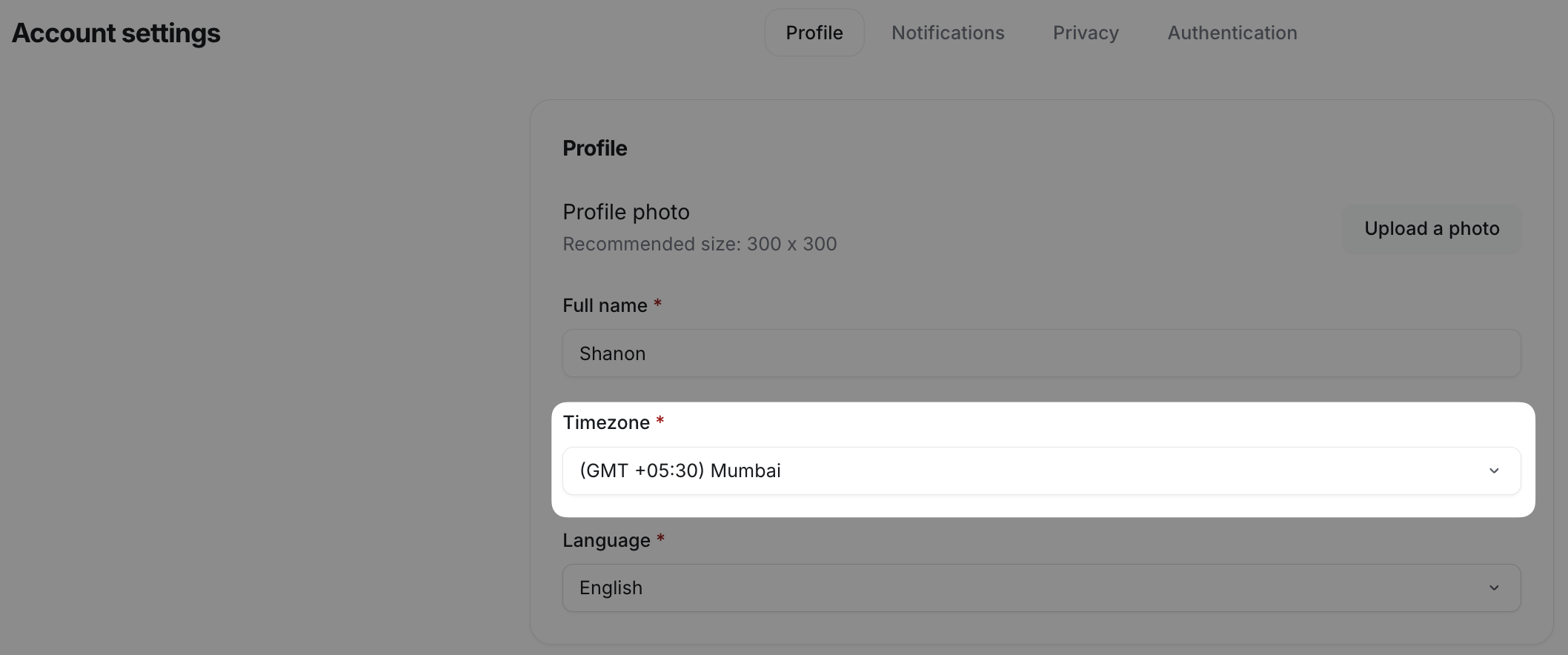
To update the profile time zone:
Click your profile photo or initials at the bottom-left of the sidebar, then select Edit profile.
In the Profile section, open the Timezone dropdown and select your preferred time zone.
-
Click Save changes.