Create topics
Last updated: September, 2026
Navigating vast amounts of content within spaces can be overwhelming. With topics, organizing and finding content becomes effortless. This article will guide you through the key details and steps to create topics for your spaces, streamlining content management.
Get to know topics
Topics offer a powerful way to categorize posts, events, and courses, creating a clear and intuitive browsing experience for your members within the community.
Topics function like the labels on library shelves, organizing your content by specific themes, interests, or categories. This makes it easier for everyone to find exactly the type of content they’re looking for.
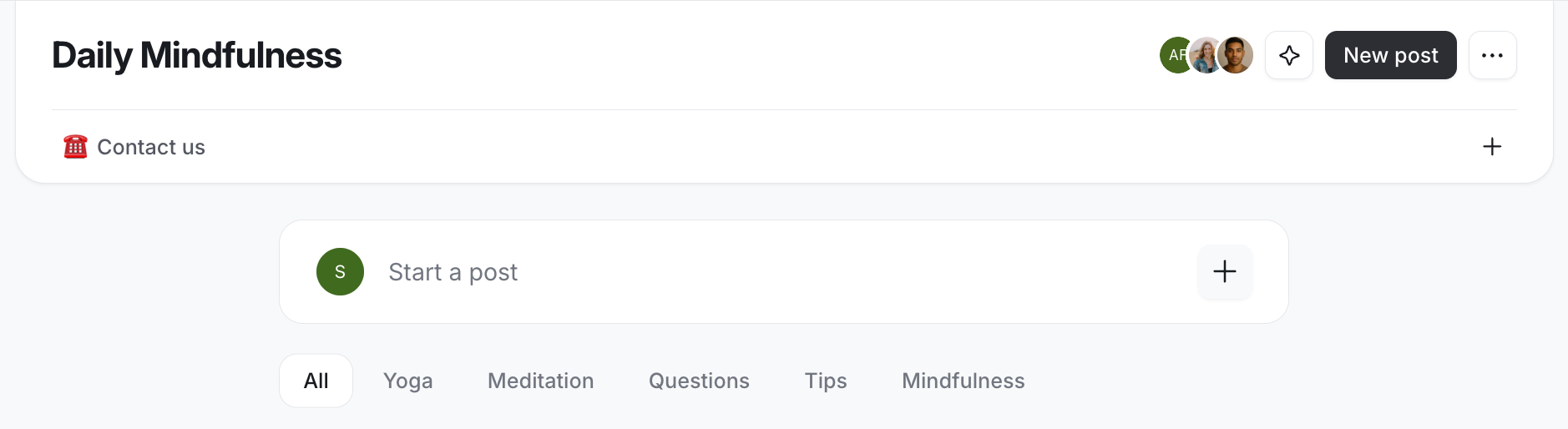
Here's how topics can supercharge your community:
-
Space organization: By adding multiple topics within a space, you can eliminate the need to create multiple spaces for different content. This allows you to organize your space content in a more structured manner, similar to sub-space concepts.
For example, instead of having separate spaces for hiking, camping, and rock climbing, you can create a single "Adventures" space and use topics for each adventure type. This way, members can easily explore content on different types of adventures within a single space.
-
Content discovery: If your space has content on different themes, topics make it easier to group them to allow your members to discover and engage with content they are interested in more efficiently.
For example, use topics to categorize events by type, such as "Skill-building workshops," "Q&A sessions," and "Community socials." Members can then quickly find and participate in events that align with their interests, boosting engagement and fostering a vibrant community spirit.
-
Onboarding and support: Topics can help categorize your onboarding content into various topics for each onboarding category or step. Similarly, you can use topics to organize all support-related content within one space, enhancing the support experience for your members.
For example, create topics for support-related content such as "Emergency Preparedness," "First Aid Tips," or "Safety Guidelines." Members can easily access important information and seek support from the community when needed.
-
Course organization: Topics help you categorize and organize courses within the course directory. This helps members easily find and enroll in courses that match their learning objectives.
For instance, if you offer courses catering to different learning stages, you can assign topics like "Beginner," "Intermediate," and "Advanced" to those course spaces. Members can then filter the course directory to find courses suitable for their skill level, streamlining the learning process and ensuring they find the right course.
Here are some key aspects of the topics feature:
Supported spaces: Topics are available for the post, image, and event spaces. Additionally, you can assign topics to course spaces, allowing you and members to filter courses by topics within the course directory.
-
Topic creation ability: Only admins can create new topics within the community from the Content settings.
ℹ️ Note: Moderators can create new topics from the space settings and when creating or editing posts or events in the spaces they moderate. If they need to update or delete a topic, they must contact the community admin.
Topic selection control: Admins can reserve a particular topic for only admin and moderators. As a result, only they can assign the topic to content such as a post or an event.
Limits: You can add up to 20 topics per space and assign up to five topics per content, such as a post or an event.
Supported platforms: Topic creation and management via content settings and space customization settings are supported only on mobile and web browsers. When using the Circle mobile app, you can create a topic while creating or editing a post. Additionally, members can use topics to filter content within post, image, and event spaces on the mobile app.
Create topics
To create a new topic within your community:
Click Community in the left sidebar, then select Topics.
Click New topic in the top-right corner.
-
In the Create topic dialog, set up the following:
Name: Provide a name for the topic.
Topic selection access: To reserve this topic for admins and moderators, enable Only admins and moderators can select this topic toggle.
When enabled, members cannot select this topic when creating or editing content. However, they will be able to utilize it within spaces to filter content.
-
Space visibility: While not required at the time of topic creation, you have the ability to select up to 20 eligible spaces to add this topic to. Once added, the topic appears on the topic navigation bar, and you can assign it when creating or editing content within the space.
To add this topic to a space, hover over the space in the Not visible column and click Add.
To remove a space, hover over it in the Visible column, then click Remove.
💡 Tip: You can add topics to a space or create new ones on the go anytime via space customization settings.
Once you’re ready, click Create topic.
If you have selected spaces in the space visibility section, you’ll be prompted to confirm the selection.
You’re all set! Once you’ve added at least one topic to the space, the topic navigation bar will appear at the top of the space. If you’ve added a topic to a course space, the bar will appear at the top of the course directory.
This navigation bar displays all the topics you’ve added to the space, along with the default All topic option. This allows members to filter content by specific topic or choose the All topic option to view all content within the space.
Configure additional options for specific space
You can further configure the topics within a specific space. Let’s explore these options.
To get started:
Click Community in the left sidebar, then select Spaces.
Hover over the space name and click More actions (three dots) and select Edit space.
Under Customize tab, scroll down to the Topic navigation section.
Add topics to a space
Similar to managing space visibility when creating or updating a topic, you can also add topics to a specific space via space customization settings.
To add a topic:
-
In the Customize tab:
For post, image, or event spaces, scroll down to the Topic navigation section.
For course space, scroll down to the Course topics section.
-
Click in the field or type the topic's name and select it from the list.
💡 Tip: If you are looking to create a new topic and add it to the space, you can do so directly here. Simply type the topic name in the field and select the Create topic option.
Once added, the topic will become visible in the topic navigation bar and be available for assignment to content within the post, image, and event spaces. When added to course space, it will become visible in the course directory.
Arrange the order of the topics
You can arrange the topics in a specific order of appearance for the topic navigation bar in post, image, and event spaces.
ℹ️ Note: The option to rearrange the order of the topics is only available for post, image, and event spaces. In the course directory, topics are displayed alphabetically by default.
To arrange the topics, go to the Topic navigation section. Within the topic navigation field, click and hold the topic, then drag and drop it to a preferred position.
Require members to select a topic when creating content
You can require your members to select at least one topic when creating content in the post, image, and event spaces.
To enable this setting, turn on the Make members select a topic toggle in the Topic navigation section. Once you have configured the above options, click Save changes.
Assign topics to content
You can assign up to five topics to any given content within the post, image, and event space. In addition to admins and moderators, members can also assign topics to their content.
When creating or editing content, such as a post, the topic selection bar appears at the bottom of the dialog. You can click the selection bar or type the topic name and select it from the list.
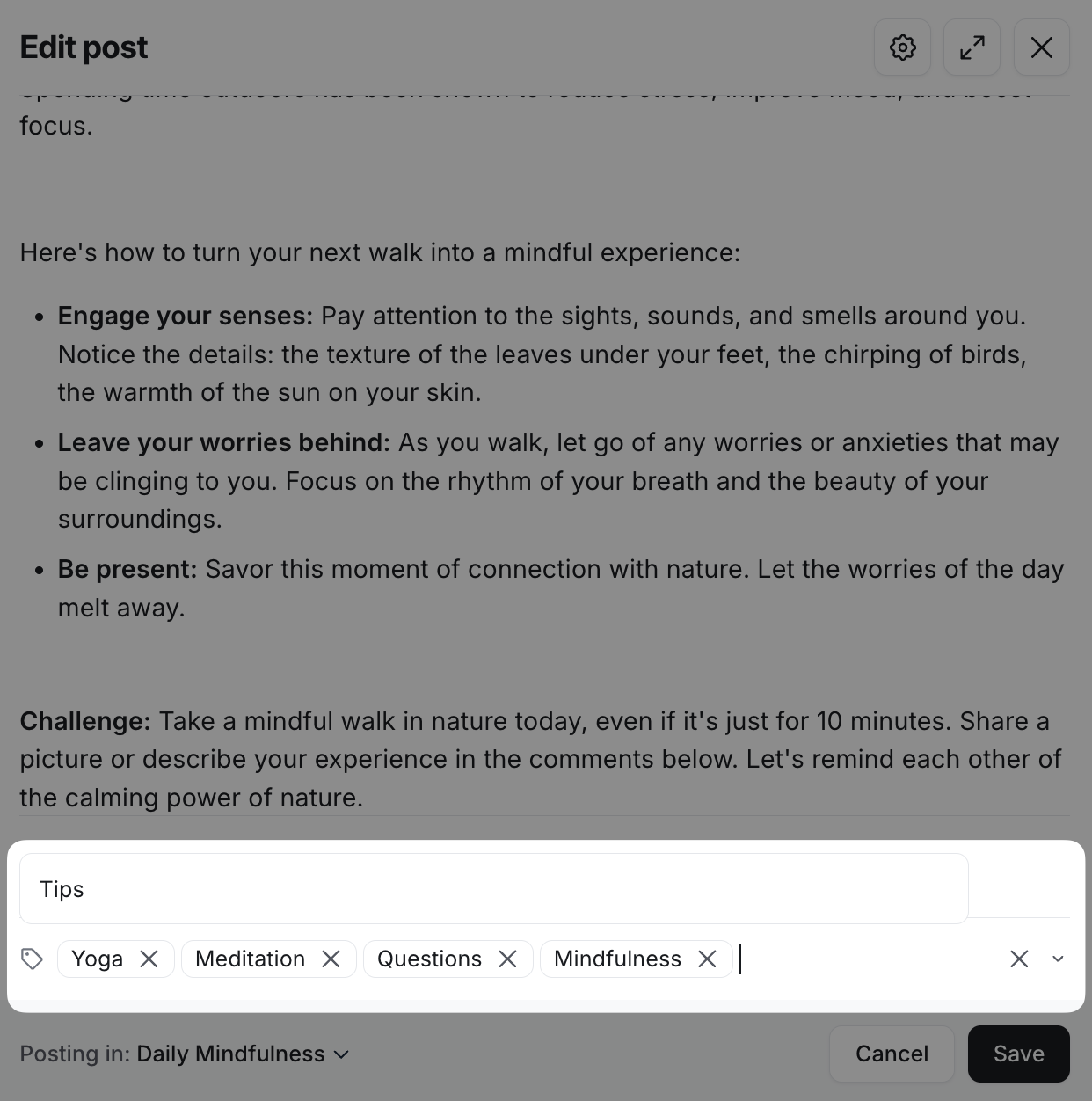
💡 Tip: You can even create a new topic on the go while creating or editing content. Write your desired topic name on the topic selection bar and select the Create topic option. This will immediately create a new topic and add it to the space. For detailed information on managing topics, refer to our guide here.